Microsoft Virtual Academy: Migration to Windows Server 2012

If you are in the path to Windows Server 2012 migration MVA just published videos for you. The course is still not available on MVA site but you can watch the videos:

Unsupported Cluster Configuration for Virtual Machines located on SMB Share in VMM 2012 SP1

The last issue I’ve stumbled upon with System Center is with VMM component.

Symptoms

  • You have SCVMM 2012 SP1 UR2 installed
  • You have Windows Server 2012 Hyper-V for hosts
  • You use SMB 3.0 share for storing virtual machines
  • Some or all of your virtual machines does not use FQDN path to their vhd/x files
  • You’ve added your File Server in VMM by FQDN or NetBIOS Name
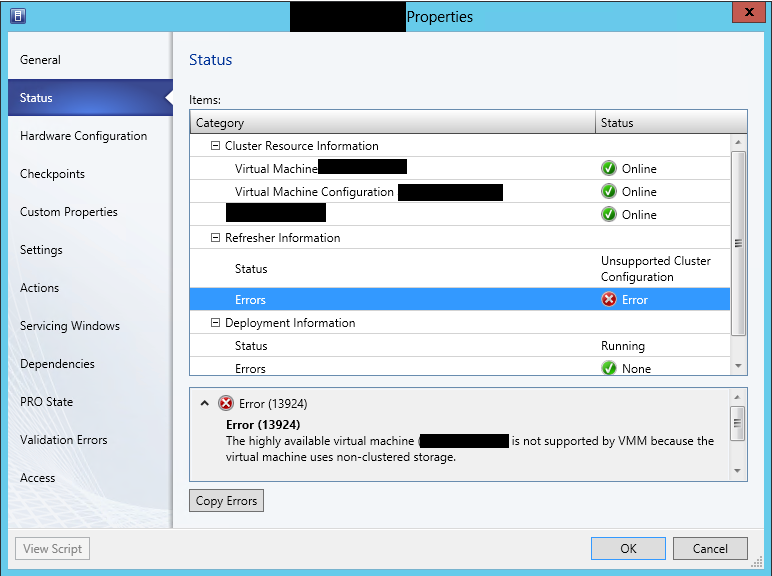
  • You receive the following error: Error (13924) The highly available virtual machine (VMNAME) is not supported by VMM because the virtual machine uses non-clustered storage.
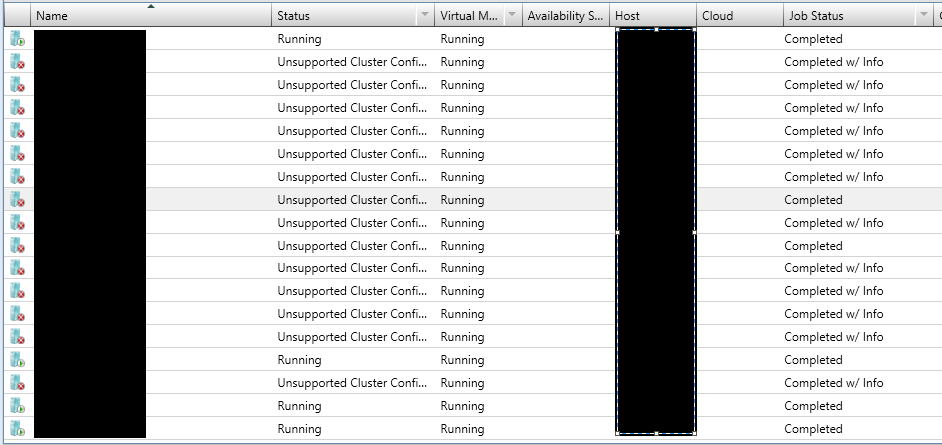
  • Some or all of your virtual machines show as Unsupported Cluster Configuration

image

image

  • You may also have missing appropriate NTFS permissions on the share
  • image

    Resolution

I’ve managed to resolve this issue by executing the following steps:

1. Make sure you’ve added your file server in VMM by FQDN. If it is not added by FQDN you have to add it.

2. Create new share. You can create it on the same server. Give the share appropriate permissions.

3. Locate the new share in VMM. Add it as storage location to your hosts/clusters.

4. After is added make sure it show green in the properties of the hosts/clusters.

5. Storage migrate all your virtual machines from the old share to new share. For the machines with status Unsupported Cluster Configuration you can change the status to Running by live migrating them trough the Failover Cluster console.

6. After storage migration of each virtual machine refresh it and make sure in the properties of the machine in Status tab all is green.

7. After successful migration of all virtual machines you can remove the old share from the hosts/clusters and delete it from the File Server.


I’ve also may had problems with the permissions on the old share but it is easier to create new share than fixing permissions on existing share with running virtual machines.

The information is provided ‘AS IS’ with no warranties and confers no rights. Keep in mind that your case may be similar and this solution may not work for you.

Software I’ve used:

  • Windows Server 2012 with latest updates
  • SCVMM 2012 SP1 UR2
  • File Server with SMB share

New MP: Windows Server Failover Clustering

This new version add support for Windows Server 2012 Failover Clustering. Along with the released in January management pack for Hyper-V the Failover Cluster MP is one of the most waited at least to me. With these two management packs we now have full monitoring for Windows Server 2012 Hyper-V clusters. This management pack still provides support for 2003. 2008 and 2008 R2 Clusters. Before importing it please read the guide first. The guide and the MP itself you can find here.

Patching Windows Server 2012 Clusters with SCCM

I am sure everybody has faced the challenge with patching clusters. In Windows Server 2012 we have the feature Cluster-Aware Updating to help us with applying software updates. Unfortunately if you use SCCM for patching you will probably continue using it even for 2012 clusters because you’ve already have some process in place and this new feature is no use, at least at first look. When you want to consolidate the work of two or more tools SC 2012 Orchestrator comes to the rescue. That is what Neil Peterson from MSFT have done and provided Cluster patching runbooks that leverage Windows Server 2012 Cluster and System Center 2012 Components. I haven’t tested them but feel free to test them and drop some comment here or in this page where you can download them..

Windows Server 2012 Upgrade Jump Start Training

This Jump Start Training was held live last month and now it is available as a recordings. This course is led by Microsoft Senior Technical Evangelist Rick Claus and Ed Liberman from TrainSignal. The course is divided in 12 topics which can be found as separate videos here.