
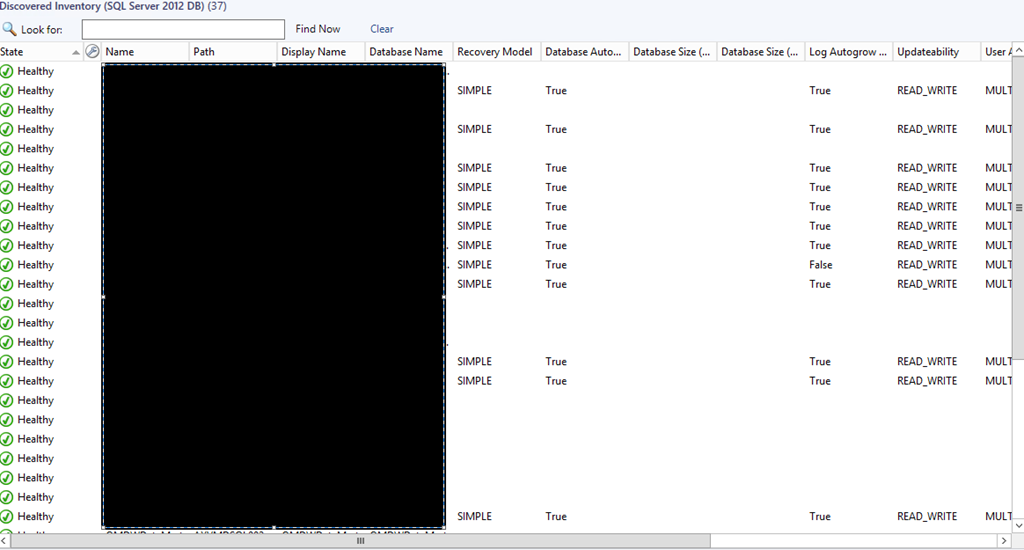
I had this issue recently in two separate environments where properties for some SQL databases were not discovered by SQL Server Management Pack as you can see below:
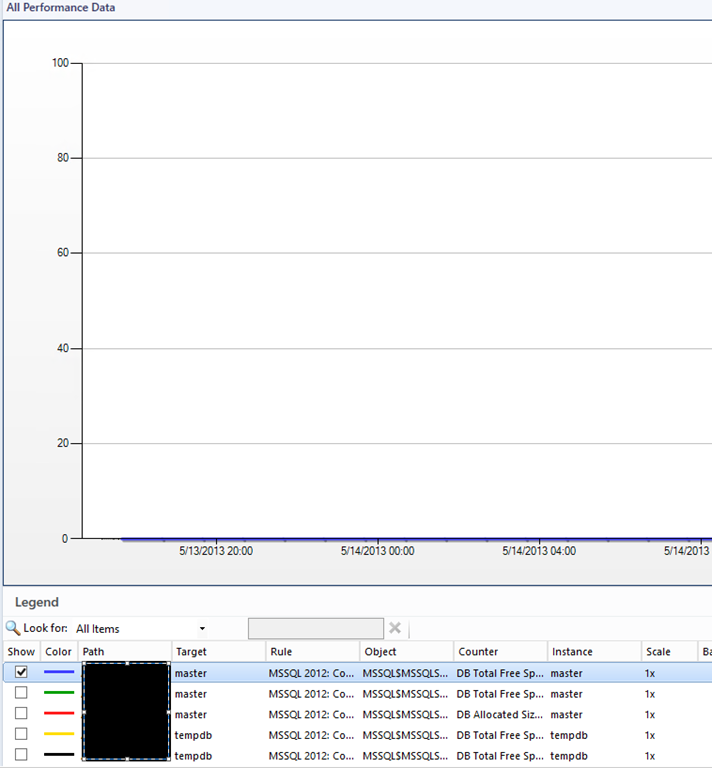
Also collecting performance data for free space of the databases was returning zero (0):
Meanwhile in the Operations Manager log on the SQL servers I was only seeing this error:
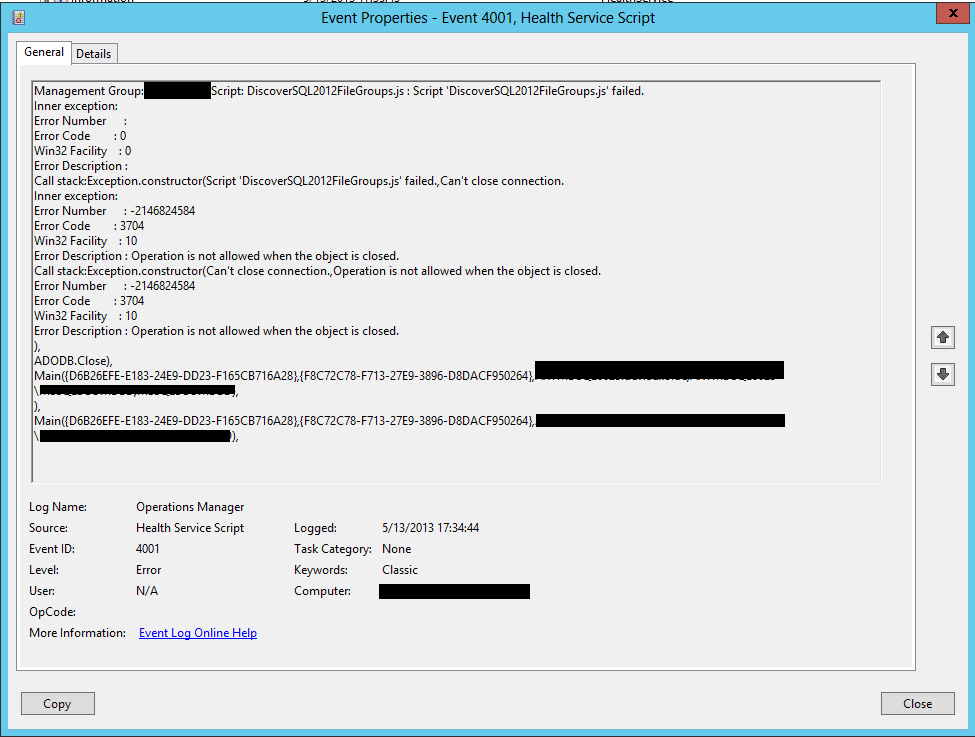
Management Group: <MGMTGROUPNAME>.Script: DiscoverSQL2012FileGroups.js : Script ‘DiscoverSQL2012FileGroups.js’ failed.
Inner exception:
Error Number :
Error Code : 0
Win32 Facility : 0
Error Description :
Call stack:Exception.constructor(Script ‘DiscoverSQL2012FileGroups.js’ failed.,Can’t close connection.
Inner exception:
Error Number : -2146824584
Error Code : 3704
Win32 Facility : 10
Error Description : Operation is not allowed when the object is closed.
Call stack:Exception.constructor(Can’t close connection.,Operation is not allowed when the object is closed.
Error Number : -2146824584
Error Code : 3704
Win32 Facility : 10
Error Description : Operation is not allowed when the object is closed.
), ADODB.Close),
Main({D6B26EFE-E183-24E9-DD23-F165CB716A28},{ADFFD930-BDE9-66A1-20F3-CB6FBA80CBC9},<SERVER FQDN>,<SERVER NETBIOS NAME>,MSSQLSERVER),
),
Main({D6B26EFE-E183-24E9-DD23-F165CB716A28},{ADFFD930-BDE9-66A1-20F3-CB6FBA80CBC9},<SERVER FQDN>,<SERVER NETBIOS NAME>,MSSQLSERVER),
So this was my issue but I couldn’t find where exactly was the problem. Some of the properties were discovered and there was even databases that all properties were discovered but performance data for free space was not working on all databases. This lead me think it was some kind of permissions issue but I’ve made the SCOM Action Account “SA” on all SQL servers.
How I fixed it:
1. I’ve created Run As account in SCOM.
2. Named it SQL with type Windows.
3. For credentials I’ve entered the SCOM Action Account.
4. Secured the account only to the SQL servers in my environment.
5. Added this account to these three profiles: SQL Server Default Action Account, SQL Server Discovery Account and SQL Server Monitoring Account.
After these steps all was working as it should be:
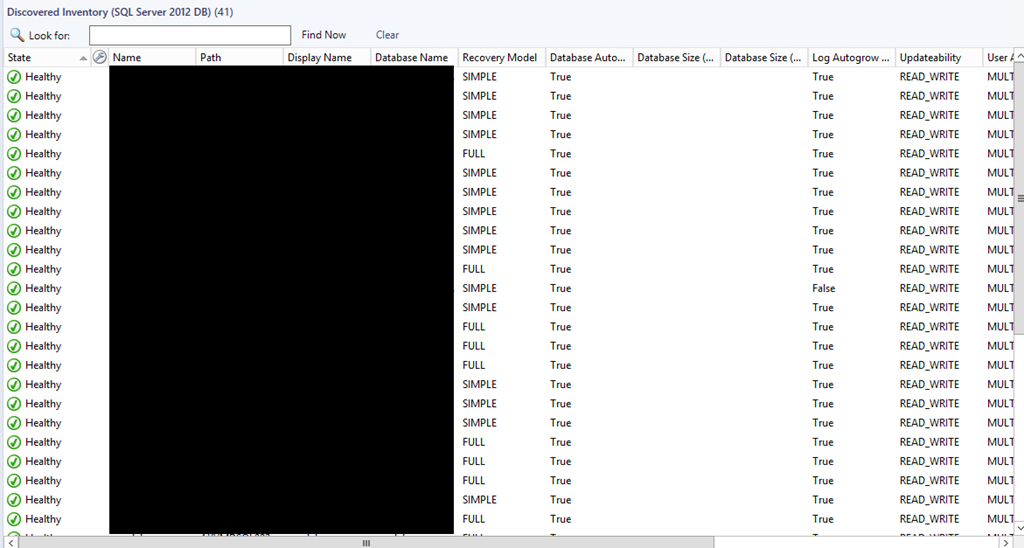
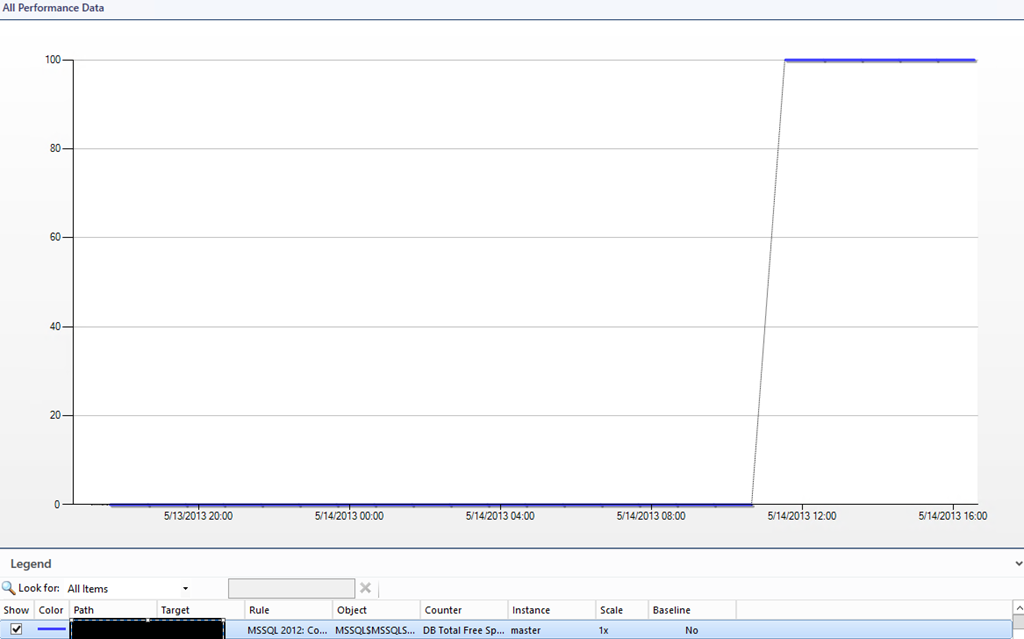
So it seems you really need to create Run As account and add it to the SQL Profiles even though the SQL Server Management Pack guide says otherwise:
By default, all discoveries, monitors, and tasks defined in the SQL Server management packs default to using the accounts defined in the “Default Action Account” Run As profile. If the default action account for a given system does not have the necessary permissions to discover or monitor the instance of SQL Server, then those systems can be bound to more specific credentials in the SQL Server Run As profiles, which do have access.
Keep in mind that I haven’t changed any permissions to my SCOM Action Account. This account had all SQL permissions all the time.
My Configuration was:
- Windows Server 2012 with latest updates;
- SCOM 2012 SP1 UR2
- SQL Server Management Pack 6.3.173.1
- SQL Server 2012 SP1 CU3
 . I’ve never liked that this management pack was some kind of different from all other Microsoft Management Packs. I hope I can test it really soon. You can test it by yourself by downloading it from
  . Because of that the script stopped to work as it was dependent on the layout of the download web pages. I’ve decided to give it a try to fix the script. Looked at the layout of the new download page. Change a bit the logic and some lines and viola the script is working again.
 Cloud Administrator in Azure World