Version 2.1 of My Script to Download All SCOM Management Packs with PowerShell

Little improvements were made to this script. All of them were contributed by Anthony Bailey:

  • The script now checks if the folder for the version already exists and if only there is not such folder than downloads the MP;
  • When MP is downloaded successfully it is written in a log file;

With these improvements you can run the script with schedule task and configure SCOM to monitor the log that way you can get alerted when new MP is available. All thanks to Anthony Bailey.

Latest version you can find on TechNet Gallery or systemcentercentral.com.

New MP: System Center Management Pack for Windows Server 2012 DHCP

Microsoft released another new MP as they promised. You can grab the new Windows Server DHCP 2012 MP from here. This MP introduces the following new features:

  • All workflows are implemented using PowerShell to improve overall functionality for this Management Pack.
  • Failover Relationships are now a supported configuration that is being discovered and monitored by the new 2012 Management Pack.
  • Discovery and Monitoring of a DHCP Cluster installation.
  • Scopes, super scopes utilization is being monitored based on events that provide 80% and 100% usage.
  • Utilization of scopes based on policies, client packet drop and residual IP addresses range monitoring.

The MP has very good documentation so read it before importing.

Importing and Configuring System Center 2012 Service Manager MP

The System Center 2012 Service Manager MP has some pitfalls during importing and configuration that you may stumble upon. So I will describe the steps needed to be made in case the MP guide is not clear enough.

1. First you need to install the MP so you can get the following MPs extracted:

  • Microsoft.SystemCenter.ServiceManager.Discovery
  • Microsoft.SystemCenter.ServiceManager.Library
  • Microsoft.SystemCenter.ServiceManager.Monitoring

2. After you have these 3 MPs extracted you have to import only Microsoft.SystemCenter.ServiceManager.Library

3. After the MP above is imported successfully you have to create Run As account. You can use the default action account or a separate account for tighter security. Just make sure that the account you will use has the needed permissions. You can find description of the needed permissions here on page 17. I basically make the account local administrator on Service Manager Management Servers, Service Manager DW and give db_datareader permissions to the Service Manager database and to the staging and configuration database.

4. So you create that Run As account as Windows type. Secure the account to the Service Manager Management Servers, Service Manager DW server, Service Manager database server and Service Manager DW databases servers.

5. Next you need to add the account to the Service Manager Database Account profile. Distribute it to all objects.

6. Next step is to import Microsoft.SystemCenter.ServiceManager.Discovery MP.

7. After it is imported successfully discovery of Service Manager will start. And here is the tricky part you have to wait until full discovery is performed before importing Microsoft.SystemCenter.ServiceManager.Monitoring MP. Basically you have to wait at least 24 hours to make sure discovery of Service Manager has passed fully. Trough OpsMgr console you can check if full discovery has passed.

8. Open OpsMgr console and go to Discovered Inventory view. Target it to System Center DataWarehouse 2012 Server. You should see your Service Manager DW server and if all properties are filled with values that means your Service Manager DW server is fully discovered.

image

9. Next Target to SCSM 2012 Management Server. You should see all your Service Manager management servers. If all properties have values for all your Service Manager Management servers that means they are fully discovered. In my case I have only one Management Server:

image

10. To fully verify if Service Manager was discovered you can go to Distributed Applications and open the diagram for Service Manager:

image

11. All Service Manager servers and database should be visible with their properties in Detail View.

12. The last step is to import Microsoft.SystemCenter.ServiceManager.Monitoring MP so the monitoring of Service Manager can start.

The software I’ve used:

  • Windows Server 2012
  • SCSM 2012 SP1 UR2
  • SCOM 2012 SP1 UR2
  • System Center 2012 Service Manager 7.5.1561.0 MP

Note: System Center 2012 Service Manager 7.5.1561.0 MP does not state that System Center 2012 Service Manager SP1 is supported but so far I haven’t discovered something that is not working properly.

Installing and Importing Microsoft Exchange Server 2013 Management Pack 15.00.0620.030

After yesterday’s release of Exchange Server 2013 Management Pack I’ve managed to install it in a development environment. Here are the steps I’ve went trough:

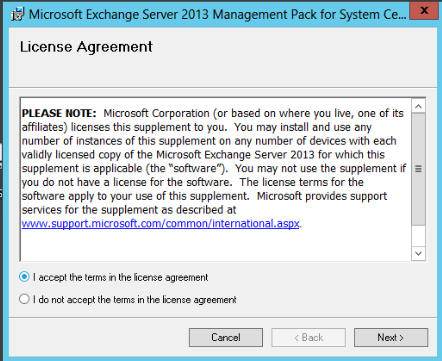
1. Start installation and Accept License Agreement:

image

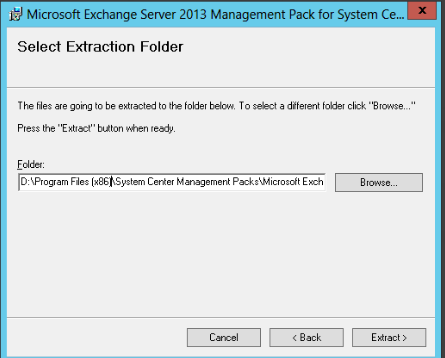
2. Choose installation location:

image

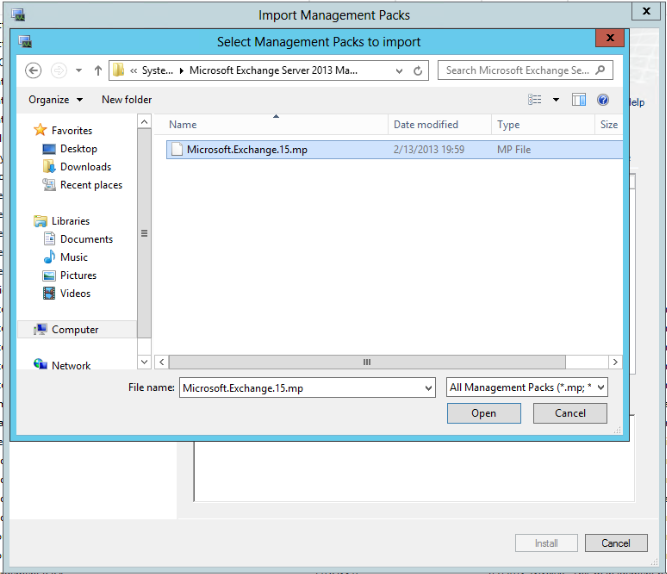
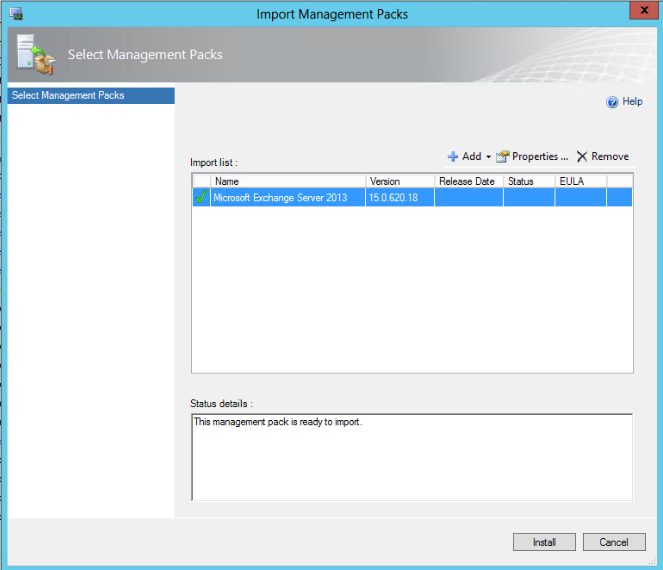
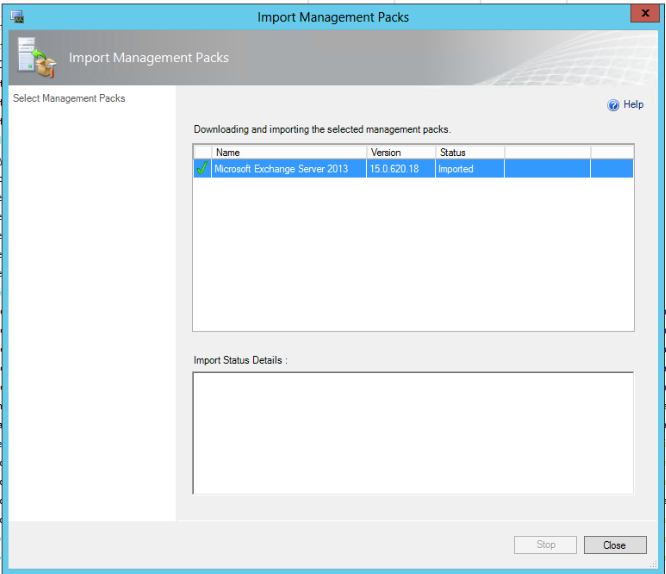
3. Import the installed MP into SCOM:

image

image

image

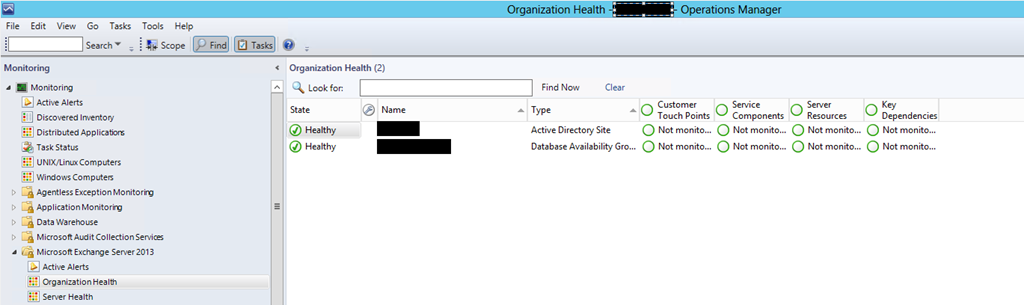
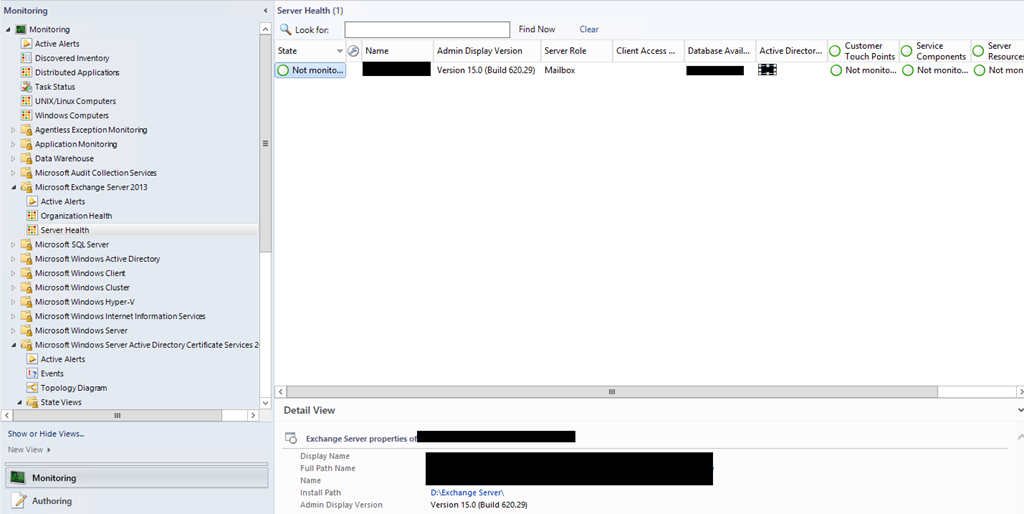
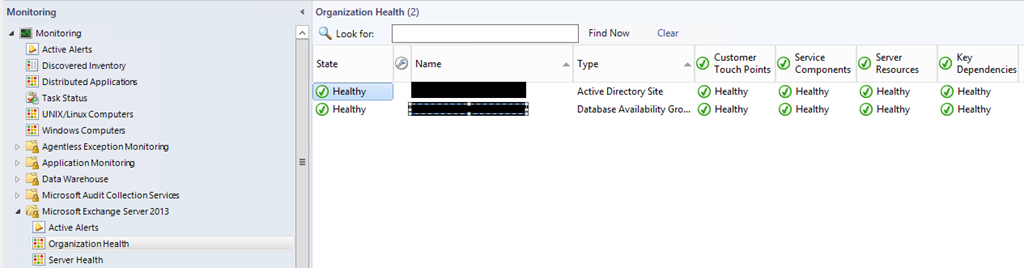
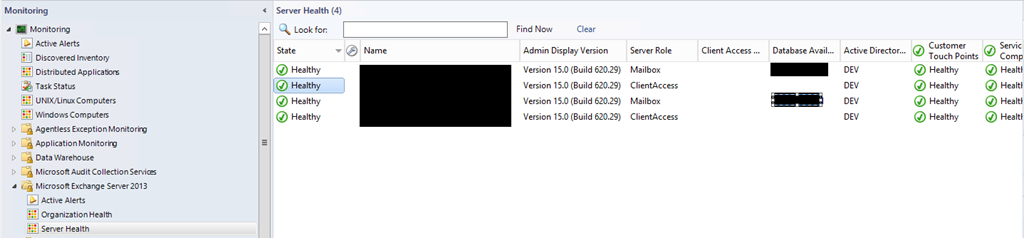
4. After the successful import you will start see you exchange servers appear in the default views:

image

image

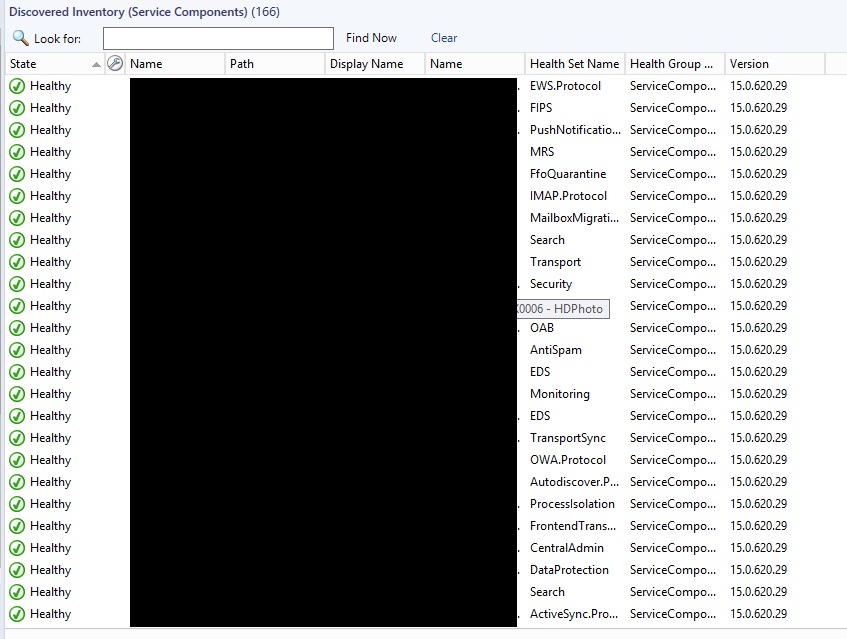
5. After 5-10 minutes you will see all services appear as monitored:

image

image

image

So these are the steps. Pretty easy and simple. There are no special requirements or configurations. The MP uses the default action account for the monitoring and discovery.

Here are some of the bad news about this MP:

  • I’ve received an error a couple of hours after the deployment. The error wasn’t very descriptive. It had only the error description and a link (to Technet Library) that you can visit to find more information. I couldn’t opened the link  as the page still does not exists. I guess Microsoft still hasn’t uploaded all information about the MP in TechNet.
  • The MP does not collect performance data for Exchange 2013.
  • The MP does not contain any reports.

Here is what I’ve used in the environment:

  • SCOM 2012 SP1 UR2;
  • Microsoft Exchange Server 2013 Management Pack 15.00.0620.030;
  • Windows Server 2012 with latest updates;
  • Exchange 2013 CU1 in multitenant mode;

SQL Databases Properties are not Discovered by SQL Server Management Pack

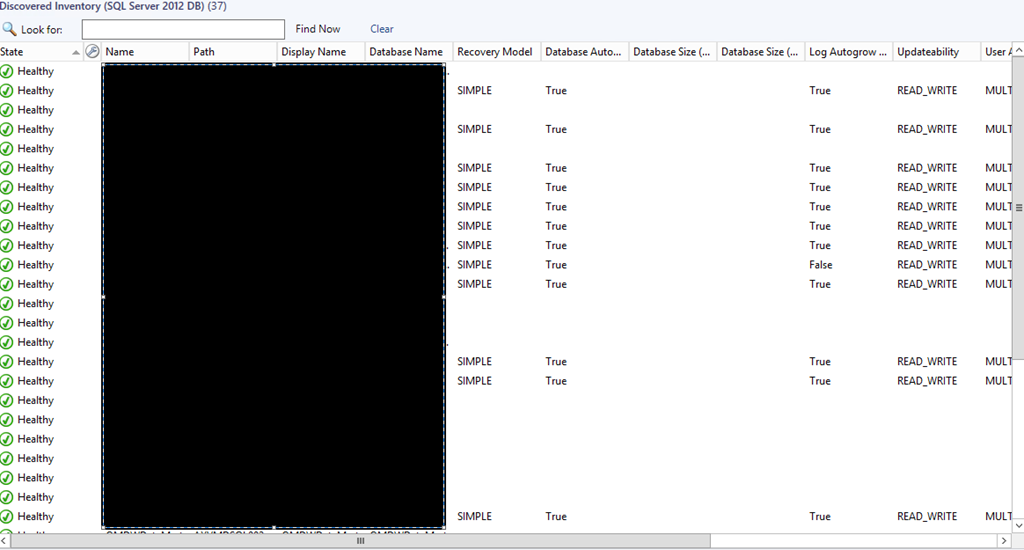
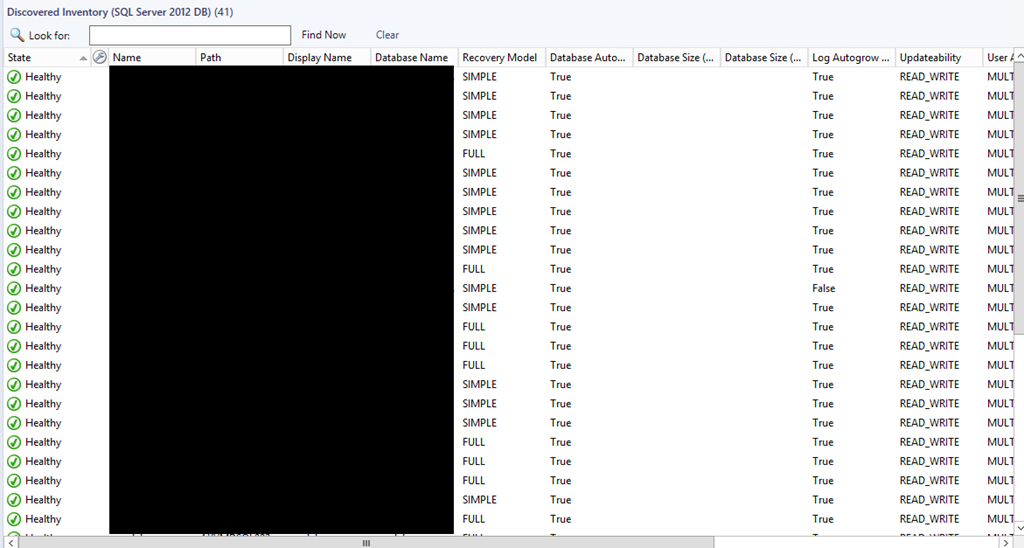
I had this issue recently in two separate environments where properties for some SQL databases were not discovered by SQL Server Management Pack as you can see below:
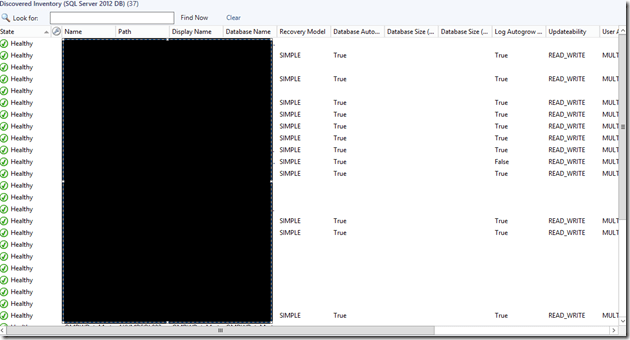
image

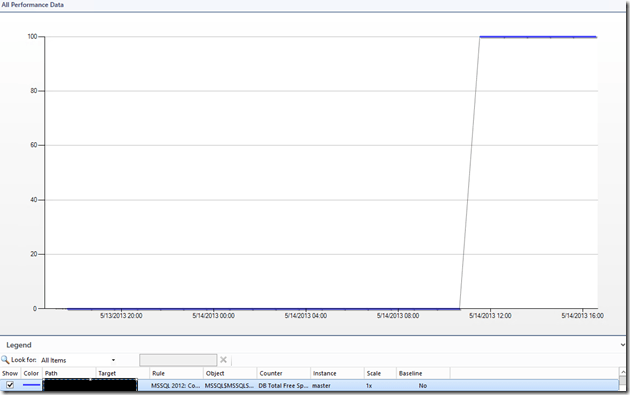
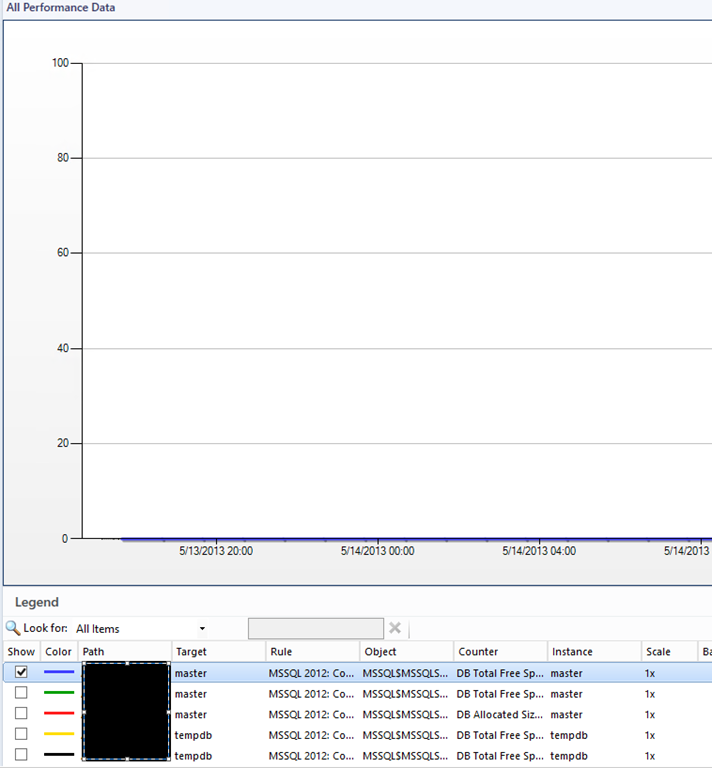
Also collecting performance data for free space of the databases was returning zero (0):
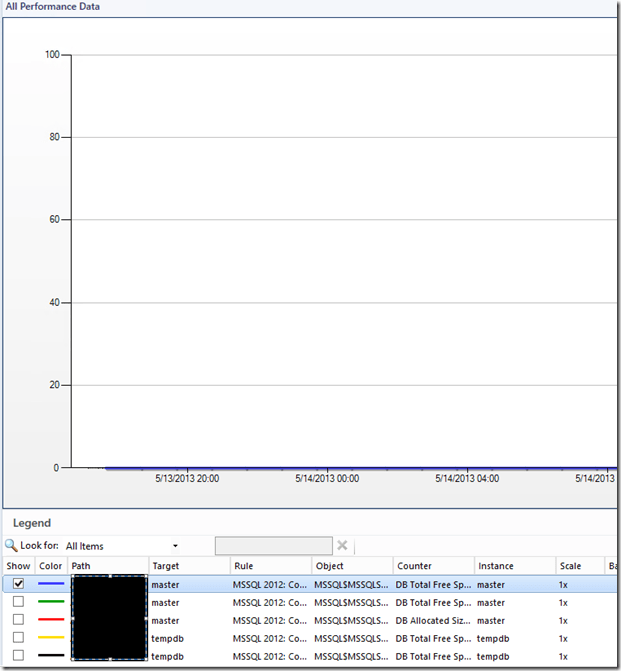
image

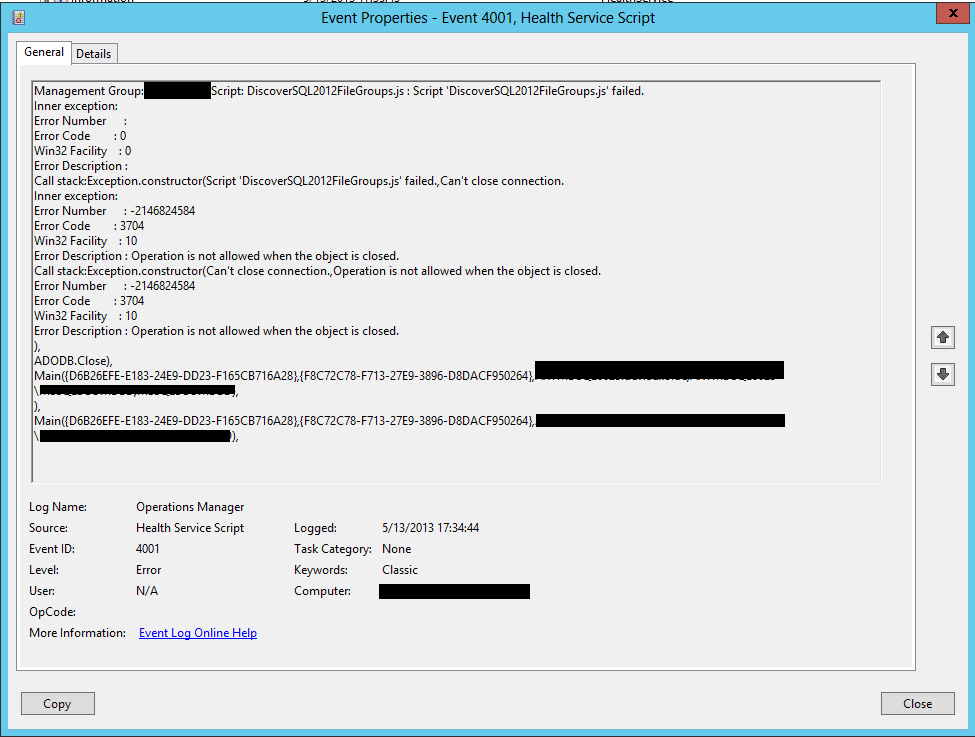
Meanwhile in the Operations Manager log on the SQL servers I was only seeing this error:
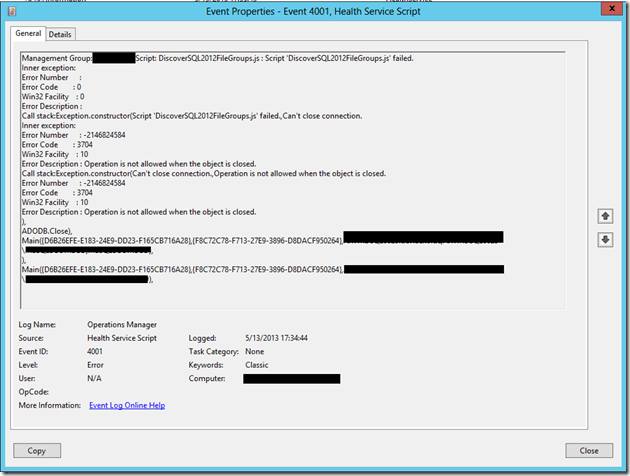
image

Management Group: <MGMTGROUPNAME>.Script: DiscoverSQL2012FileGroups.js : Script ‘DiscoverSQL2012FileGroups.js’ failed.
Inner exception:
Error Number      :
Error Code        : 0
Win32 Facility    : 0
Error Description :
Call stack:Exception.constructor(Script ‘DiscoverSQL2012FileGroups.js’ failed.,Can’t close connection.
Inner exception:
Error Number      : -2146824584
Error Code        : 3704
Win32 Facility    : 10
Error Description : Operation is not allowed when the object is closed.
Call stack:Exception.constructor(Can’t close connection.,Operation is not allowed when the object is closed.
Error Number      : -2146824584
Error Code        : 3704
Win32 Facility    : 10
Error Description : Operation is not allowed when the object is closed.
), ADODB.Close),
Main({D6B26EFE-E183-24E9-DD23-F165CB716A28},{ADFFD930-BDE9-66A1-20F3-CB6FBA80CBC9},<SERVER FQDN>,<SERVER NETBIOS NAME>,MSSQLSERVER),
),
Main({D6B26EFE-E183-24E9-DD23-F165CB716A28},{ADFFD930-BDE9-66A1-20F3-CB6FBA80CBC9},<SERVER FQDN>,<SERVER NETBIOS NAME>,MSSQLSERVER),

So this was my issue but I couldn’t find where exactly was the problem. Some of the properties were discovered and there was even databases that all properties were discovered but performance data for free space was not working on all databases. This lead me think it was some kind of permissions issue but I’ve made the SCOM Action Account “SA” on all SQL servers.

How I fixed it:

1. I’ve created Run As account in SCOM.

2. Named it SQL with type Windows.

3. For credentials I’ve entered the SCOM Action Account.

4. Secured the account only to the SQL servers in my environment.

5. Added this account to these three profiles: SQL Server Default Action Account, SQL Server Discovery Account and SQL Server Monitoring Account.

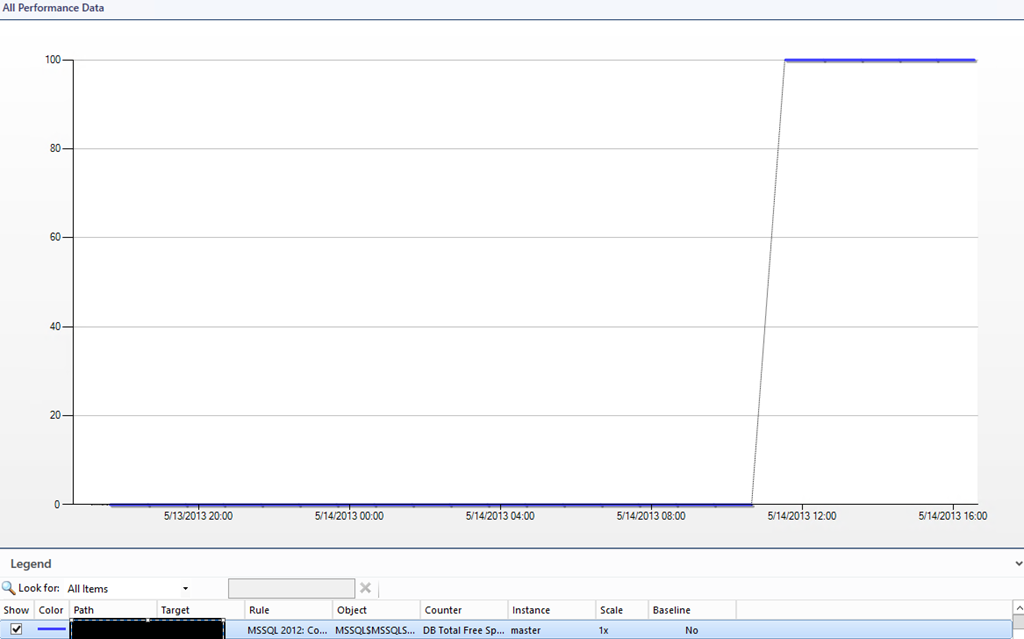
After these steps all was working as it should be:
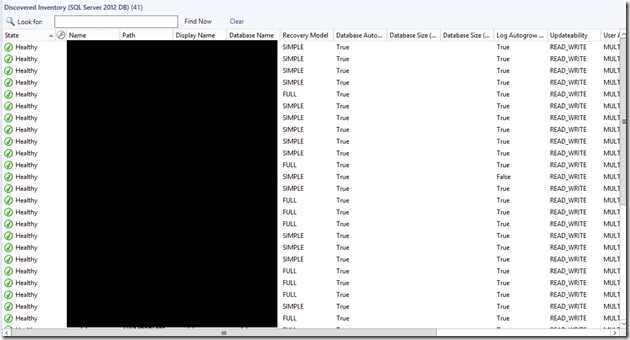
image

image

So it seems you really need to create Run As account and add it to the SQL Profiles even though the SQL Server Management Pack guide says otherwise:

By default, all discoveries, monitors, and tasks defined in the SQL Server management packs default to using the accounts defined in the “Default Action Account” Run As profile. If the default action account for a given system does not have the necessary permissions to discover or monitor the instance of SQL Server, then those systems can be bound to more specific credentials in the SQL Server Run As profiles, which do have access.


Keep in mind that I haven’t changed any permissions to my SCOM Action Account. This account had all SQL permissions all the time.

My Configuration was:

  • Windows Server 2012 with latest updates;
  • SCOM 2012 SP1 UR2
  • SQL Server Management Pack 6.3.173.1
  • SQL Server 2012 SP1 CU3