
Rick Bergman a Microsoft PFE created nice and powerful script that generates report and shows missing patches on nodes of a cluster. You just have to enter the cluster names and the script will find all nodes, compare hotfixes and generate a nice report. Download and find more on the script here.
Tag: WMI
PowerShell 3.0
Final version of PowerShell 3.0 is here and it is now available for Windows 7 SP1, Windows Server 2008 R2 SP1 & Windows Server 2008 SP2 systems. PowerShell 3.0 is provided ad windows update that actually contains updates for several technologies:
- Windows PowerShell 3.0
- WMI
- WinRM
- Management OData IIS Extensions
- Server Manager CIM Provider
- The update and additional information can be found here.
- Note: This update requires .Net Framework 4.0
Microsoft Virtual Academy: Windows Server 2012 Tracks
As soon as Windows Server 2012 went into General Availability MVA released a fair amount of videos to cover the new functionalities. So watch and learn for free:
Windows Server 2012: Technical Overview
Server Virtualization Module
- Microsoft Virtual Academy: Windows Server 2012 Server Virtualization Part 1
- Microsoft Virtual Academy: Windows Server 2012 Server Virtualization Part 2
- Microsoft Virtual Academy: Windows Server 2012 Server Virtualization Part 3
- Microsoft Virtual Academy: Windows Server 2012 Server Virtualization Part 4
- Microsoft Virtual Academy: Windows Server 2012 Server Virtualization Part 5
- Microsoft Virtual Academy: Windows Server 2012 Server Virtualization Part 6
Networking Module
- Microsoft Virtual Academy: Windows Server 2012 Networking Part 1
- Microsoft Virtual Academy: Windows Server 2012 Networking Part 2
- Microsoft Virtual Academy: Windows Server 2012 Networking Part 3
- Microsoft Virtual Academy: Windows Server 2012 Networking Part 4
- Microsoft Virtual Academy: Windows Server 2012 Networking Part 5
- Microsoft Virtual Academy: Windows Server 2012 Networking Part 6
Storage Module
- Microsoft Virtual Academy: Windows Server 2012 Storage Part 1
- Microsoft Virtual Academy: Windows Server 2012 Storage Part 2
- Microsoft Virtual Academy: Windows Server 2012 Storage Part 3
- Microsoft Virtual Academy: Windows Server 2012 Storage Part 4
Identity and Access Module
- Microsoft Virtual Academy: Windows Server 2012 Identity and Access Part 1
- Microsoft Virtual Academy: Windows Server 2012 Identity and Access Part 2
Virtual Desktop Infrastructure Module
- Microsoft Virtual Academy: Windows Server 2012 Virtual Desktop Infrastructure Part 1
- Microsoft Virtual Academy: Windows Server 2012 Virtual Desktop Infrastructure Part 2
- Microsoft Virtual Academy: Windows Server 2012 Virtual Desktop Infrastructure Part 3
Web and Application Platform Module
- Microsoft Virtual Academy: Windows Server 2012 Web Application and Platform Part 1
- Microsoft Virtual Academy: Windows Server 2012 Web Application and Platform Part 2
- Microsoft Virtual Academy: Windows Server 2012 Web Application and Platform Part 3
Windows Server 2012: Server Virtualization
Virtual Machine and Scale Mobility Module
- Microsoft Virtual Academy: Live Migration of Virtual Machines with Nothing Shared
- Microsoft Virtual Academy: Live Migration of Virtual Machines using SMB File Share to store Virtual Machine Files
- Microsoft Virtual Academy: Live Migration between Clusters
- Microsoft Virtual Academy: Storage Migration
- Microsoft Virtual Academy: Importing a VM
Windows Server 2012: Storage
Storage Spaces Module
SMB 3.0 Module
- Cluster Shared Volumes (CSV) and Cluster-Aware Updating Module
- Microsoft Virtual Academy: Setting up Clustered Shared Volumes
- Microsoft Virtual Academy: Add disk to CSV in Windows Server 2012
- Microsoft Virtual Academy: BitLocker on Cluster Share Volumes
- Microsoft Virtual Academy: Add Storage Space to Cluster Share Volumes
- Microsoft Virtual Academy: Node Drain
File System Enhancements Module
Windows Server 2012: Networking
Managing Network Infrastructure Module
IP Address Management (IPAM) Module
Hyper-V Network Virtualization Module
Windows Server 2012: Management & Automation
Standard Based Management with Windows Management Framework Module
- Microsoft Virtual Academy: Standards Based Management
- Microsoft Virtual Academy: Simple and Easy to Automate
- Microsoft Virtual Academy: Multi-Machine Server Management
- Microsoft Virtual Academy: Local Server Experience and Deployment Options
Multi-Server Management with Server Manager Module
- Microsoft Virtual Academy: Deep Dive into Core Functionalities
- Microsoft Virtual Academy: Deep Dive into Server Manager – Advanced Deployment
- Microsoft Virtual Academy: Personalizing Your Experience with Server Manager
You can also logon to MVA and find the track there.
Configuring HP ProLiant Server Management Pack for SCOM
In my previous post I’ve covered the configuration of the management pack for HP Enclosures. But this MP only monitors health of the enclosures and not the blade servers inside via SCOM. In order to monitor blade servers or any other standalone HP server you have to install and configure HP ProLiant Server Management Pack. Actually if you want to use HP BaldeSystem Management pack you must import HP ProLiant Server Management Pack also.
HP ProLiant Server Management Pack can monitor HP servers trough two different methods:
- SNMP method – For this method you must install HP Insight Management Agents on every server you will monitor besides the SCOM agent. This method uses SNMP to send trap messages.
- WMI method – For this method you must install HP Insight Management WBEM Providers on every server you will monitor besides the SCOM agent. This method relays on WMI service.
As I am a Windows Engineer I prefer WMI method and on this article I will cover only this way of implementation.
The guide that is provided with this management pack covers both methods and I recommend reading it. This article will walk you trough the basic actions you need to do to install and configure HP ProLiant Management Pack for SCOM:
1. First you need to download the management pack itself from here. The MP is part of HP Insight Control for Microsoft System Center solution.
2. You will download one zip file that contains – 32-bit installation file, 64-bit installation file, License agreement file, Release notes file, User Guide and Troubleshooting Guide.
3. Copy 64-bit installation (if your SCOM server is 32-bit use 32-bit installation) to your RMS server and install it. It is pretty simple installation you can leave the default options. During the installation you will be present to choose if you want to install SNMP based method, WMI based method or both. If you choose only one of the methods the installation will only import the management pack that corresponds to the chosen method. It is best to choose both because you can always switch between methods or for example you can monitor one group of servers with one method and another group with the other one.

Note In the documentation of the MP it is not mentioned that the MP requires to be installed on the RMS server. In fact the MP can be installed on any Management Server or any server that have SCOM agent installed.
4. After the installation is finished the HP ProLiant Management Pack should be imported in SCOM and HP Custom Data Manager application should be installed. This application will allow you to enter additional information (fore example end of hardware support date) for individual servers that will be populated in SCOM Database.
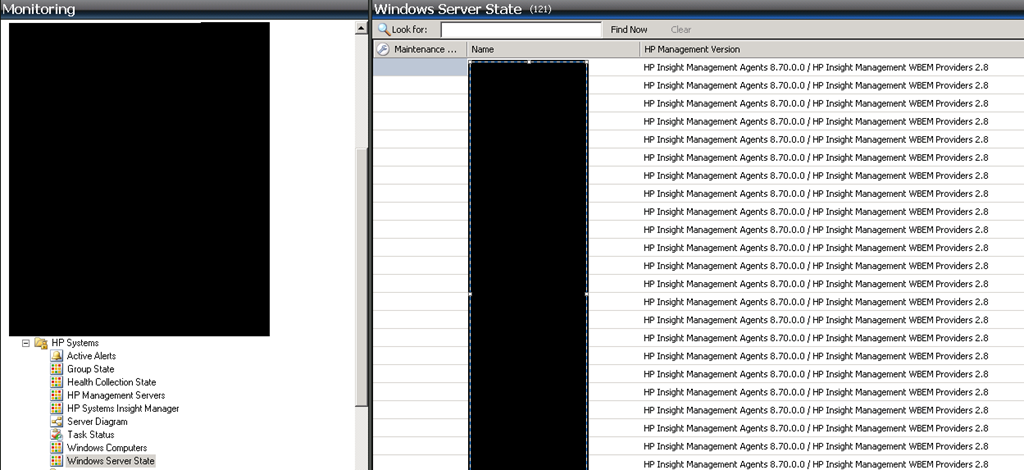
5. After the MPs are imported discovery of HP servers will start. Discoveries are enabled by default so there is no additional configuration there. At this step it is best to check if all your HP monitored servers have HP Insight Management WBEM Providers installed. This can be achieved by opening SCOM console and navigating to Monitoring Pane –> HP Systems –> Windows Server State. Here you can see the discovered HP Servers in your environment. Modify this view to show HP Management Version column. This will show you if SCOM agent found HP Insight Management WBEM Providers.
6. Next and final step is to configure the MP to use WMI based method. By default HP ProLiant Server MP uses SNMP based method and this can be switched to WMI by overriding a rule. To do that you have to navigate to Authoring Pane –> Management Pack Object –> Object Discoveries. There you have to look for HP ProLiant Server Discovery Rule. When you find that rule select it and right click on it. Select Overrides –> Override the Object Discovery ->For all objects of type: Windows Computer. A new dialog will appear. Select all check boxes under Override column, change the value for SNMPWMIPrefernece from SNMP to WMI and save the override to your HP ProLiant Server Management Pack for overrides.
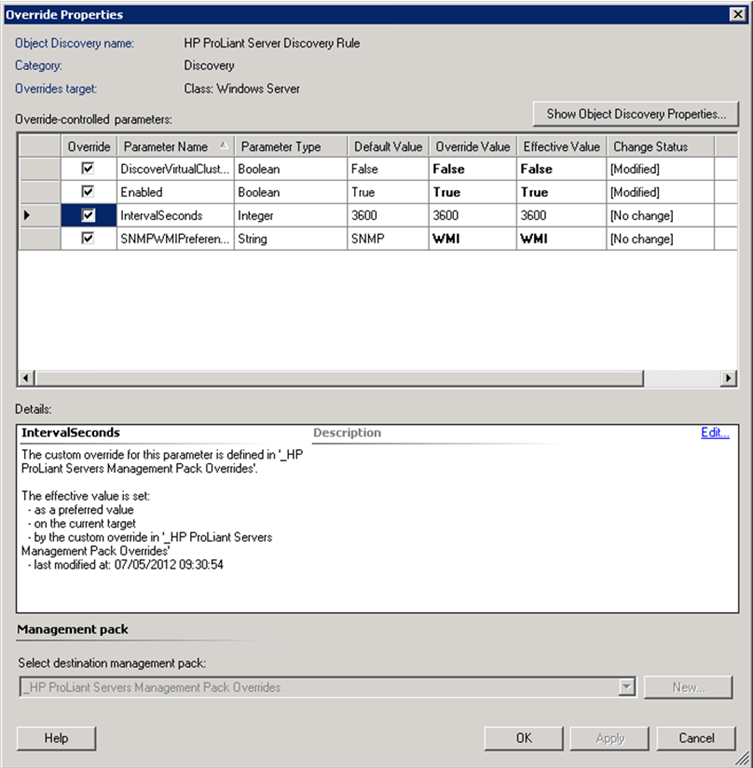
Note If you want to switch to WMI based method only for particular servers create SCOM group and populate the group with the servers you want to monitor via that method. When you make the override in step 6 override for specific group and choose the custom created group.
7. This will switch to WMI based method for all Windows computers in your environment. After you made this setting you can again navigate to Monitoring Pane –> HP Systems –> Windows Server State.Edit the view to show Monitoring Source column. You will see your HP servers slowly switching from HP Insight Management Agents for monitoring source to HP Insight Management WBEM Providers.
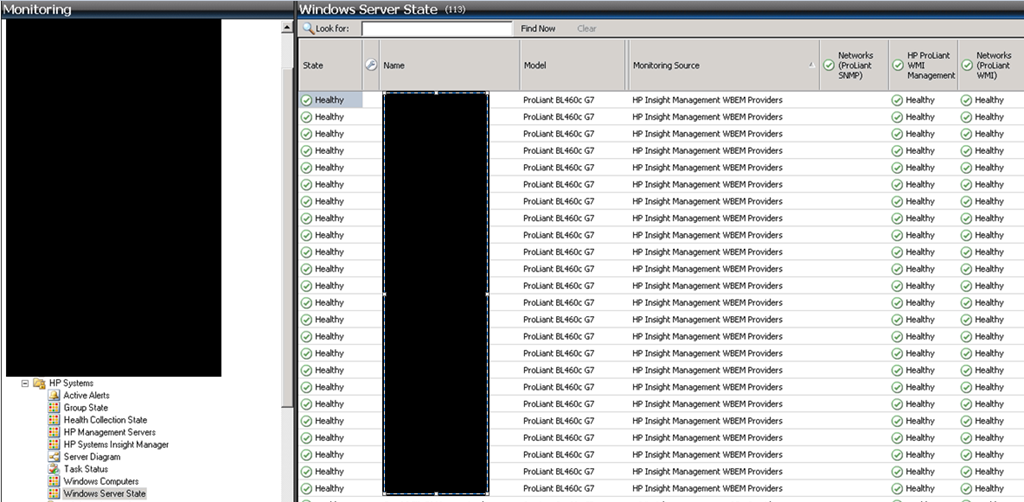
After step 7 no further overrides are need in order to make HP ProLiant Server Management pack to work via WMI based method.
KB: Deploying templates to create new VMs using System Center Virtual Machine Manager fails with Error 13204
You can find the resolution here.
 Cloud Administrator in Azure World