Unsupported Cluster Configuration for Virtual Machines located on SMB Share in VMM 2012 SP1

The last issue I’ve stumbled upon with System Center is with VMM component.

Symptoms

  • You have SCVMM 2012 SP1 UR2 installed
  • You have Windows Server 2012 Hyper-V for hosts
  • You use SMB 3.0 share for storing virtual machines
  • Some or all of your virtual machines does not use FQDN path to their vhd/x files
  • You’ve added your File Server in VMM by FQDN or NetBIOS Name
  • You receive the following error: Error (13924) The highly available virtual machine (VMNAME) is not supported by VMM because the virtual machine uses non-clustered storage.
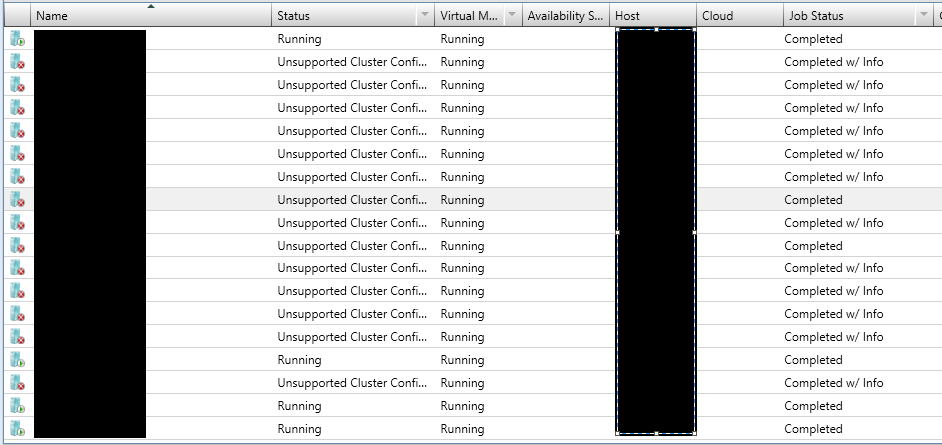
  • Some or all of your virtual machines show as Unsupported Cluster Configuration
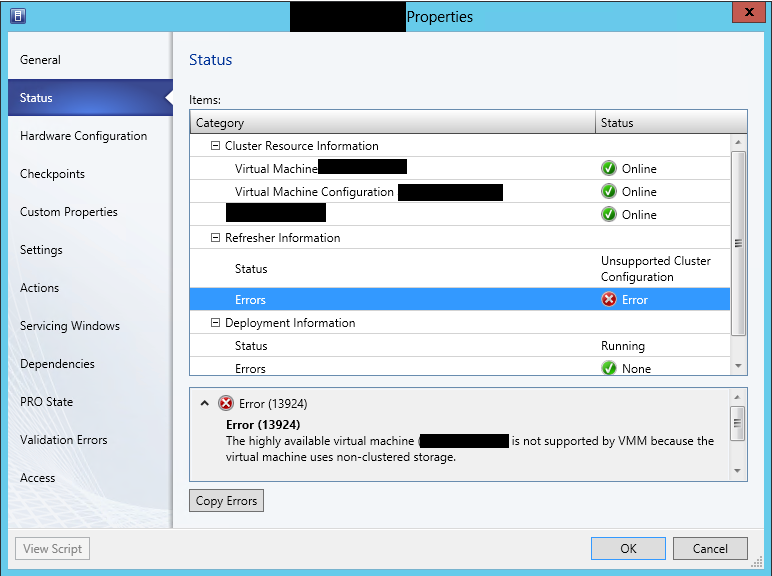
image

image

  • You may also have missing appropriate NTFS permissions on the share

  • image

    Resolution

I’ve managed to resolve this issue by executing the following steps:

1. Make sure you’ve added your file server in VMM by FQDN. If it is not added by FQDN you have to add it.

2. Create new share. You can create it on the same server. Give the share appropriate permissions.

3. Locate the new share in VMM. Add it as storage location to your hosts/clusters.

4. After is added make sure it show green in the properties of the hosts/clusters.

5. Storage migrate all your virtual machines from the old share to new share. For the machines with status Unsupported Cluster Configuration you can change the status to Running by live migrating them trough the Failover Cluster console.

6. After storage migration of each virtual machine refresh it and make sure in the properties of the machine in Status tab all is green.

7. After successful migration of all virtual machines you can remove the old share from the hosts/clusters and delete it from the File Server.


I’ve also may had problems with the permissions on the old share but it is easier to create new share than fixing permissions on existing share with running virtual machines.

The information is provided ‘AS IS’ with no warranties and confers no rights. Keep in mind that your case may be similar and this solution may not work for you.

Software I’ve used:

  • Windows Server 2012 with latest updates
  • SCVMM 2012 SP1 UR2
  • File Server with SMB share

SQL Databases Properties are not Discovered by SQL Server Management Pack

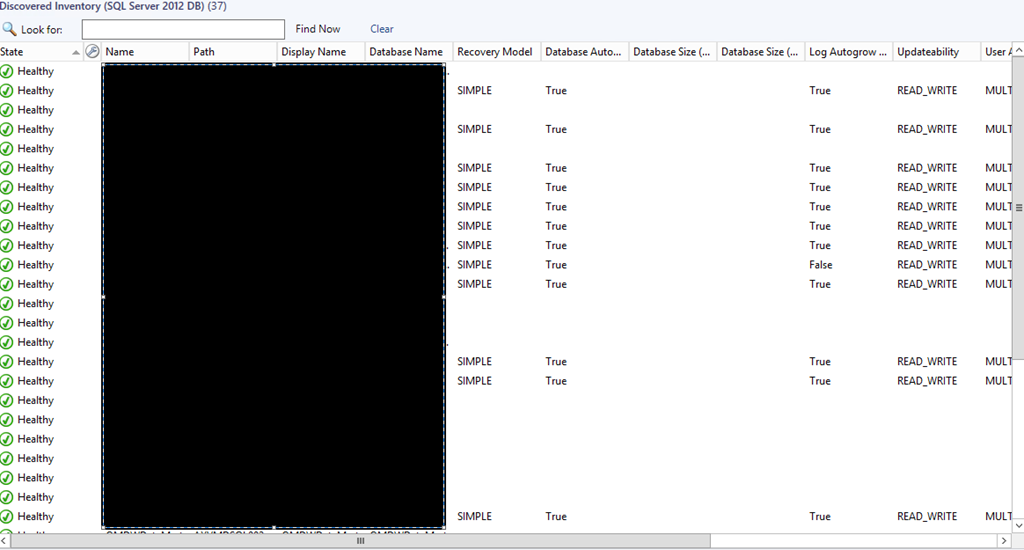
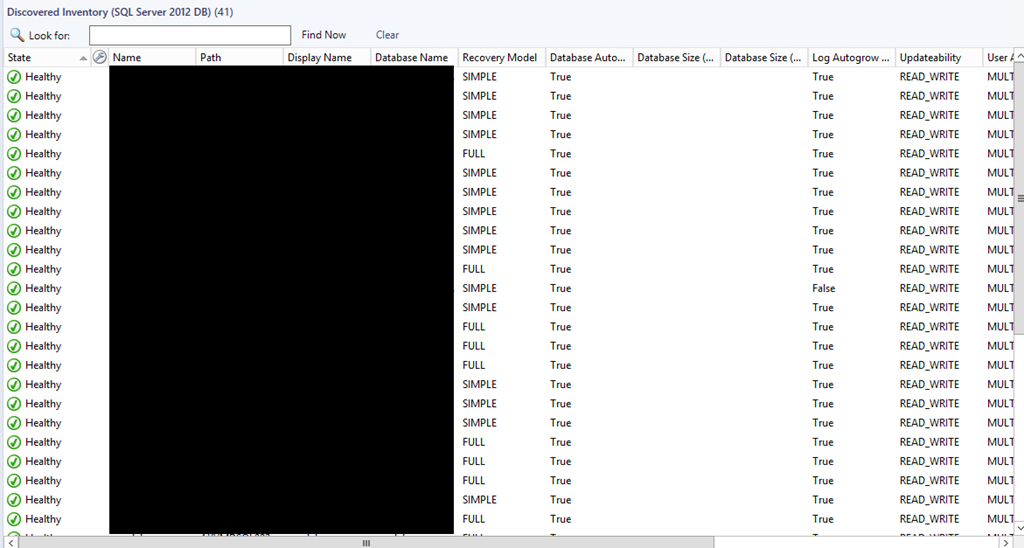
I had this issue recently in two separate environments where properties for some SQL databases were not discovered by SQL Server Management Pack as you can see below:

image

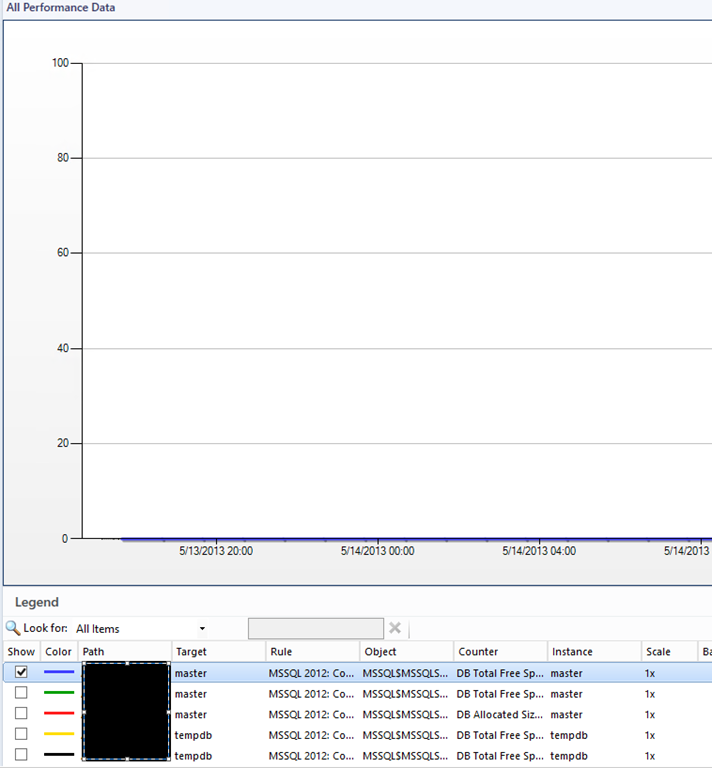
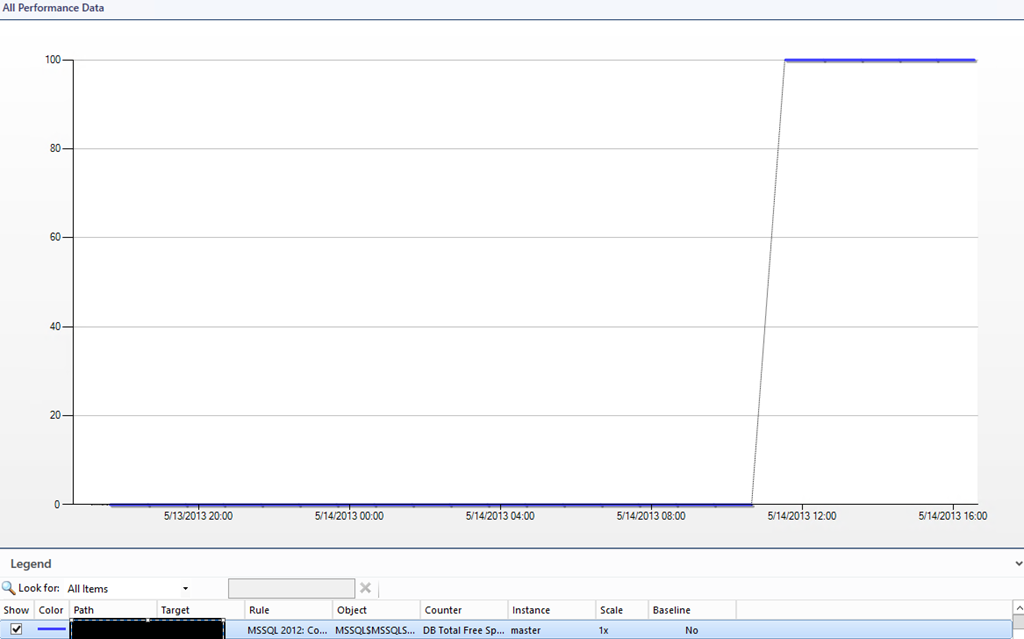
Also collecting performance data for free space of the databases was returning zero (0):

image

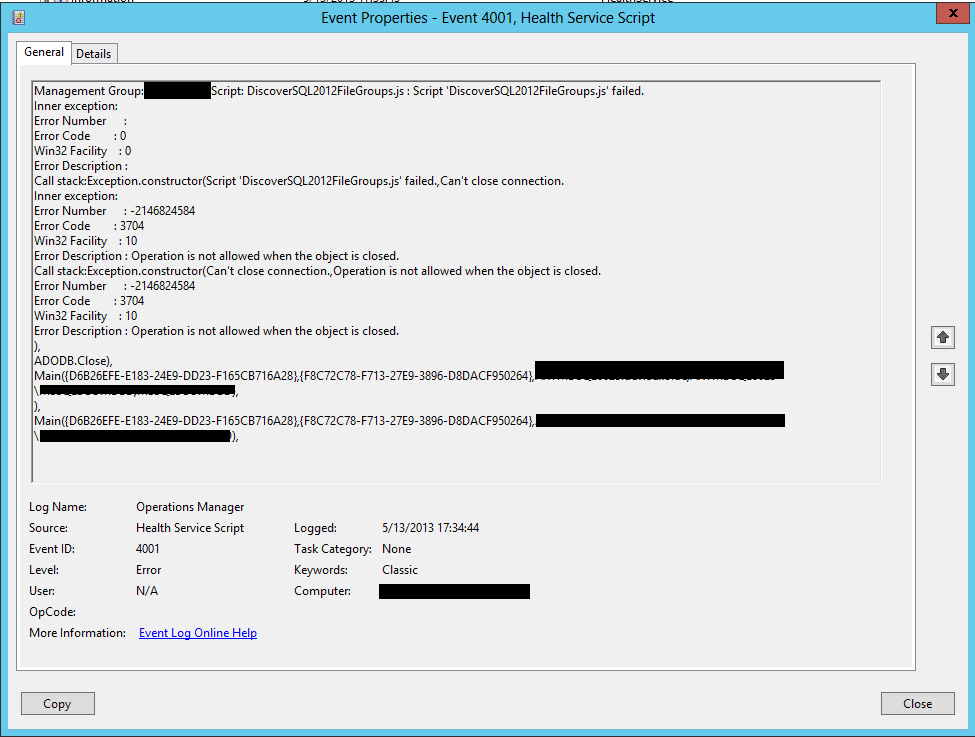
Meanwhile in the Operations Manager log on the SQL servers I was only seeing this error:

image

Management Group: <MGMTGROUPNAME>.Script: DiscoverSQL2012FileGroups.js : Script ‘DiscoverSQL2012FileGroups.js’ failed.
Inner exception:
Error Number      :
Error Code        : 0
Win32 Facility    : 0
Error Description :
Call stack:Exception.constructor(Script ‘DiscoverSQL2012FileGroups.js’ failed.,Can’t close connection.
Inner exception:
Error Number      : -2146824584
Error Code        : 3704
Win32 Facility    : 10
Error Description : Operation is not allowed when the object is closed.
Call stack:Exception.constructor(Can’t close connection.,Operation is not allowed when the object is closed.
Error Number      : -2146824584
Error Code        : 3704
Win32 Facility    : 10
Error Description : Operation is not allowed when the object is closed.
), ADODB.Close),
Main({D6B26EFE-E183-24E9-DD23-F165CB716A28},{ADFFD930-BDE9-66A1-20F3-CB6FBA80CBC9},<SERVER FQDN>,<SERVER NETBIOS NAME>,MSSQLSERVER),
),
Main({D6B26EFE-E183-24E9-DD23-F165CB716A28},{ADFFD930-BDE9-66A1-20F3-CB6FBA80CBC9},<SERVER FQDN>,<SERVER NETBIOS NAME>,MSSQLSERVER),

So this was my issue but I couldn’t find where exactly was the problem. Some of the properties were discovered and there was even databases that all properties were discovered but performance data for free space was not working on all databases. This lead me think it was some kind of permissions issue but I’ve made the SCOM Action Account “SA” on all SQL servers.

How I fixed it:

1. I’ve created Run As account in SCOM.

2. Named it SQL with type Windows.

3. For credentials I’ve entered the SCOM Action Account.

4. Secured the account only to the SQL servers in my environment.

5. Added this account to these three profiles: SQL Server Default Action Account, SQL Server Discovery Account and SQL Server Monitoring Account.

After these steps all was working as it should be:

image

image

So it seems you really need to create Run As account and add it to the SQL Profiles even though the SQL Server Management Pack guide says otherwise:

By default, all discoveries, monitors, and tasks defined in the SQL Server management packs default to using the accounts defined in the “Default Action Account” Run As profile. If the default action account for a given system does not have the necessary permissions to discover or monitor the instance of SQL Server, then those systems can be bound to more specific credentials in the SQL Server Run As profiles, which do have access.


Keep in mind that I haven’t changed any permissions to my SCOM Action Account. This account had all SQL permissions all the time.

My Configuration was:

  • Windows Server 2012 with latest updates;
  • SCOM 2012 SP1 UR2
  • SQL Server Management Pack 6.3.173.1
  • SQL Server 2012 SP1 CU3

An error occurred while executing a custom action:_PatchMP during Installation of UR2 on Service Manager DW Management Server

——————————————————————————————————————————————

Update

It seems you can only apply UR2 only if you’ve registered the DW to a Service Manager Management server and all DW jobs have passed successfully a couple of times.

——————————————————————————————————————————————-

These days I was installing System Center 2012 Service Manager SP1 and of course with every new SC installation you want to apply the latest Update Rollup too. I was in a hurry so I wanted to apply UR2 for Service Manager as soon as possible. I’ve installed the the Service Manager Management Server and the Data Warehouse Management server. Registered the DW Management server in the Management Server. I’ve waited some of DW jobs to finish but in order the jobs to finish successfully they have to run a couple of times because at the first job of MPSync only a small part of MPs are synchronized. On the second start more MPs are loaded (reporting MPs and etc.) and synced. So I’ve applied UR2 on the management server before MPSync job kicked off for second time and UR2 was applied successful to the management server. But when I’ve applied UR2 to the DW management server I’ve received an error:

An error occurred while executing a custom action:_PatchMP

The solution to this error in my case was to wait DW jobs to finish successful a couple of times. This error can occur for other reasons also.

Lessons learned: Patience is A Virtue with System Center 2012 Service Manager.

P.S. I do not like to install and configure System Center in a hurry. I like to plan and configure SC carefully and verifying if everything is working normally after every step but sometimes sacrifices have to be made Smile.

Entering backlash in the SSAS server or SSAS instance in Operations Manager Settings restarts the VMM console

Recently I’ve encountered a bug in the VMM console. It is nothing major but I’ve decided to share it. If you are configuring SCOM-VMM integration and more specifically SQL Server Analysis Services for SCOM-VMM integration you may experience VMM console restart if you enter backlash “\” character in the filed for SSAS server or SSAS instance. I’ve experienced this bug with VMM 2012 SP1 UR2. This bug is not big deal as this operation is done only once and backlash character should not be used as there are separate fields for SQL server and SQL instance.

Removing Connector in SCOM 2012

As SCOM is application as any other sometimes things go wrong. This was the case with one of our members (Jonathan) in system http://www.systemcentercentral.com forum. The issue is that a SCOM connector was not properly removed. I am sure you had this issue in 2007 version many times. There is even an KB article about this for 2007 version. For 2012 you can use PowerShell cmdlet. But in our case the cmdlet was failing to remove it. As there are no architectural changes to connectors in SCOM from 2007 to 2012 version I advised  Jonathan to try the solution described by Kevin Holman here. He shows how t remove connector in 2007 with stored procedure in SQL. Jonathan tried the solution in his environment and this solved his issue. So it seems the stored procedures are still working in SCOM 2012 and can be used when needed.

I will advise to always try to remove the connector trough the official ways or contact Microsoft support. If you decide to use the stored procedure make sure you have a good backup before executing them.

This solution is provided ‘AS IS’ with no warranties.

All credits go to Kevin and to Jonathan who tested it.