SLA Management in System Center Operations Manager

The idea behind this article is to show you how you can create dynamic groups that represent different Service Level Agreements (for example GOLD, SILVER or BRONZE). Depending what SLA level is certain CI (server) it will be put in the corresponding group.

Also I should mention that this solution is already available over Internet but is described in a couple of articles by different authors an I just want to gather all the information on one place and point out some tips that will be helpful if you decide to implement such solution on your own.

ALL CREDITS GO TO KEVIN HOLMAN, TIM McFADDEN AND ALL GUYS WHO PROVIDED COMMENTS ON THEIR ARTICLES.

First you need to build your SLA model. The best way is to use Active Directory. Lets say you have 3 different SLAs – GOLD, SILVER and BRONZE then you can create 3 security groups for example SLA-GOLD, SLA-SILEVR and SLA-BRONZE. In these groups you will put the AD computer objects of your servers. For example if server SQL01.lab.com have SLA GOLD the computer object of that server have to be added as member of group SLA-GOLD. With this example you distribute all your servers in the groups depending on your SLA. If you have servers that do not have SLA you do not add them in any of the groups. When you populate the 3 groups you have to create one GPO. That GPO should apply different registry key on the servers depending in which security group is. It is good idea the reg key to be applied in path like this HKLM\Software\CompanyName with DWORD Values like SupportLevel and data like 1 for GOLD, 2 for SILVER, 3 for BRONZE and 0 for NO-SLA. So if server doesn’t belong to any of the 3 groups DWORD Value SupportLevel with data 0 will applied. This GPO should be linked to the OU where you store the computer objects for your servers.

Note: You can use your own DWORD or String values for distinguishing SLA.

This SLA model for Active Directory was developed by my colleague Yordan Dimov.

Now that we have the registry keys applied to the servers we need to bring that information in SCOM. Kevin Holman has a great article describing how to do that titled “Creating custom dynamic computer groups based on registry keys on agents”.

The disadvantage of the proposed solution by Kevin is that it populates only the the SCOM computer objects in the dynamic groups. Kevin also mentions that disadvantage. Bu there is solution for that proposed by Tim McFadden in “Dynamic Computer groups that send heartbeat alerts”. In the article you will find out how to populate the groups the SCOM heartbeat object of the servers. In the comments of the article you can also find out a way to add the cluster names if the servers that are added to particular group are nodes of a cluster. I suggest to populate the groups with the heartbeat objects and the cluster names in order not to miss alerts when you forward them to SCSM or any other Configuration Management System.

Note: You have to have some some basic knowledge about the structure of management packs and XML.

After this you might think you are ready but there are some other obstacles you may face. If you have Hyper-V servers with virtual machines on top of them and you’ve imported Hyper-V management pack you will probably stumble on one particular issue. If you add Hyper-V server to SLA group all the virtual machines that are located on that server will be added to the SLA group in SCOM also. And some of these virtual machines may even do not have SLA and you alerts for them will be forwarded to your ticketing system. I can confirm that this issue is present in SCOM 2007 but you may also face it in SCOM 2012. In the Hyper-V Management Pack there is discovery that creates relationship between the Hyper-V server and the guest virtual machines but that association doesn’t work properly as it creates these weird issues. Another issue that you might face because of that association is for example if you put Hyper-V hosts in maintenance mode all virtual machines on that host will also be put in maintenance mode. But there is a cure for these issues also. You have to disable that discovery and Kevin described how in his article “Why do my group memberships for Windows Computers have machines that don’t belong there?”.

If you follow the steps described by Kevin and you still see this association for hyper-v servers that are part of clusters I suggest to follow these steps to resolve it completely:

1. Manually uninstall all SCOM agents on all nodes part of a cluster.

2. Remove the cluster name from agentless monitoring. If you can do it trough the SCOM console follow this article “Operations Manager (SCOM) 2007 – How to remove cluster objects from scom when computer objects in cluster cannot be deleted”.

4. Delete the nodes from Agent Managed views in Administration pane.

3. Run Remove-DisabledMonitoringObject command in SCOM PowerShell. Wait 20-30 min.

4. Install SCOM agents on all nodes.

5. Add cluster name to Agentless monitoring.

Now that you fixed any obstacles you can configure SCOM to send alerts to SCSM only for servers that are in SCOM SLA group. This can happen trough the following steps:

1. Open SCOM console.

2. Open Administration pane.

3. Open Internal connectors view.

4. Find the connector that sends alerts to SCSM and configure it to send alerts alerts only from your dynamic SLA groups.

Additionally with these SLA groups in SCOM you can create different overrides depending on SLA level.

Once again a big thank you to all members of the SCOM community.
Update Rollup 3 for System Center 2012 is available

It seems Microsoft is working hard to provide support for System Center 2012. Even SP1 for System Center 2012 is a couple of months away we are still getting updates for System Center 2012 RTM. Update rollup 3 fixes the following issues:

Update Rollup 3 for System Center Data Protection Manager 2012 (KB2751230)

Issue 1
After you upgrade System Center Data Protection Manager 2010 to System Center Data Protection Manager 2012, the tape management report does not display overdue tapes.
Issue 2
System Center Data Protection Manager 2012 Client Protection does not scale to the limits that are expected.
Issue 3
When you try to specify a client computer name in the DPMServerName attribute by using Windows PowerShell, Windows PowerShell crashes.
Issue 4
When the name of a Microsoft SharePoint site collection contains a space, and you perform a SharePoint item-level recovery operation in System Center Data Protection Manager 2012, the operation fails.
Issue 5
After you rename a SharePoint site in System Center Data Protection Manager 2012, you cannot restore the site.
Issue 6
The SharePoint Recovery Point Status Report displays incorrect data in System Center Data Protection Manager 2012.
Issue 7
A bare metal recovery fails in certain situations.

Update Rollup 3 for System Center Operations Manager 2012 (KB2750631)

Issue 1
When you use the 32-bit version of Windows Internet Explorer to start a web console, the Microsoft.EnterpriseManagement.Presentation.Controls.SpeedometerGaugeUIController controller does not work correctly.
Issue 2
When you run a Windows PowerShell cmdlet, you receive the following error message: 

Get-BPAModel is not recognized as the name of a cmdlet.

Issue 3
When you try to change a URL in the "web application availability monitoring" template instance, the change is not applied.

Update Rollup 3 for System Center Service Manager 2012 (KB2750615)

Issue 1
When you open or close the Incident form in the System Center Service Manager 2012 console, a memory leak occurs.
Issue 2
When form control objects are rooted in the Garbage-Collected (GC) Heap, the System Center Service Manager 2012 console crashes, and you receive an OutOfMemoryException exception.
Issue 3
After you change the SharePoint site language to Turkish in the System Center Service Manager 2012 portal, the display strings are displayed in English unexpectedly.
Issue 4
When you open the System Center Service Manager 2012 console by using a Citrix application, and then you open the Incident form, you experience slow performance.


More information and download links are located here.

Sync HP ProLiant Server and BladeSystem CIs from SCOM to SCSM

There is a great article at systemcentercentral.com on how to synchronize CI from SCOM to SCSM. The article shows an example with Dell Management Pack. I followed this article and will show you how to do the same for HP ProLiant Server Management Pack and HP BladeSystem Management Pack. Let first introduce what objects are discovered  trough these two MPs:

  • HP ProLiant Server Management Pack – This management pack discovers properties of all HP ProLiant servers – IP addresses of ILOs, Memory, Disks and etc.
  • HP BladeSystem Management Pack – This MP discovers properties of c3000 and c7000 Enclosures – Names, Onboard Administrators, Device Bays (including server information for blades) and etc.

So here are the steps you can follow to sync your HP CIs from SCOM to SCSM:

1. Lets assume that you imported and configured HP ProLiant Server and HP BladeSystem MPs in SCOM.

2. Next steps is to figure out what information you want to sync.

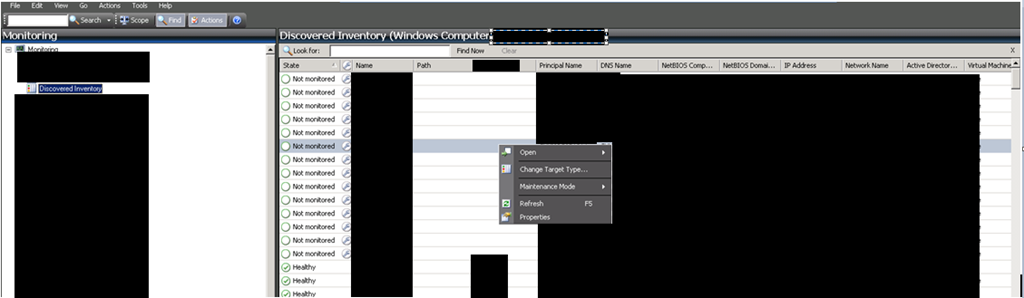
3. You can find that by going in SCOM console –> Monitoring pane –> Discovered Inventory view.

image

4. Right Click on the middle view and select Change Target Type.

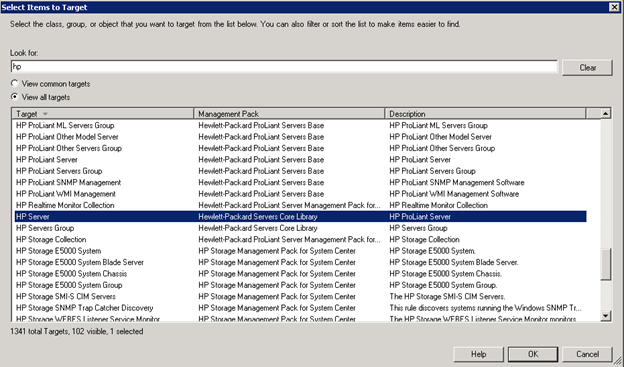
5. Select Items to Target window appears. In Look for field type “hp” and select View all targets.

image

6. Here you can see the friendly names of the different classes and to which Management Pack they belong to.

7. “HP Server” is the main class that holds information for HP Servers and it is located in Hewlett-Packard Servers Core Library MP. Select it and click OK.

Note: You can select any subclass like HP ProLiant Server if you find it more convenient for you.

8. After selecting it in the middle pane you will see information about your HP Servers you have in your environment. This information you want to sync in SCSM.

image

9. Next step is to find the friendly name for enclosures class.

10. Right click on the middle pane again and select Change Target Type.

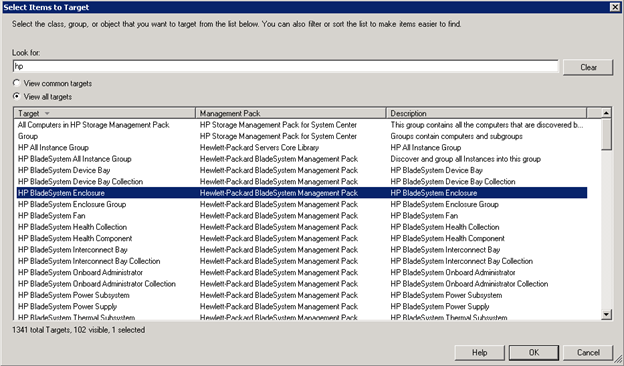
11. Select Items to Target window appears. In Look for field type “hp” and select View all targets.

image

12. “HP BladeSystem Enclosure” is the main class that holds information for HP Enclosures and it is located in Hewlett-Packard BladeSystem Management Pack. Select it and click OK.

image

13. You will see the information about enclosures you want to sync to SCSM.

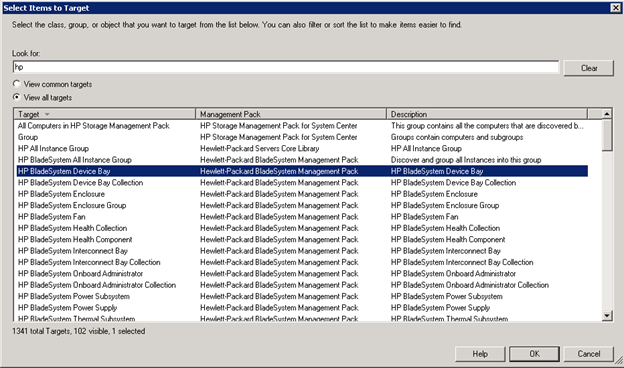
14. For HP Enclosures I select one more class “HP BladeSystem Device Bay”.

image

15. This class holds information about blade servers. This is useful if you have have blade servers in the enclosures that do not have operating system and because of that they do not have SCOM agent also. WIhtout SCOM agent you not cannot get any information for them from HP ProLiant Server Management Pack but trough this class you can.

16. Next step is to see the names of the management pack and if they have dependencies.

17. Open SCOM console –> Administration pane –> Management Packs.

18. We found that the the information that we want to sync is contained in two management packs – Hewlett-Packard Servers Core Library and Hewlett-Packard BladeSystem Management Pack.

19. Find them in that view and right click on them Properties.

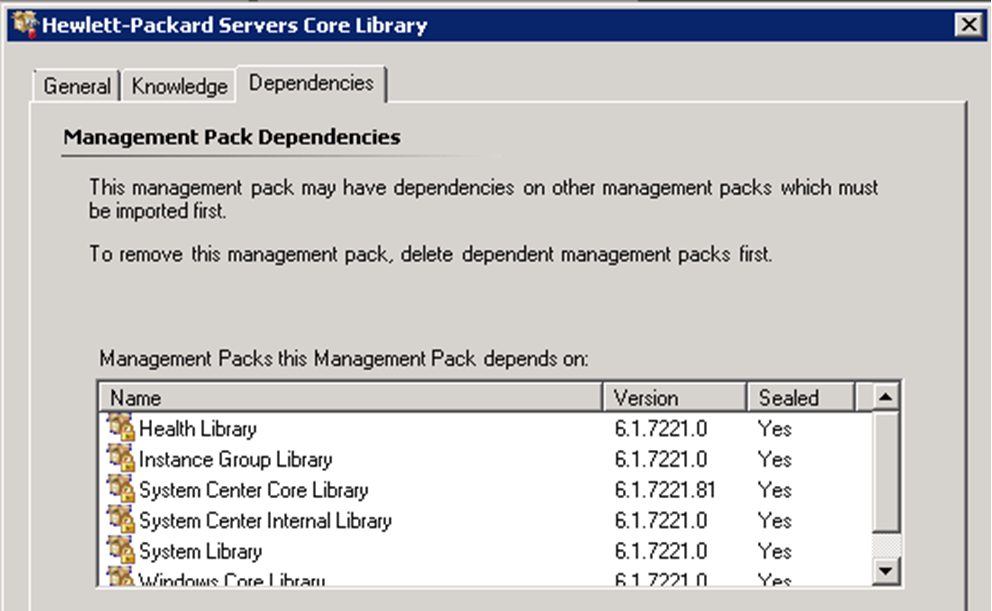
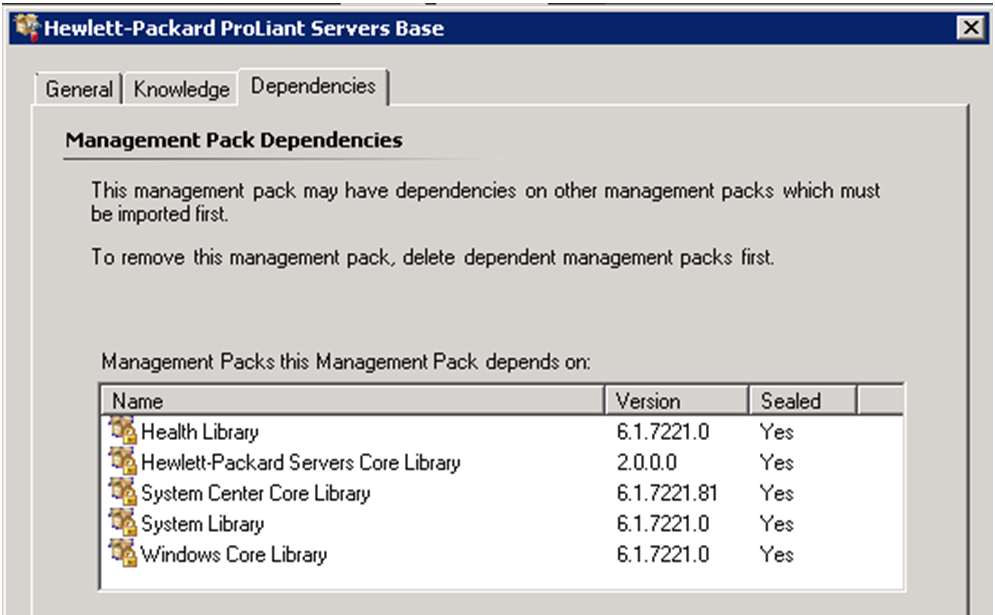
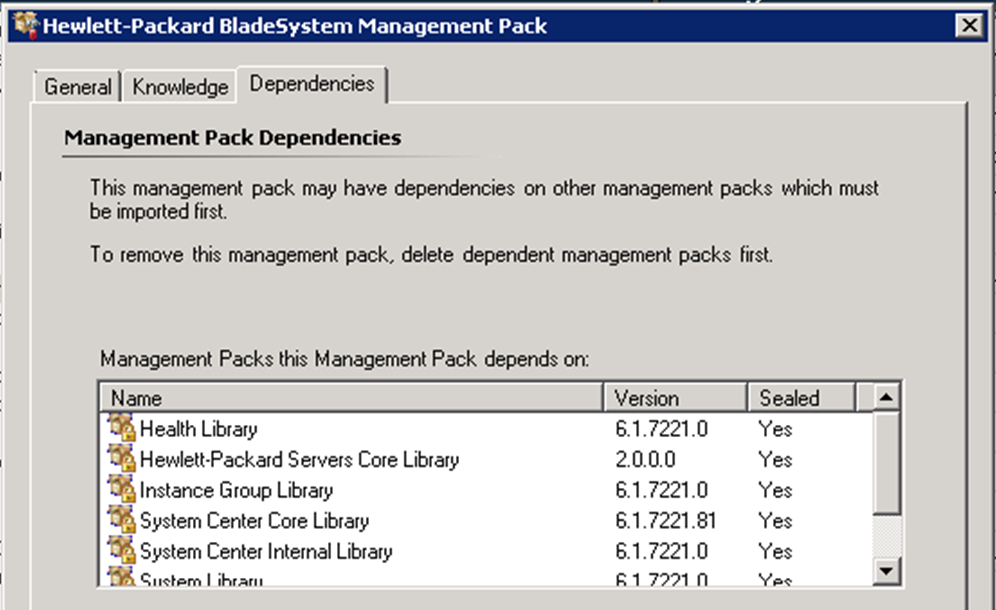
20. In General tab you under ID you will see thee name of the management pack. In Dependencies tab that you will see which other management pack you should also import in SCSM. If you do not have these MPs in your SCSM environment you will not be able to import the HP Management Packs.

Hewlett-Packard.Servers.Core.Library.mp

image

Hewlett-Packard.ProLiant.Servers.Base.mp

image

Hewlett-Packard.BladeSystem.mp

image

21. Even I do not need to import Hewlett-Packard ProLiant Servers Base Management Pack I will import it because may be later I will want to sync some information from that MP.

22. Next steps is to find the actual names of the classes we want to sync because we only have the friendly names: HP Server, HP BladeSystem Enclosure and HP BladeSystem Device Bay.

23. Open Operations Manager PowerShell and execute the following commands one by one:

  • Get-MonitoringClass | Where-object {$_.DisplayName -match "HP Server"
  • Get-MonitoringClass | Where-object {$_.DisplayName -match "HP BladeSystem Enclosure"
  • Get-MonitoringClass | Where-object {$_.DisplayName -match "HP BladeSystem Device Bay"

24. The commands will find all properties about classes that have these display names. Against property Name you will find the actual names of the classes we need:

  • HewlettPackard.Servers.HPServer
  • HewlettPackard.Servers.BladeSystem.HPBladeSystemEnclosure
  • HewlettPackard.Servers.BladeSystem.HPBladeSystemDeviceBay

25. Now that we have the actual names of the classes we want to sync we have to import the 3 HP management packs in SCSM.

26. Open SCSM console. Navigate to Administration pane –> Management Packs.

27. Click Import from Actions menu. Find the location where you store your MPs select the 3 HP MPs and import them.

28. If the MPs are imported successfully next step is to add the classes we have found to the allowed list of classes for syncing in SCSM.

29. Logon to your SCSM server.

30. Start PowerShell and execute these commands:

  • set-executionpolicy Unrestricted
  • add-pssnapin smcmdletsnapin
  • Add-SCSMAllowListClass –ClassName HewlettPackard.Servers.HPServer
  • Add-SCSMAllowListClass –ClassName HewlettPackard.Servers.BladeSystem.HPBladeSystemEnclosure
  • Add-SCSMAllowListClass –ClassName HewlettPackard.Servers.BladeSystem.HPBladeSystemDeviceBay
  • get-SCSMAllowlist

31. With the last command you will be able to see the HP classes added in the allowed list for sync.

32. Next step is to configure your SCOM CI Connector in SCSM to sync the HP Management Packs.

33. Open SCSM console. Navigate to Administration pane –> Connectors.

34. Find you SCOM CI Connector in the list of connectors and double click on it.

35. The Properties window of that connector will be opened.

36. Select the configuration option for Management Packs.

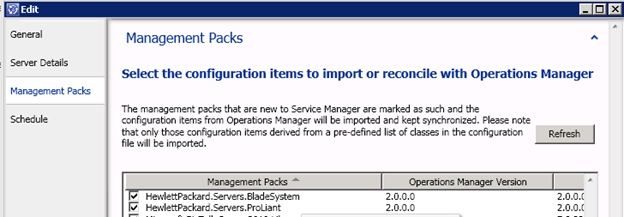
37. In order to see your newly imported HP Management Packs you have to click Refresh button. When you click Refresh you will be asked for the password of the account that is used to sync management packs between SCOM and SCSM. Enter the password and press OK.

38. When refresh is done the new management packs will appear in the list. Select them and click OK to save settings.

image

39. Wait until next synchronization schedule of SCOM CI Connector to see if synchronization was successful.

40. When synchronization is done you can create views to see the synchronized data in SCSM.

41. Open SCSM console. Navigate to Configuration Items. Create new folder. You can name the folder “HP Devices” or any convenient name for you.

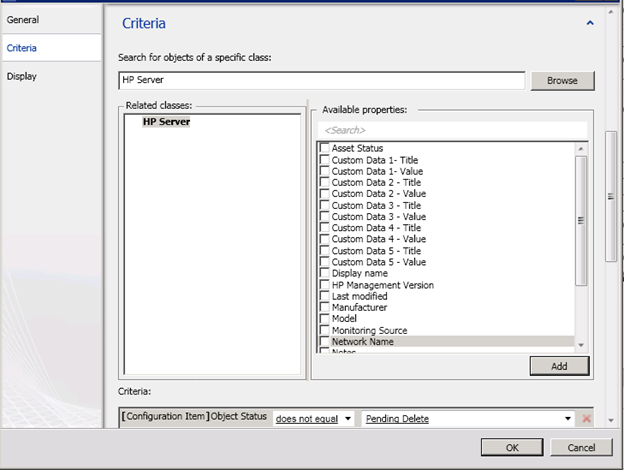
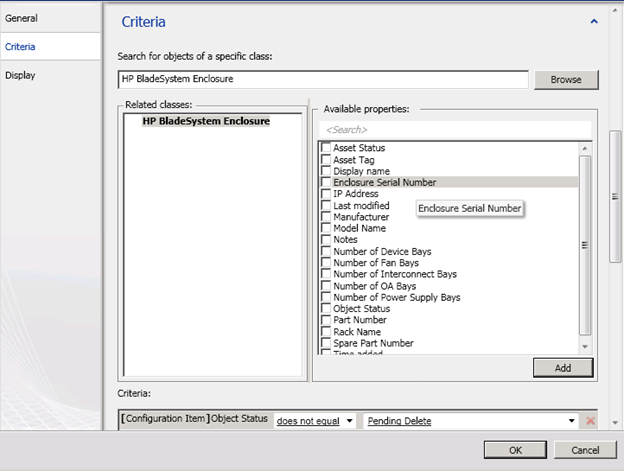
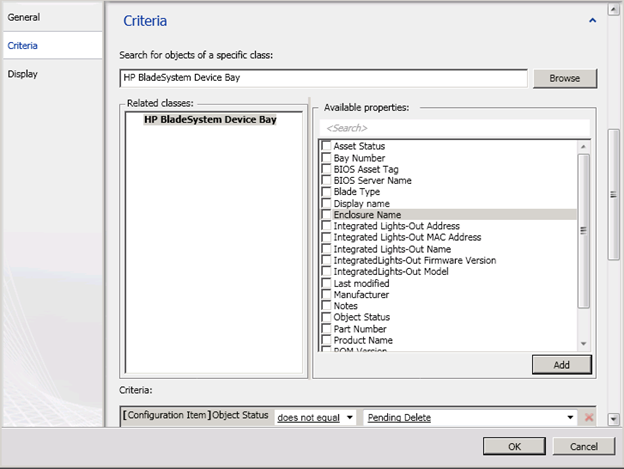
42. Under that folder you can create 3 different views that have different HP classes for Criteria.

image

image

image

Note: This configuration was tested with SCOM 2007 R2 and SCSM 2010 but it should also work for SCOM 2012 and SCSM 2012.

Note: You can sync more classes than the ones described in the article depending on your customers needs. Just add these classes to the allowed for sync list in point 30.

Extend CI class in Service Manager 2012

Stefan Koell wrote a guide on how to extend CI class in SCSM 2012. SCSM 2012 provides basic Configuration Manager Database that can be easily customized to meet your needs. This guide will show in some easy steps how you can leverage that easy customization. Read the full article here.

System Center 2012 SP1 BETA is now available

Great news we now have beta version that we can test and provide feedback. From what I hear is that RTM could be available before end of the year or early next year. The downloads are located here. Some of the new features are:

  • Virtual Machine Manager
    • Improved Support for Network Virtualization
    • Extend the VMM console with Add-ins
    • Support for Windows Standards-Based Storage Management Service, thin provisioning of logical units and discovery of SAS storage
    • Ability to convert VHD to VHDX, use VHDX as base Operating System image
  • Configuration Manager
    • Deployment and management of Windows 8 and Windows Server 2012
    • Distribution point for Windows Azure to help reduce infrastructure costs
    • Automation of administrative tasks through PowerShell support
    • Management of Mac OS X clients and Linux and UNIX servers
    • Real-time administrative actions for Endpoint Protection related tasks
  • Data Protection Manager
    • Improved backup performance of Hyper-V over CSV 2.0
    • Protection for Hyper-V over remote SMB share
    • Protection for Windows Server 2012 de-duplicated volumes
    • Uninterrupted protection for VM live migration
  • App Controller
    • Service Provider Foundation API to create and operate Virtual Machines
    • Support for Azure VM; migrate VHDs from VMM to Windows Azure, manage from on-premise System Center
  • Operations Manager
    • Support for IIS 8
    • Monitoring of WCF, MVC and .NET NT services
    • Azure SDK support
  • Orchestrator
    • Support for Integration Packs, including 3rd party
    • Manage VMM self-service User Roles
    • Manage multiple VMM ‘stamps’ (scale units), aggregate results from multiple stamps
    • Integration with App Controller to consume Hosted clouds
  • Service Manager
    • Apply price sheets to VMM clouds
    • Create chargeback reports
    • Pivot by cost center, VMM clouds, Pricesheets
  • Server App-V
    • Support for applications that create scheduled tasks during packaging
    • Create virtual application packages from applications installed remotely on native server