
After long holiday break I am back. On this post I want to introduce you to an issue I’ve spotted and to which of course I’ve found an easy solution. With System Center 2012 R2 Virtual Machine Manager and Windows Server 2012 R2 we have the role of Windows Server Gateway (Multi-Tenant RRAS role) which is part of the Network Virtualization architecture (a dear to my heart topic). Continue reading “Windows Server Gateway Performance Data (KBytes Sent and KBytes Received) is Not Shown in Virtual Machine Performance View in Virtual Machine Manager Management Pack”
Tag: System Center Operations Manager
Quick Look at Multi-Tenant RRAS Management Pack
If you are using Network Virtualization from Microsoft you probably also using Multi-Tenant Gateways. In such scenario the gateways become critical part of your infrastructure and would be best if you can monitor them. Continue reading “Quick Look at Multi-Tenant RRAS Management Pack”
Updated MP: HP Storage Management Pack
HP Storage Management Pack has bumped to version 3.1. In this version we have the following new features: Continue reading “Updated MP: HP Storage Management Pack”
Quick Look at System Center Service Provider Foundation Management Pack
Last week the SPF MP for SCOM was released so let’s look on how to install it and configure it.
First we need to install it:

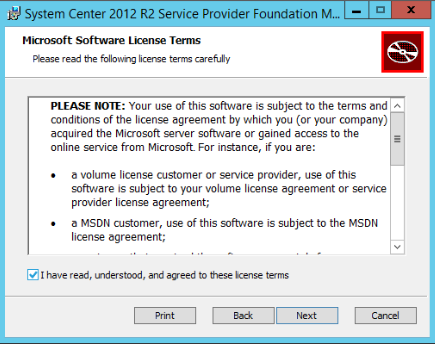
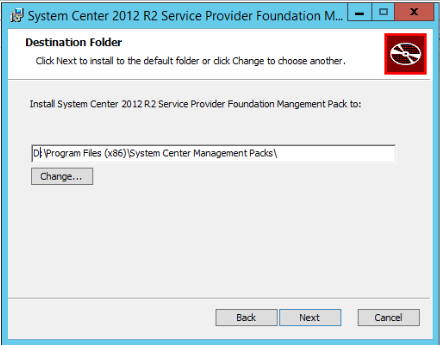


Then we need to import in SCOM
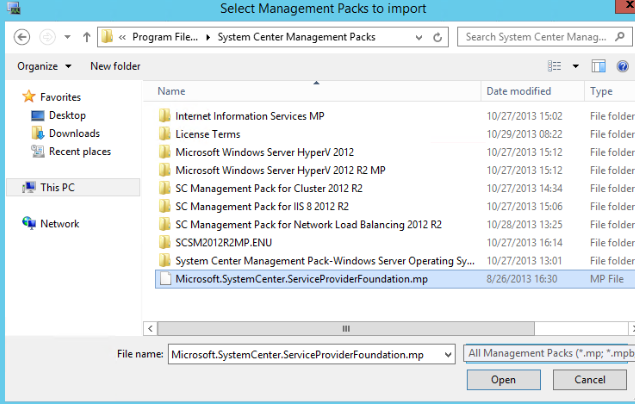
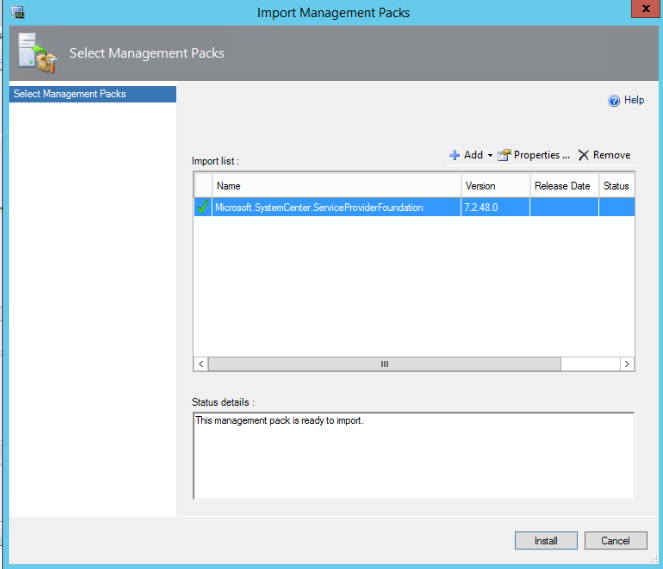
After it is imported we need to create account/s. According to the guide you need to create two accounts in SCOM:
- One account that have access to the SPF database and with access to your VMM;
- Second account with access to the VMM endpoint in SPF.
As I see it you need only read access for both accounts but in my case I will use one account that have admin rights in SPF database, admin rights in VMM and member of the group that gives permissions to the VMM endpoint.


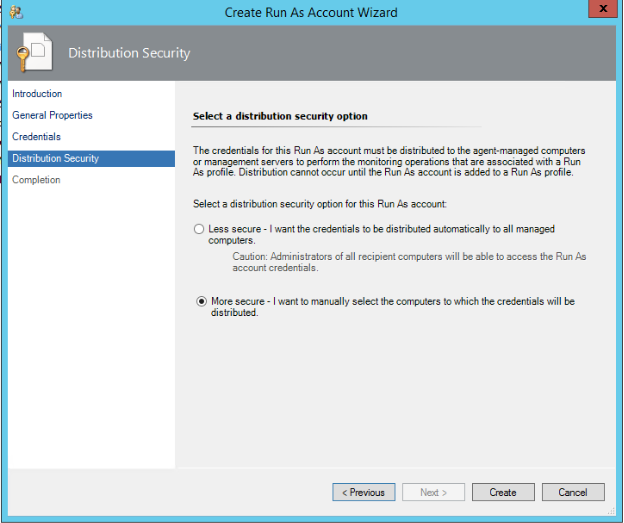
Set it to more secure
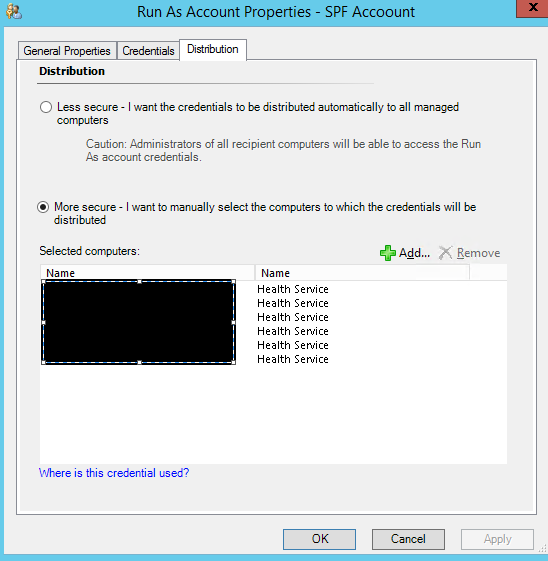
Next open the properties of the account in the Distribution tab add all your SPF server(s), VMM server(s) and SQL server(s) where SPF database is:
In the SCOM console in Profiles section you will see two profiles:
- Service Provider Foundation Database Account
- Service Provider Foundation VMM Web Endpoint Account

To both accounts you need to add the account you’ve just added in SCOM. Of course if you want to go more secure and have two accounts you will add them to the corresponding profile. Also remember to distribute the accounts to the right servers. In my case I am adding to both profiles the same account:
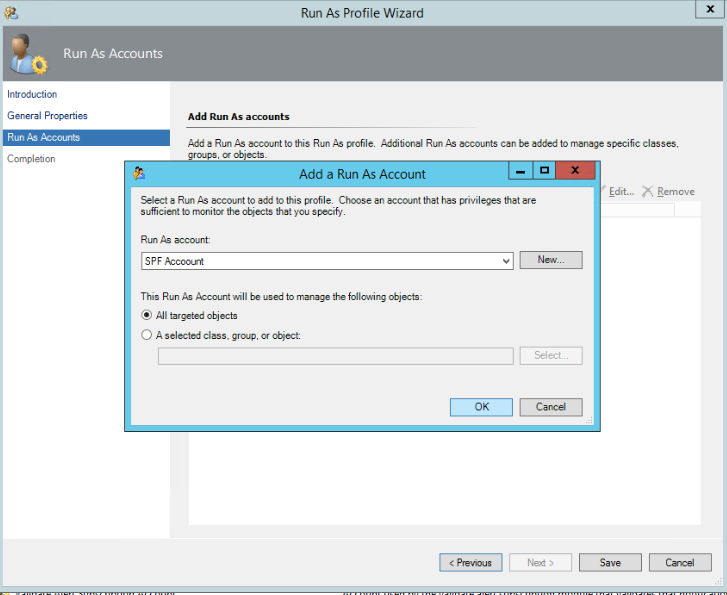
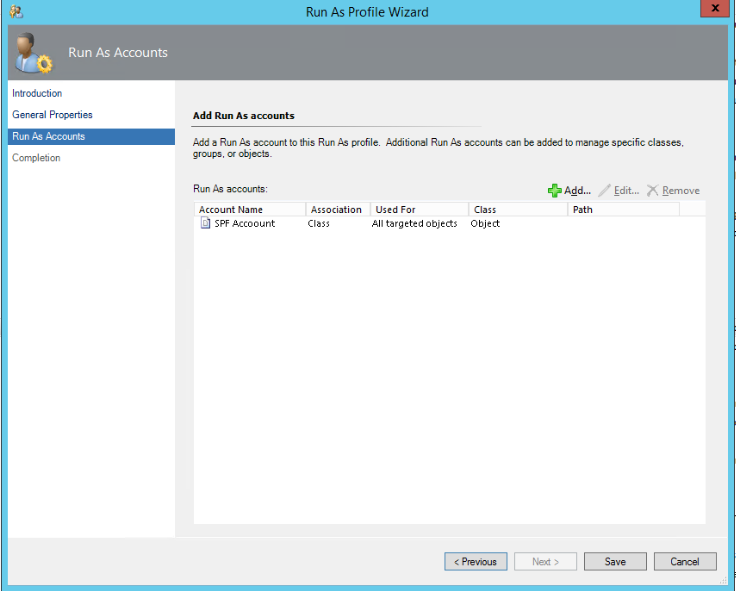
After that in your Service Provider Foundation State view you should see your SPF servers:
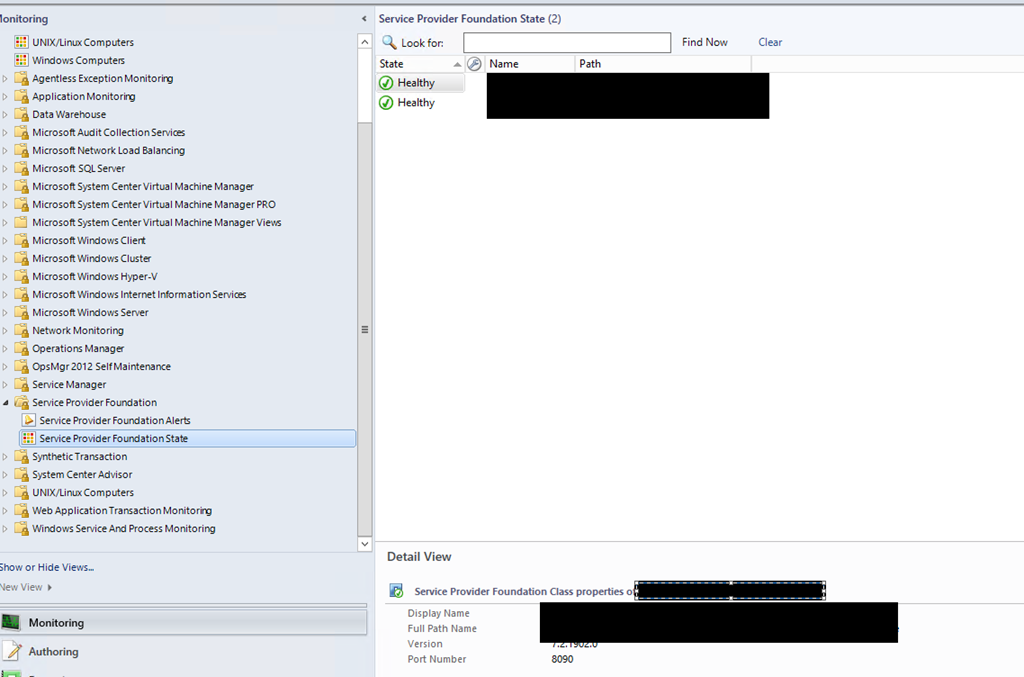
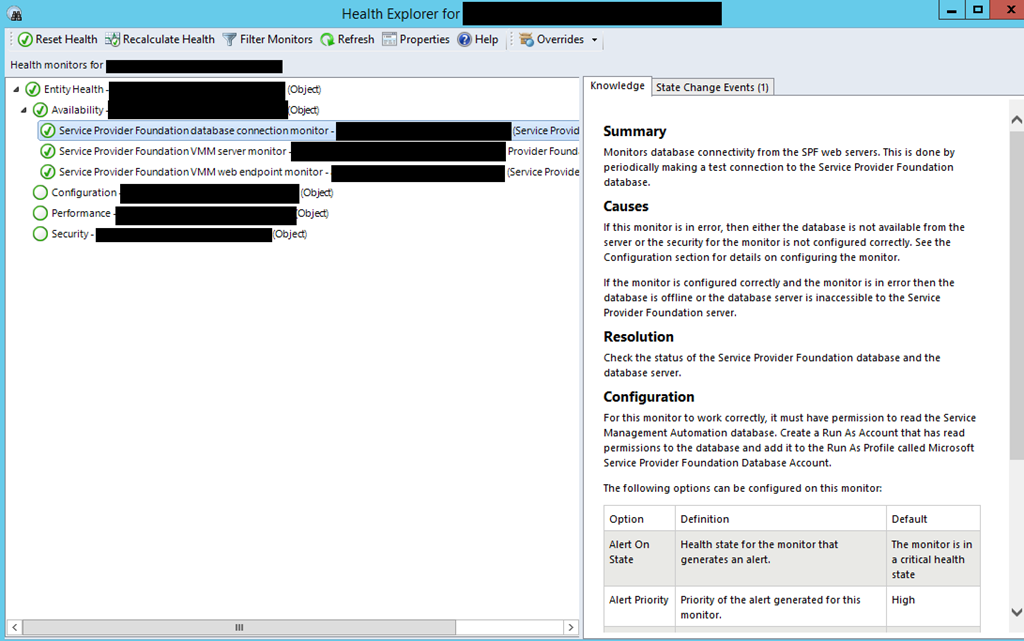
If you have any alerts for wrong credentials you can reset the monitors and close the alerts. During the import, the creation of the accounts and setting them some alerts might be generated for wrong credentials.
SCVMM – SCOM Maintenance Mode Integration is fixed in System Center 2012 R2
Previously I’ve blogged here, here and here about SCVMM and SCOM maintenance mode integration. In the past if you put Hyper-V hosts in maintenance mode in SCVMM the corresponding SCVMM object for the host is also put in maintenance mode. The problem with this scenario is that you can get some alerts if you patch the hosts automatically or bring them completely down for other maintenance tasks. Now with System Center 2012 R2 this is no longer the case. If you put the hyper-v hosts in SCVMM in maintenance mode:

The computer object of the host is put in maintenance mode in SCOM:
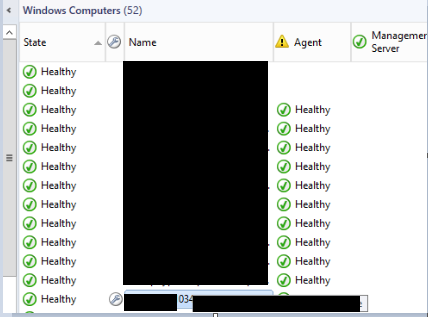
Now you can perform maintenance task on host without getting noisy alerts and we are closer to better automation.
I would like to thanks the VMM product group for listening on my feedback and for those who voted for this feature change.
 Cloud Administrator in Azure World