
As we know Service Provider Foundation is the API of VMM. SPF is a web service that can execute tasks against VMM server and WAP just connects to SPF to communicate with VMM so we have the following communication path VMM<->SPF<->WAP. Continue reading “Working in VMM like Service Provider Foundation and Windows Azure Pack”
Tag: SPF
Quick Look at System Center Service Provider Foundation Management Pack
Last week the SPF MP for SCOM was released so let’s look on how to install it and configure it.
First we need to install it:

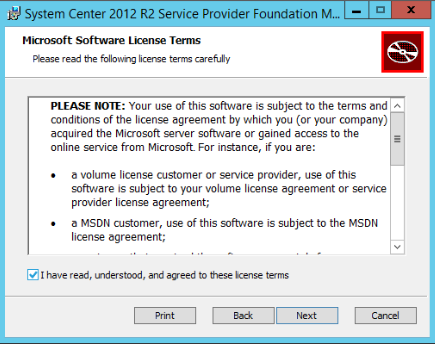
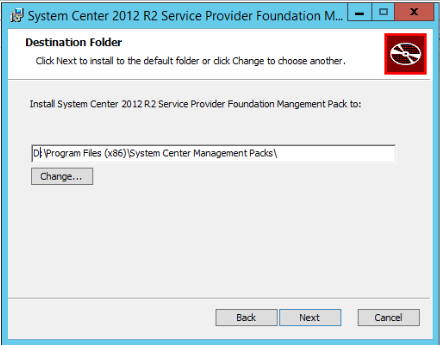


Then we need to import in SCOM
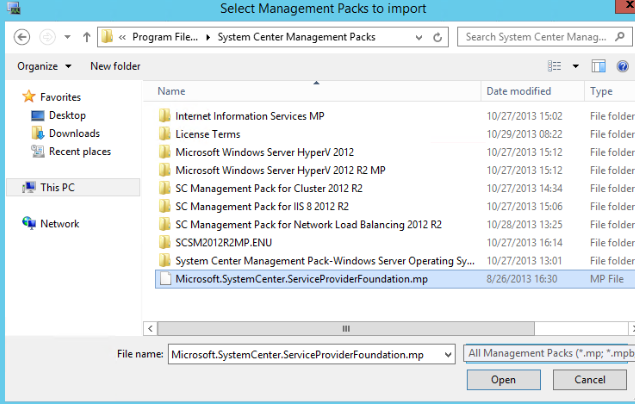
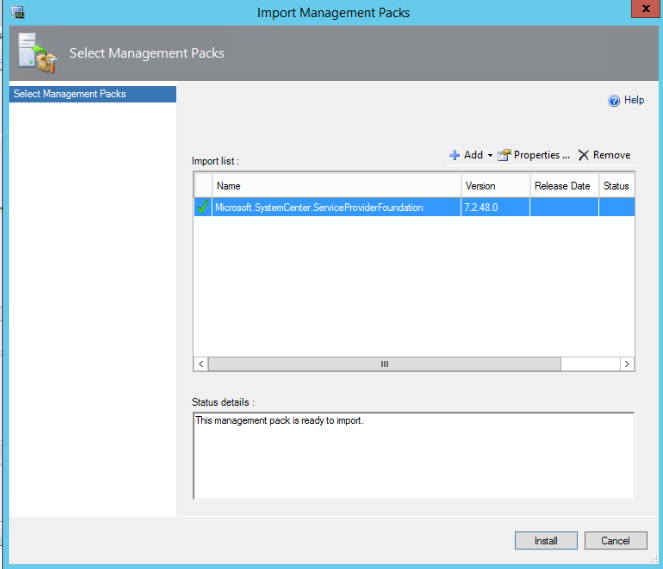
After it is imported we need to create account/s. According to the guide you need to create two accounts in SCOM:
- One account that have access to the SPF database and with access to your VMM;
- Second account with access to the VMM endpoint in SPF.
As I see it you need only read access for both accounts but in my case I will use one account that have admin rights in SPF database, admin rights in VMM and member of the group that gives permissions to the VMM endpoint.


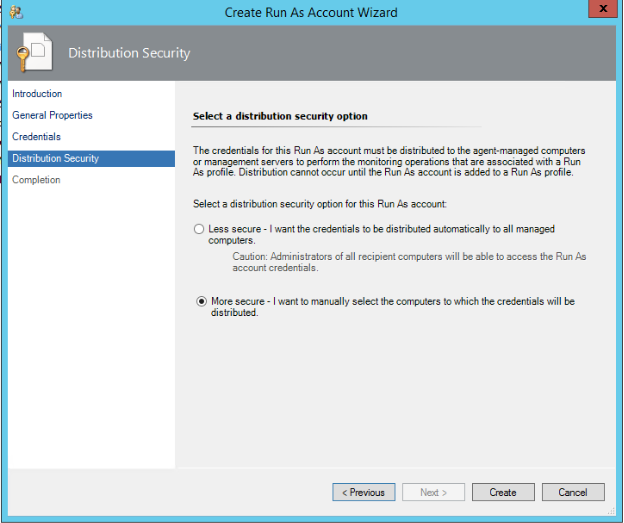
Set it to more secure
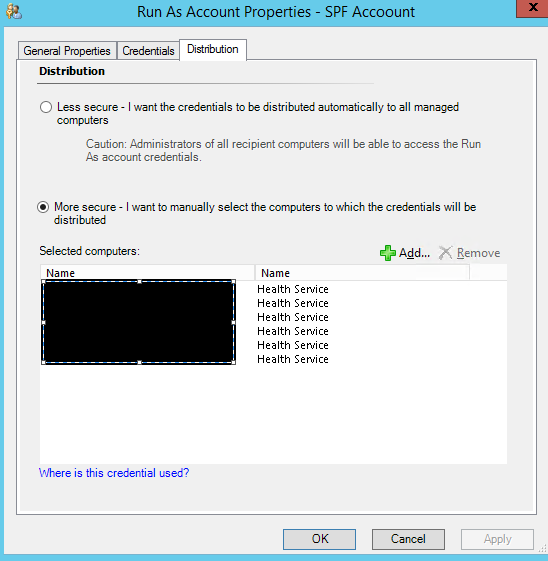
Next open the properties of the account in the Distribution tab add all your SPF server(s), VMM server(s) and SQL server(s) where SPF database is:
In the SCOM console in Profiles section you will see two profiles:
- Service Provider Foundation Database Account
- Service Provider Foundation VMM Web Endpoint Account

To both accounts you need to add the account you’ve just added in SCOM. Of course if you want to go more secure and have two accounts you will add them to the corresponding profile. Also remember to distribute the accounts to the right servers. In my case I am adding to both profiles the same account:
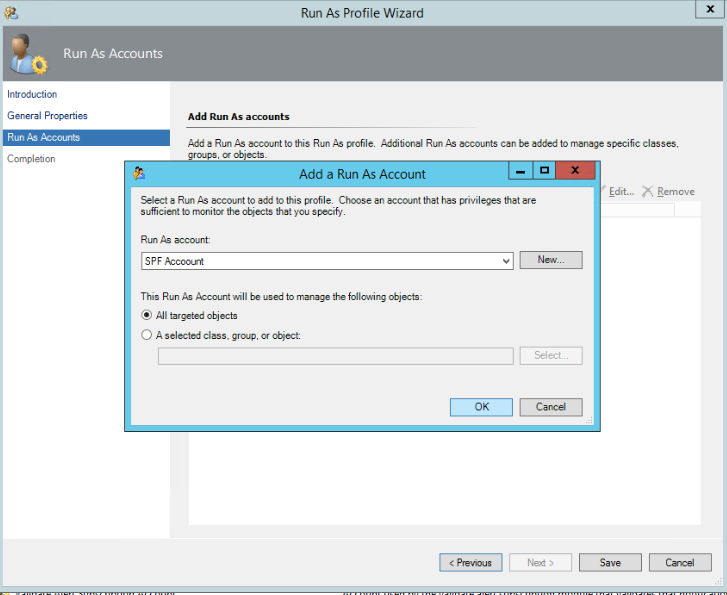
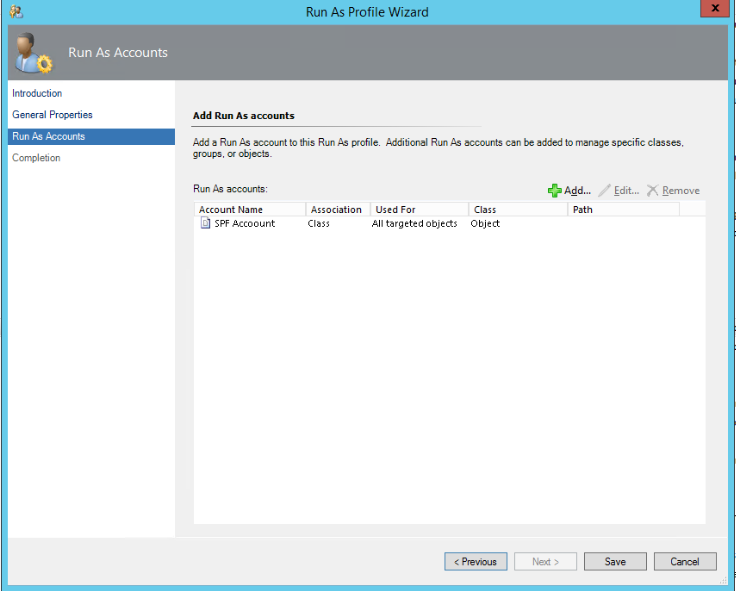
After that in your Service Provider Foundation State view you should see your SPF servers:
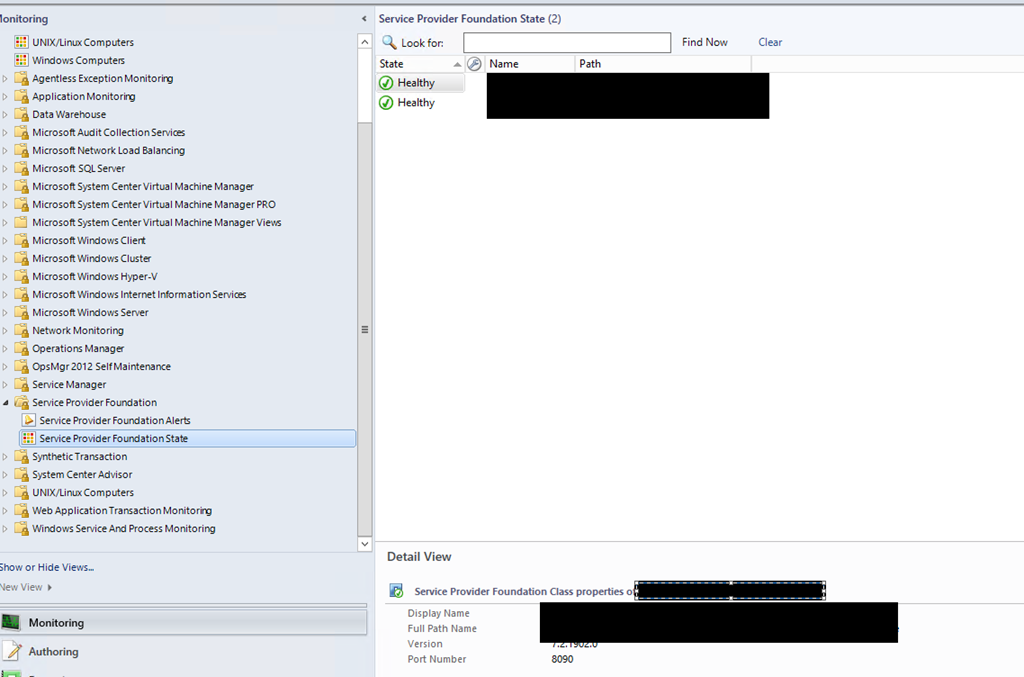
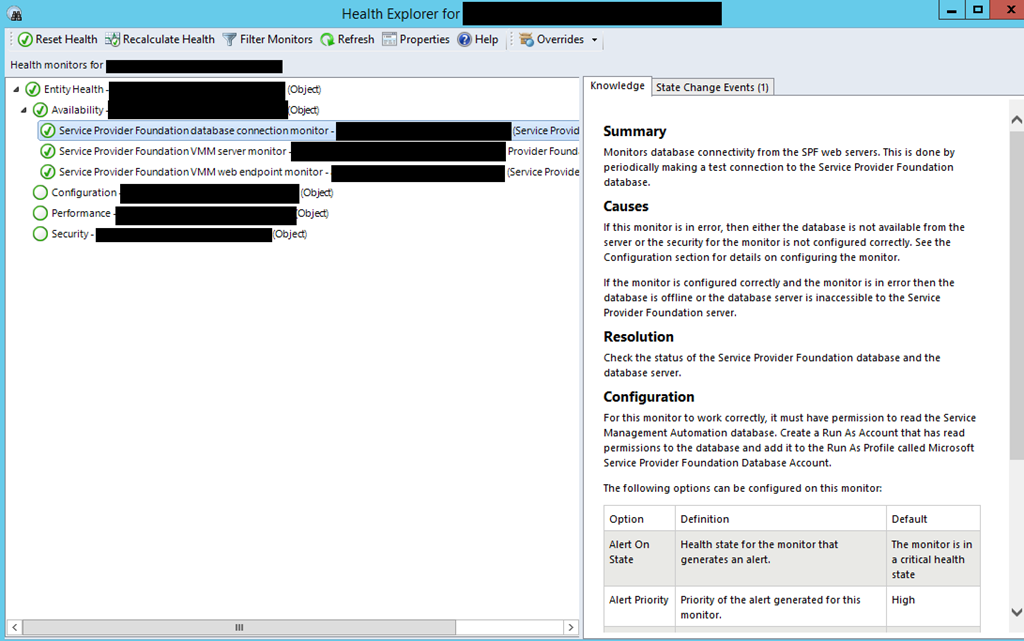
If you have any alerts for wrong credentials you can reset the monitors and close the alerts. During the import, the creation of the accounts and setting them some alerts might be generated for wrong credentials.
Making System Center 2012 SPF SP1 Highly Available and Scalable
The overall architecture of Service Provider Foundation is very simple. SPF have two components Web Service and Database. As the database is SQL database it can be made highly available by making SQL Cluster and putting the database there. There is no information if SQL Always On is supported but the SPF database is not a complex one and Always On should be an option. After all SPF is part of Orchestrator and Orchestrator is supported on SQL Always On. But let’s talk about how to make the Web Service highly available and scalable. The Web Service is a static application which is front for the database. So it should be easy to install to install more than one instance of the web service and just put NLB to combine them. But lets test it.
I will not show you how to install SPF as there is a great guide by Marc van Eijk here. Lets say I have 3 servers:
- SPF01
- SPF02
I’ve already installed SQL Server 2012 SP1 on SPF01. Installed SPF in SPF01 and for the SPF database I’ve used the SQL on SPF01. I’ve installed the database and SPF on the same server just because it is home lab and I didn’t want to create another server.
Next step is to populate some data in SPF in order to have some information before deploying the second SPF server. I’ve added a VMM server and associated it with Stamp. You can see that information directly in the database.
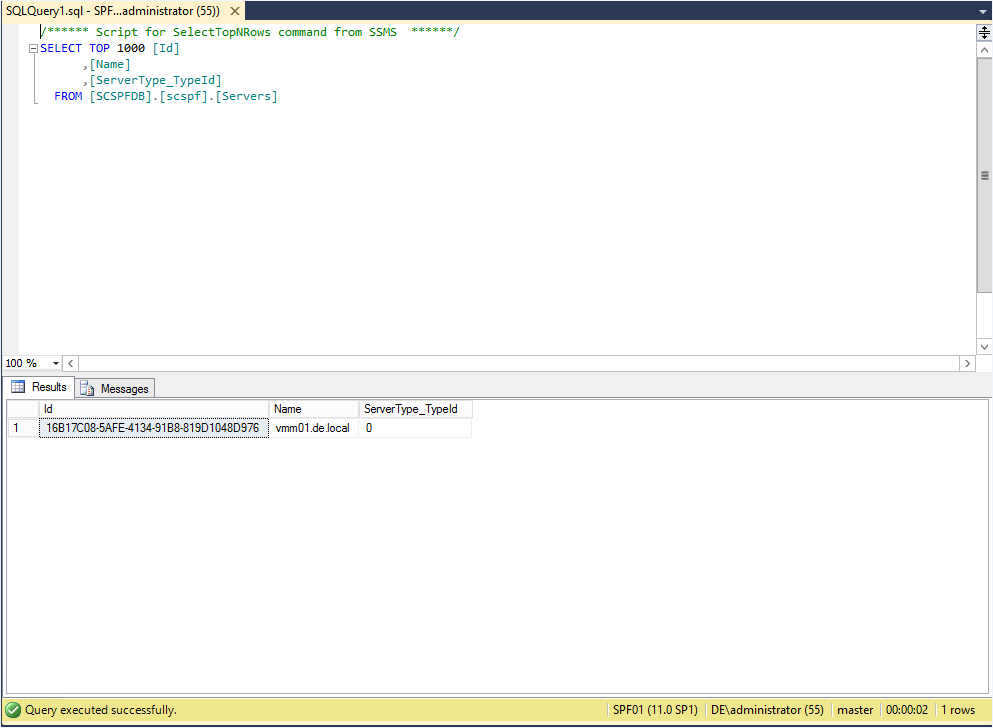
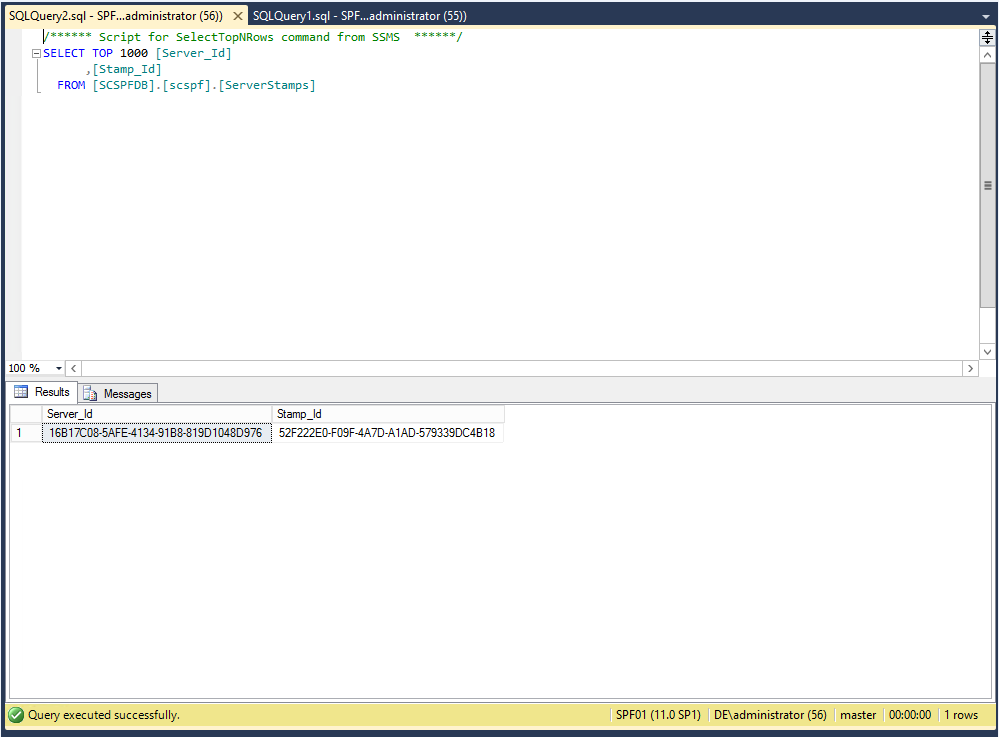
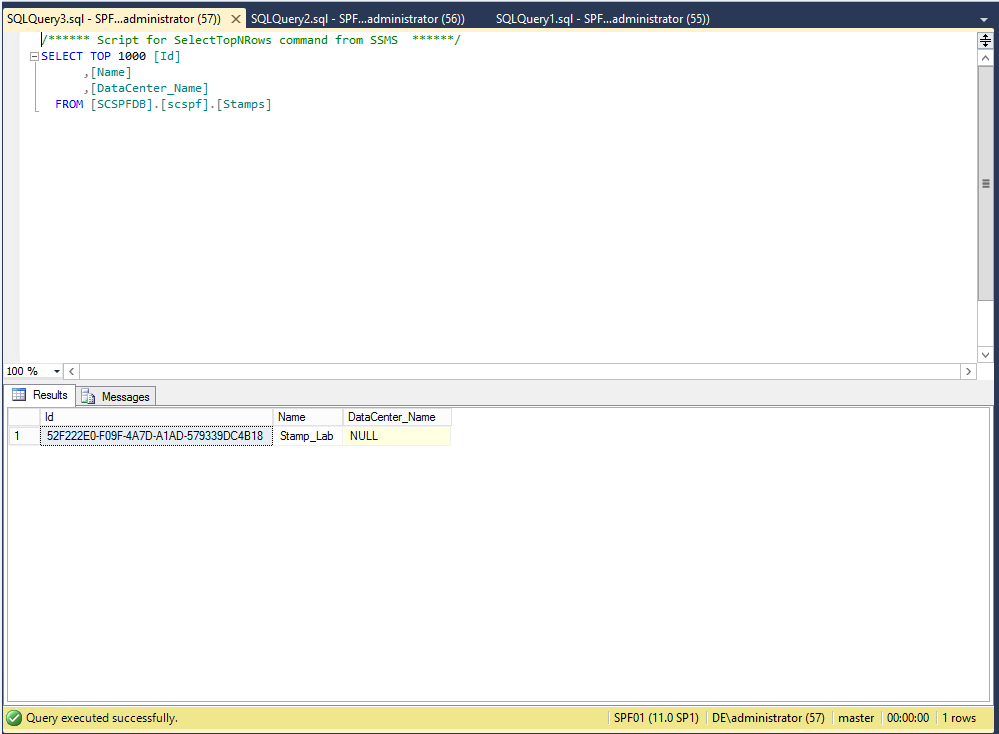
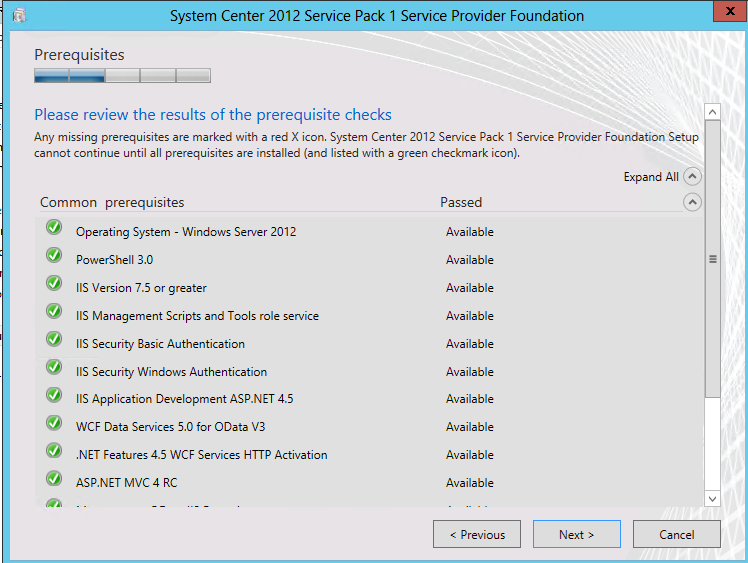
Now lets install SPF on SPF02. I’ve installed all prerequisites so I am ready to go.
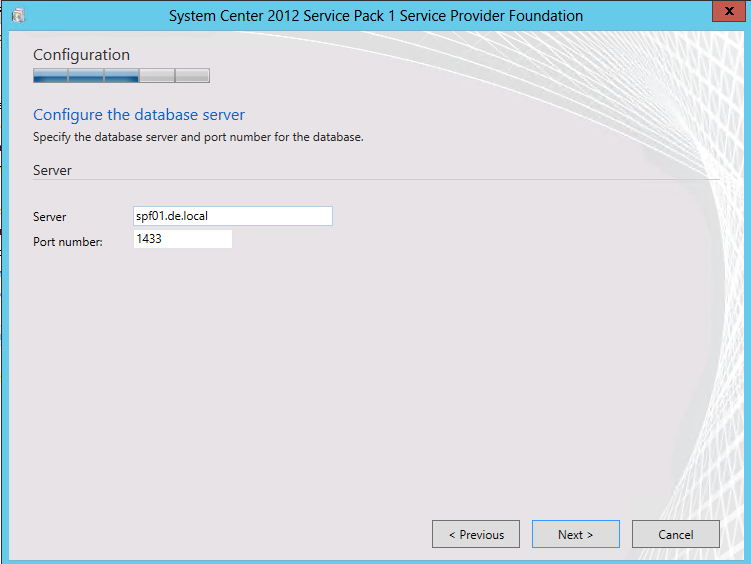
For database server I am pointing SPF01 where we have SPF database already deployed.
Next Next Next
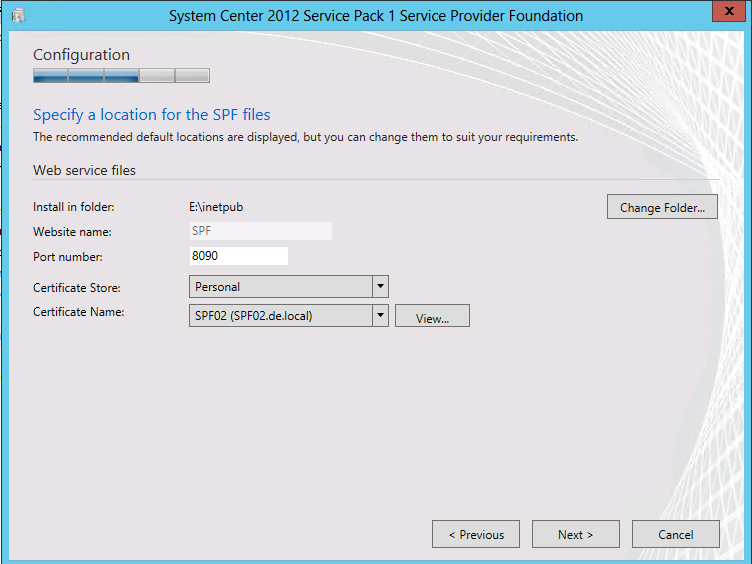
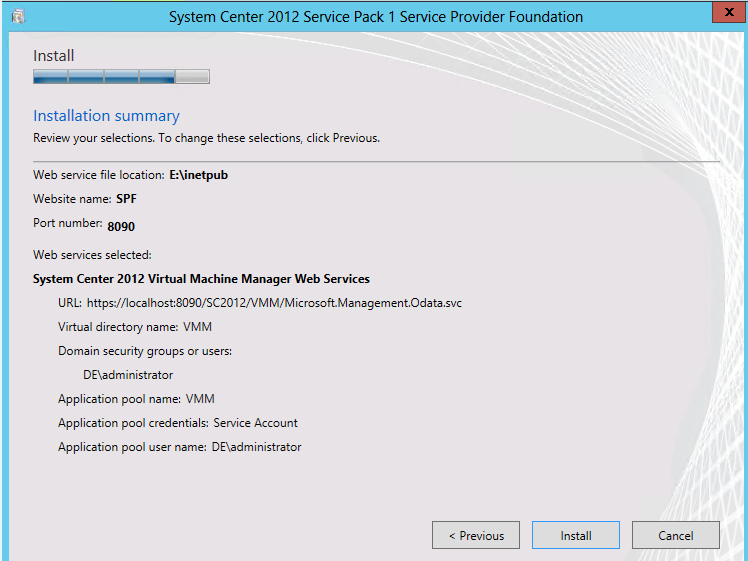
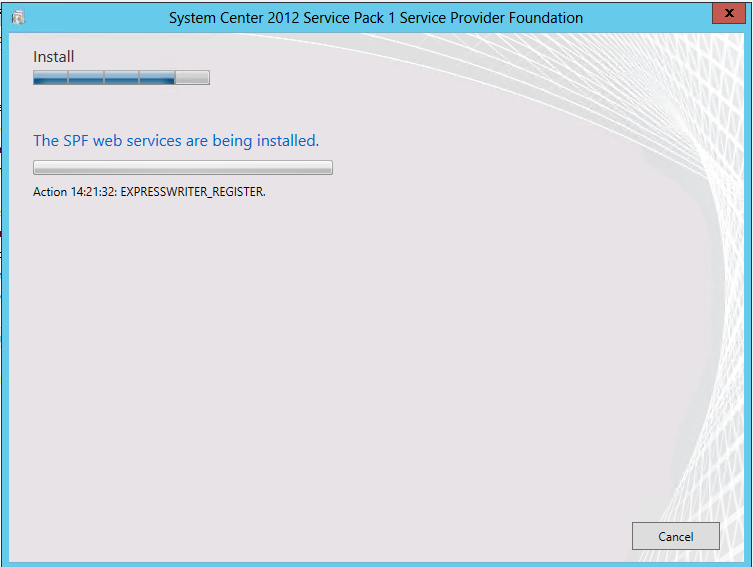
And we push Install. Installation is started.
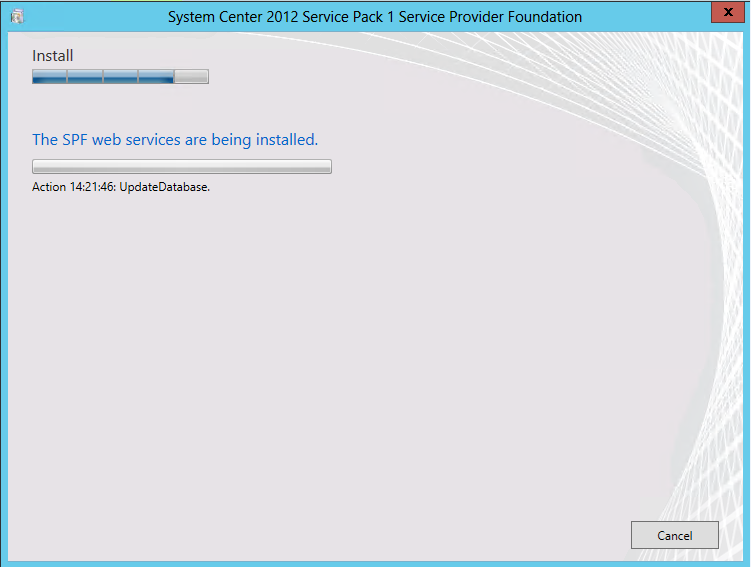
As we are at the step of deploying the database we see message: UpdateDatabase instead of CreateDatabase.
After successful install we can query the database to see if our records are still there.
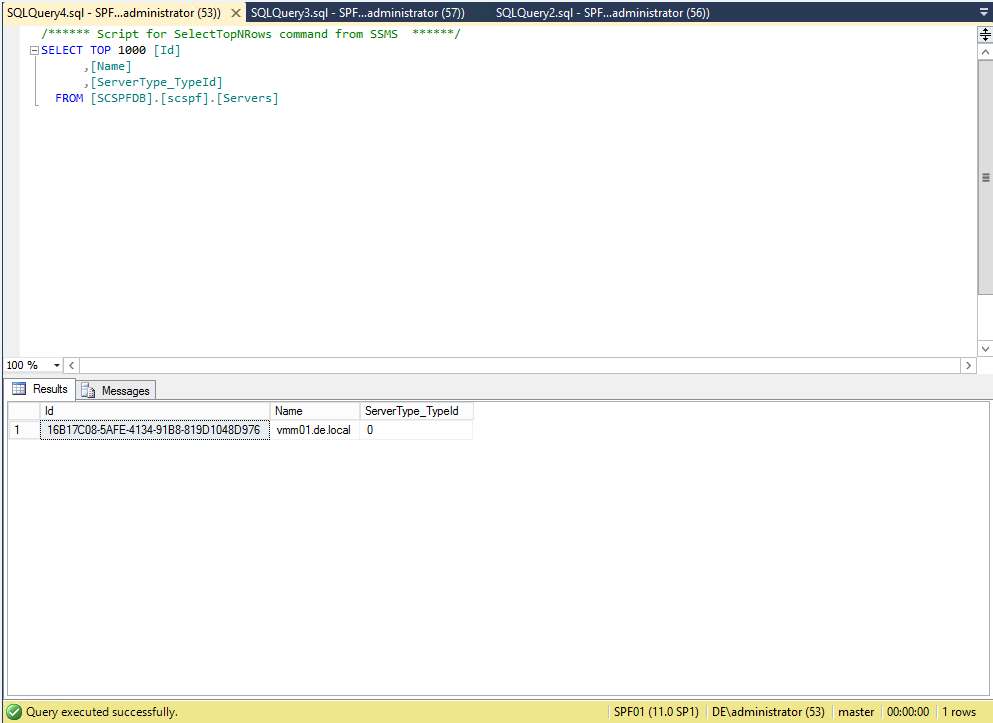
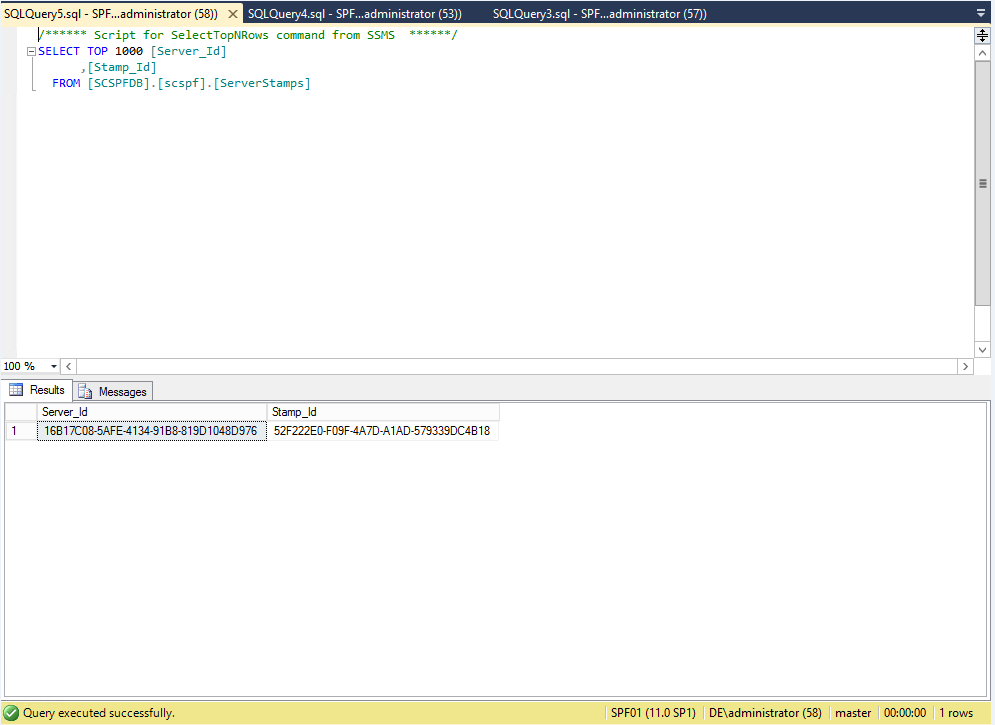
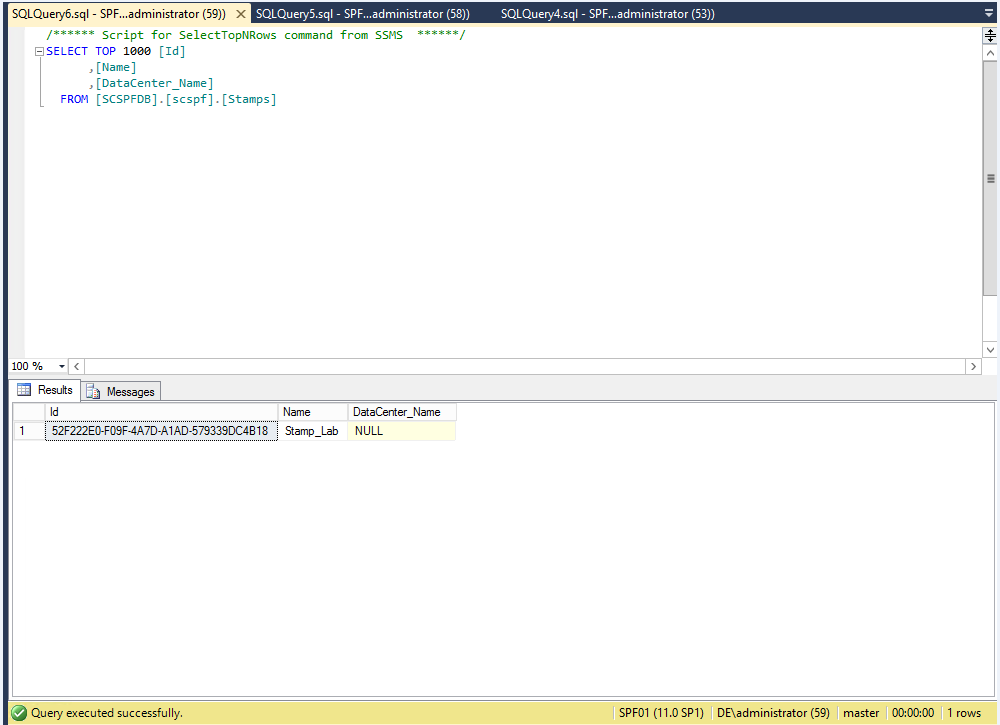
As we can see all the records are there as we left them.
Let’s add another server and another stamp from SPF02
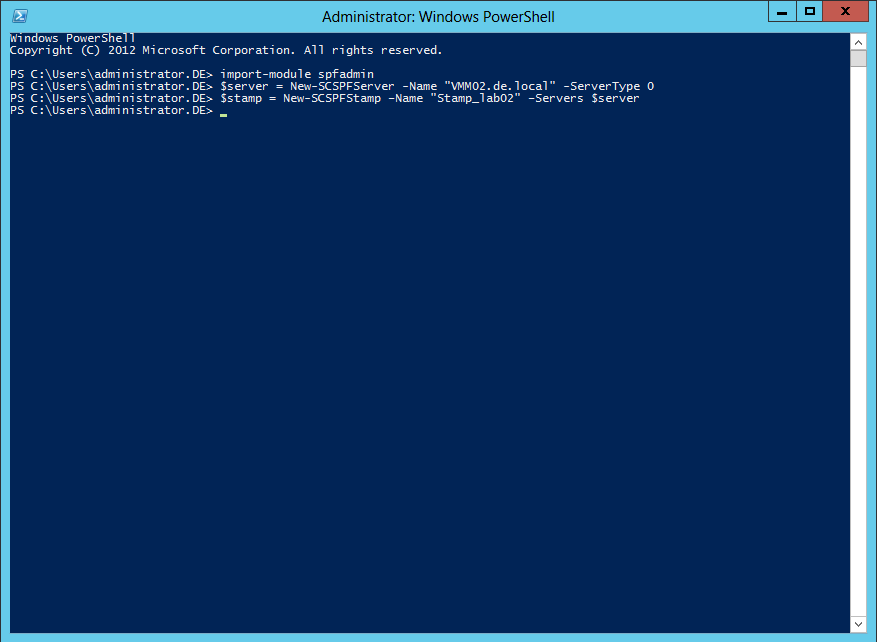
No errors during adding. Records also show in the database.
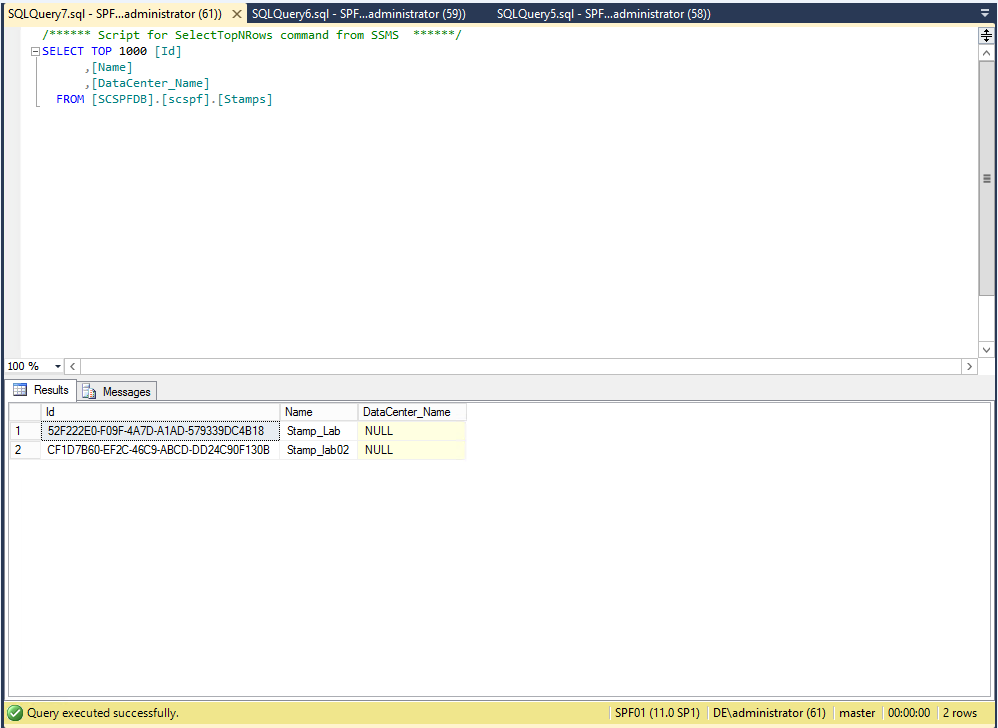
Lets see if the records are visible from SPF01.
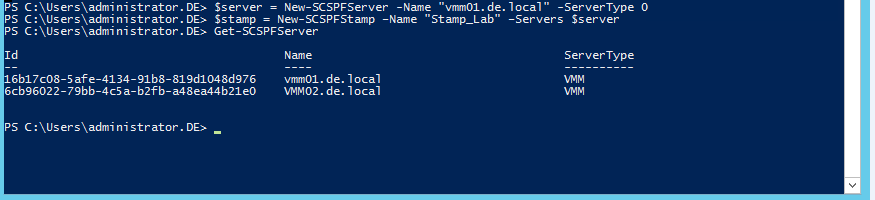
Both SPF01 and SPF02 are working ok.
Installing more than one SPF Web Service servers is supported scenario just not well documented.
The rest is to configure IIS and NLB the right way. There are some challenges that could be met there.
Orchestrator and Service Provider Foundation
If you want to know about the new feature in System Center 2012 SP1 named Service Provider Foundation there is a great article on Technet Wiki. The title of the article is Cloud Resource Management with System Center 2012 Service Pack 1 (SP1) – Orchestrator and Service Provider Foundation.
 Cloud Administrator in Azure World