
A new version of this MP Unix/Linux MP for SCOM is available here. The version includes agents with version 1.4.1.278.
Tag: OpsMgr
Some Tips on Upgrading System Center 2012 SP1 to R2 Preview
After covering the installation of the R2 wave for System Center 2012 I will now cover the upgrade from SC 2012 SP1 by providing some tips.
Note: Do not upgrade your production environment to R2 Preview. Only try to upgrade in lab environment.
So let’s start. With System Center we need upgrade sequence for upgrading the different components. Currently there is not such publically available but we can use the upgrade sequence for SC 2012 SP1:
1. Orchestrator
2. Service Manager
3. Data Protection Manager (DPM)
4. Operations Manager
5. Configuration Manager
6. Virtual Machine Manager (VMM)
7. App Controller
I will not be able to cover Configuration Manager, Data Protection Manager and App Controller as I do not have them in my lab. Also Service Provider Foundation is not listed in the upgrade sequence list but as it is part of Orchestrator I am putting it also on first position.
Upgrading to Orchestrator 2012 R2
In order to Upgrade to R2 you have to remove all Orchestrator 2012 SP1 roles. By removing them, retaining the database and starting the R2 installation you will be able to upgrade without data loss. Unfortunately after upgrading I’ve stumbled upon on the bug with the not working web service. Besides that bug runbook designer was working OK and all my runbooks were intact. After upgrading Orchestrator you have to upgrade your Integration Packs also to R2. You can download them from here. As my web service was not working and I couldn’t fix it even with my own workaround in the end I’ve end up on creating a new Orchestrator 2012 R2 and migrating all my data.
Upgrading to Service Provider Foundation 2012 R2
SPF 2012 R2 requires to be installed on Windows Server 2012 R2. So I’ve created a new WS 2012 R2 server hoping that I will start the installation pointing to my old database so SPF can upgrade it. Again unfortunately when I’ve done that the installation stuck on Updating Database for more than 40 minutes at which time I’ve decided to cancel the installation. Installation wasn’t responding to cancel command so I’ve ended up killing it. In the end I had to install completely new SPF server with a new database. I’ve couldn’t migrate my old data.
Upgrading to Service Manager 2012 R2
With Service Manager in most cases you will have at least one Service Manager Management Server and one Service Manager Data Warehouse. To upgrade to R2 you have to start with the Data Warehouse server first. Before upgrading it is best to stop all data warehouse jobs. I haven’t met any issues with upgrading the Data Warehouse server. After DW you can continue with the Management Server. Before upgrading it is good idea to disable all connectors. Again I was having no troubles with this upgrade also. Keep in mind that in a new installation of SCSM 2012 R2 System Center Management Service is renamed to Microsoft Monitoring Agent. This is not the case with upgrade that service stays named System Center Management. After upgrade start the DW jobs and enable the connectors. Make sure all are finished successful.
Upgrading to Operations Manager 2012 R2
Operations Manager upgrade also went flawless. The one thing I’ve done before upgrading is to brake the SCOM-SCVMM integration and remove the VMM MPs. I’ve upgraded Management Server and Reporting server without issues. After the upgrade you need to upgrade the SCOM agents on all servers you are monitoring. If you have somewhere Service Manager Console installed (like terminal server) you will need to uninstall the console and than upgrade the agent. You may also need to update some of your MPs to the preview versions. VMM 2012 R MPs are located in a folder of the VMM 2012 R2 installation. Do not import only the Dashboard MP from there but rather download it from here. If you have data that is synchronized between SCOM and SCSM and you’ve updated some MPs in SCOM that are also imported in SCSM you will need to update them there also.
Upgrading to Virtual Machine Manager 2012 R2
VMM also does not support in-place upgrade. You have to uninstall VMM and retain the database. Before uninstalling VMM first uninstall any Update Rollup if you have such. After uninstalling VMM, ADK (Windows Assessment and Deployment Toolkit) 8.0 also have to be uninstalled. Before starting the VMM 2012 R2 installation you have to install ADK 8.1. After VMM 2012 R2 installation is easy. You have to point a few settings, the installation will detect that you want to make upgrade to existing database and after a few minutes you will be upgrade to R2. After successful upgrade you need to start the console and update your VMM agents also.
Overall the upgrading experience to R2 is good but there are few serous bugs that needs to be fixed or at least upgrade documentation to be available to help you when RTM arrives which today was announced that it will be 18th of October. Mark you calendars.
Testing OpsLogix Oracle Intelligent Management Pack
OpsLogix is a Microsoft System Center Alliance partner which develops innovative products for (virtual) infrastructure management. In my experience I was previously working with Oracle Intelligent Management Pack by supporting the SCOM environment of one of OpsLogix reference customers. I’ve never had issues with that MP. As being only supporting part I was not involved in implementing this MP but recently I was given this opportunity so this blog post is about my experience with OpsLogix Oracle Intelligent Management Pack.
First I want to start that instead of testing the Oracle IMP in supported scenario I’ve decided to test in unsupported environment in order to prove how good this MP is. I’ve always been enthusiast so I just I couldn’t resist. Also I want to make a notice that if you are deploying in production always use supported scenario.
Before introducing my test environment let’s first see what the architecture of the Oracle IMP is:
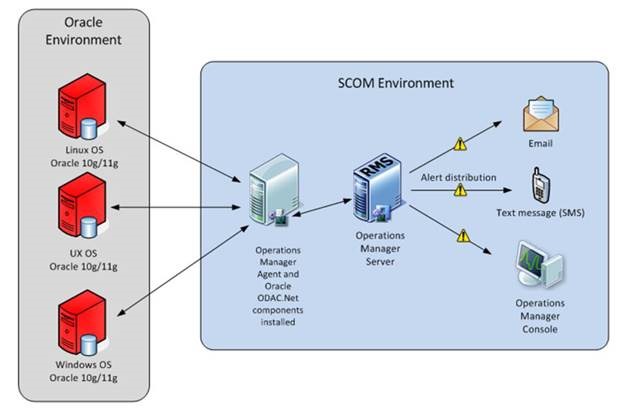
As we can see you just has to have one Windows node with SCOM Agent on it and ODAC.Net components installed. That node acts as a proxy and connects to all you Oracle database weather they lie on Windows OS, Unix OS or Linux OS. This architecture makes the MP very flexible which is especially important in the changes about unix an linux agents changes coming in SCOM 2012 R2. Basically it makes the MP SCOM 2012 R2 ready.
Now let’s look of how my lab looks:
· SCOM 2012 R2 Preview server that is installed on Windows Server 2012 R2 Preview.
· Oracle ODAC.Net components installed on the SCOM 2012 R2 Preview Management Server. You can install them on separate node but I’ve used my SCOM management server for simplicity. The components require .NET Framework 2.0 and are supported on Windows 2003/2008/2008R2 with x86 or x64 architecture. In production install them only on supported systems. I am sure that in the future OpsLogix will offer support for WS 2012 also.
· Windows Server 2012 (DB1) with Oracle 12c installed on it. Oracle 12c is not supported by the Oracle IMP but I’ve wanted to see if it is possible to add such database.
· Windows Server 2012 (DB2) with Oracle 11g installed on it.
After the overview of the lab we can continue with the first steps of implementing Oracle IMP.
1. First make sure you’ve installed .NET Framework 2.0 on the node that you will use as proxy. I already had it installed on my SCOM 2012 R2 Preview management server.
2. Second install SCOM agent on that same server. As my server is management server I do not need to do that.
3. Next you can proceed with installing Oracle ODAC.Net components. OpsLogix provides all components in a zip file that you can extract and then you run a simple script that install everything you need.
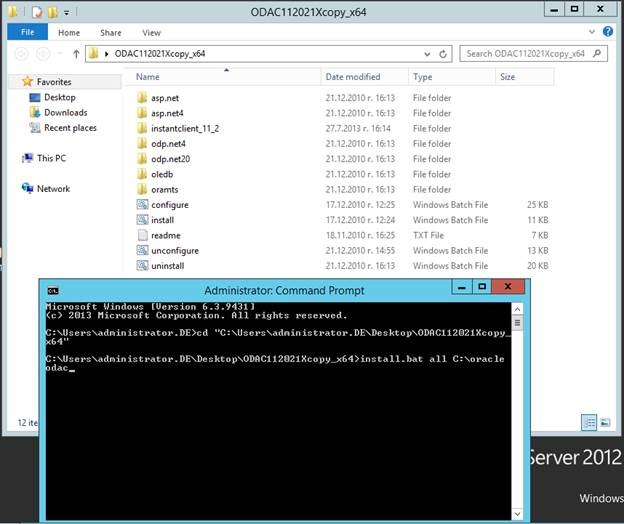
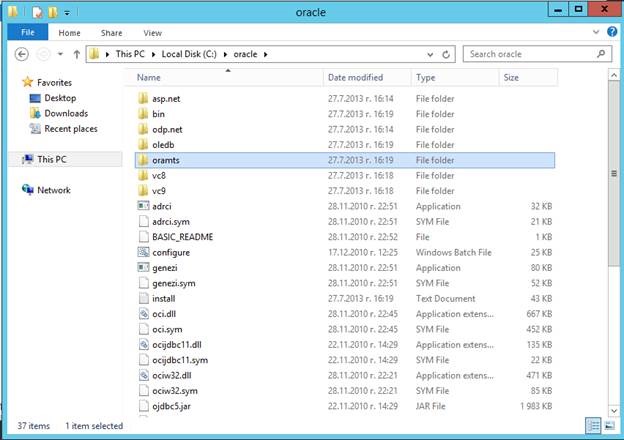
4. After successful installation you will see oracle folder on C:\ with all components:
5. After this procedure you can proceed with importing the OpsLogix Oracle IMP trough the SCOM console
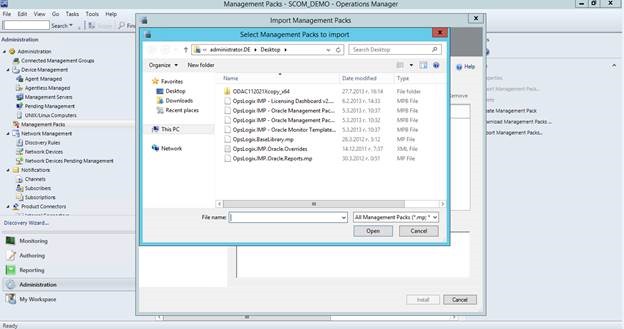
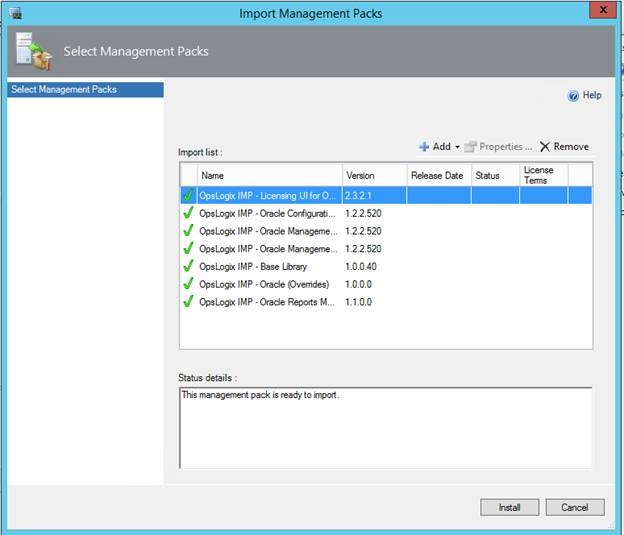
6. You can see that you even have unsealed MP ready for overrides.
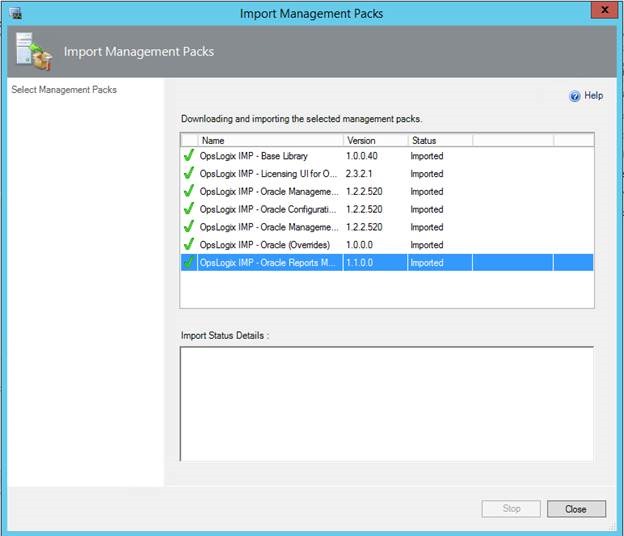
7. Everything is imported successful on SCOM 2012 R2.
8. After importing the first thing you need to do is to import your License keys in order to be able to monitor any Oracle database instance.
9. Importing is very easy you have to go to Monitoring -> OpsLogix -> OpsLogix Licensing Dashboard -> Add License.
10. After adding your license you can see all information about the license.
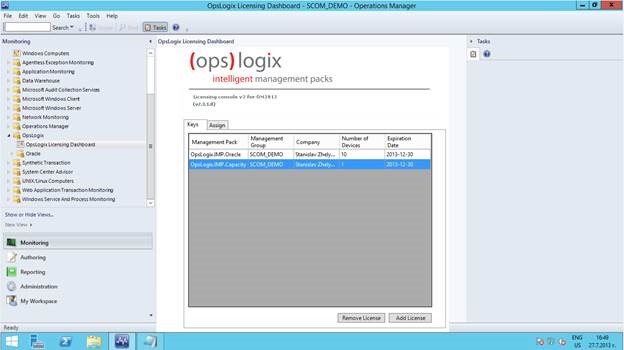
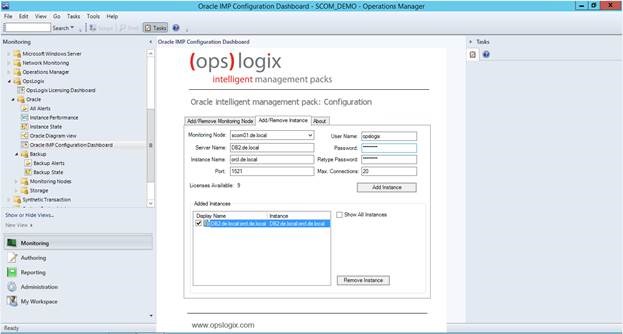
11. Next is to add the node(s) that will act as proxy for monitoring your Oracle database. You go to OpsLogix -> Oracle -> Oracle IMP Configuration Dashboard. The MP automatically detects all your SCOM Windows agents and lists them so you can just select the node(s) that will act as proxy and add them.
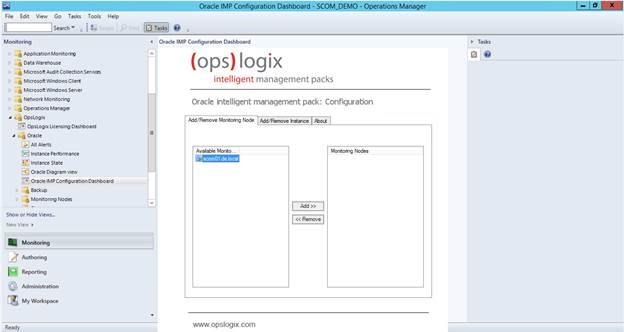
12. After adding monitoring node(s) you select Add/Remove instances tab to add databases that you want to monitor.
13. A simple information is added to monitor database as monitoring node, server name, instance name, port and credentials. It is very easy to add databases for monitoring. In fact as I’ve hadn’t any experience with Oracle databases it was harder for to actually configure the databases themselves than to add them for monitoring.
14. Let’s first add DB2 with Oracle 11g installed on it and then DB1 with Oracle 12c.
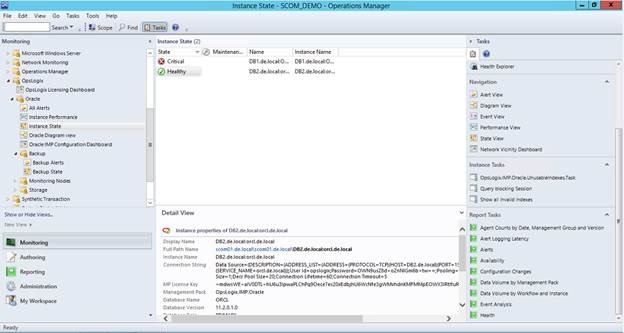
15. After a couple of minutes you will see both instances being discovered completely. Even that 12c is not supported that instance is discovered with all of its properties:
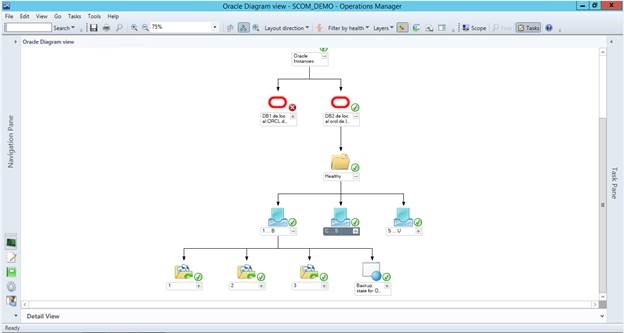
16. Now let’s see what capabilities this MP has. The MP has Oracle diagram where you can see health map of your Oracle instances and drill down to the root cause of every issue:
17. In the Action menu you will find three tasks:
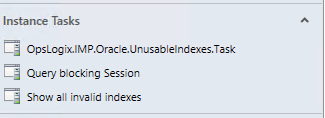
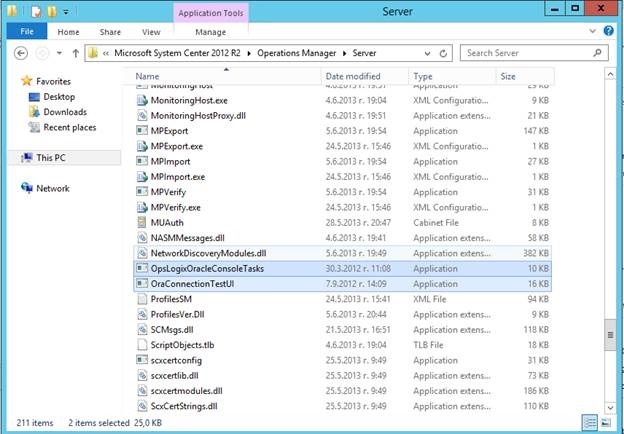
18. In order to use these tasks you have to copy two files on all of your management servers:
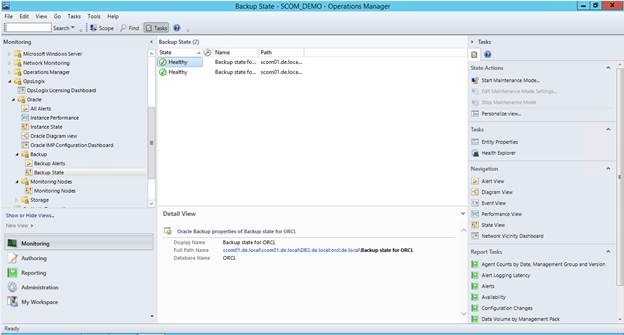
19. You will also find a backup state view. This is very useful for database administrators.
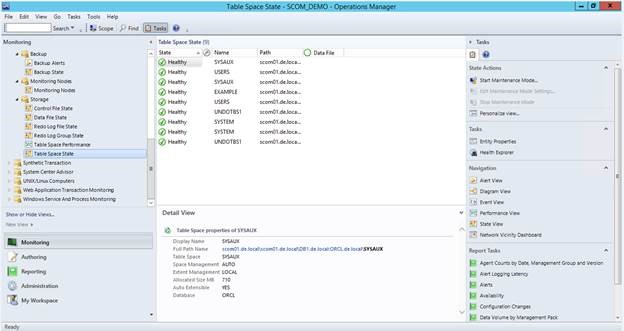
20. You will also find a separate folder for Storage that you will find the different components of the Oracle database architecture in separate views. This helps locating problems faster.
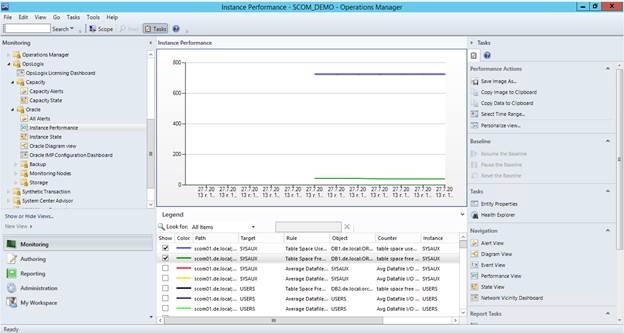
21. What I like most is the Instance performance view where you can see and compare all performance data that is gathered.
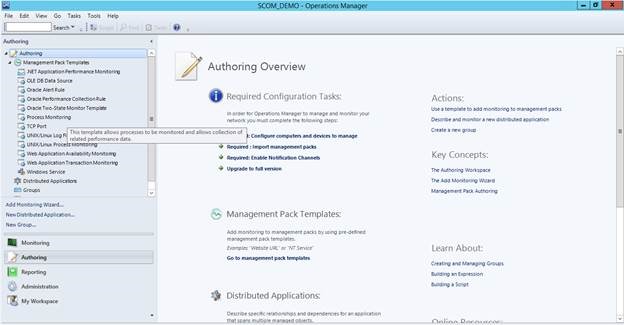
22. As we know there is no perfect MP you could always find an error or performance counter that is not monitored for your particular case. The OpsLogix Oracle IMP covers that scenario by providing 3 templates for rules and monitors (Oracle Alert Rule, Oracle Performance Collection Rule and Oracle Two-State Monitor Template) so you can extend the MP very easy.
23. The last I want cover reporting. A lot of good MPs just do not have reporting but this one has one report which is very good. The MP gives you one general report that provides you with availability and performance which are the most common requirements for reports:
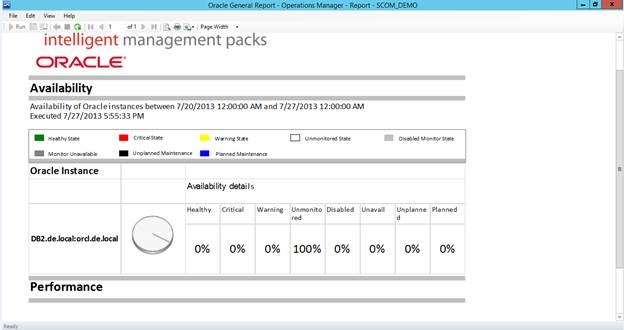
As a summary I can say that OpsLogix Oracle IMP is very easy to implement, will offer you with everything you need to monitor your Oracle database and it is definitely SCOM 2012 R2 ready.
“The user credentials are invalid or user does not have permissions to access the application” Error on Newly Install SCOM Web Console
I was installing SCOM 2012 R2 Preview today and after the installation I’ve tried to access the Web Console to see if it is healthy but I’ve received error “The user credentials are invalid or user does not have permissions to access the application”:
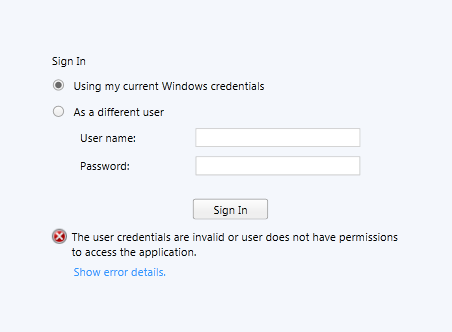
For sure my account had access as I was working in the Operations Manager console at the same time.
How I solved it?
I’ve started IIS Manager and check what authentication methods are enabled. Windows Authentication was disabled so I’ve enabled it:
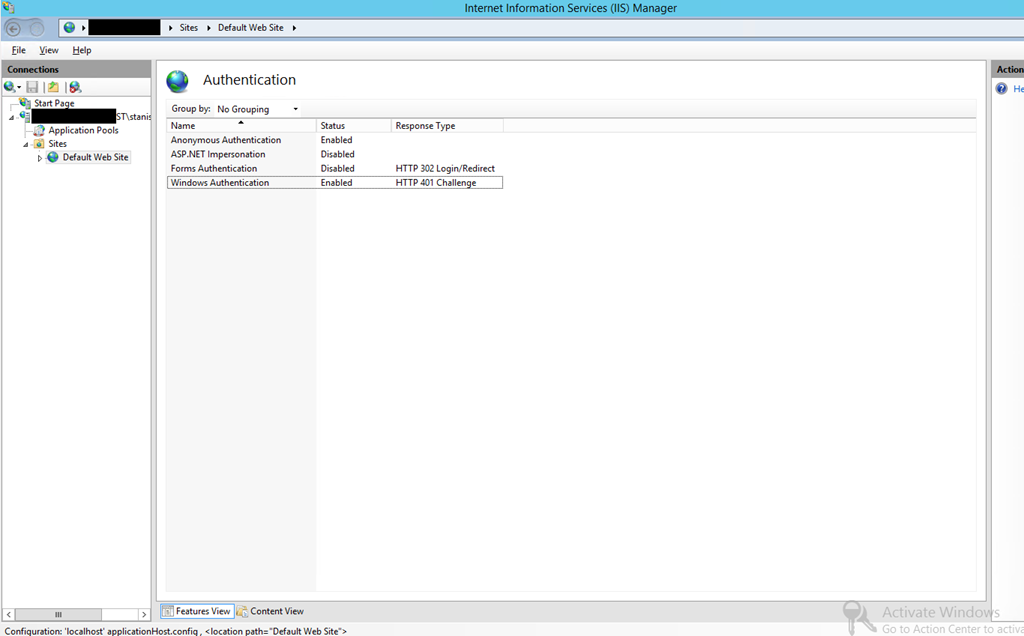
After that I’ve logged to the Web console without problem. This is not specific SCOM 2012 R2 preview issue I am sure it could be met in older versions as well.
Where is my System Center Management Service in SC 2012 R2?
If you’ve already installed SCOM 2012 R2 you’ve probably noticed that System Center Management Service is gone. Now we have Microsoft Monitoring Agent:

But that is not all folder location is also changed:
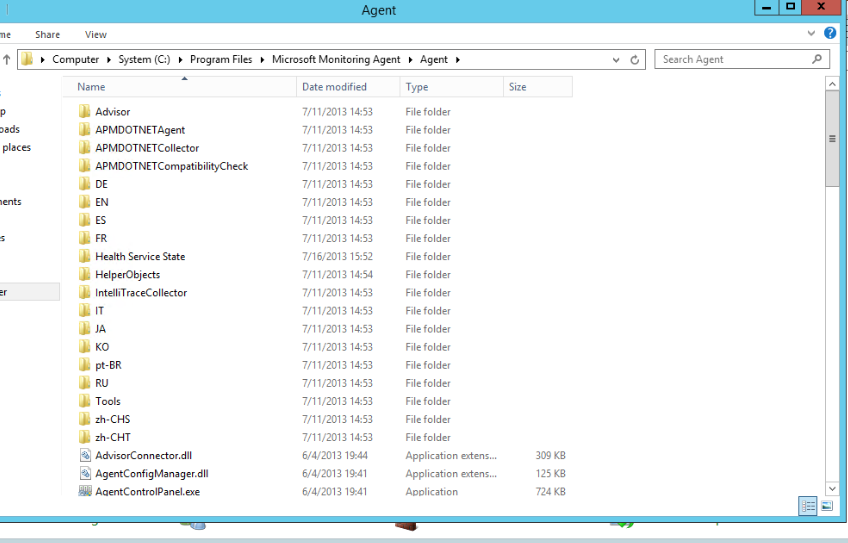
You will notice the change also in the Control Panel:
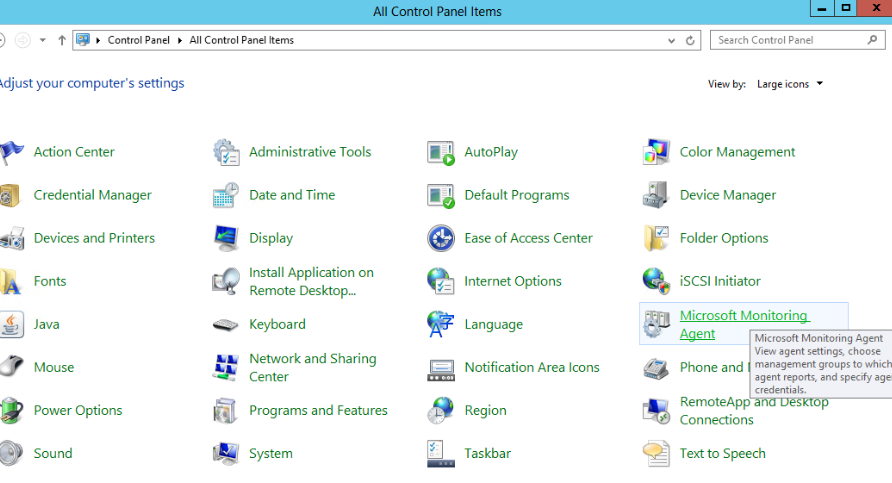
We already know that changes are not only in the name now but the service can actually can be leveraged by other products. Could we see in the future this agent be leverage by other products as well? May be something like Windows Azure Monitoring (WAM) or Windows Azure Operations Manager (WAOM)? We can only speculate for now and wait to see what will happen.
Note 1: This is not the first time the name of the service is changes in 2005 it was MOM, in 2007 RTM/SP1 it was OpsMgr Health Service and in 2007 R2, 2012 and 2012 SP1 it was System Center Management Service.
Note 2: The built-in agent in Service Manager 2012 R2 is also renamed to Microsoft Monitoring Agent in services.msc and Control Panel so if you need to restart Service Manager 2012 R2 health service you have to restart Microsoft Monitoring Agent. The installation folder of the agent is where Service Manager is installed.
 Cloud Administrator in Azure World