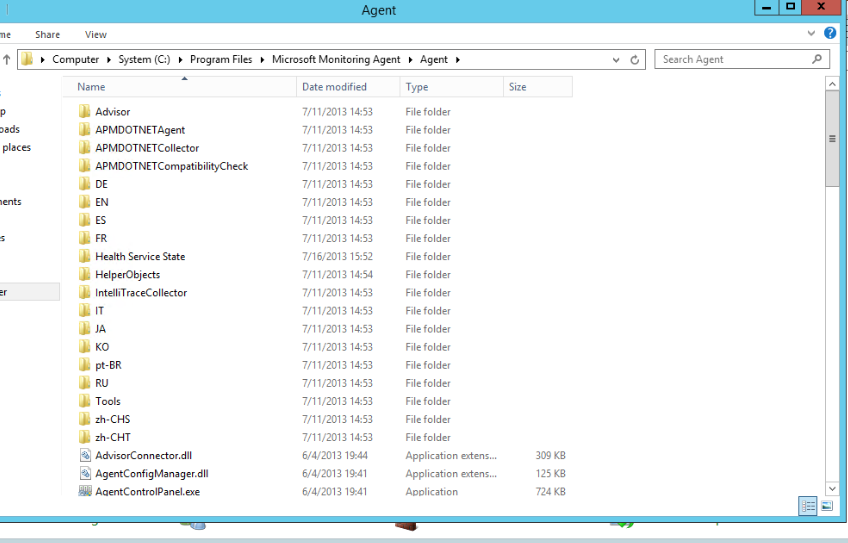
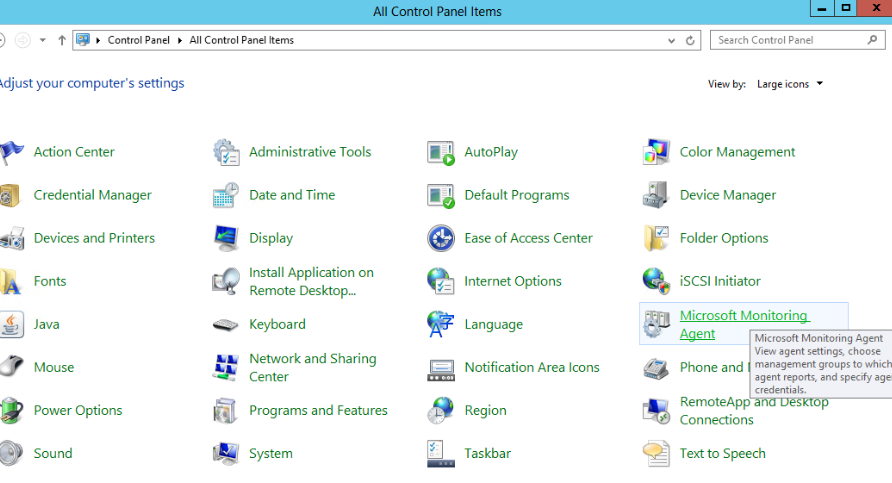
As most of you probably know SCSM 2012 SP1 comes with built-in SCOM 2012 SP1 agent. You juts install your SCSM SP1 management server and late you can configure your SCOM 2012 SP1 agent from the control panel. So far seems good but there could be situation where your SCSM management server is working normal and your SCOM agent is failing for some reason. So one of the solution would probably be to re-install the SCOM agent right? But how to do that as SCSM management server and the SCOM agent are connected tightly? The solution is to reinstall the SCSM management server. Heavy task but at least there is a solution. So here are the general steps you need to follow to do that:
1. Backup your SCSM management server.
2. Backup the encryption key of the SCSM management server.
3. Uninstall the SCSM management server from Control Panel.
4. Remove any registry keys left from the installation. Examples:
HKEY_LOCAL_MACHINE\SOFTWARE\Microsoft\Microsoft Operations Manager
HKEY_LOCAL_MACHINE\SOFTWARE\Microsoft\System Center
HKEY_LOCAL_MACHINE\SOFTWARE\Microsoft\System Center Operations Manager
HKEY_LOCAL_MACHINE\SYSTEM\CurrentControlSet\Services\HealthService
HKEY_LOCAL_MACHINE\SYSTEM\CurrentControlSet\Services\MOMConnector
HKEY_LOCAL_MACHINE\SYSTEM\CurrentControlSet\Services\OpsMgr Config Service
HKEY_LOCAL_MACHINE\SYSTEM\CurrentControlSet\Services\OMCFG
HKEY_LOCAL_MACHINE\SYSTEM\CurrentControlSet\Services\OMSDK
HKEY_LOCAL_MACHINE\SYSTEM\CurrentControlSet\Services\OpsMgr Config Service Per Agent
HKEY_LOCAL_MACHINE\SYSTEM\CurrentControlSet\Services\OpsMgr SDK Service
HKEY_LOCAL_MACHINE\SYSTEM\CurrentControlSet\Services\System Center Management APM
5. Install SCSM 2012 SP1 management server again with the encryption key you’ve backed up.
6. Configure SCOM SP1 agent from the Control Panel.
This information was provided by Travis Wright – PM @ Microsoft. Thanks Travis for the support. I haven’t tested this but if you are in such situation and you have backup do not be afraid to try it.
————————–UPDATE———————————————–
After some discussions with community members we discovered that SCSM 2012 Self Service Portal SP1 role does not install builtin SCOM agent. The only way to install SCOM agent is to do it prior installing SSP role. Of course to re-install the agent will mean that you have to remove SSP role, re-install the SCOM agent and install SSP role. But be careful with that approach because you may loose some portal customizations you have done. Also I am not sure if MSFT will support such approach of installing the SCOM agent prior SSP role. I would recommend to monitor that server agentless.
I’ve also spoke to Travis Wright and he stated that SCSM team does not have plans to add bultin SCOM agent on the SSP role in any of the future URs.


 Cloud Administrator in Azure World