Steps to Migrate Virtual Machines with Shared VDHX from One Cluster to Another

Imagine the following situation: You have two Windows Server 2012 R2 Hyper-V clusters – Cluster1 and Cluster2. Every cluster has two or more nodes. On Cluster1 you have two virtual machines VM1 and VM2. The virtual machines are in guest cluster and are using one or more Shared VHDX files. As you probably know virtual machines with shared vhdx files cannot be migrated with shared nothing live migration. Than how to move VM1 and VM2 from Cluster1 to Cluster 2? Here is a solution for you:

  1. Logon to VM2. Start Failover Cluster Console. Pause VM2 as node in the cluster and drain all roles.
  2. Shut down VM2.
  3. Logon to VM1. Shut down VM1.
  4. Remove cluster resources for VM1 and VM2 from Cluster1.
  5. Open Hyper-V console on the node of Cluster 1 where VM1 and VM2 are.
  6. From the VM settings of VM2 remove all shared VHDX disks. Apply.
  7. From the VM settings of VM1 remove the checkbox for shared VHDX on all drives where is checked. Apply
  8. From Hyper-V console move VM1 to one of the nodes of Cluster2.
  9. From Hyper-V console move VM2 to one of the nodes of Cluster2.
  10. Now VM1 and VM2 are on Cluster2.
  11. Open the Hyper-V console on the node of Cluster2 where VM2 is.
  12. Open VM settings for VM2. Attach all shared vhdx files as disks that you’ve removed in step 6 in the same order as before. Check the checkbox for shared VHDX on all of them. Apply
  13. Open VM settings for VM 1. Check the checkbox for shared VHDX for all disk that you’ve removed in step 7. Apply.
  14. Add VM1 and VM2 as cluster resources in Cluster2.
  15. Start VM1. Check if VM1 is healthy and all resources/roles are up in the Failover Cluster Console.
  16. Start VM2. Resume VM2 as node of the guest cluster. Migrate all roles and resources to make sure everything is ok.

These are all the steps you need. I hope they will help you.

What Does it Takes to be System Center Specialist These Days

Back in the days the System Center family consisted only of MOM and SMS and a lot has changed in the last years and more changes to come as we are reaching the GA date of the R2 wave. Also I am not saying it was easier back in the days to be System Center Specialist, in fact I think it was harder as the information about the products was more scarce. Anyway the idea of this blog post is to recite what knowledge and skills are needed for our activities as System Center Specialist. Keep in mind that these knowledge and skills cover all System Center components and even Windows Azure Pack but it is not mandatory to have them all and the level of knowledge can differ. So here we go:

  • Networking – Networking knowledge is helpful in all products but especially in components as SCVMM and SCOM. SCOM now has network monitoring, it is not the advanced network monitoring solution but some knowledge is needed to implement it and maintain it. SCVMM is now deep into networking and I won’t go into details. And here I am even not touching subtopics like SNMP, Network Virtualization, VLANs, PVLANs, IP address management and etc.
  • Storage – As with networking basic storage knowledge is needed for all components. You need to know on what storage you will run the components, how many IOPS are needed in order to run them and etc. Also in SCVMM 2012 R2 you now have more features that are related with storage like crating  SOFS with Storage spaces, managing virtual fiber channel support, managing of zones and etc. Subtopic knowledge can include ISCSI, Storage Spaces, SMB, Fiber Channel and etc.
  • Cross-Platform – Believe it or not but Microsoft is embracing Cross-Platform and this is visible in System Center. SCCM can now manage client devices with iOS or Android, on the server side SCOM is adopting the OMI standard which allows monitoring Unix/Linux servers and even more, SCVMM supports and can deploy Unix/Linux operating systems and I bet more will come. Orchestrator can also be used in managing Cross-Platform systems.
  • SQL – No System Center component works without an SQL Server. Any knowledge you can gain on SQL is very beneficial for you as specialist. In SCVMM you can even deploy SQL servers with templates.
  • Applications – It is all about the app. SCOM can monitor various applications by Microsoft or third party. Most distinctive examples are monitoring of .NET and J2EE applications. With Orchestrator often task is to develop runbooks that interact with other applications and even other management software which is of course also application.
  • Scripting – Scripting is the beginning of automating and orchestrating your datacenter. All System Center components have PowerShell cmdlets, Orchestrator can execute PowerShell scripts and the new component Service Management Automation is basically more mature engine to execute PowerShell scripts.
  • Development -  Some advanced functionalities can be achieved only when some development is involved. With SCOM, SCSM and Orchestrator development of custom solutions is often involved. As specialist you may not be the person who will develop the solution but you can be involved for some part. We can also look that every new System Center component now gets a web service and knowing standard like OData can be very helpful.
  • ITIL (MOF)  – You may not like the processes but they help us preventing of setting the Datacenter on fire Smile. All System Center components take part in ITIL but SCSM is tightly integrated with the framework and having knowledge of the framework can only help you with SCSM.

  • Security – Security is a job for all employees in a company. Security not only exists in System Center components but can also be applied by some of them. SCCM allows you to manage Endpoint Protection, you can also apply policies with Desired Configuration Management and of course apply patches which can also be done trough SCVMM for some servers.

Let me know what you think? Am I right or am I wrong? Did I’ve missed something? Write them all in the comment section.

Windows Server 2012 R2 Hyper-V Component Architecture Poster and Hyper-V Mini-Posters

No detailed explanation is needed for these posters. Very useful way to study or explain a technology. Download them from here.

First Look at OpsLogix’s VMware Management Pack (beta)–Part II

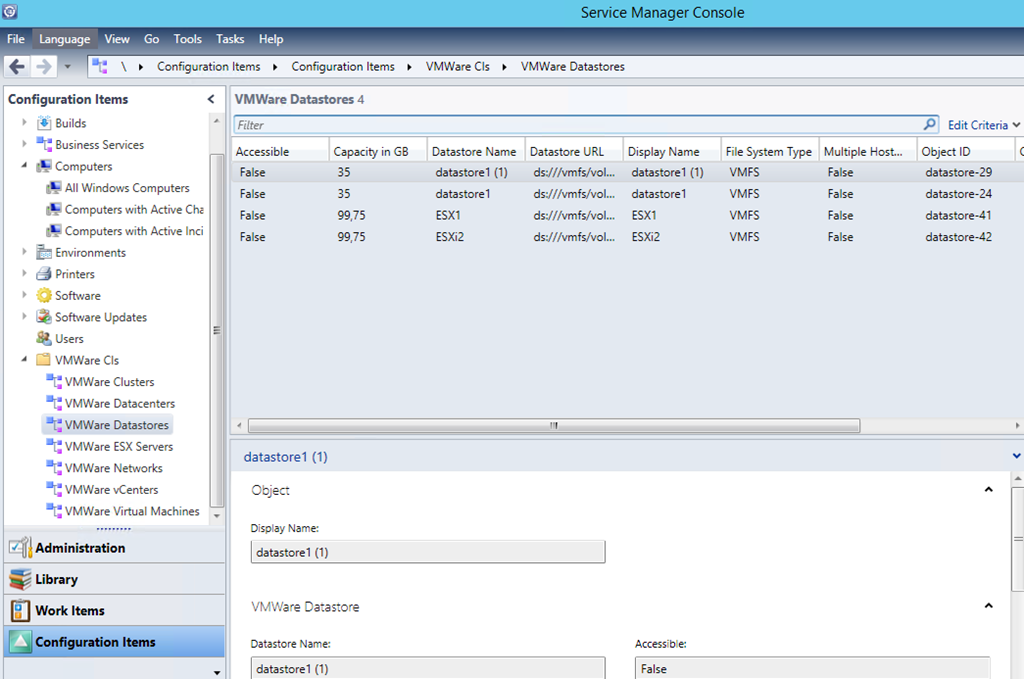
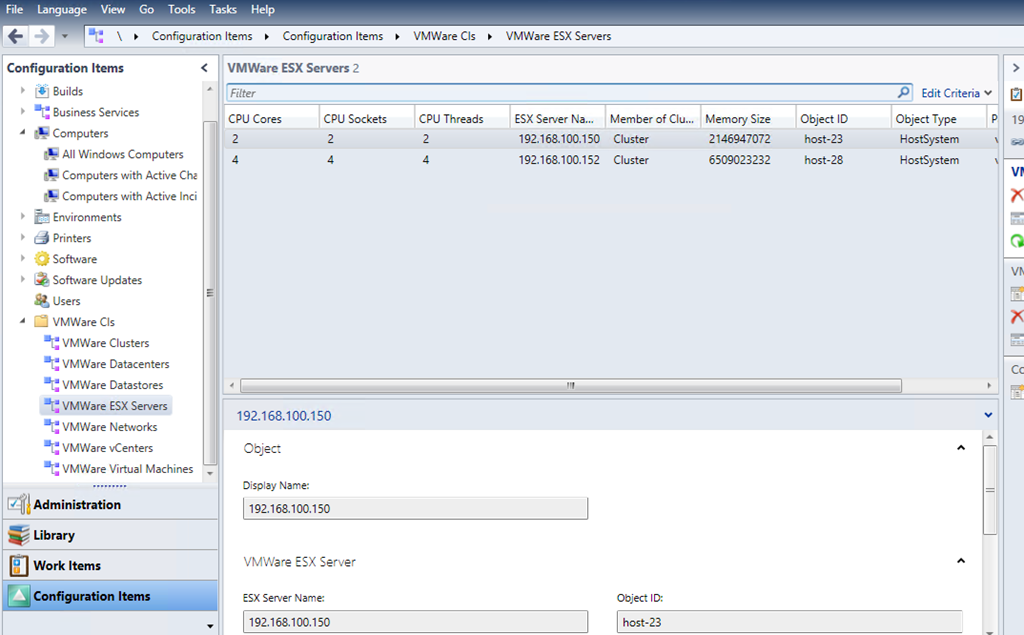
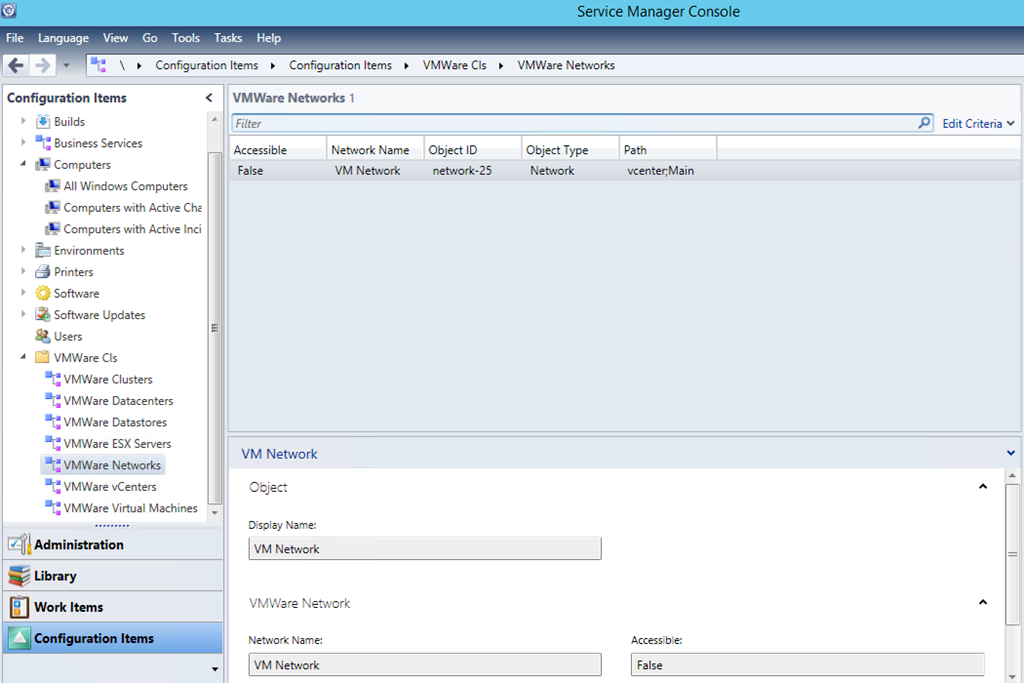
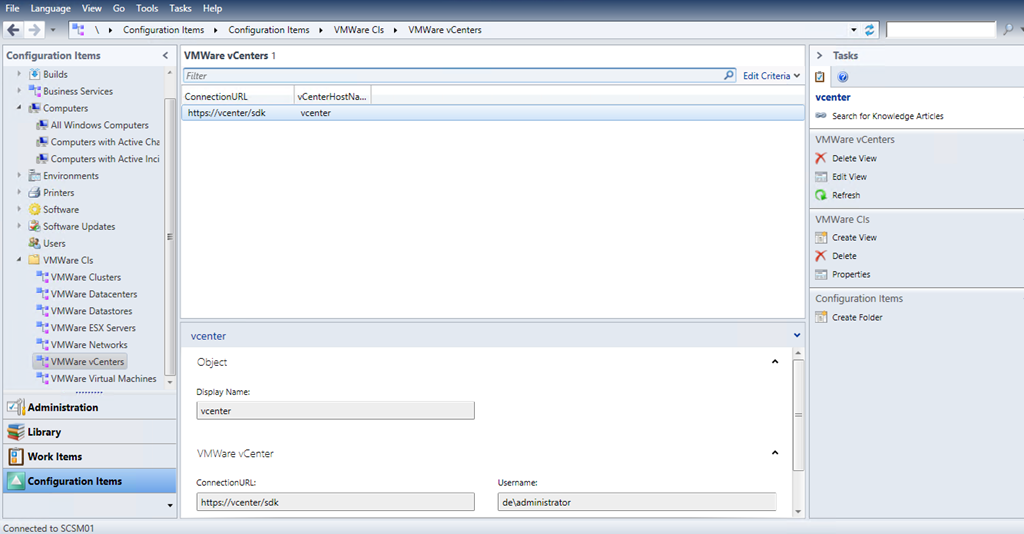
After taking a first look at OpsLogix’s VMware Management Pack I’ve released I’ve missed something that I usually test with such core MPs like this one. That test is to bring the discovered objects from SCOM to SCSM as Configuration Items. It is not something hard to do and I’ve described the process before here but nevertheless I think it will good to see it visually in this blog post.

First you need to import OpsLogix IMP –Base Library MP and OpsLogix IMP – VMWare MP in Service Manager.

image

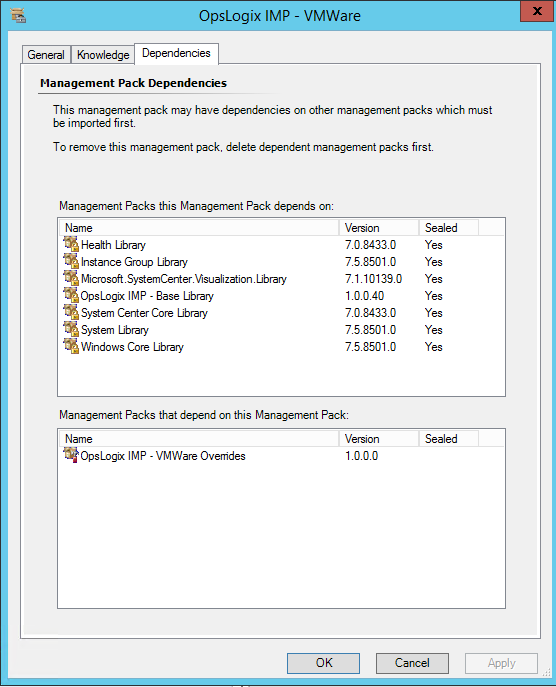
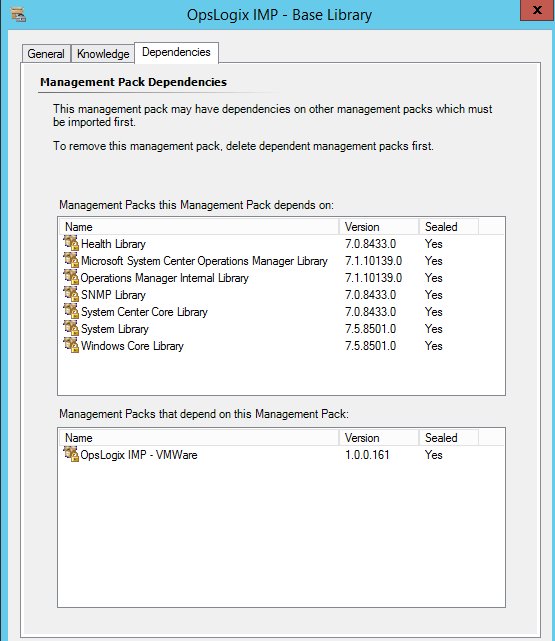
But before actually importing these two you need to import also their dependencies:

image

image

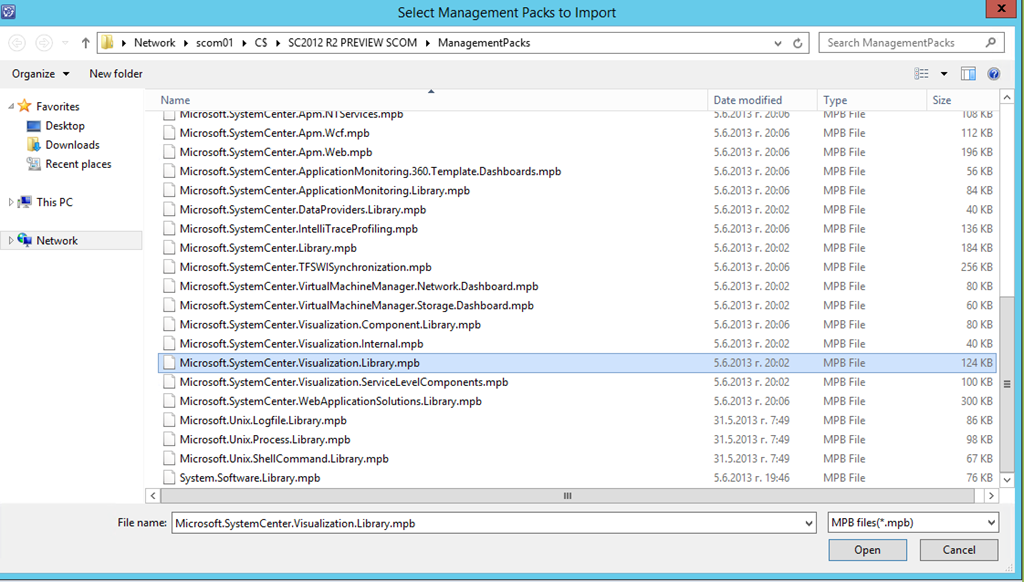
In my case I’ve needed to import Operations Manager Internal Library, System Center Visualization Library and System Center Image Library. All management packs can be found in the SCOM installation in the Management Packs folder. Keep in mind that for the System Center Visualization Library the MPB file have to be imported:

image 

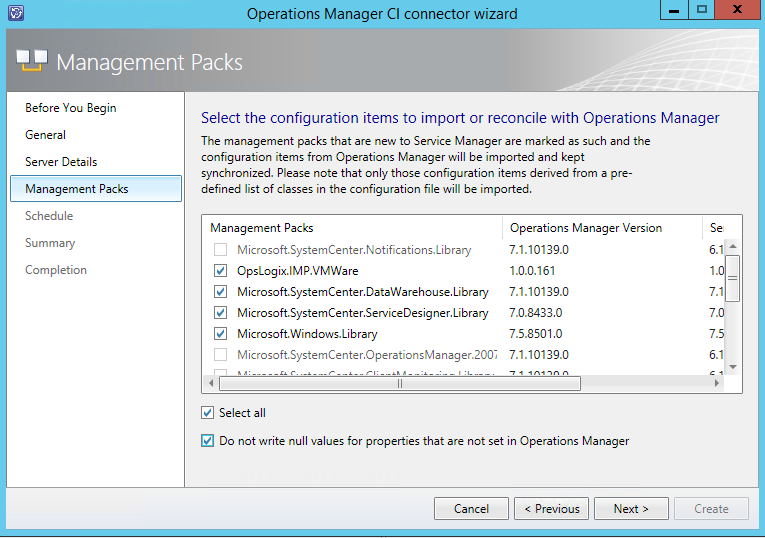
After successful import you need to configure your Operations Manager CI connector in SCOM to sync the VMWare MP:

image

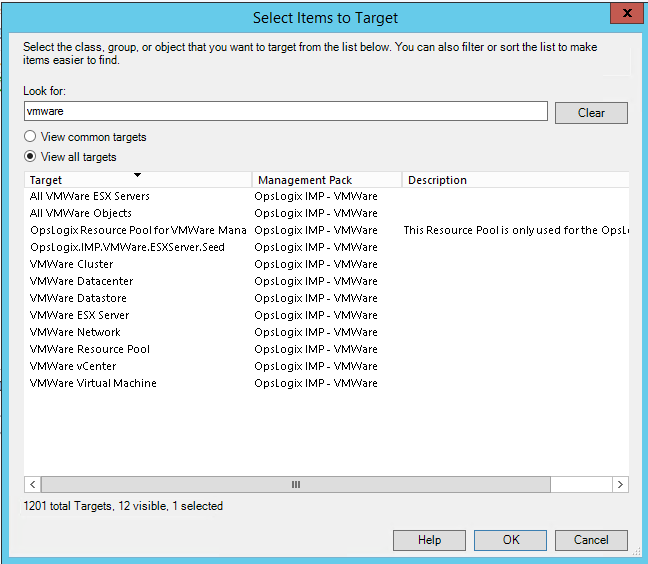
Next we need to put some classes in the SCSM allow list in order to sync the instances for that classes. The classes we will find in SCOM Discovered Inventory View:

image

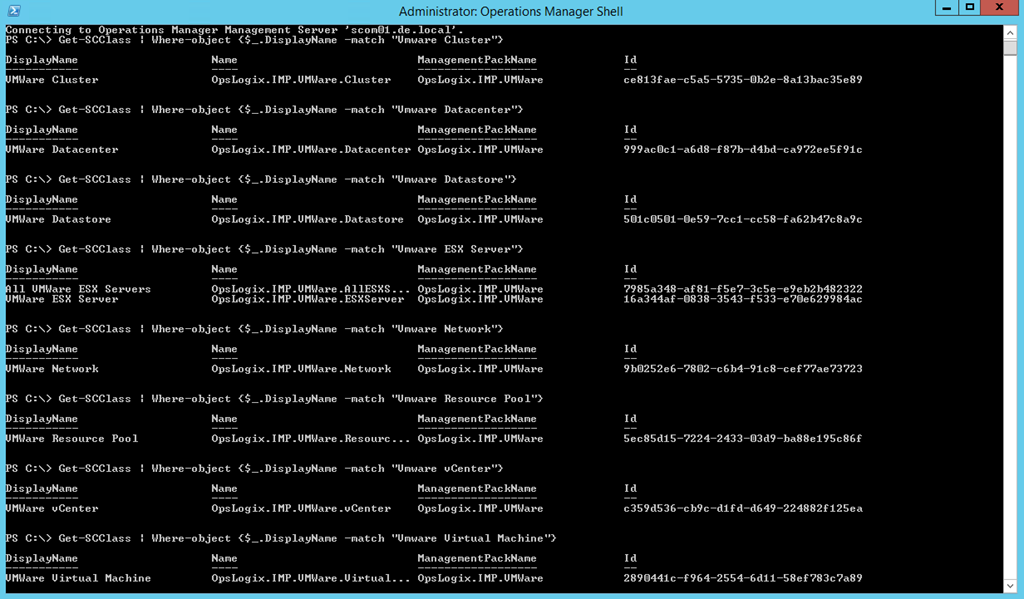
Now that we know the display names of the classes we can easily find their internal names with PowerShell.

image

You need to start Operations Manager cmdlet and execute the following commands:

  • Get-SCClass | Where-object {$_.DisplayName -match "Vmware Cluster"}
  • Get-SCClass | Where-object {$_.DisplayName -match "Vmware Datacenter"}
  • Get-SCClass | Where-object {$_.DisplayName -match "Vmware Datastore"}
  • Get-SCClass | Where-object {$_.DisplayName -match "Vmware ESX Server"}
  • Get-SCClass | Where-object {$_.DisplayName -match "Vmware Network"}
  • Get-SCClass | Where-object {$_.DisplayName -match "Vmware Resource Pool"}
  • Get-SCClass | Where-object {$_.DisplayName -match "Vmware vCenter"}
  • Get-SCClass | Where-object {$_.DisplayName -match "Vmware Virtual Machine"}

Basically we need the following classes:

  • OpsLogix.IMP.VMWare.Cluster
  • OpsLogix.IMP.VMWare.Datacenter
  • OpsLogix.IMP.VMWare.Datastore
  • OpsLogix.IMP.VMWare.ESXServer
  • OpsLogix.IMP.VMWare.Network
  • OpsLogix.IMP.VMWare.ResourcePool
  • OpsLogix.IMP.VMWare.vCenter
  • OpsLogix.IMP.VMWare.VirtualMachine

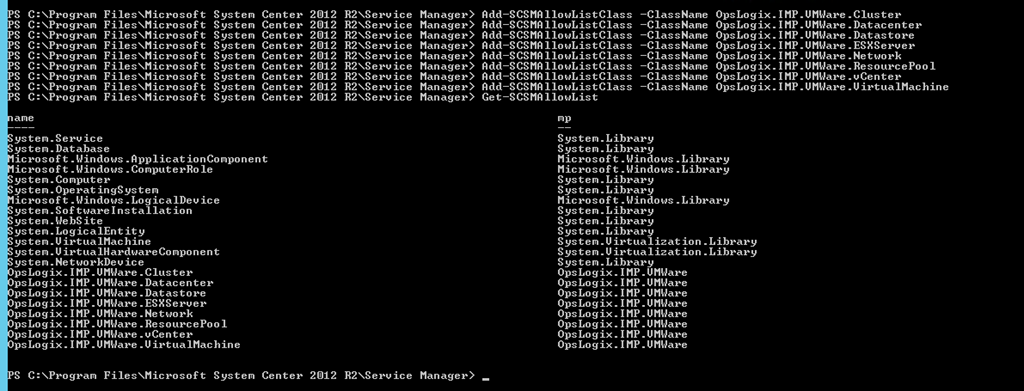
Now that we have the internal names of the classes we can easily put them in SCSM allow list again with PowerShell:

image

I am using the built-in SCSM PowerShell cmdlets and executing these commands:

  • Add-SCSMAllowListClass -ClassName OpsLogix.IMP.VMWare.Cluster
  • Add-SCSMAllowListClass -ClassName OpsLogix.IMP.VMWare.Datacenter
  • Add-SCSMAllowListClass -ClassName OpsLogix.IMP.VMWare.Datastore
  • Add-SCSMAllowListClass -ClassName OpsLogix.IMP.VMWare.ESXServer
  • Add-SCSMAllowListClass -ClassName OpsLogix.IMP.VMWare.Network
  • Add-SCSMAllowListClass -ClassName OpsLogix.IMP.VMWare.ResourcePool
  • Add-SCSMAllowListClass -ClassName OpsLogix.IMP.VMWare.vCenter
  • Add-SCSMAllowListClass -ClassName OpsLogix.IMP.VMWare.VirtualMachine

To verify that the classes are added to the allowed sync list you can use: Get-SCSMAllowList

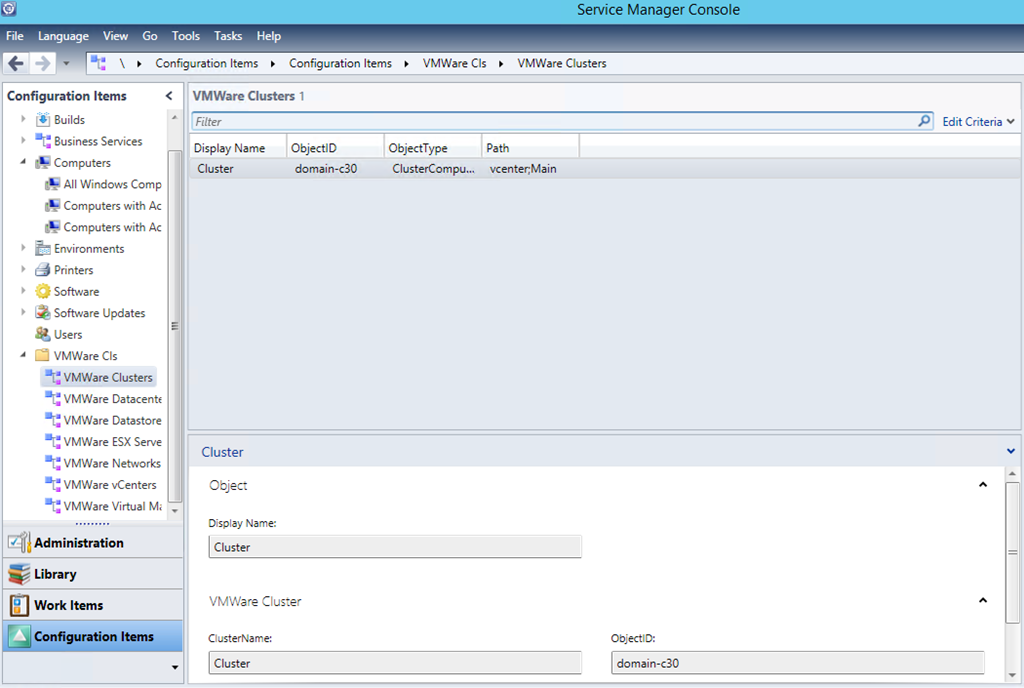
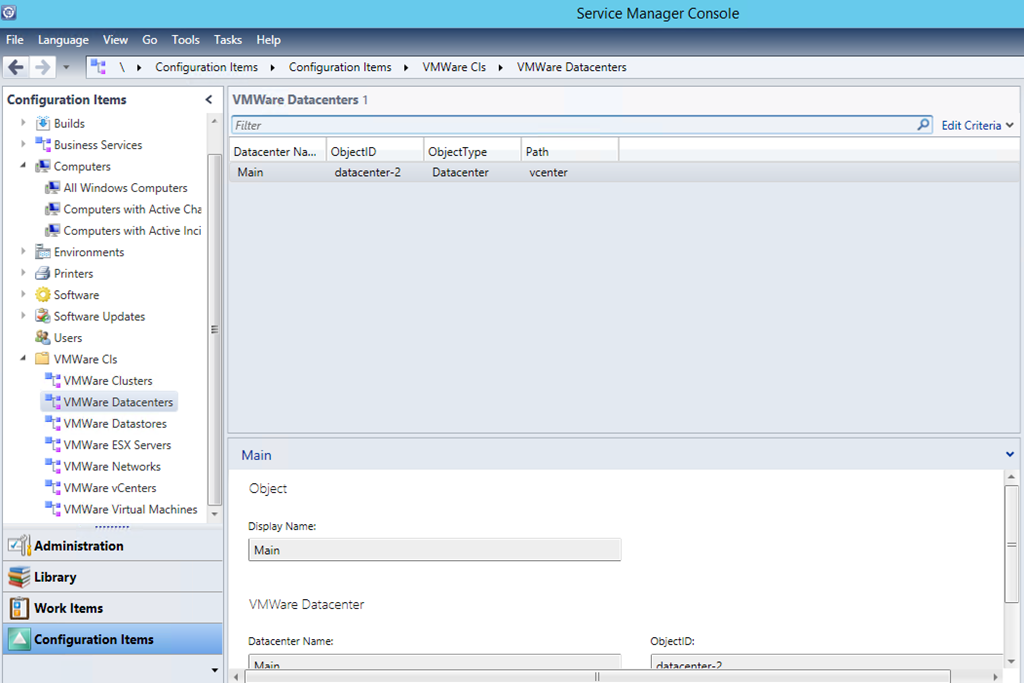
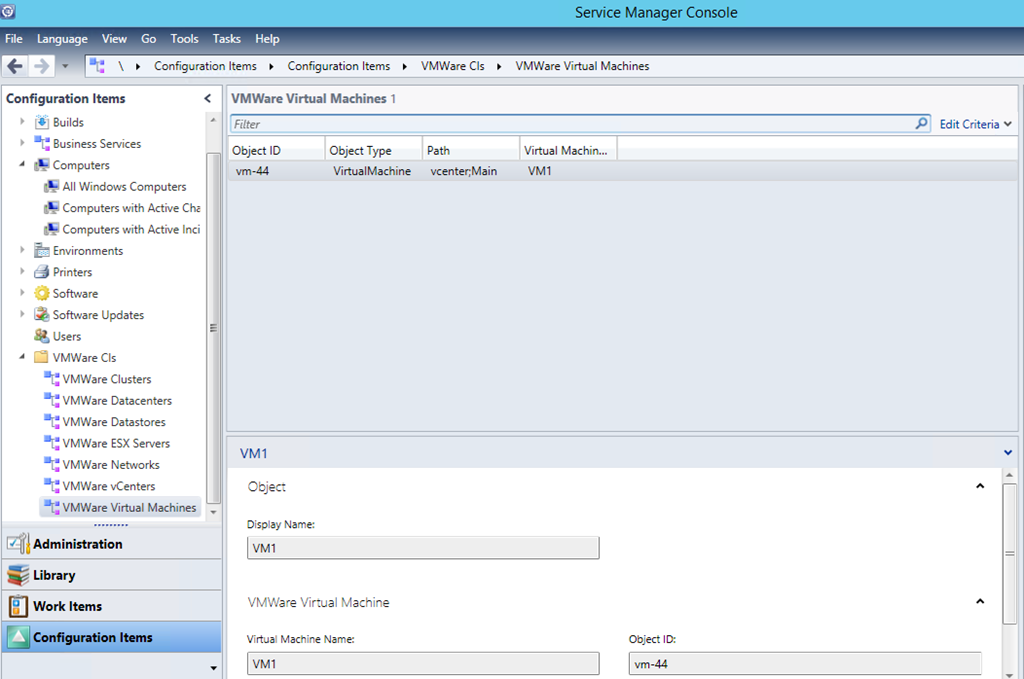
Next you need to force sync on your Operations Manager CI connector. After the connector syncs successful you can create several views to check if the instances of these classes are synced:

image

image

image

image

image

image

image

The beta of the MP does not discover a lot of properties for the objects but I am hoping this will be changed in the final version or some of the next ones as proper and rich CMDB is important.

RIP MMS Long Live The SCU

You’ve probably heard that Microsoft Management Summit is dead. Officially or not this seems to be the truth and we have to accept it. Of course if you are familiar with the System Center community you probably have learned that such decisions cannot just be accepted. Why? It is in our nature we are management community and we like to have control. So even before the death of MMS our community was ready with a backup plan and that is System Center Universe. SCU is the new MMS. The latest SCU was in Bern, Switzerland on 16th-17th September, the next event will be in Houston TX, USA on January 30th 2014 and plans are set for another SCU Europe event next year in September. But do not just trust me that SCU is the new MMS because I’ve said so and go to the official site of the recent SCU event and download the videos from the sessions and you will know why. Keep in mind that the time of this blog post not all videos are uploaded and more will be available in the coming days.