Unsupported Cluster Configuration for Virtual Machines located on SMB Share in VMM 2012 SP1

The last issue I’ve stumbled upon with System Center is with VMM component.

Symptoms

  • You have SCVMM 2012 SP1 UR2 installed
  • You have Windows Server 2012 Hyper-V for hosts
  • You use SMB 3.0 share for storing virtual machines
  • Some or all of your virtual machines does not use FQDN path to their vhd/x files
  • You’ve added your File Server in VMM by FQDN or NetBIOS Name
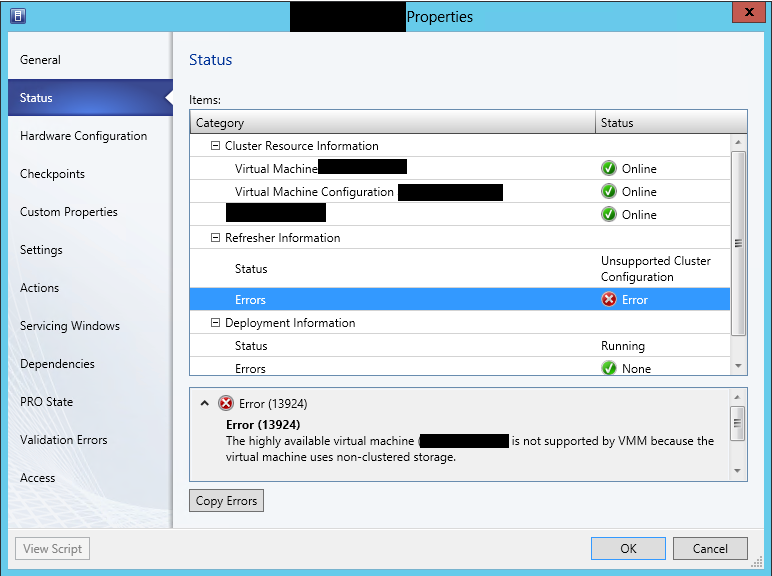
  • You receive the following error: Error (13924) The highly available virtual machine (VMNAME) is not supported by VMM because the virtual machine uses non-clustered storage.
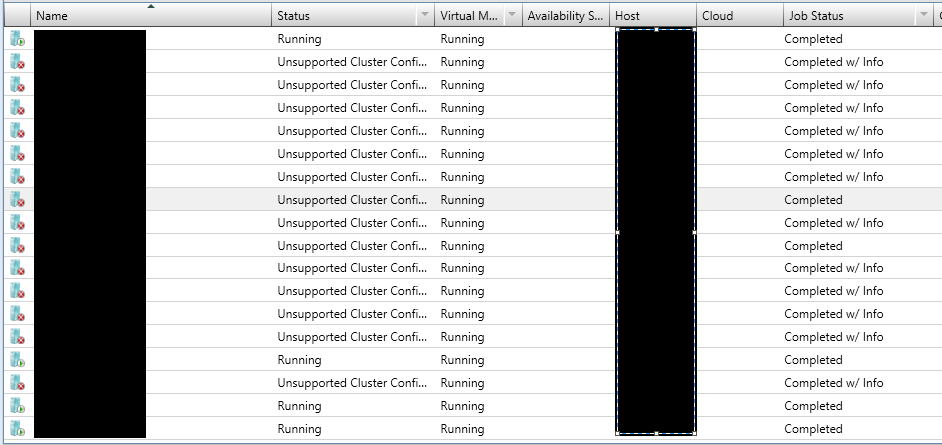
  • Some or all of your virtual machines show as Unsupported Cluster Configuration
image

image

  • You may also have missing appropriate NTFS permissions on the share

  • image

    Resolution

I’ve managed to resolve this issue by executing the following steps:

1. Make sure you’ve added your file server in VMM by FQDN. If it is not added by FQDN you have to add it.

2. Create new share. You can create it on the same server. Give the share appropriate permissions.

3. Locate the new share in VMM. Add it as storage location to your hosts/clusters.

4. After is added make sure it show green in the properties of the hosts/clusters.

5. Storage migrate all your virtual machines from the old share to new share. For the machines with status Unsupported Cluster Configuration you can change the status to Running by live migrating them trough the Failover Cluster console.

6. After storage migration of each virtual machine refresh it and make sure in the properties of the machine in Status tab all is green.

7. After successful migration of all virtual machines you can remove the old share from the hosts/clusters and delete it from the File Server.


I’ve also may had problems with the permissions on the old share but it is easier to create new share than fixing permissions on existing share with running virtual machines.

The information is provided ‘AS IS’ with no warranties and confers no rights. Keep in mind that your case may be similar and this solution may not work for you.

Software I’ve used:

  • Windows Server 2012 with latest updates
  • SCVMM 2012 SP1 UR2
  • File Server with SMB share

Book Review: Windows Server 2012 Hyper-V: Deploying Hyper-V Enterprise Server Virtualization Platform

These days I’ve managed to get my hands on another Hyper-V book and review it. These book reviews aim to give you more insight so you can make your mind if this book is for you.

The books starts at a very basic level by explaining what is Virtualization and the basic concepts of Hyper-V. After that as usual there is a chapter for planning, designing and implementing so you can  get a grasp on the basic features of Hyper-V. The third chapter is for Hyper-V Replica which is a very popular feature since the release of Hyper-V 3.0. Network and Storage have their own chapters as there are a lot of improvements there. Unfortunately in the Network chapter there is not detailed information about Network Virtualization (NVGRE) which is becoming very popular topic. PowerShell is implemented in every enterprise Microsoft product and because of that the author of the book hasn’t missed to place a chapter about automation with PowerShell. The next three chapters include more advanced content. You can find a chapter on how to use VMM 2012 to manage Hyper-V, a chapter on how to achieve high availability with Hyper-V and a chapter with best practices for securing Hyper-V. The last chapter that you will find in the book is about Backup and Recovery. It is interesting how in real world topic like Backup and Recover is also left last Smile. It may not be the most attractive part of Hyper-V and servers in general but it is something that we should take care good.

As a summary the book aims not so much to show you how to configure a certain feature but more to explain you the capabilities of Hyper-V in order to get most of them in your specific environment. I would recommend the book to engineers who just start to work with Hyper-V 3.0, to engineers who had little experience with Hyper-V 2.0 and now are facing the challenge to migrate to 3.0 and at last but not least to engineers who have been working with “the other guys” and now are converting to Hyper-V 3.0. If you think this book is for you can find in one of the following stores:

Poster: Networking in Virtual Machine Manager

If you are confused with VMM 2012 Networking in SP1 there is a new poster on the horizon that will help you:

  • Plan your VMM networks using a logical view of VM networks, logical networks, and logical switches using a variety of configurations including VLAN-based configuration, no isolation, network virtualization, external networks, and with no virtual networking.
  • Configure networking in VMM using configuration steps by roles including fabric administrators, tenant administrators, or by any user.
  • Understand the network object model with diagrams of objects showing the relationships between objects.
  • Extend VMM with options including using a vendor network-management server with extensions, connect a VM network to other networks by configuring the VM network with a gateway, and load-balance requests to VMs that make up a VMM service tier by adding a load balancer to VMM.


Grab it from here.

SCVMM and SCOM Maintenance Mode Integration Not Fixed in SC 2012 SP1 UR1

Not so long ago I’ve wrote an article titled SCVMM Maintenance mode for host does not put the computer object in maintenance mode in SCOM reported as fixed in SC 2012 SP1. I’ve reported the bug described in the article and that report was closed on Microsoft Connect site as fixed before the official release of SC 2012 SP1. As I do not trust blindly and always verify any information I’ve tested if this bug is fixed after the release of SC 2012 SP1 UR1. After I’ve made the test in my home lab I was experiencing the same bug again. My test was verified also by Steve Beaumont so the issue is not in my TV screen only. To me in 99% of the cases when you put Hyper-V host in maintenance mode in VMM you will probably want to restart that host and not to receive SCOM alerts about it. I think it is highly unprofessional someone to report to you an bug and you to close that report as fixed without actually fixing it. But as stubborn guys I’ve logged this bug again. If you want to join you can vote for fixing this bug here. I suggest to hurry with your vote before someone closing that report as fixed again Smile.

Hyper-V Replica and Riverbed document

This document captures the results from the bandwidth optimization experiments conducted in the Microsoft® Engineering Excellence Center (EEC) lab by using the Riverbed Steelhead appliance WAN optimization devices with Windows Server 2012 Hyper-V Replica.

So basically if you use Hyper-V replica across WAN you should use WAN optimizers in order to reduce traffic and bandwidth. You can see the results from the document here.