
After covering the installation of the R2 wave for System Center 2012 I will now cover the upgrade from SC 2012 SP1 by providing some tips.
Note: Do not upgrade your production environment to R2 Preview. Only try to upgrade in lab environment.
So let’s start. With System Center we need upgrade sequence for upgrading the different components. Currently there is not such publically available but we can use the upgrade sequence for SC 2012 SP1:
1. Orchestrator
2. Service Manager
3. Data Protection Manager (DPM)
4. Operations Manager
5. Configuration Manager
6. Virtual Machine Manager (VMM)
7. App Controller
I will not be able to cover Configuration Manager, Data Protection Manager and App Controller as I do not have them in my lab. Also Service Provider Foundation is not listed in the upgrade sequence list but as it is part of Orchestrator I am putting it also on first position.
Upgrading to Orchestrator 2012 R2
In order to Upgrade to R2 you have to remove all Orchestrator 2012 SP1 roles. By removing them, retaining the database and starting the R2 installation you will be able to upgrade without data loss. Unfortunately after upgrading I’ve stumbled upon on the bug with the not working web service. Besides that bug runbook designer was working OK and all my runbooks were intact. After upgrading Orchestrator you have to upgrade your Integration Packs also to R2. You can download them from here. As my web service was not working and I couldn’t fix it even with my own workaround in the end I’ve end up on creating a new Orchestrator 2012 R2 and migrating all my data.
Upgrading to Service Provider Foundation 2012 R2
SPF 2012 R2 requires to be installed on Windows Server 2012 R2. So I’ve created a new WS 2012 R2 server hoping that I will start the installation pointing to my old database so SPF can upgrade it. Again unfortunately when I’ve done that the installation stuck on Updating Database for more than 40 minutes at which time I’ve decided to cancel the installation. Installation wasn’t responding to cancel command so I’ve ended up killing it. In the end I had to install completely new SPF server with a new database. I’ve couldn’t migrate my old data.
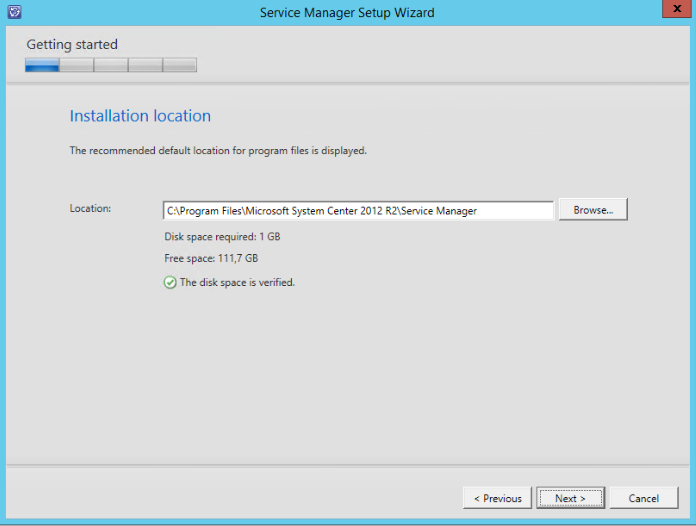
Upgrading to Service Manager 2012 R2
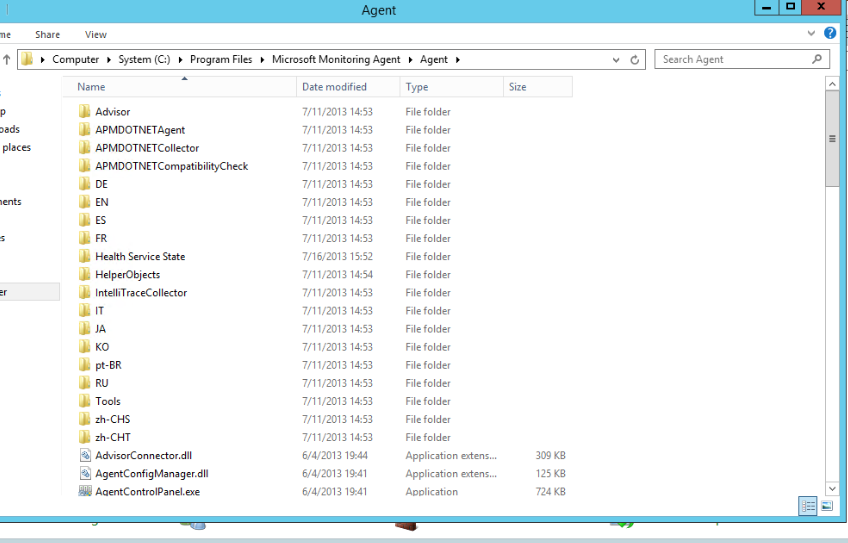
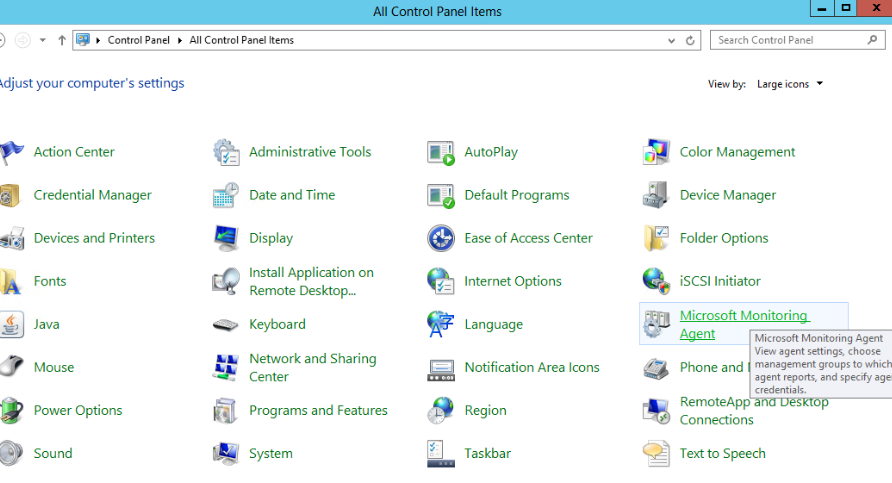
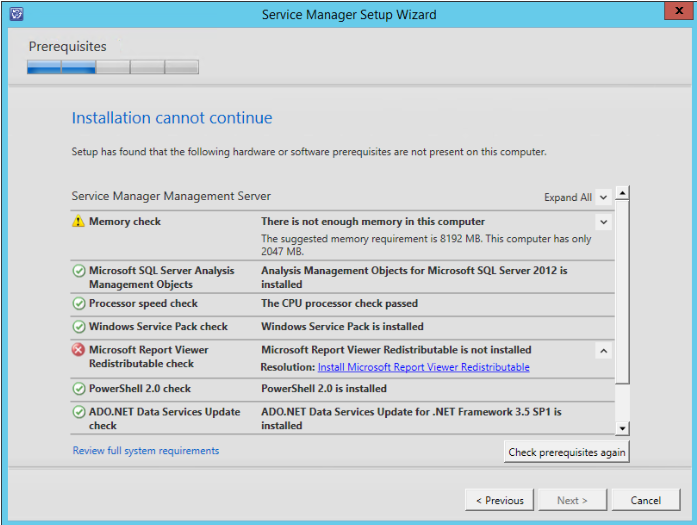
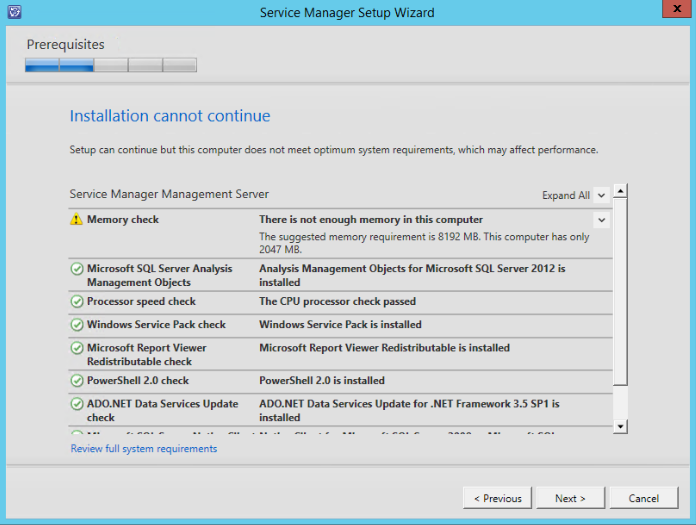
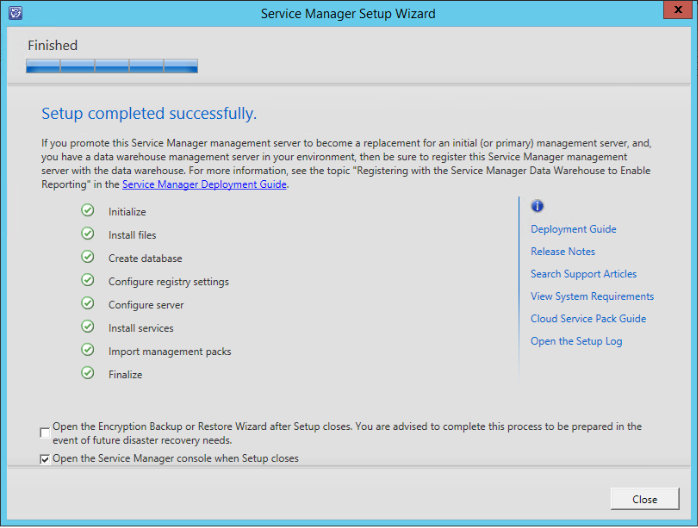
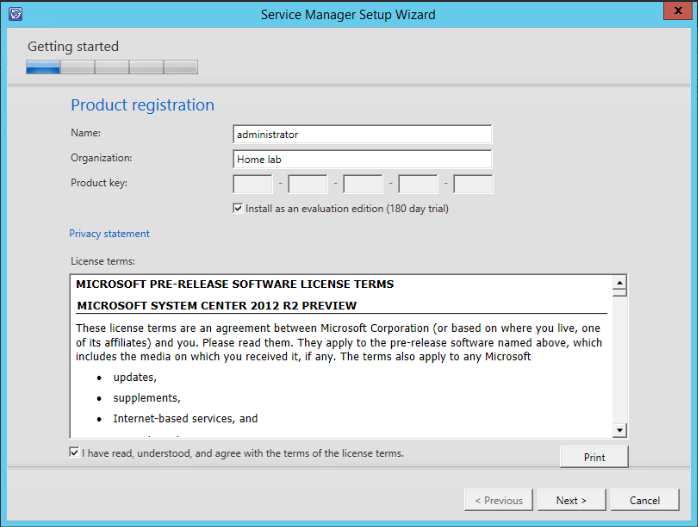
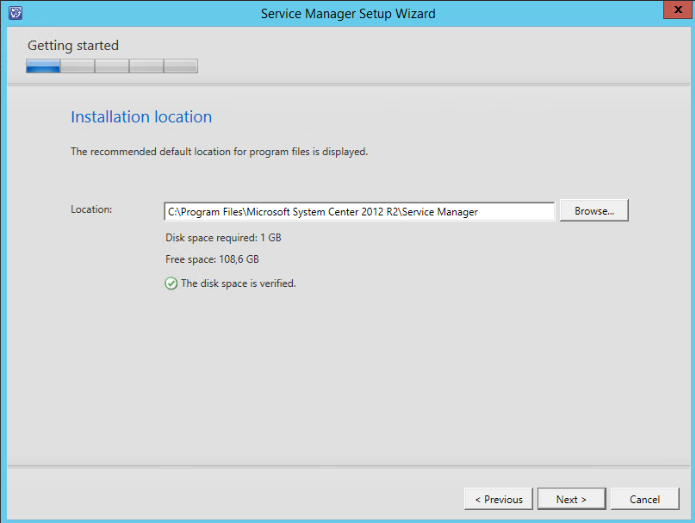
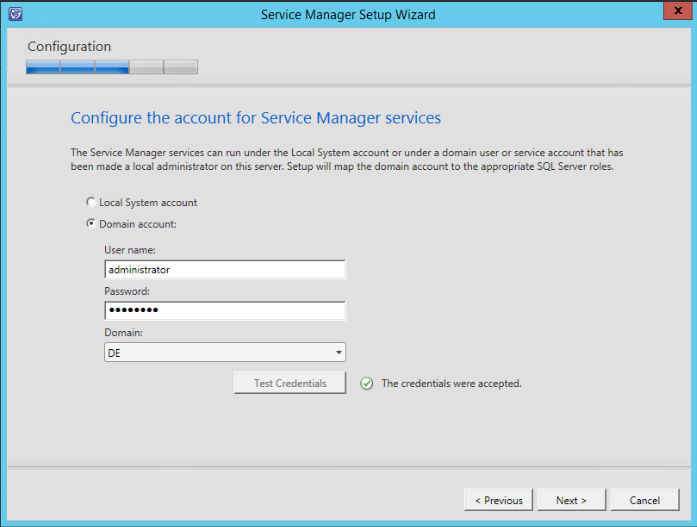
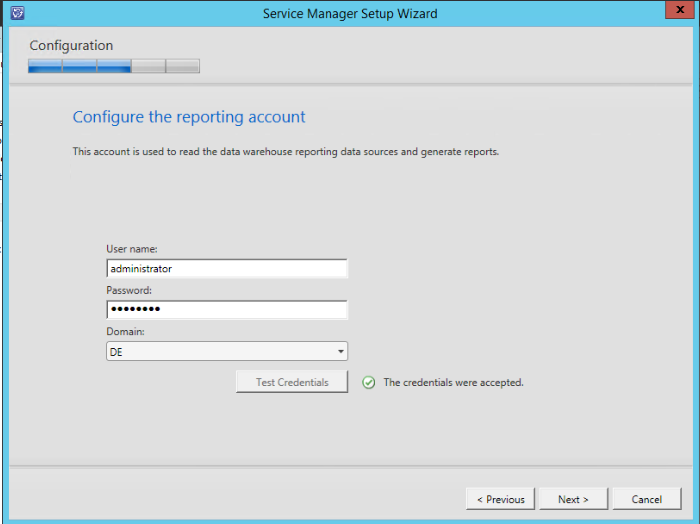
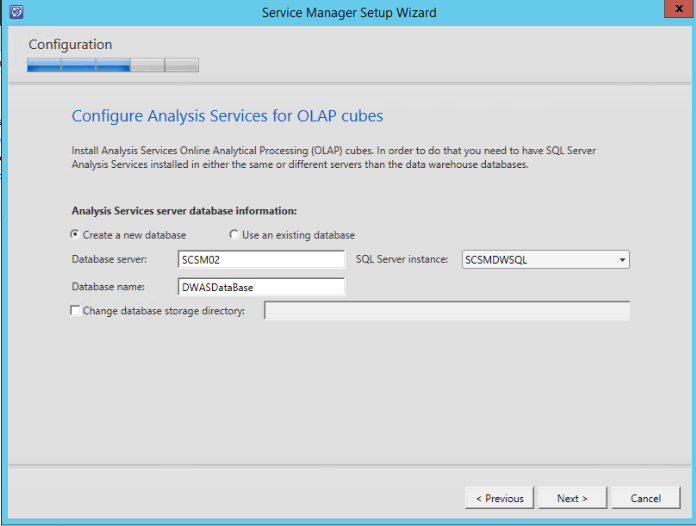
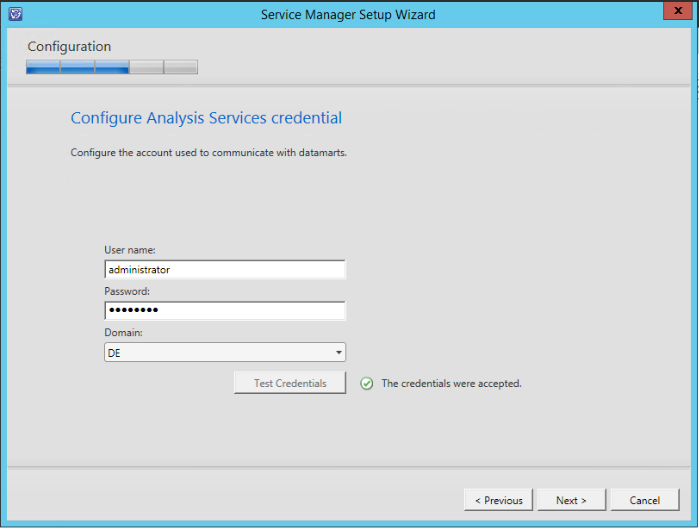
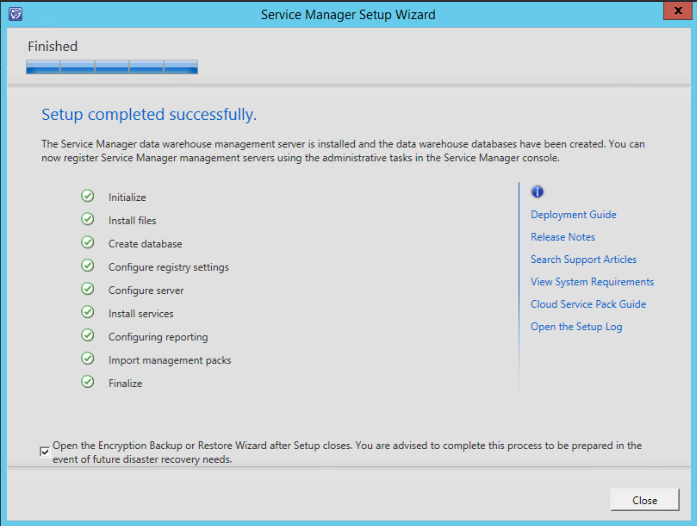
With Service Manager in most cases you will have at least one Service Manager Management Server and one Service Manager Data Warehouse. To upgrade to R2 you have to start with the Data Warehouse server first. Before upgrading it is best to stop all data warehouse jobs. I haven’t met any issues with upgrading the Data Warehouse server. After DW you can continue with the Management Server. Before upgrading it is good idea to disable all connectors. Again I was having no troubles with this upgrade also. Keep in mind that in a new installation of SCSM 2012 R2 System Center Management Service is renamed to Microsoft Monitoring Agent. This is not the case with upgrade that service stays named System Center Management. After upgrade start the DW jobs and enable the connectors. Make sure all are finished successful.
Upgrading to Operations Manager 2012 R2
Operations Manager upgrade also went flawless. The one thing I’ve done before upgrading is to brake the SCOM-SCVMM integration and remove the VMM MPs. I’ve upgraded Management Server and Reporting server without issues. After the upgrade you need to upgrade the SCOM agents on all servers you are monitoring. If you have somewhere Service Manager Console installed (like terminal server) you will need to uninstall the console and than upgrade the agent. You may also need to update some of your MPs to the preview versions. VMM 2012 R MPs are located in a folder of the VMM 2012 R2 installation. Do not import only the Dashboard MP from there but rather download it from here. If you have data that is synchronized between SCOM and SCSM and you’ve updated some MPs in SCOM that are also imported in SCSM you will need to update them there also.
Upgrading to Virtual Machine Manager 2012 R2
VMM also does not support in-place upgrade. You have to uninstall VMM and retain the database. Before uninstalling VMM first uninstall any Update Rollup if you have such. After uninstalling VMM, ADK (Windows Assessment and Deployment Toolkit) 8.0 also have to be uninstalled. Before starting the VMM 2012 R2 installation you have to install ADK 8.1. After VMM 2012 R2 installation is easy. You have to point a few settings, the installation will detect that you want to make upgrade to existing database and after a few minutes you will be upgrade to R2. After successful upgrade you need to start the console and update your VMM agents also.
Overall the upgrading experience to R2 is good but there are few serous bugs that needs to be fixed or at least upgrade documentation to be available to help you when RTM arrives which today was announced that it will be 18th of October. Mark you calendars.

 and from System Center Specialist I’ve become SQL Specialist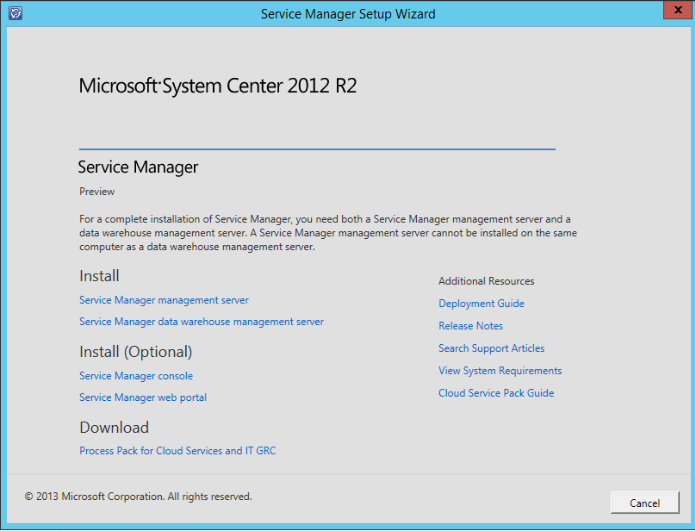










 Cloud Administrator in Azure World