When you try to apply some change on a virtual machine with Shared VHDX disk in Virtual Machine Manager 2012 R2 you may receive the following error:
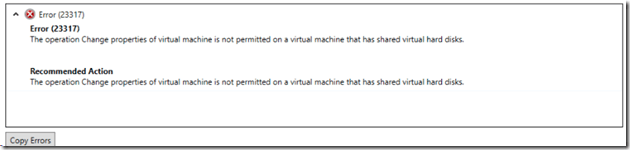
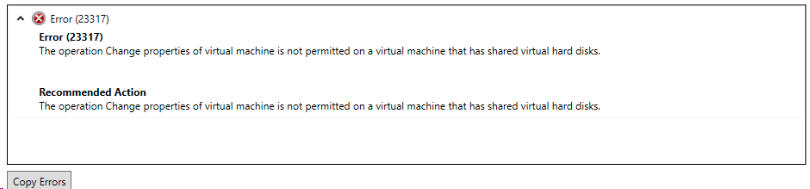
Error (23317)
The operation Change properties of virtual machines is not permitted on a virtual machine that has shared virtual hard disks.
Recommended Action
The operation Change properties of the virtual machine is not permitted on a virtual machine that has shared virtual hard disks.
Even that I was not changing anything related to the shared disks the task would fail. There is an easy fix for this and as many times it is called PowerShell. If you do not know PowerShell do not worry here are easy steps:
1. Open the Properties of the Virtual machine you want to change.
2. Make the change but do not apply.
3. In the left corner of the properties dialog box you will see View Script button. Press it.
4. A script will come up.
5. You need to take the part that is only related to your change. For example if I want to change only the classification of a network adapter I would have something like this:
$VirtualNetworkAdapter = Get-SCVirtualNetworkAdapter -Name “server1” -ID “6c733a79-4ef5-4df4-9b39-690b8ab0be46”
$VMNetwork = Get-SCVMNetwork -Name “VMetwork_Test” -ID “675245a2-c660-46d7-aee0-b8ece987e49b”
$VMSubnet = Get-SCVMSubnet -Name “VMSubnet_Test” | where {$_.VMNetwork.ID -eq “623294a2-c660-46d7-aee0-b8ece987e49b”}
$PortClassification = Get-SCPortClassification | where {$_.Name -eq “Classification1”}
Set-SCVirtualNetworkAdapter -VirtualNetworkAdapter $VirtualNetworkAdapter -VMNetwork $VMNetwork -VMSubnet $VMSubnet -VLanEnabled $true -VLanID 77 -VirtualNetwork “vSwitch” -MACAddressType Dynamic -IPv4AddressType Static -IPv6AddressType Dynamic -PortClassification $PortClassification
Basically you take that part of the generated script that is only for your change. Remove any –VMMServer property reference and any –JobGroup Property reference.
6. Open VMM PowerShell. Paste the script and you are done. Your change is applied to VM with shared virtual disks.


 Cloud Administrator in Azure World