
Recently my evaluation period for System Center 2012 RC components expired so I had to built my test environment from scratch. As System Center 2012 RTM is out I’ve downloaded so that way I can have the final products for testing. I’ve also had the Windows Server 2012 RC iso file downloaded from the announcement a couple of weeks ago but didn’t have time to install and test it. So I’ve decided to kill two bird with one stone – I will try to install System Center 2012 components on top of Windows Server 2012. There are lot of changes in Windows Server 2012 compared to Windows Server 2008 R2 but the changes are not so radical on how applications work and my guess was that there is a pretty good compatibility.
All the servers where I will install System Center 2012 components are virtual servers. I’ve also have one virtual server that is with Windows Server 2008 R2 and SQL 2008 R2 for the databases of the System Center Stack. This virtual SQL server has Start up memory of 2048 MB, Maximum memory of 4096 MB, Memory buffer of 30 % and Memory weight set to high. The server is named SQL01.
So I’ve started with my favorite System Center component – Operations Manager. I first installed Windows Server 2012, installed all the prerequisites for OM 2012 (.net Framework 3.5 and etc.) and when I was ready I’ve put the evaluation iso file of OM 2012 and surprisingly the Installation wizard didn’t gave any errors and the installation went smoothly. The hardware profile of the SCOM virtual machine is 1 virtual processor, Start up memory: 1024 MB, Maximum memory: 4096 MB, Memory buffer 30% and Memory weight is to high. Name of the virtual machine is SCOM01.

As you can see the console is started and agents are installed and show as healthy. I’ve imported several Management packs so more objects can be discovered and monitored.
The next System Center 2012 component I wanted to install is Virtual Machine Manager. So I’ve started again by installing Server 2012 and all the prerequisites for VMM 2012. When I tried to star the installation for VMM 2012 I got an error that VMM is not supported on this operating system. It seems the installation wizard was hard coded to block installations on non-supported operating systems. Because of that I had no other option except to install my VMM server on Window 2008 R2. And that is what I did. Name of the virtual machine is VMM01.
So after two System Center components tried I had one successful and one failed to install on Server 2012.
My next try was with System Center Service Manager 2012. As Service Manager and Operations Manager share the same architecture I suspected that I will be able to install SCSM on Server 2012 as I already succeeded with OM 2012. For Service Manager infrastructure I’ve needed two virtual servers – one for the Service Manager Management server and one for Service Manager Data warehouse server. I’ve started with the Management server. The wizard started without issues and completed successful. The SCSM virtual machine I’ve configured with 1 virtual processor, Startup memory: 1024, Maximum memory: 3072, memory buffer: 20% and memory weight two bars below high. Name of the virtual machine is SCSM01. I’ve started the SCSM console.

As you can see from the screenshot it seems SCSM is working normal I even created and Incident. So we can count SCSM as partial success for installing it on Server 2012. I’ve still had to install the Service Manager Data Warehouse server.
The SCSM Data Warehouse servers is hard for installations. There are certain prerequisites for SQL Reporting Service that have to be done in order to succeed with the installation. I’ve completed these prerequisites, installed 2012 and started the Data Warehouse installation. The installation completed successfully. The virtual machine of the SCSM DW server is named SCSMDW01 and have hardware profile with 1 virtual processor, Startup memory: 1024 MB, Maximum memory: 3096 MB, memory buffer 20% and memory weight set to high. In order to check if all was working properly after the installation I had to register the SCSM DW server for the SCSM Management server in the console. When I did that the Data warehouse jobs started successfully and completed without errors. The result of that is I was able to see the reporting pane and the OLAP cubes in the SCSM console:
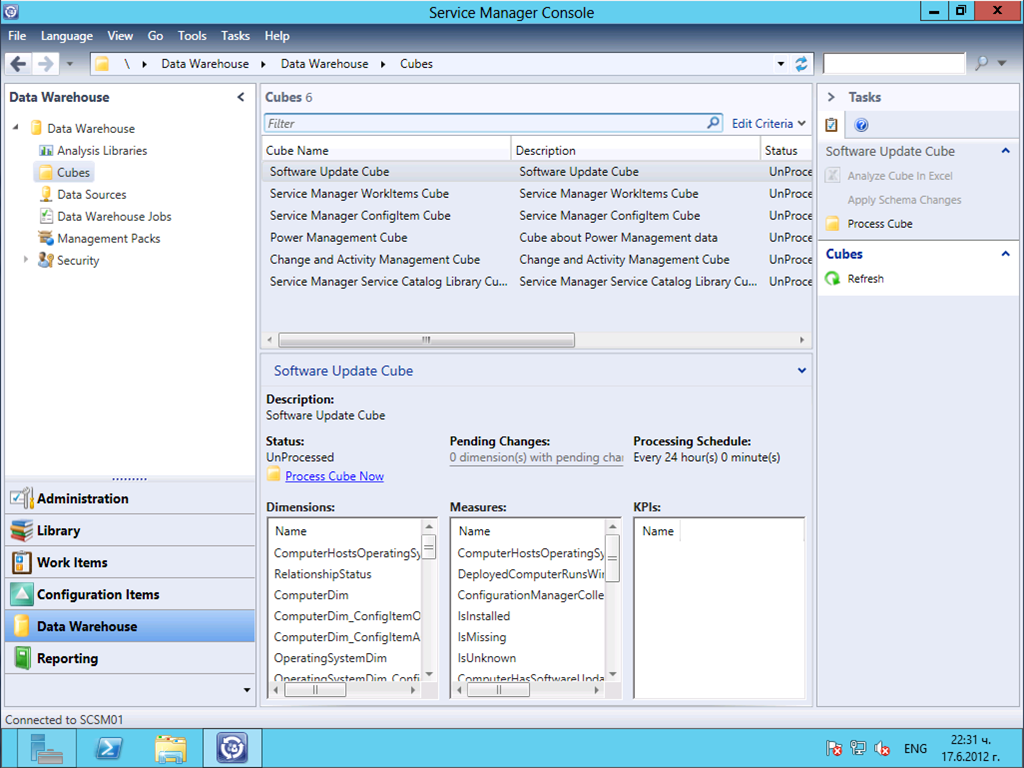
As this install succeeded we can conclude the SCSM can be successfully installed and ran under Server 2012.
In part 2 of this blog post I will try to install Configuration Manager 2012 and Orchestrator 2012 on Server 2012. I may also try installing App controller also. As I have not interest in backup technologies I will not try installing System Center Data Protection Manager 2012. I will try to be not too lazy and try these installations in a couple of weeks.
NOTE: System Center 2012 is not supported on Windows Server 2012. Do not try the installations described in the article in Production environment. Server 2012 will be supported after SP1 of System Center 2012 is released.
 Cloud Administrator in Azure World