Recently I faced the task to route alerts from SCOM in SCSM to different Support Groups. It seemed like an easy task because in most cases routing is based in Management Pack Name criteria. For example alerts that come from Management Pack that contains “SQL” in its name are assigned to SQL Support Group, alerts that come from Management Pack that contains “BizTalk” in its name are assigned to BizTalk Support Group and etc. You get the idea you can create such routing rule for every Management Pack. Besides this routing rule you can also route alerts based on SCSM groups membership of computer, Custom Fields and Monitoring Classes.
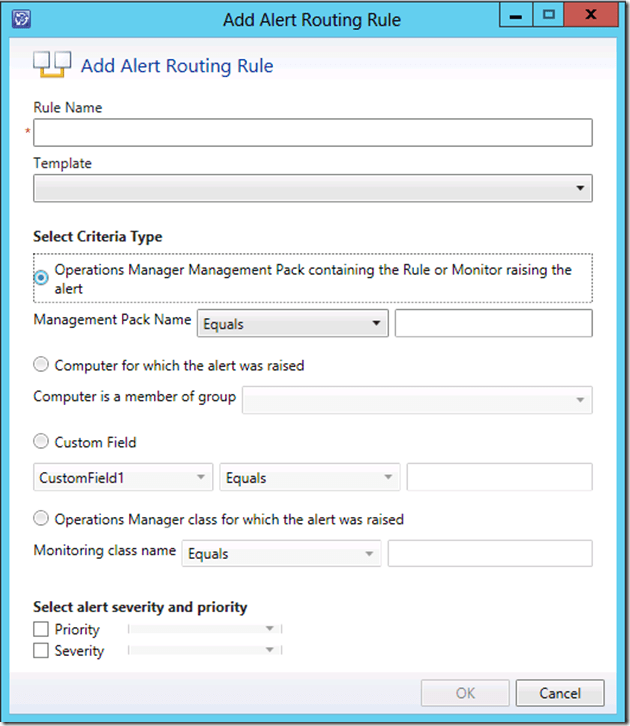
When I started configuring routing based on Management Pack Name I didn’t had any issues everything was working as it was suppose to work you just have to be careful not put make any conflicts with rules by overlapping them. But when I tried to configure routing based on Custom Field I faced issues. In the next lines I will describe how stumbled on that issue and how I fixed it. I couldn’t find any such issue over Internet so I’ve decided to share it with the community.
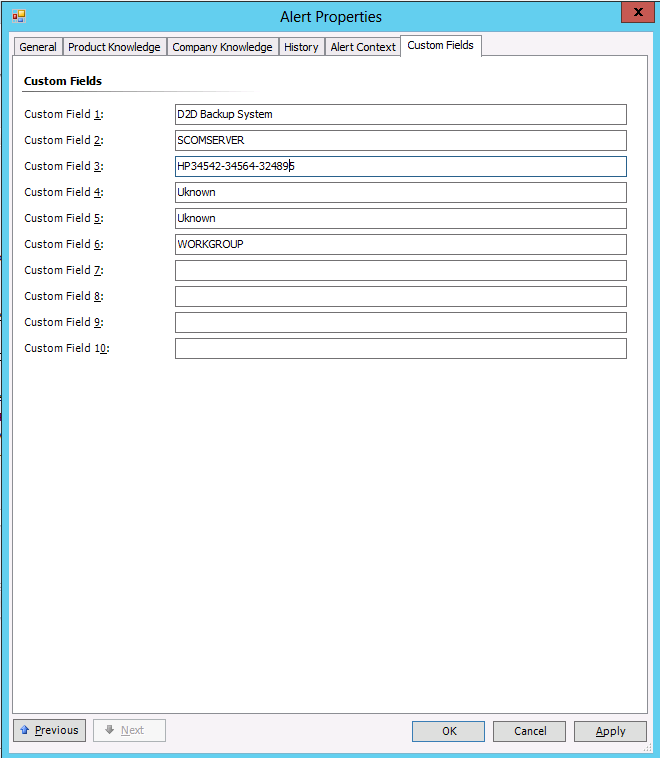
Lets say that we have two Support Groups – Backup and Storage. Those two Support Groups are using one management pack in SCOM to monitor their devices. So in SCSM we need to configure: alerts that are coming from devices supported by Backup Support Group to be assigned to Backup team and alerts that are coming from devices supported by Storage to be assigned to Storage team. Most of you will probably suggest that we can put these devices in groups in SCSM and route alerts based on that or even easier we can route them based on Monitoring Class. But these two options are also not available because all these devices are monitored by SNMP so they they do not have CI record in SCSM and all alerts come from the server where the management pack is installed in our case this is the RMS server. Such management pack is HP Storage Management Pack. This management pack monitors various storage devices manufactured by HP and all is put in one MP file. Lets say we want to monitor 3PAR Storage, SAN Switches, D2D Devices and Tape Libraries with this management pack. All of these device are monitored by SNMP and we want 3PAR and SAN switches alerts to go to Storage Support Group and D2D device and Tape Libraries alerts to go Backup Support Group. When alerts for these devices are created in SCOM the first 6 custom fields are filled with values:
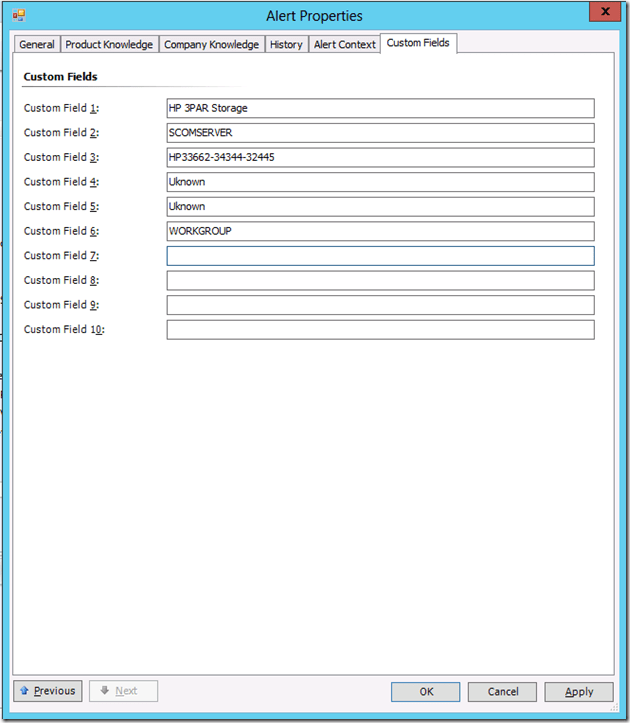
- Custom Field 1 – Source of the Event
- Custom Field 2 – Logging Computer name
- Custom Field 3 – Device Id
- Custom Field 4 – Device Name
- Custom Field 5 – Source Computer Name – the computer that generated the event
- Custom Field 6 – Source Computer Domain Name – the domain of the computer that generated the event
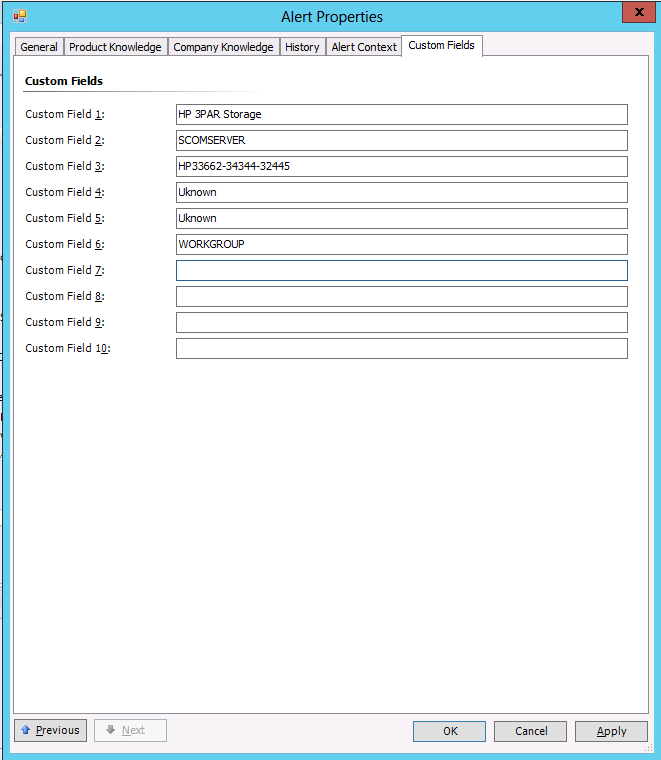
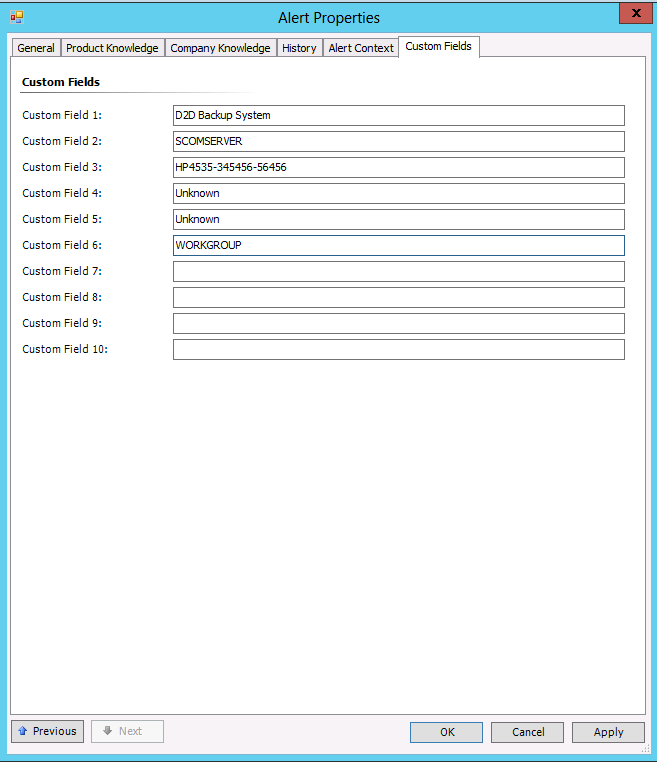
So custom fields for alert could look like this:
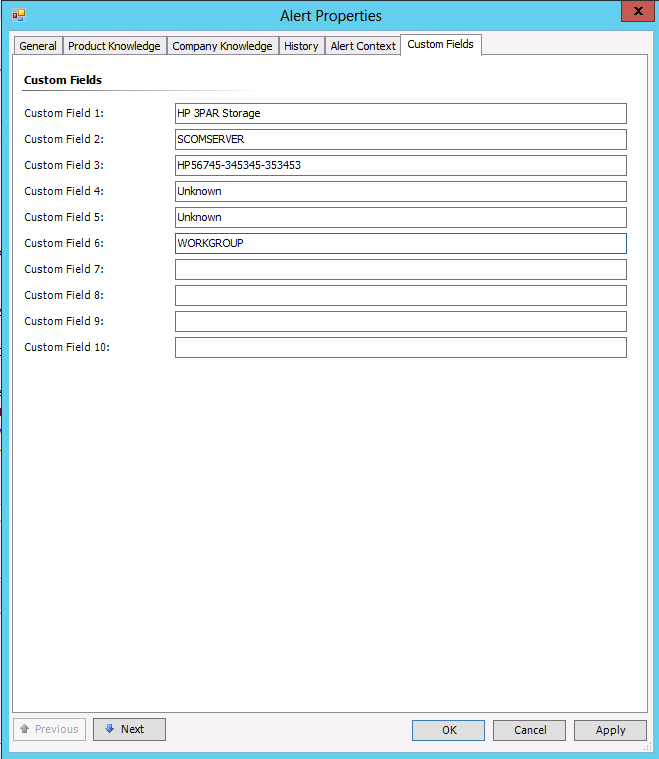
Or like this:
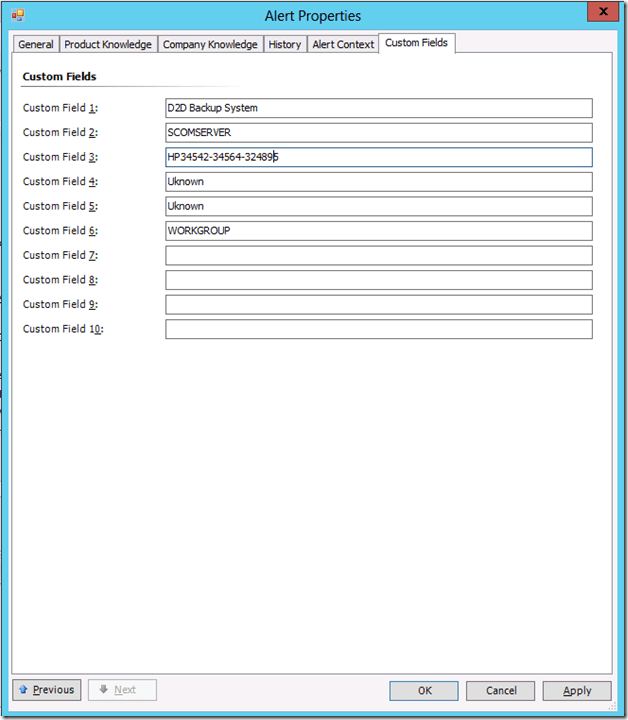
From the examples above it is clearly that the best option is to route alerts based on Custom Field 1. Before creating the route rule I will show you the steps for creating the templates that will be used by these rules.
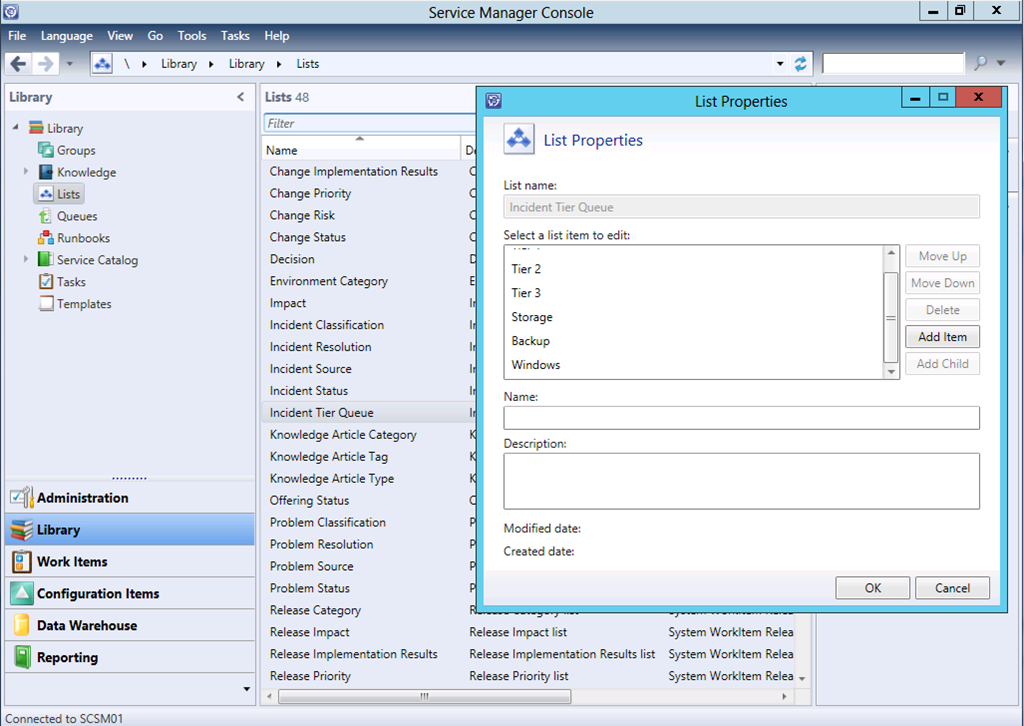
If we go in SCSM console –> Library –> Lists and open the properties of Incident Tier Queue list we can see that we have 3 Support Groups – Storage, Backup and Windows:
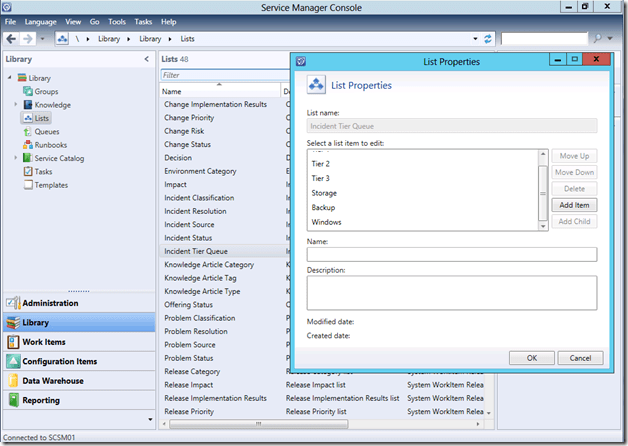
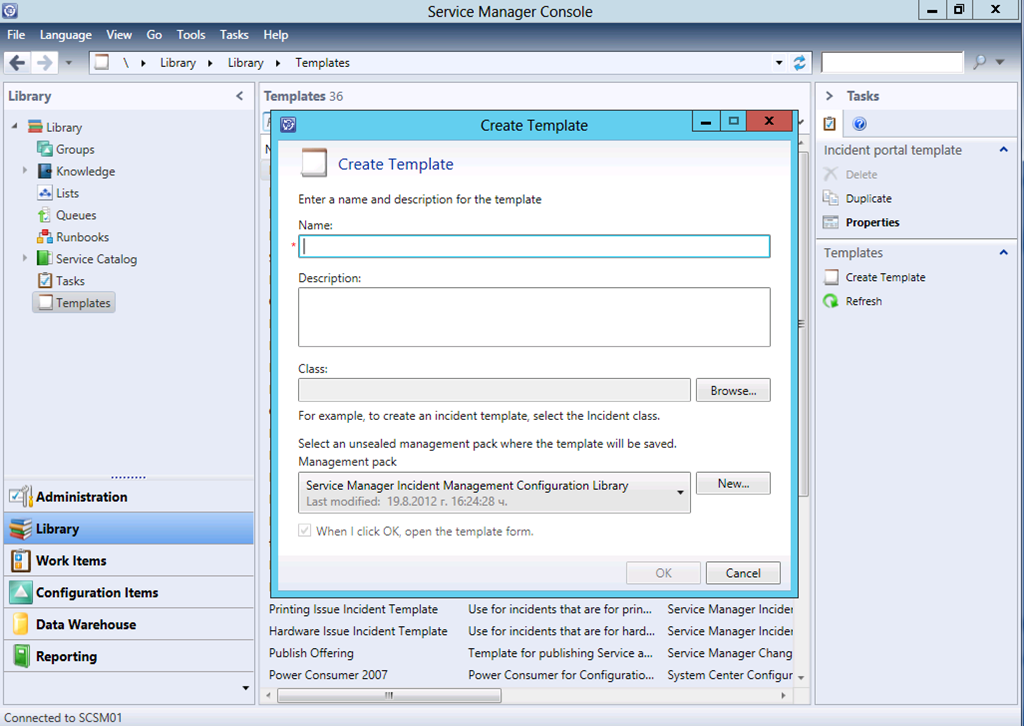
So we need to configure 2 Templates in SCSM – one for Storage and one for Backup Support Group. We go to Templates and from Action Menu we choose Create Template and new window appears:
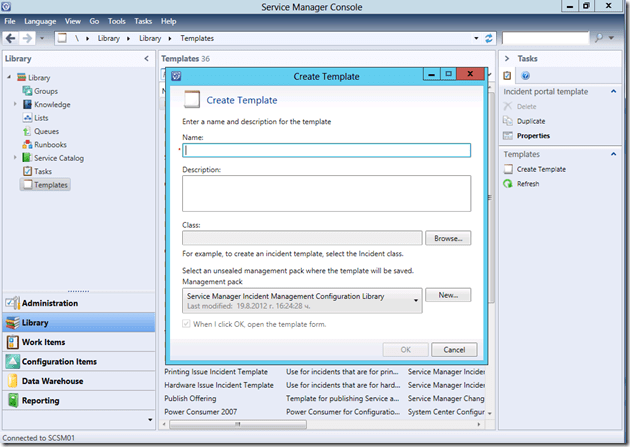
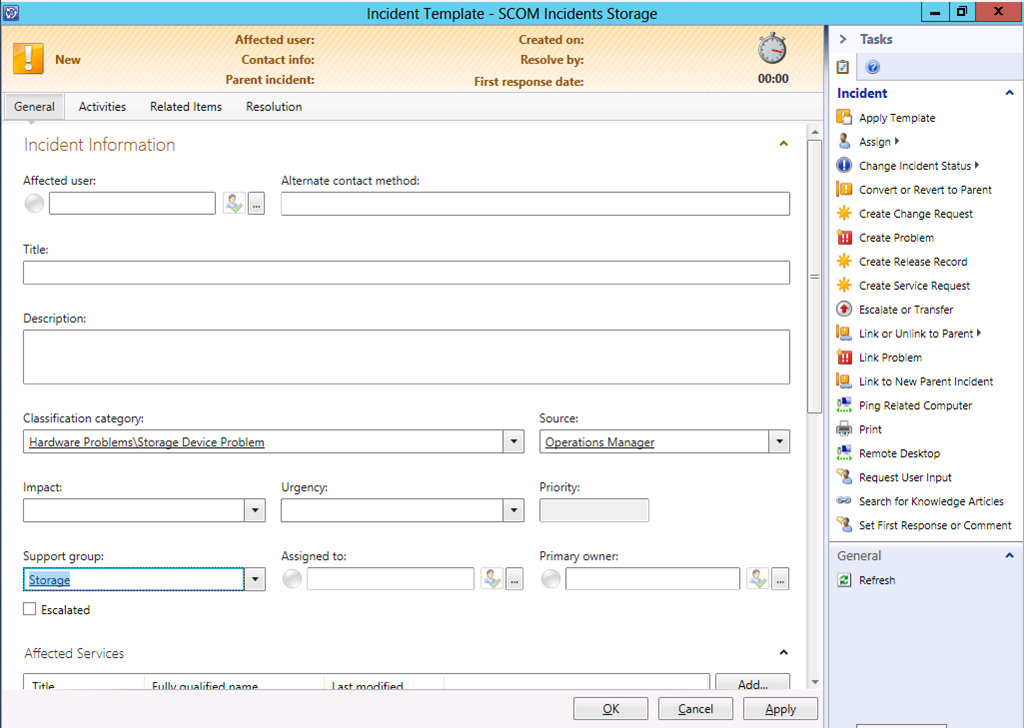
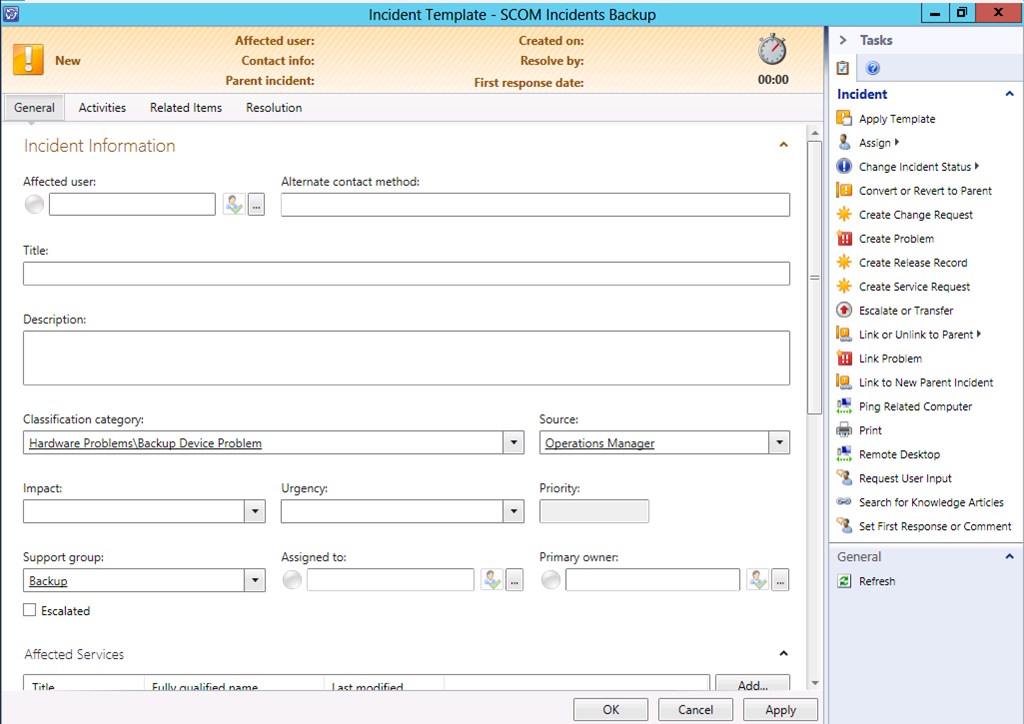
We can name the templates “SCOM Incidents Storage”, for class to choose Incident and for management pack you we can select a custom management pack where we store such settings. When we click OK an incident form will open. This is our template and here we have to fill the fields that will be changed when alert meets certain routing rule criteria. In our case we can populate Classification category, Source and Support group:
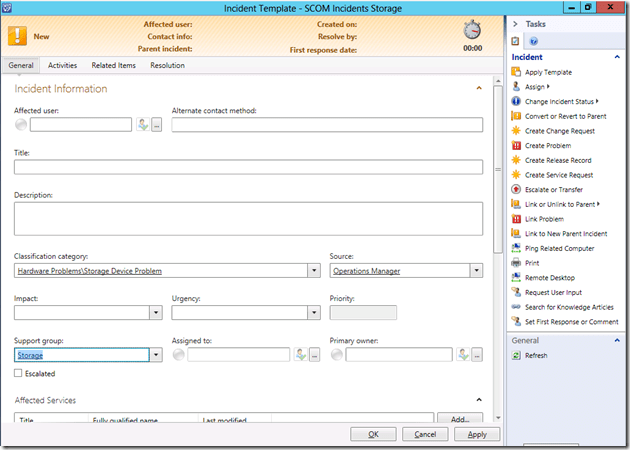
You can choose to populate different fields but Support group is the field that is actually used for assignment. When We click OK the template will be saved. Another template have to be created the same way for Backup:
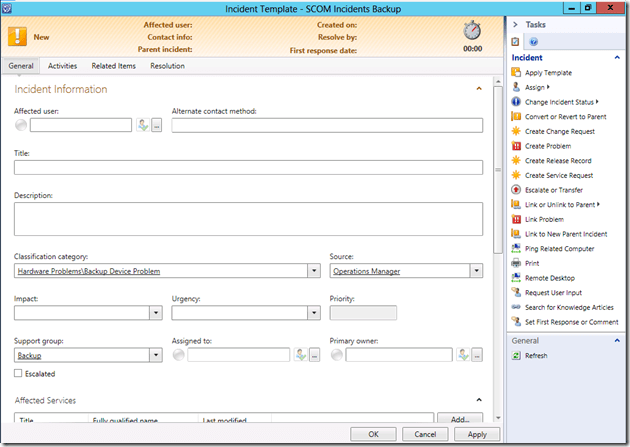
Now we are ready with the templates and we can configure the routing rules in SCOM Alert Connector. I will not show how this connector is configured because it is pretty simple operation and there are a lot of articles over Internet about that.
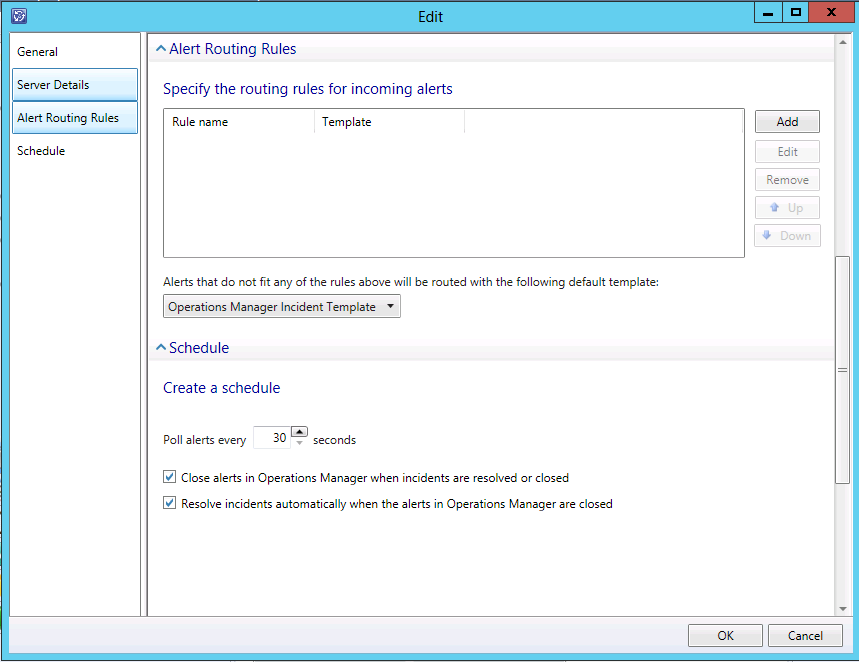
When we open the SCOM Alert Connector Properties there is Alert Routing Rules tab and on that tab routing rules are added:
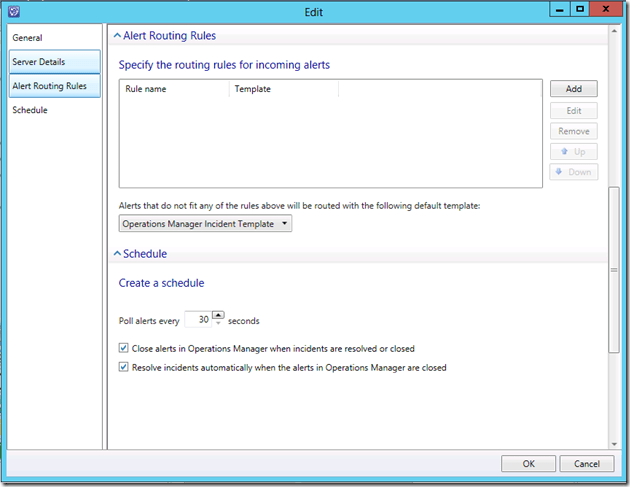
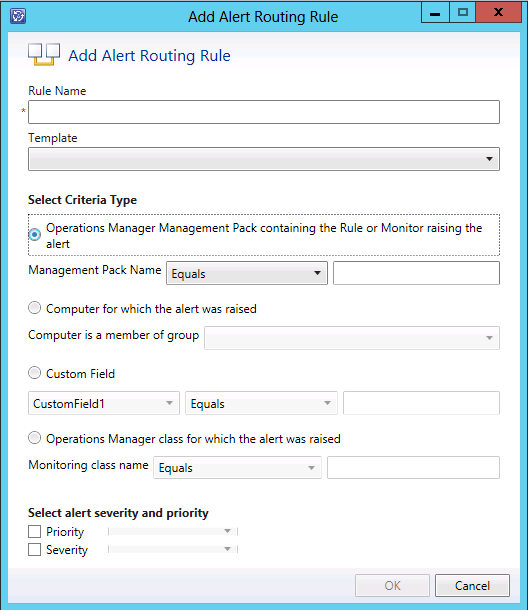
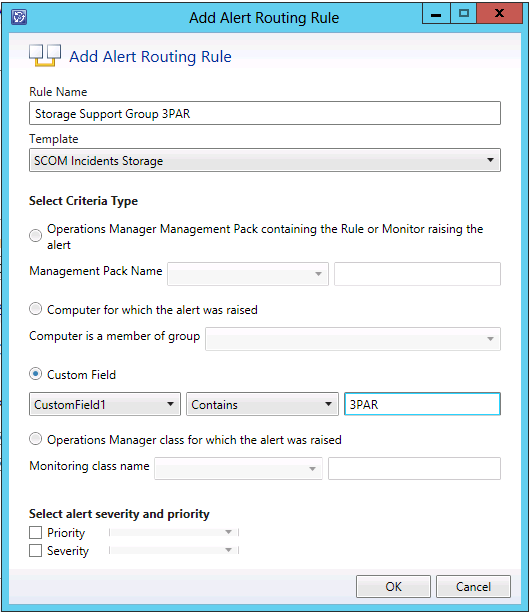
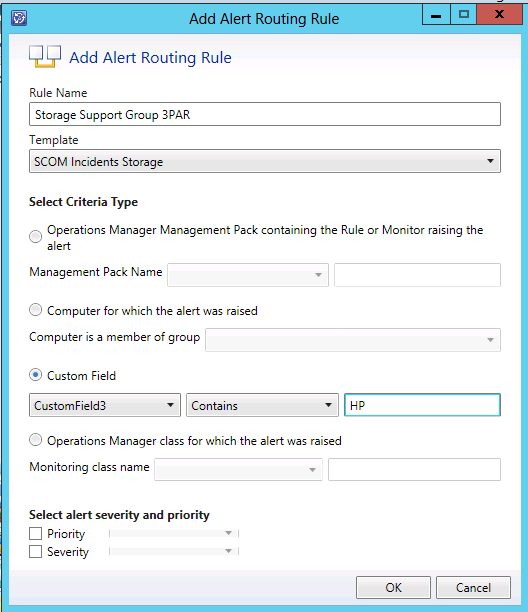
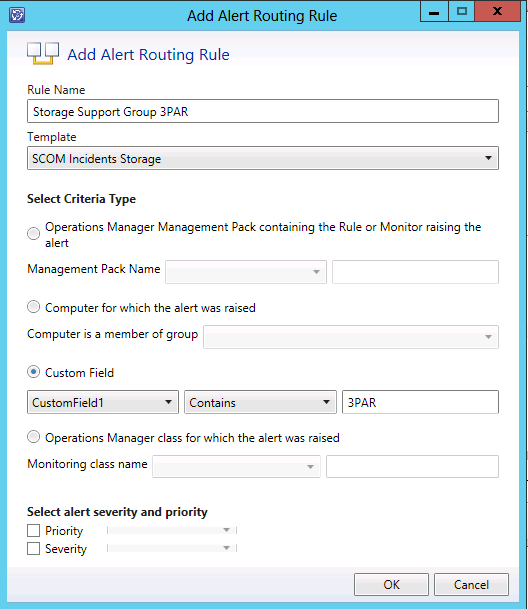
You can see even the option that if alert doesn’t meet any of the specified routing rules Operations Manager Incident Template will be used for them. This is the default SCSM Template. When we click on Add button a new window appears. In this window I gave distinguishing name for the routing rule, which template to use and the criteria for the alerts:
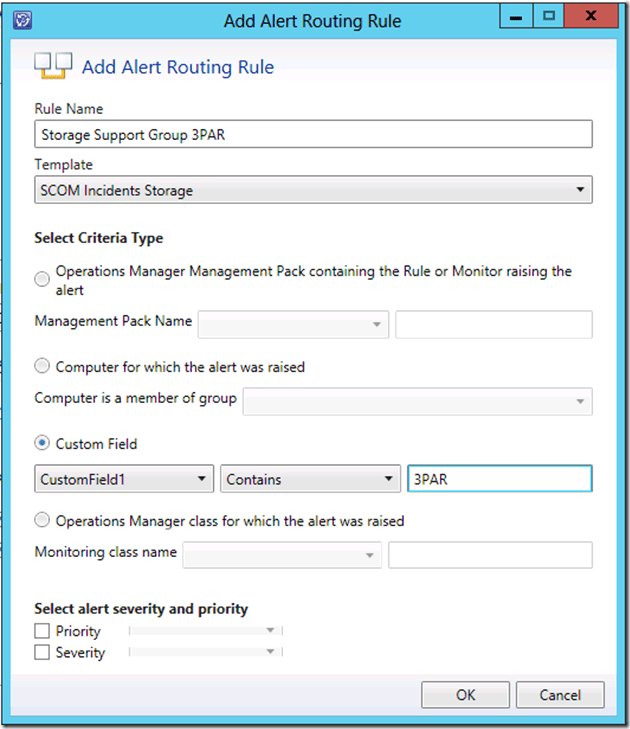
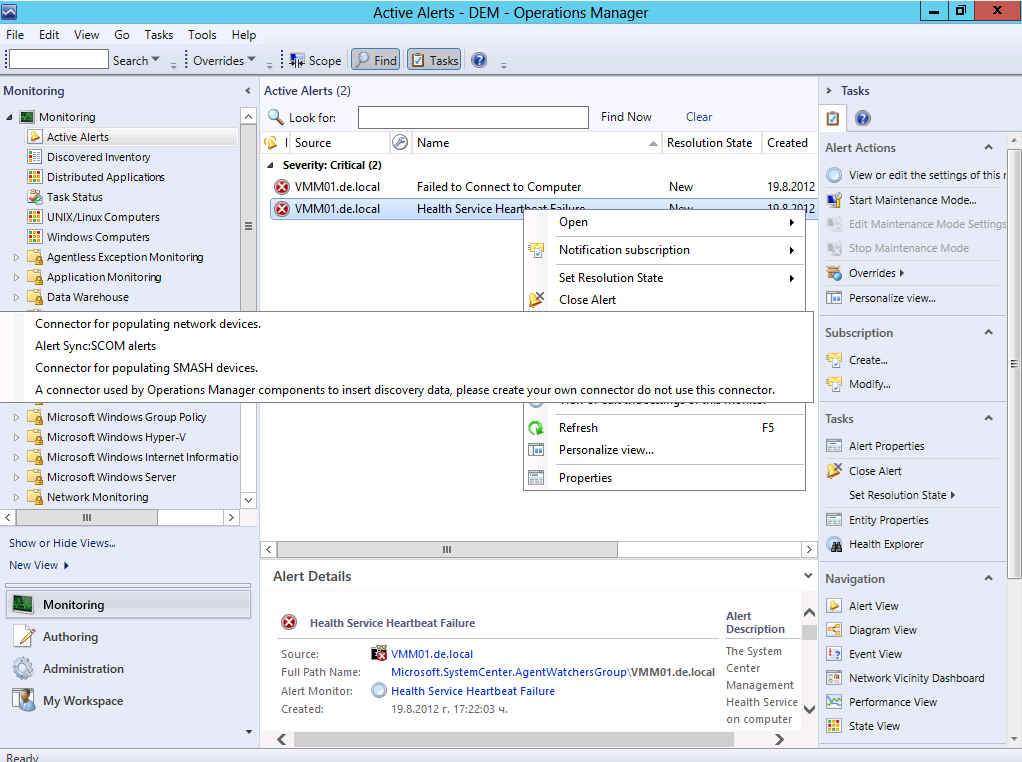
So I was ready with my first routing rule so I’ve clicked OK on the rule and OK on Connector’s window. Before creating more rules I’ve decided to test if my routing was right. You can create test alert from your device or you can take any alert that is with status new and it is not forwarded to your SCSM server and modify the custom fields like those for your device. After you modify them you can forward that alert to SCSM to see if it will be routed correctly just like this by selecting Forward to –> Alert Sync: SCOM alerts:
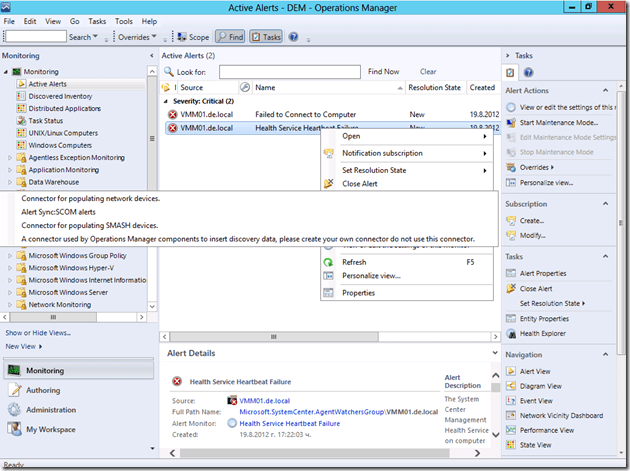
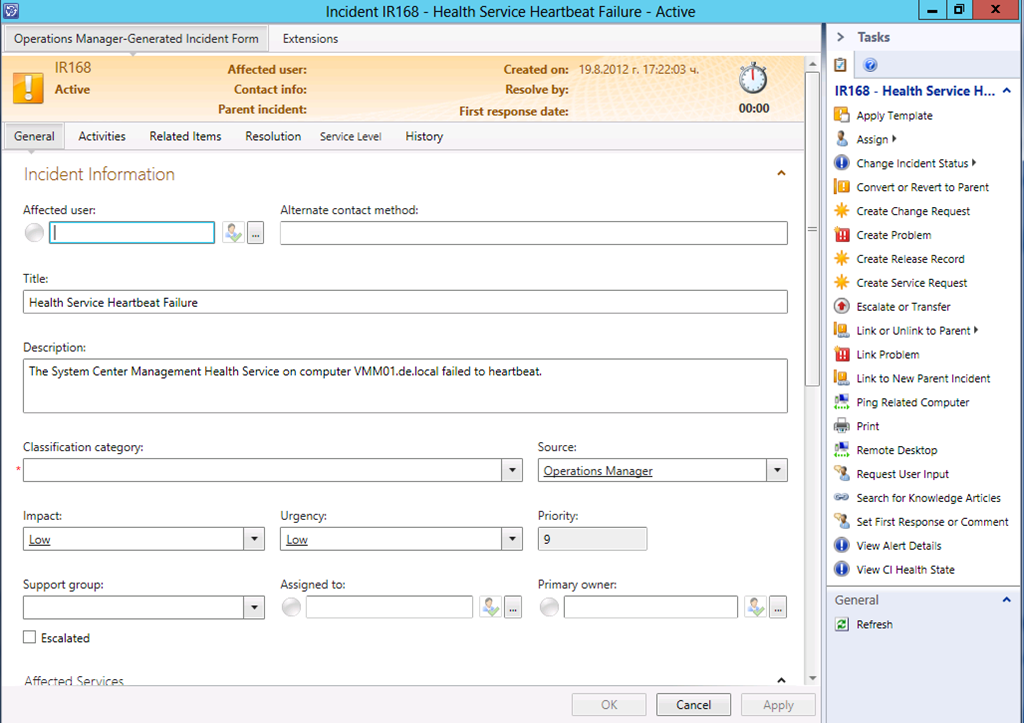
After the alert was forwarded I’ve open the SCSM console and found the alert created as a incident:
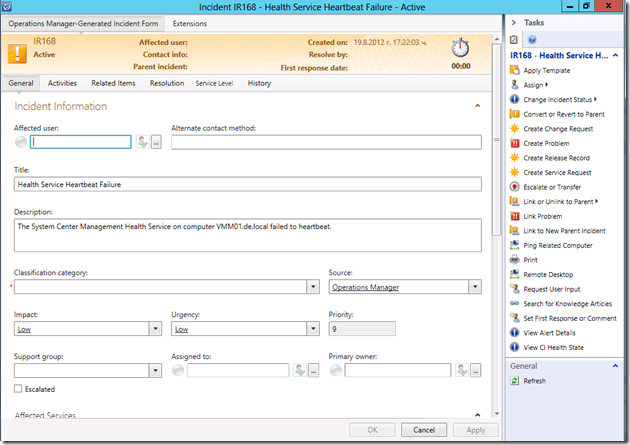
As you can see from the screenshot the Storage template I’ve created wasn’t applied to this incident because Support Group field was empty which meant that the default Operations Manager Incident Template was applied and the alert didn’t matched my routing criteria. At this point I understood that I have to make some troubleshooting in order to solve this.
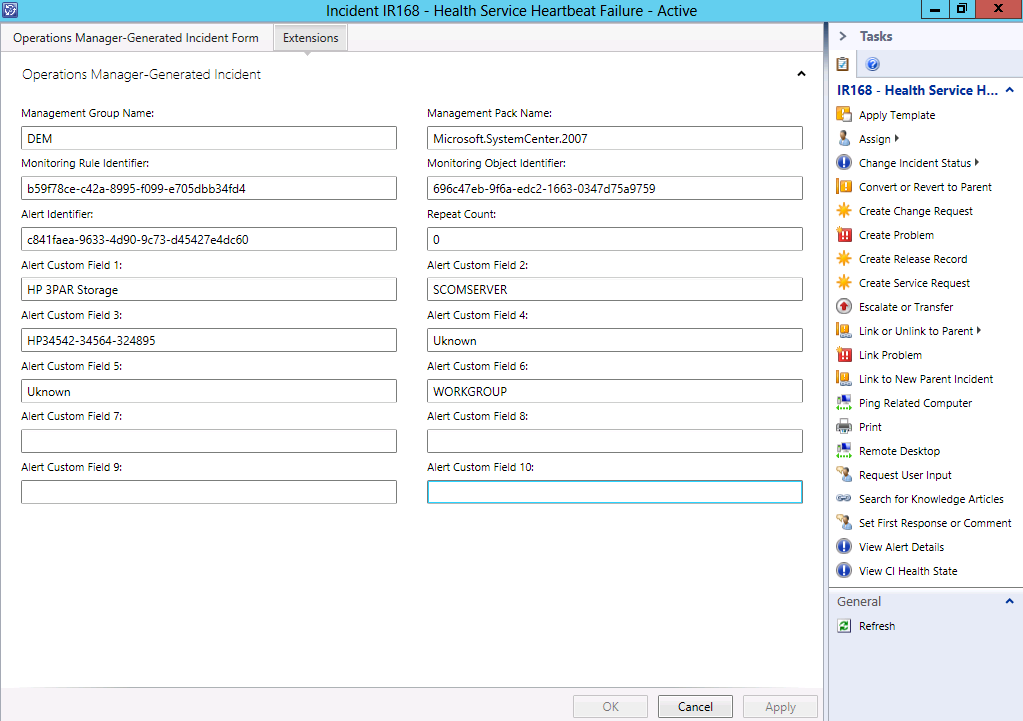
The first thing I wanted to see if Custom Fields properties arrived in SCSM from SCOM properly. This can be seen in the Extensions tab of the incident:
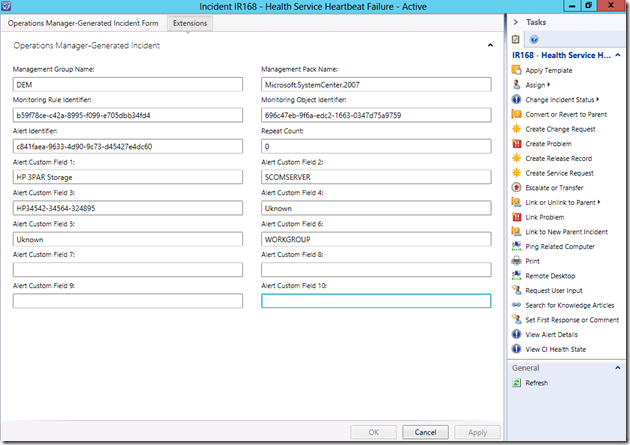
As we can see from the screenshot all properties are the same as they appear in SCOM. I couldn’t find any reason why this solution is not work so I’ve started to modify the routing rule by different methods like using Custom Field 3 for rule instead of 1.
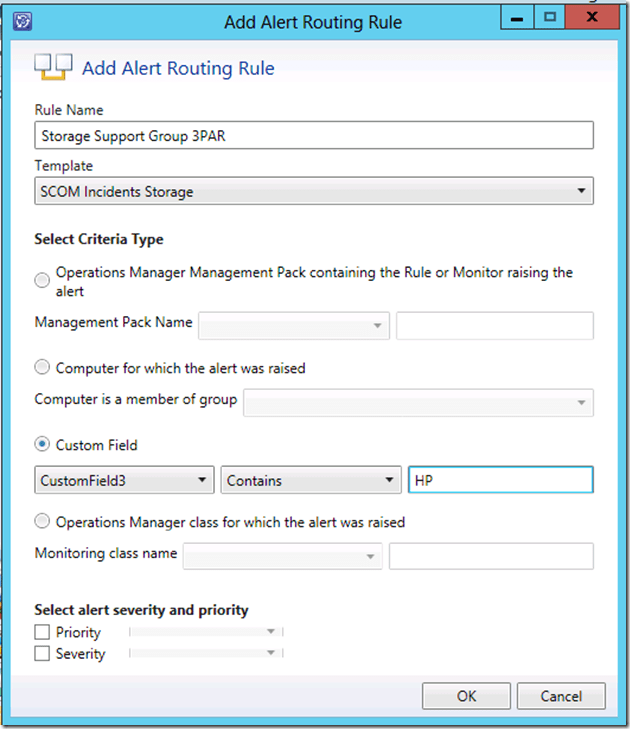
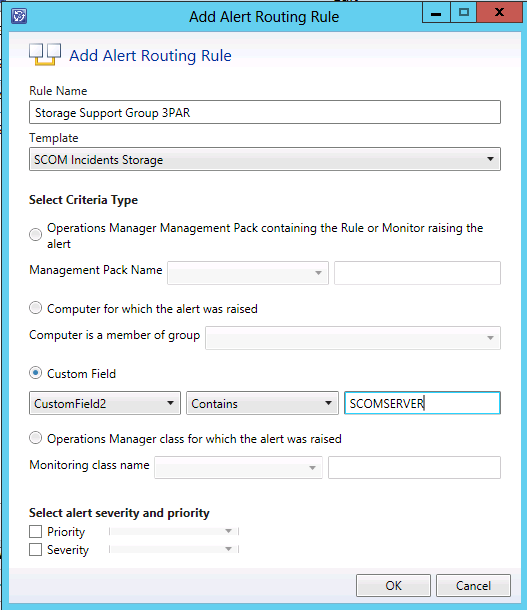
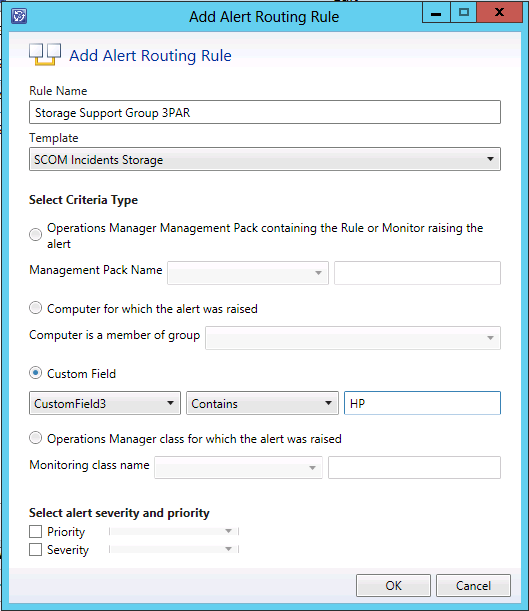
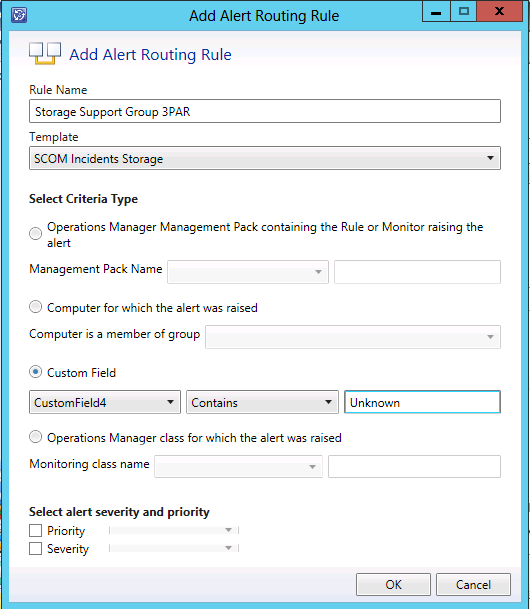
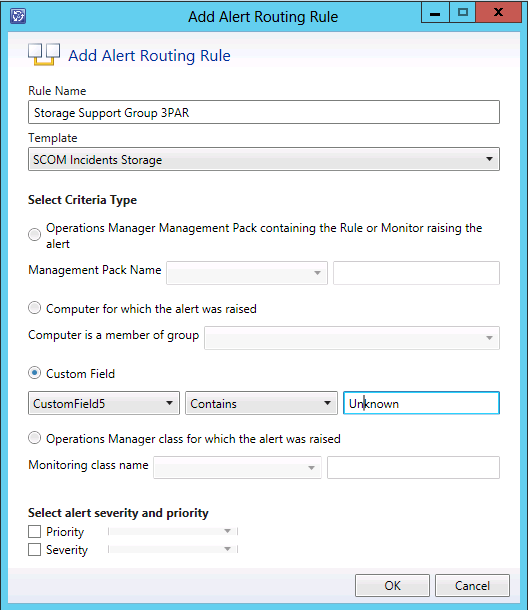
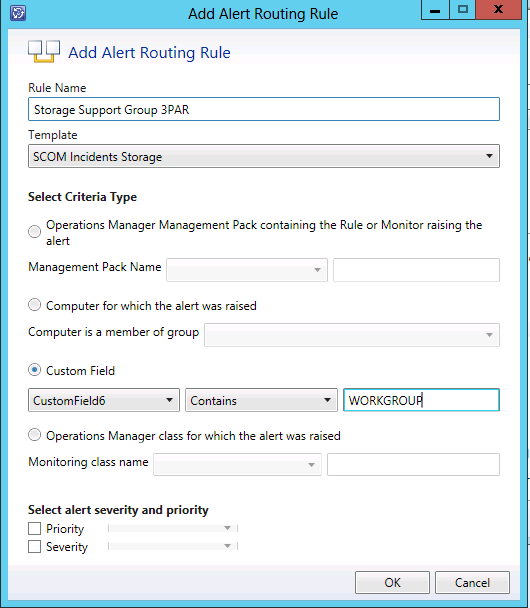
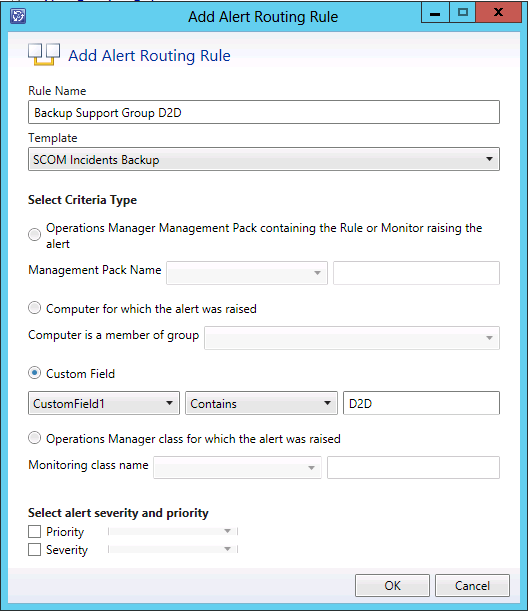
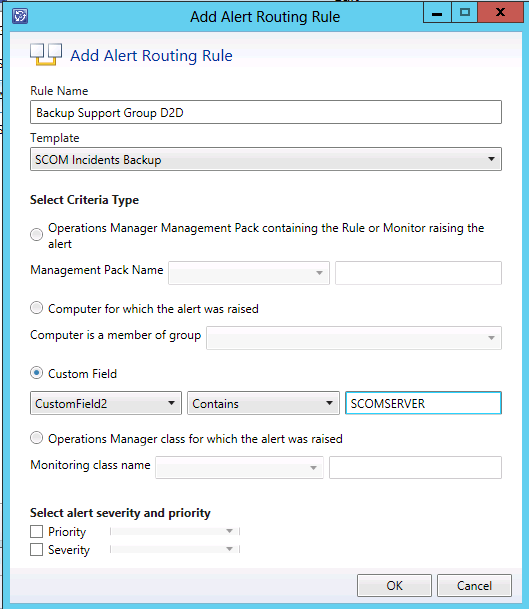
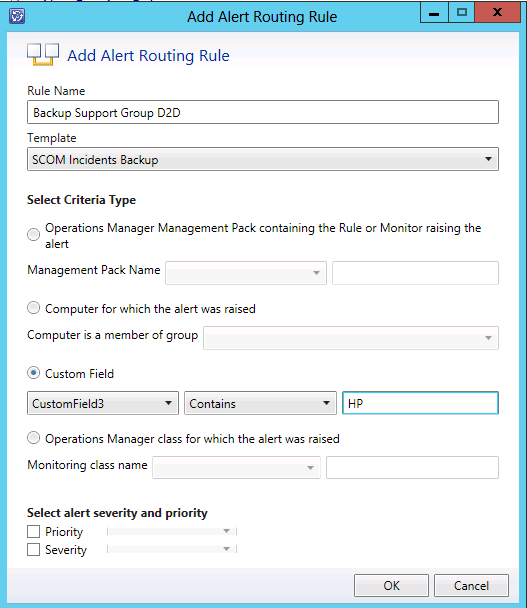
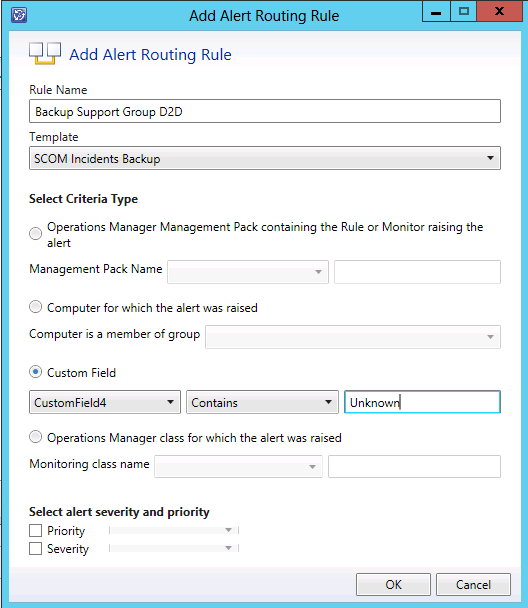
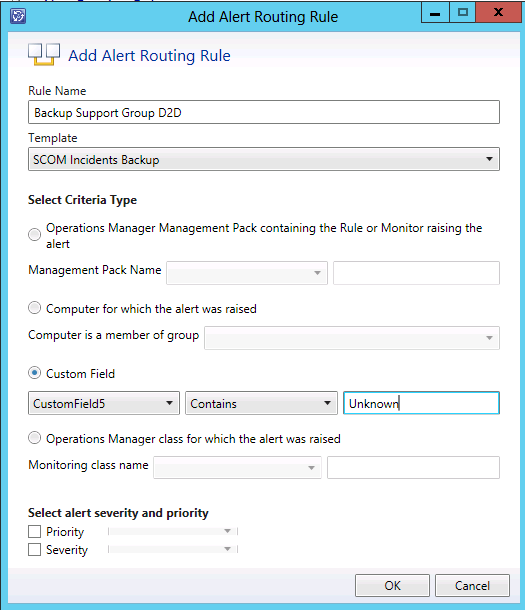
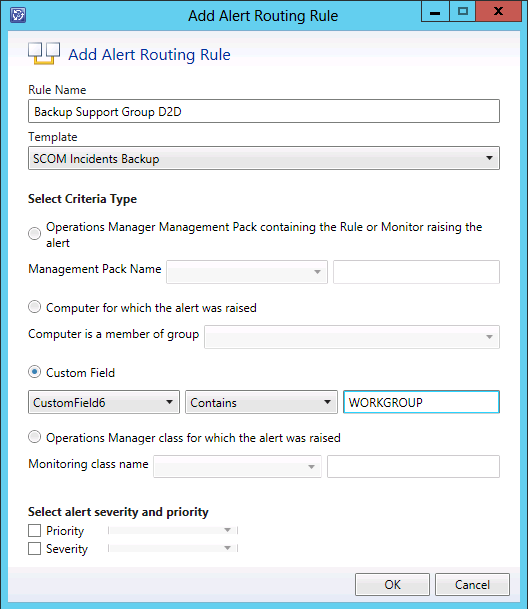
But this didn’t work also so I’ve switched back to Custom Field 1 and realized that the value of “3PAR” that I’ve put for that field was still there. I thought when I select Custom Field 3 the value for Custom Field 1 will be automatically reset but this was not the case. This lead me to the thought that all used Custom Fields have to be defined in the routing rule in order to work so I’ve created the routing rule for Storage to use all Custom Fields:
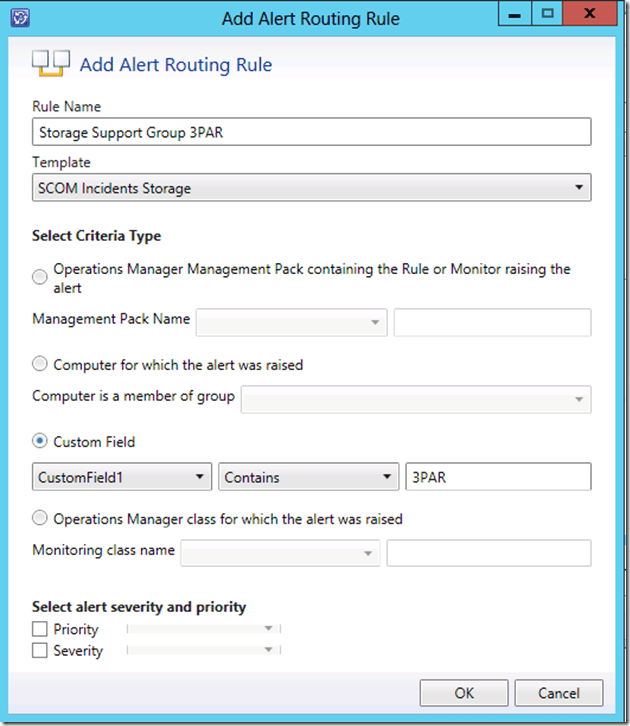
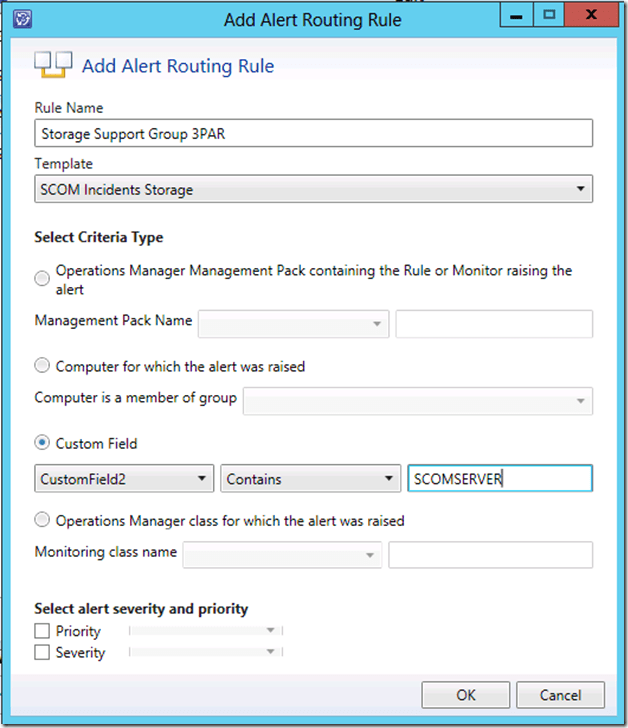
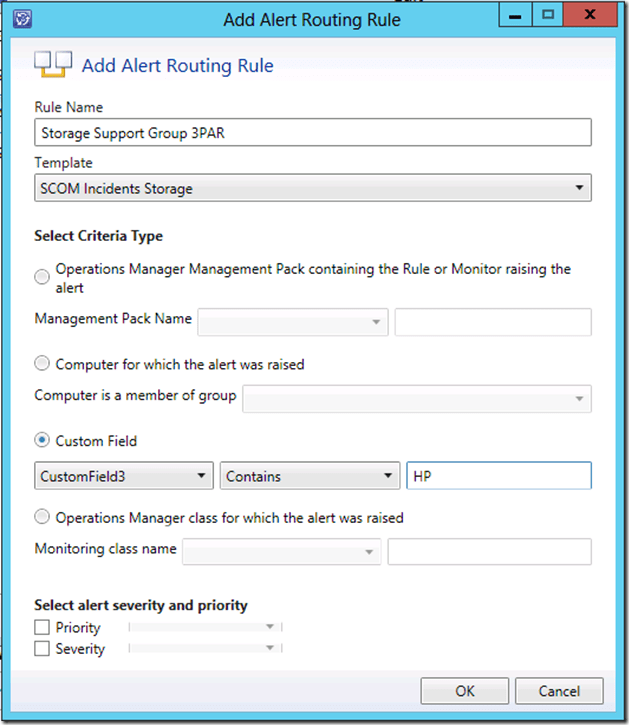
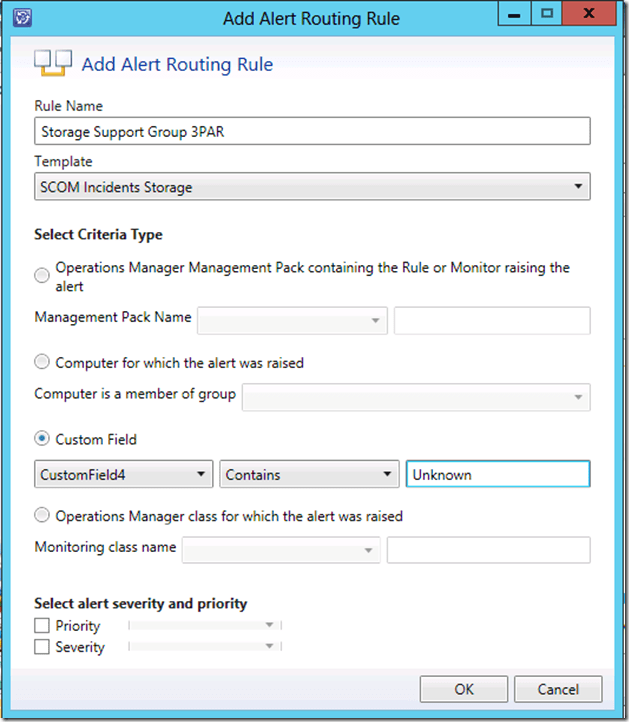
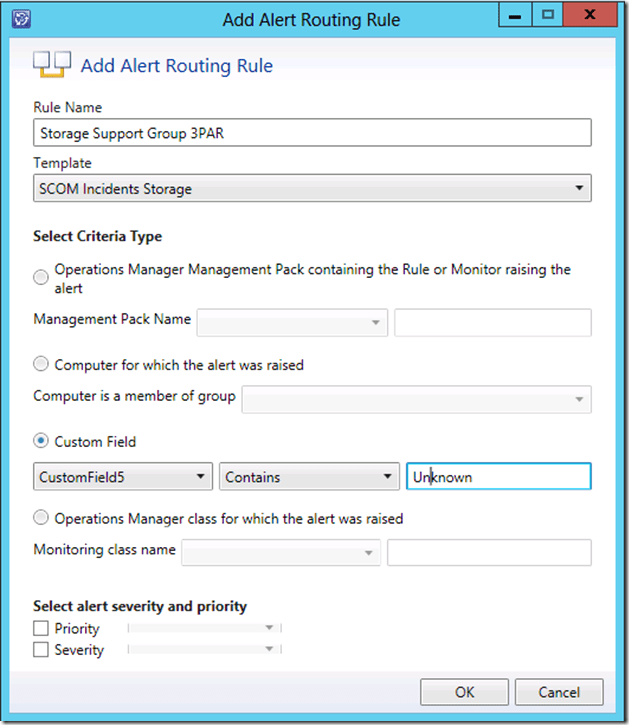
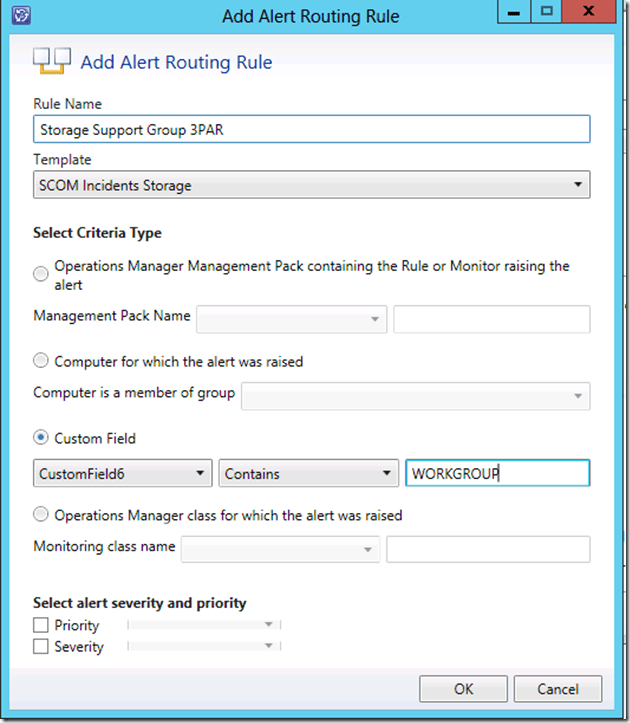
I’ve also created the routing rule for Backup to see if they will work in parallel:
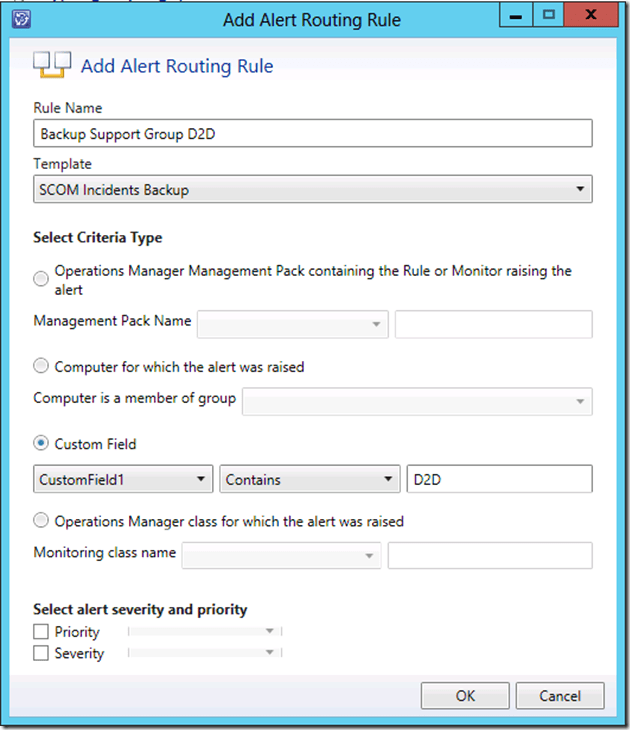
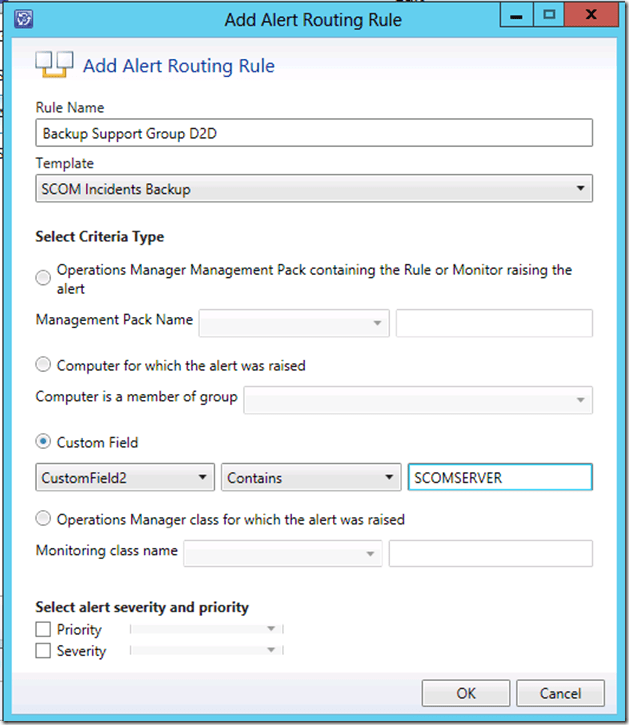
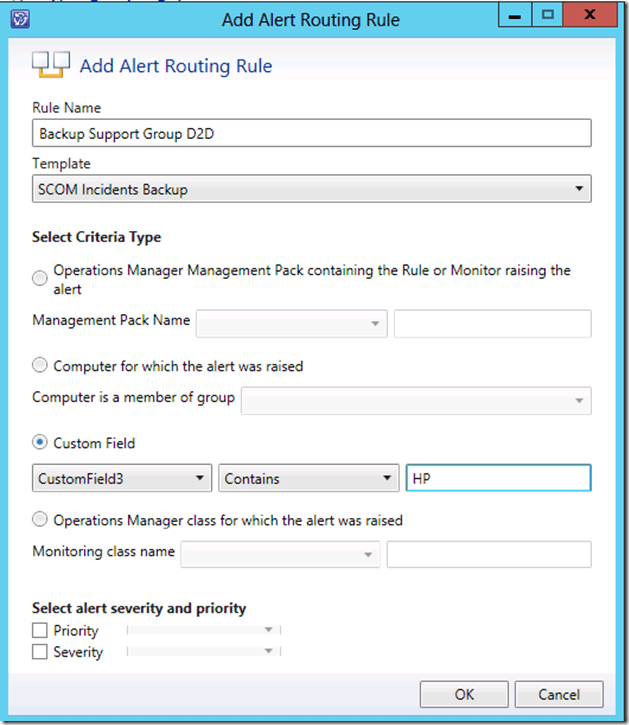
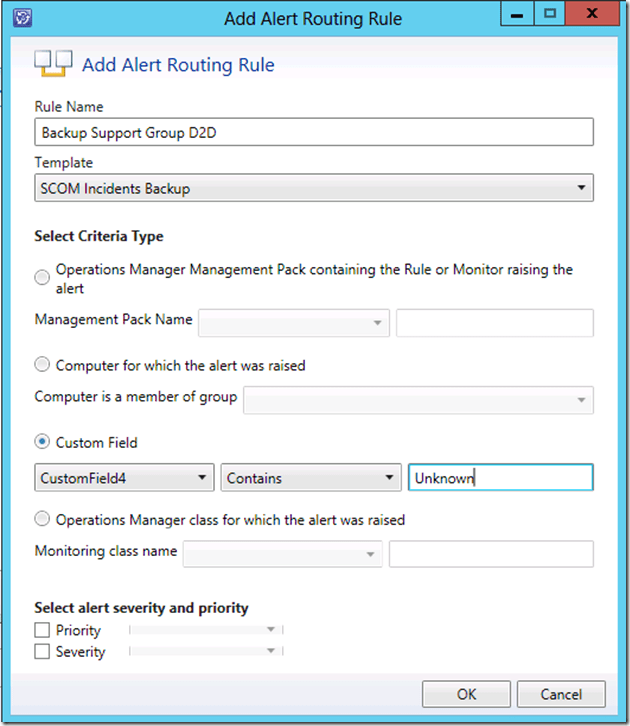
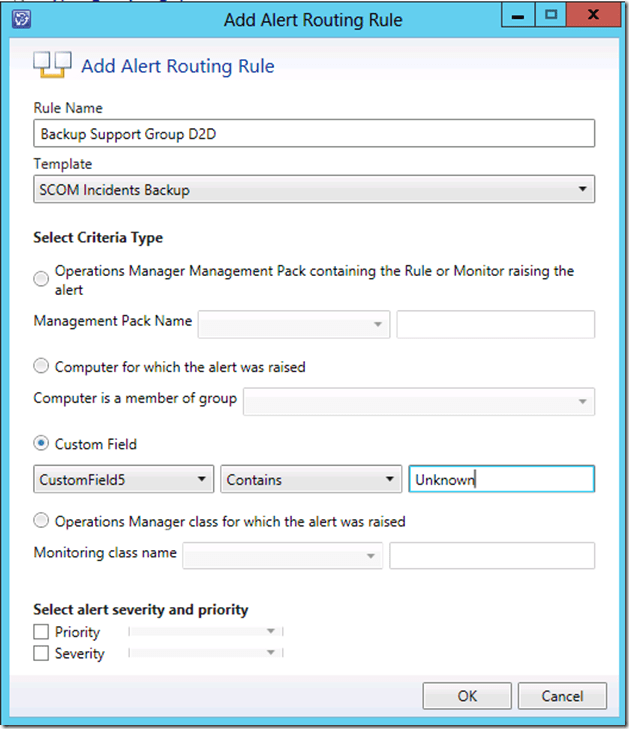
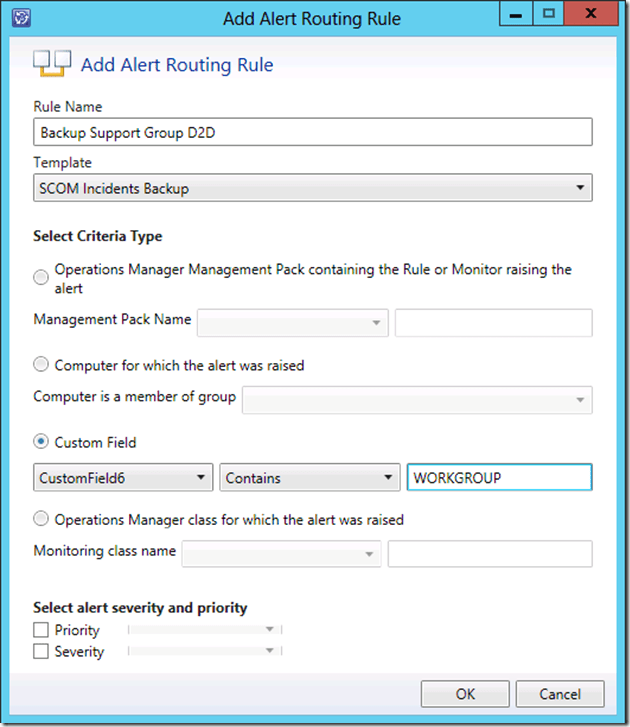
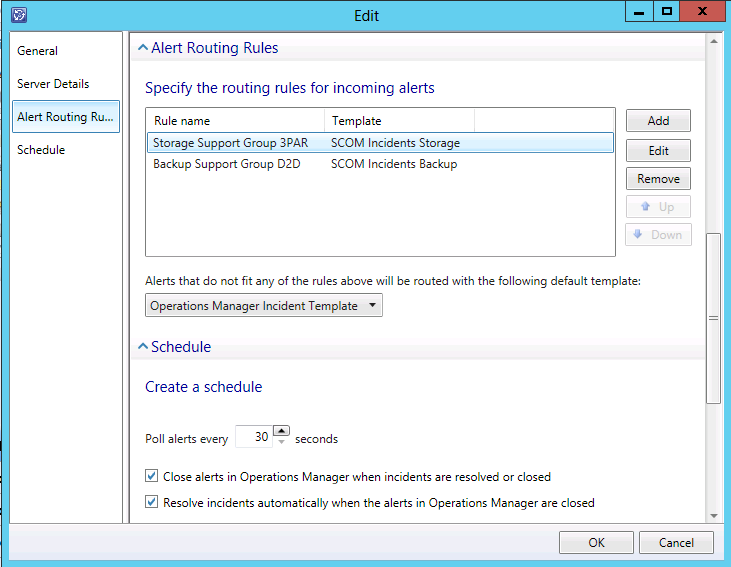
After creating the tow rules they looked like this in the SCOM Alert Connector:
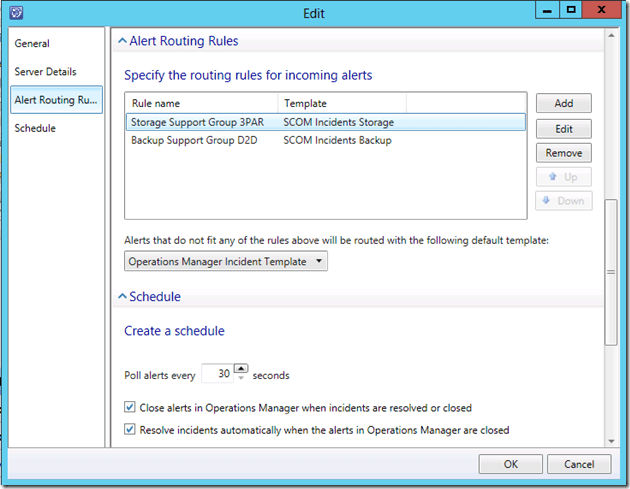
As you can see the routing rules are different only for the definition of Custom Field 1.
After saving the SCOM Alert Connector configuration I’ve modified the custom fields of two alerts in SCOM and forward them to SCSM:
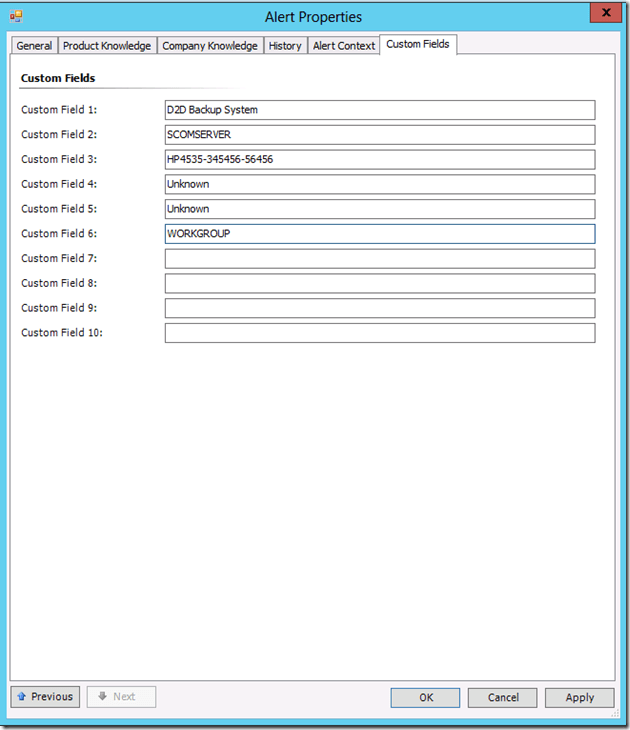
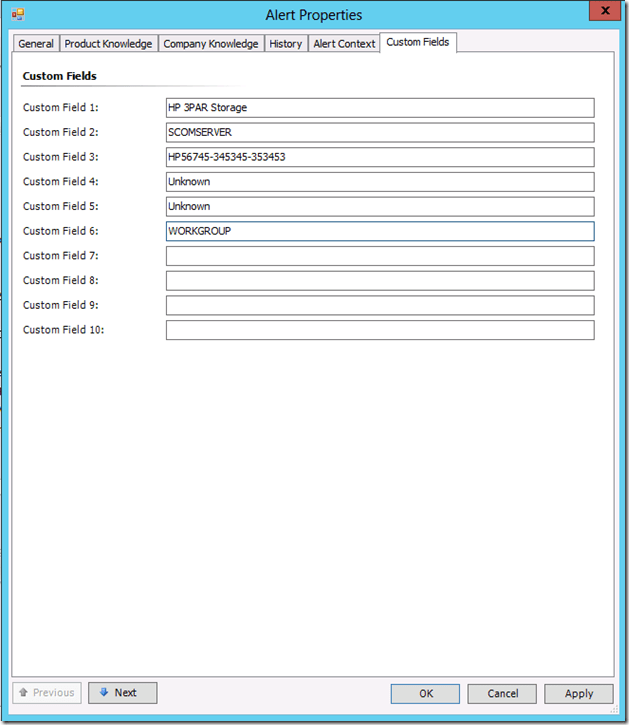
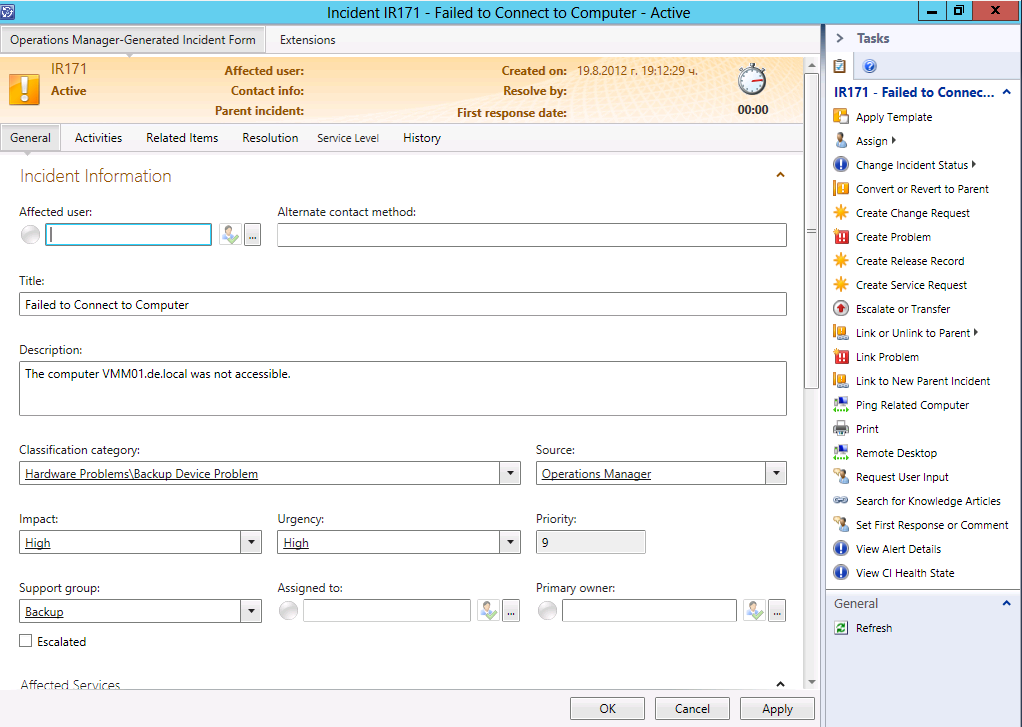
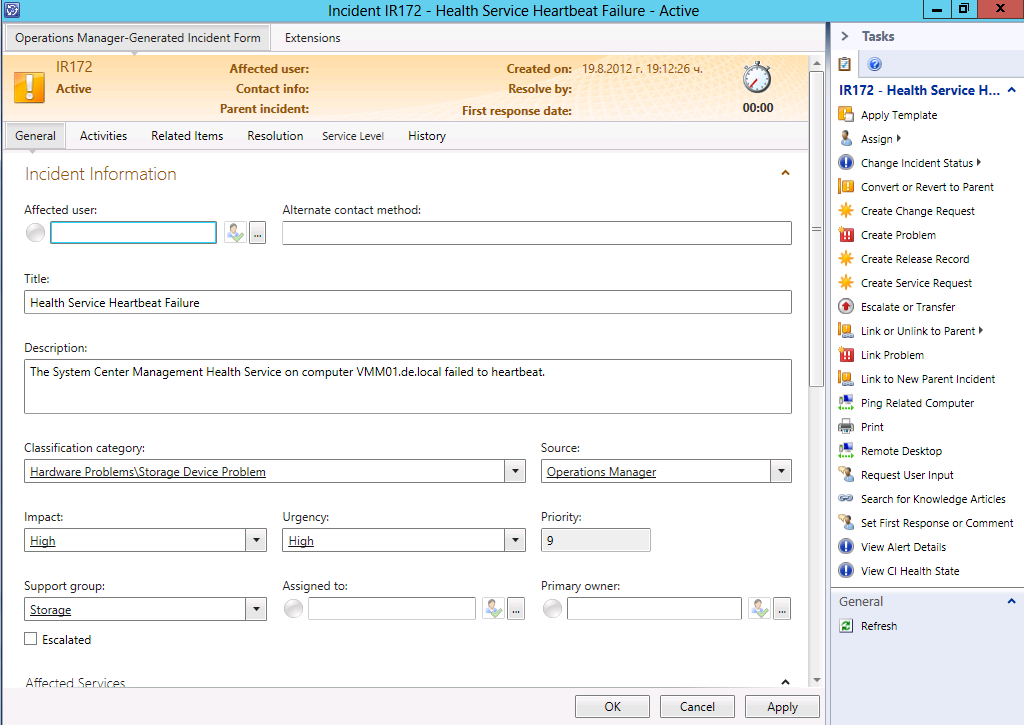
When the alerts were forwarded successful I’ve checked the SCSM console to see how both alerts look:
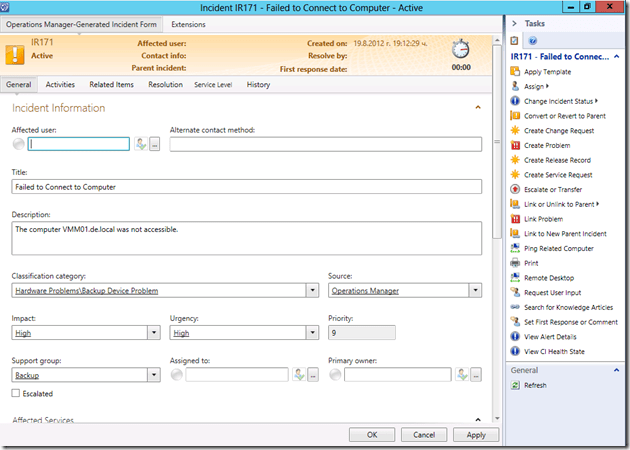
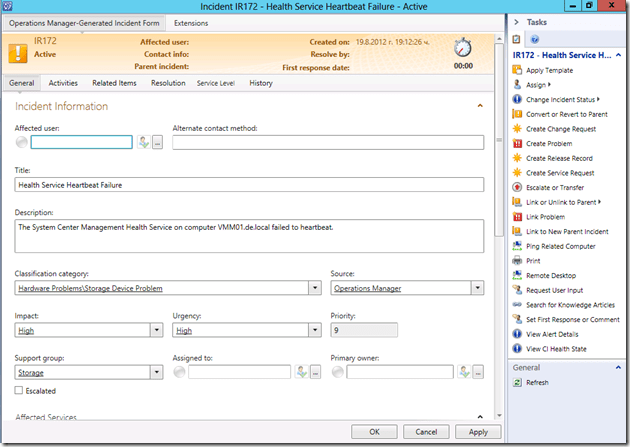
As you can see both alerts are routed correctly and assigned to the right Support Group.
In order to use routing of alerts for custom fields all used fields have to be configured in the routing rule.
The behavior of the connector for routing alerts using Custom Fields criteria is the same for SCOM 2007 R2 and 2012.

 Cloud Administrator in Azure World