
If you look at the title you probably think I’ve switched to the dark side  and from System Center Specialist I’ve become SQL Specialist . Nope it is not that. If you are dealing with System Center you know the clash with SQL is inevitable. Sooner or later you have to learn a thing or two in SQL. So I’ve been playing these days with installing SQL instances for System Center on a cluster and I’ve bumped into two issues:
- The Cluster Resource ‘Analysis Services (Instance_Name) Could Not Be Brought Up
I’ve received this error during the installation of SQL instance with Analysis Services on the first node. The error is received at the end of the installation when the cluster role is being brought online.
Reason for the error: Analysis Services files during the setup are set to a location that is different than the default one. Because of that it seems permissions to the folder/s where Analysis Services are put are not set during installation.
Resolution: To all folders where Analysis Services is placed add full NTFS permissions for the Analysis Services service account.
- No Connection Could Be Made Because The Target Machine Actively Refused it IP:Port
I’ve received this error after installing SQL instance with Analysis services on the first node. In order to check if everything is OK with Analysis Services I’ve started up SQL Management Studio and tried to connect to the SSAS instance but I’ve received the error above. To troubleshoot this error I’ve tried telnet to the IP and the Port but no connection was made.
Reason for the error: SQL Analysis Services sets port 0 during the installation which means dynamic port.
Resolution. In order to be able to connect I’ve set a static port to the SSAS instance. You cannot do that trough SQL Management Studio so you have to find a file named msmdsrv.ini. This file is located in folder named Config of the root directory of where you’ve installed your SSAS instance. Open the file and edit the line <Port>0</Port> by replacing 0 with a port of your desire.
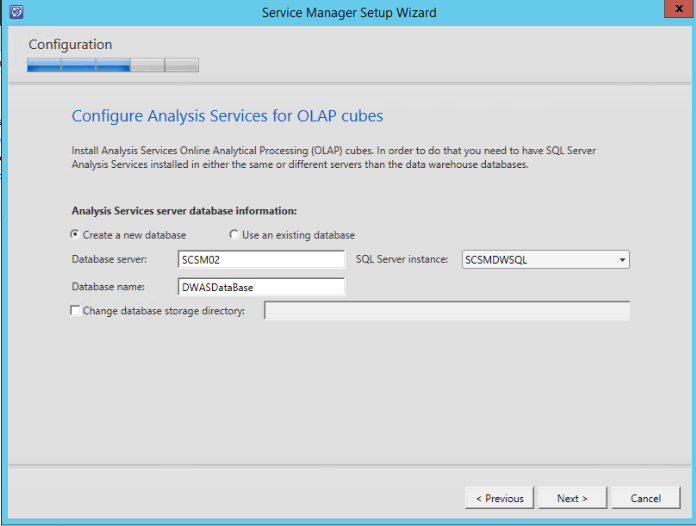
I’ve only seen these error when I have clustered instances. As you know SSAS instance can be required for SCOM or SCSM.










 Cloud Administrator in Azure World