New MP: BizTalk Server 2013 Monitoring Management Pack

A new MP is released. This MP gives you the opportunity to monitor your BizTalk 2013 Servers. If you want to monitor 2010 BizTalk Servers there is a separate MP for them which was quite noisy. Let’s hope the new MP will give us better monitoring without flooding SCOM with useless alerts. There is only one way to find out. Download and try the MP from here.

Note: Remember to read the guide before importing. Keep in mind that the MP uses Run As Profiles and I suggest to use them instead of using the default action account.

SQL Analysis Services: “The Cluster Resource ‘Analysis Services (Instance_Name) Could Not Be Brought Up” and “No Connection Could Be Made Because The Target Machine Actively Refused it IP:Port”

If you look at the title you probably think I’ve switched to the dark side Smile and from System Center Specialist I’ve become SQL Specialist Smile. Nope it is not that. If you are dealing with System Center you know the clash with SQL is inevitable. Sooner or later you have to learn a thing or two in SQL. So I’ve been playing these days with installing SQL instances for System Center on a cluster and I’ve bumped into two issues:

  • The Cluster Resource ‘Analysis Services (Instance_Name) Could Not Be Brought Up

I’ve received this error during the installation of SQL instance with Analysis Services on the first node. The error is received at the end of the installation when the cluster role is being brought online.

Reason for the error: Analysis Services files during the setup are set to a location that is different than the default one. Because of that it seems permissions to the folder/s where Analysis Services are put are not set during installation.

Resolution: To all folders where Analysis Services is placed add full NTFS permissions for the Analysis Services service account.

  • No Connection Could Be Made Because The Target Machine Actively Refused it IP:Port

I’ve received this error after installing SQL instance with Analysis services on the first node. In order to check if everything is OK with Analysis Services I’ve started up SQL Management Studio and tried to connect to the SSAS instance but I’ve received the error above. To troubleshoot this error I’ve tried telnet to the IP and the Port but no connection was made.

Reason for the error: SQL Analysis Services sets port 0 during the installation which means dynamic port.

Resolution. In order to be able to connect I’ve set a static port to the SSAS instance. You cannot do that trough SQL Management Studio so you have to find a file named msmdsrv.ini. This file is located in folder named Config of the root directory of where you’ve installed your SSAS instance. Open the file and edit the line <Port>0</Port> by replacing 0 with a port of your desire.

I’ve only seen these error when I have clustered instances. As you know SSAS instance can be required for SCOM or SCSM.

Install All System Center 2012 R2 Preview Components and Windows Azure Pack Preview (Part 1 Operations Manager)

The goal of this article is to demonstrate the installation experience of System Center 2012 R2 Preview and Windows Azure Pack Preview. For most components the requirements are almost the same from the previous release. I will not make any configurations, additional posts may come later for this. I this article I assume you have the following virtual machines with Windows Server 2012 R2 and SQL 2012 SP1 installed on them:

  • DC01 – domain controller
  • SCAC01 – App Controller
  • SCCM01 – Configuration Manager
  • SCDPM01 – Data Protection Manager
  • SCO01 – Orchestrator
  • SCOM01 – Operations Manager
  • SCSM01 – Service Manager Management Server
  • SCSM02 – Service Manager Data Warehouse
  • SCSPF01 – Service Provider Foundation
  • SCVMM01 – Virtual Machine Manager
  • WAP01 – Windows Azure Pack

The SQL on the machines have different roles installed depending on the requirements of the application.

I will divide the blog post in parts for easier uploading.

All Posts:


Let’s Start first with Operations Manager:

Installation screen

image

Choose the components:

image

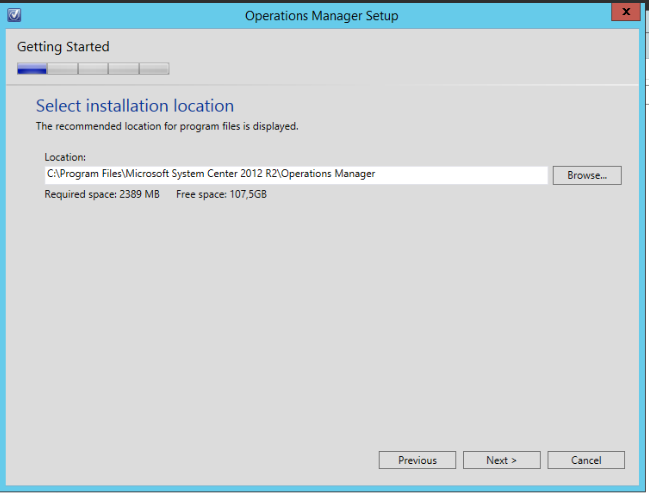
Installation Directory

image

Some requirements needs to be installed before continuing:

image

After installing them we can continue

image

Give management group name to SCOM

image

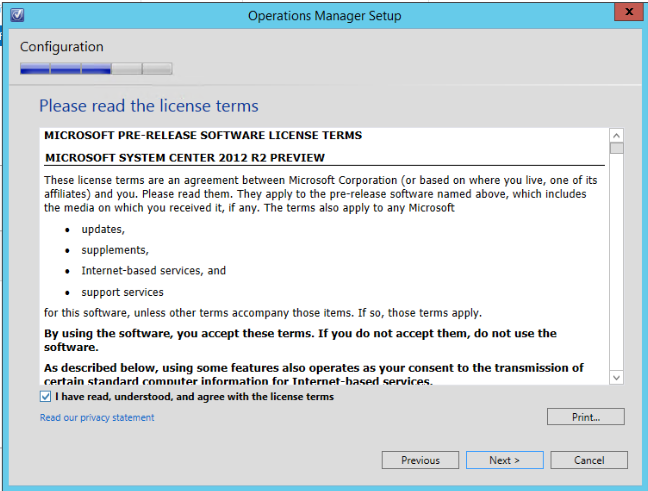
Accept License terms:

image

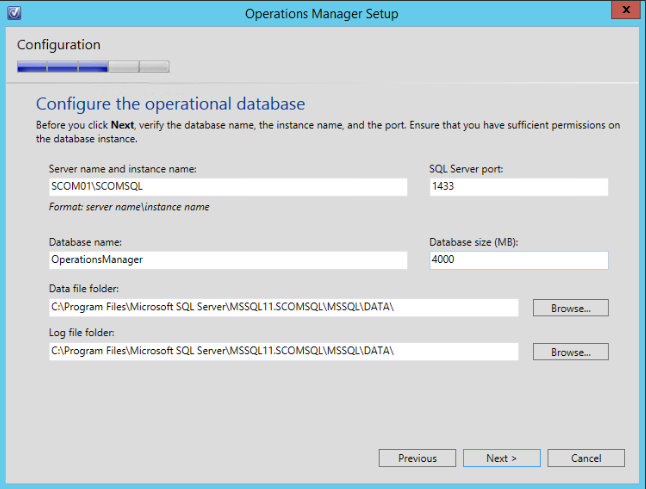
image

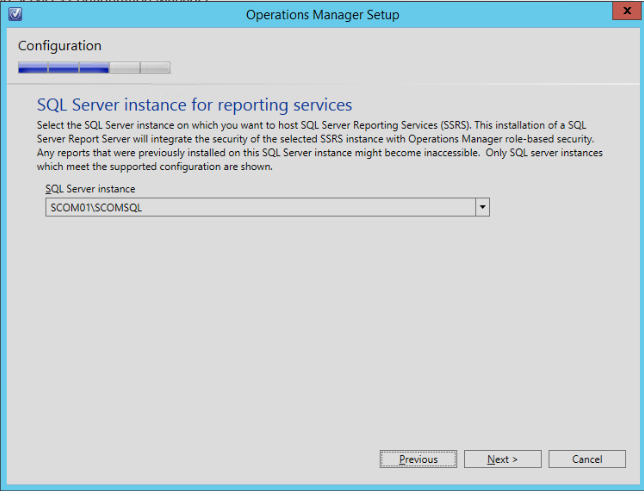
image

image

image

image

image

image

image

image

image

image

image

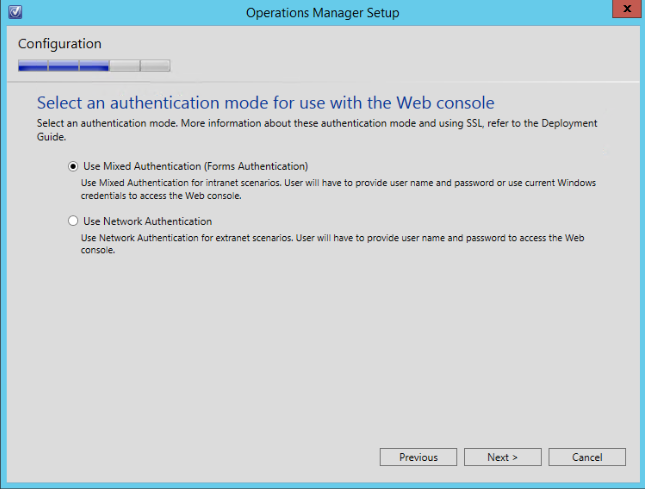
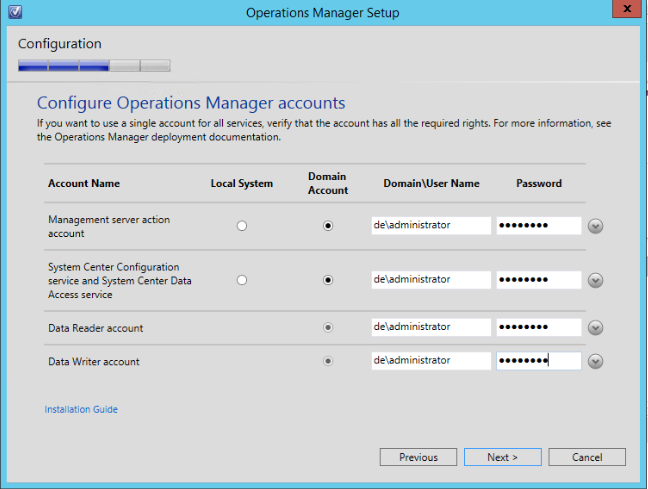
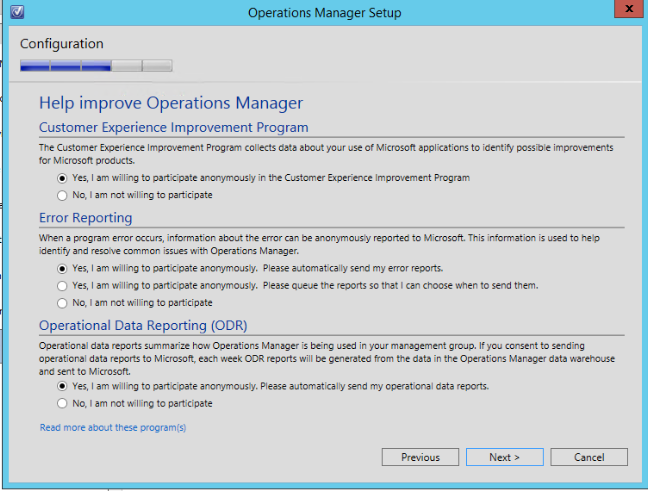
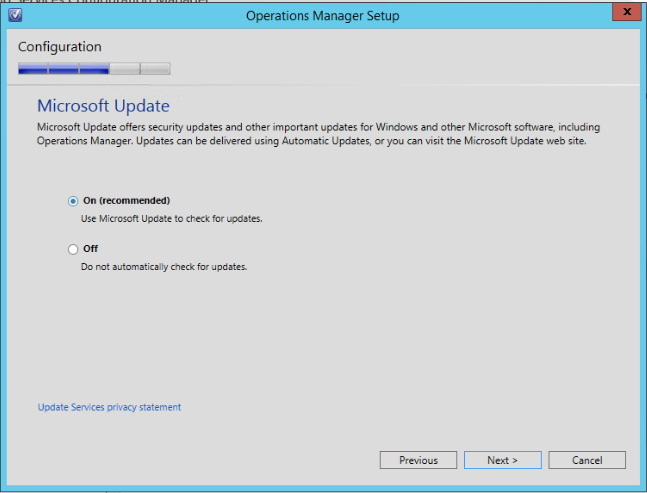
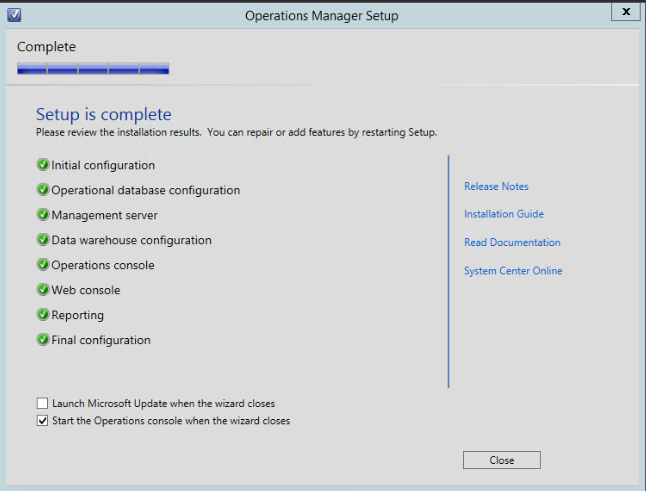
And the installation experience of SCOM 2012 R2 is the same like the previous version straight and easy.

MP Update: BizTalk Server 2010 Monitoring Management Pack

BizTalk Server 2010 MP has been updated. According to the change log only one change is made:

  • Changed discovery to handle a large amount of BizTalk artifacts

The new version can be downloaded from here. If you deploy for first time remember to read the guide first.

New MP: Hyper-V Management Pack Extensions 2012

The Hyper-V MP provides good monitoring but certainly that MP can be extended to provide more advanced monitoring. For Hyper-V 2008 R2 MP some Microsoft employees extended that MP and provided this extension MP at codeplex site. Now they are providing us with similar extension MP for Hyper-V 2012 MP.

New features in this release:
VMs Integration Services Version monitor
Hyper-V Replica Health Monitoring Dashboard and States
SMB Shares I/O latency monitor
Included features from previous release
Hyper-V Hypervisor Logical processor monitoring
Hyper-V Hypervisor Virtual processor monitoring
Hyper-V Dynamic Memory monitoring
Hyper-V Virtual Networks monitoring
NUMA remote pages monitoring
SLAT enabled processor detection
Hyper-V VHDs monitoring
Physical and Logical Disk monitoring
Host Available Memory monitoring
Stopped and Failed VMs monitoring
Failed Live Migrations monitoring

Keep in mind that the management pack is with beta status. You can download it from codeplex site.