
Most of the large organizations today do not buy individual servers (exceptions are present of course) instead they buy Enclosures. In one such enclosure you can put up to 16 server and/or storage blades. HP as one of the biggest hardware vendors offers two such solutions – HP BladeSystem c3000 and HP BladeSystem c7000. If you bought such solution you receive for free HP BladeSystem Management Pack from HP for SCOM to monitor HP Enclosures. To start monitoring you HP Enclosures of course you have to first install and configure that MP on your SCOM environment. HP is providing installation and configuration guide for the management pack but I will walk you trough the steps you need to perform if you stumble on some difficulties. These steps are applicable for SCOM 2007 and 2012 versions:
1. First you need to download HP BladeSystem MP. You can find it here. The MP is part of Insight Control for Microsoft System Center solution.
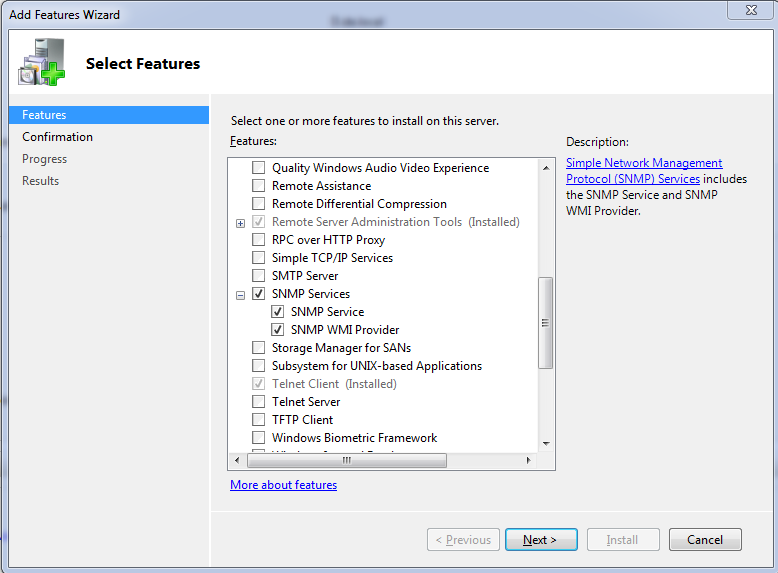
2. After the MP is downloaded it is best to install SNMP Services feature on your RMS server (RMS Emulator). As in 2012 you have RMS emulator and you can move that role to other Management Server it is good idea to install SNMP Services on another Management server if you want to failover in case your RMS Emulator server goes down. SNMP Services installation does not require restart.
3. The HP BladeSystem MP when it is downloaded is archived in a zip file in which you can find several files – 64-bit installation file, 32-bit installation file, License agreement file, Release notes file, User guide and Troubleshoot guide. When you unzip it copy the 64-bit installation file (these days there are not many 32-bit SCOM servers  ) to your RMS server.
4. Start the 64-bit installation. Keep in mind that this management pack have certain requirements – HP ProLiant Server Management Pack imported (I will describe installation and configuration of that MP in another article), Windows PowerShell 1.0, .NET 2.0 Framework, SNMP Trap Service (We installed it in step 2) and of course at least SCOM 2007. Finish the installation with the default settings. It is pretty simple installation. If you have SCOM 2012 you perform the installation on the your failover Management Server also.
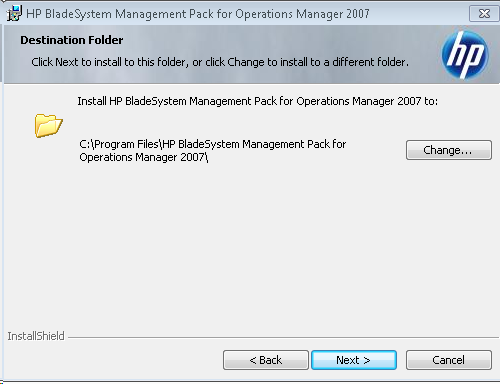
5. After the installation is finished you will see two new service and one application installed:


6. Next step is to configure SNMP. Open Services console. Find SNMP service and double-click on it. A dialog box will appear on which you have to click on Security tab:
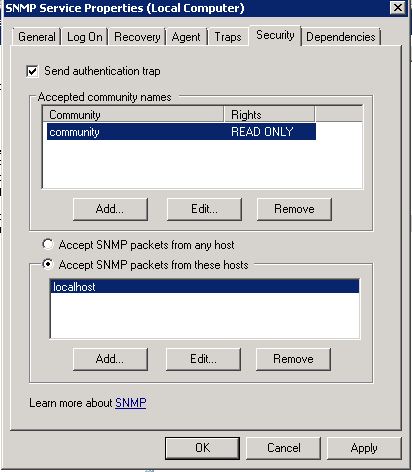
7. You have to check Send authentication trap option. Add community name that you will use for communication between the RMS server and the enclosures. You can use READ ONLY rights.
8. Select Accept SNMP packets from these hosts and add all your IP’s of your Onboard Administrators (Primary and Secondary). Onboard Administrator is the control interface from Enclosures. Click OK when you are done. Now the RMS server is configured to receive SNMP packets from the Enclosures you will monitor. If you are using SCOM 2012 you can make the same settings on your Management Server that you will use for failover of your RMS Emulator role.
9. Next step is to add your HP Enclosures to HP Device Monitor Console. You can find that console in Start Menu -> All Programs -> HP SCOM Management Packs.
10. When you start it you need to make a connection to localhost, FQDN (of your RMS server)or NetBIOS name (of your RMS Server). The console actually connects to that HP Monitor Device Service that is installed on the RMS.
11. After you are connect to that service trough the console on the right of the console you will find Actions menu from where you can select Add Onboard Administrator option.
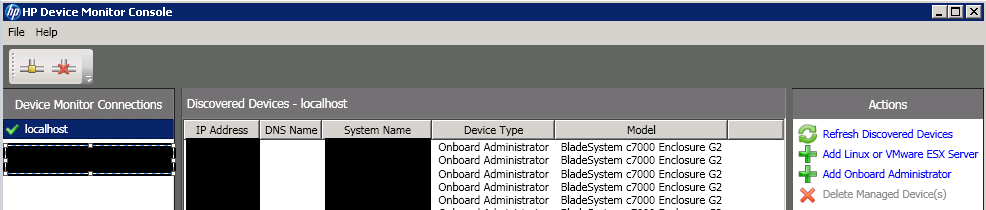
12. Click on Add Onboard Administrator.
13. A new dialog box will appear where you have to add IP address or FQDN of your Onboard Administrator. You also have to provide your administrator username and password to your Onboard Administrator interface.
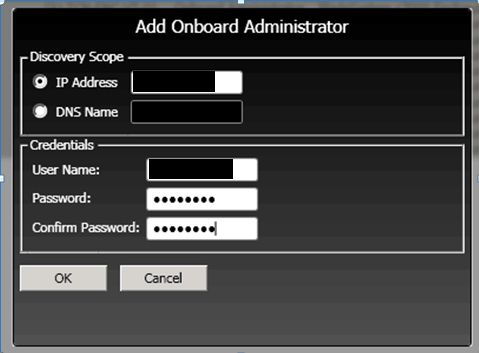
14. Add all your Onboard Administrators to the console using steps 12 and 13. Adding OAs in the console will discover all components of your Enclosures and will draw SCOM diagrams for them. If you have SCOM 2012 you can connect the HP Device Monitor Console to your failover Management Server and add the same OAs there.
15. The final configuration step is to configure OAs to send SNMP traps to the RMS server. This can be achieved by opening OA web interface. When you open the interface you have to expand Enclosure Information than expand Enclosure Settings and finally click on SNMP Settings. Check Enable SNMP option, fill the other fields and click Apply. For Read and Write community name use the one entered you’ve used in step 7.

16. Now that SNMP is enabled we have to configure OA to send traps to specific IP address. Right beneath Enable SNMP settings there is SNMP Alert Destination setting. For host you have to enter the IP address for your RMS server and for community name enter the one you’ve used in step 7. Click Add. There is Send Test Alert button which will send trap to your RMS server and will appear as warning alert in SCOM console. This is very handful option to verify that your configuration was successful.
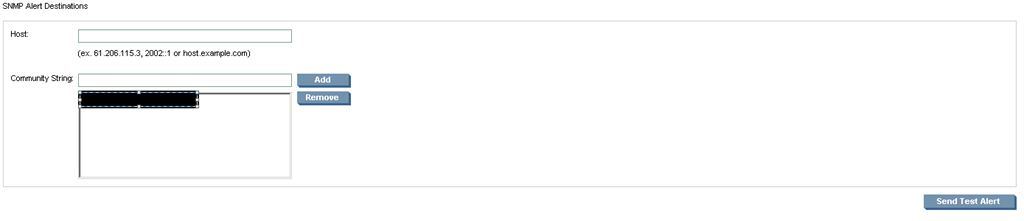
17. Repeat steps 15 and 16 for all your OAs.
When you complete your configuration you can use Send Test Alert option to see if all enclosures are configured correctly and are receiving alerts. You also should be able to use all your enclosures by opening the SCOM console, navigating to Monitoring pane –> HP Systems –> HP BladeSystem Enclosures –> Enclosure State:
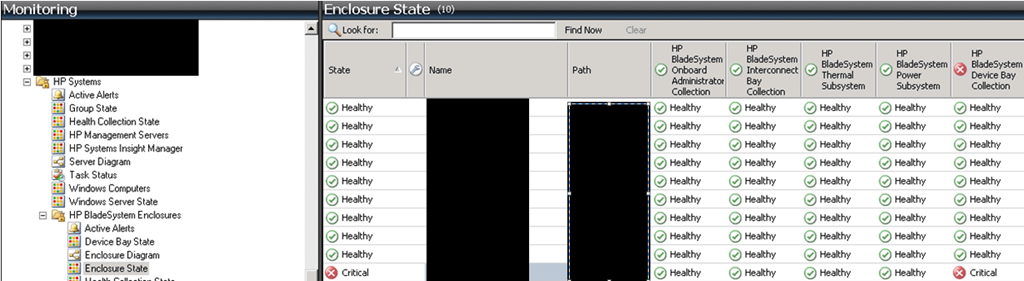
Note: HP BladeSystem Management Pack should be imported during the installation. If for some reason this is not done you can import the MPs manually by finding them on the RMS server in the installation folder of the MP. This also refers to HP ProLiant Server Management Pack.
If you have SCOM 2012 and your RMS Emulator server fails you can follow two steps to recover your monitoring for HP BladeSystem Enclosures:
1. Transfer RMS Emulator role to your failover Management Server
2. Change the IP address of your failover Management Server to the IP address of your failed RMS Emulator server because SNMP traps are send to specific IP address. If you do not want to change the IP address on your Management server you have to reconfigure all OAs to sent SNMP traps to your new RMS Emulator.
Note: HP BladeSystem Management Pack does not require to be installed on RMS server (RMS Emulator). It can be installed on any SCOM Management Server or Server that have agent installed but is common practice such monitoring solutions to be installed on RMS. Also the documentation of the management pack doesn’t mention that the MP relays on the RMS (RMS Emulator) server to function properly.
 Cloud Administrator in Azure World