
Microsoft Monitoring Agent 2013 is the new SCOM agent. The latest version is published here. I can guess that this is the same version that will be shipped with System Center 2012 R2 Operations Manager RTM which can hint us that probably the RTM version of SC 2012 R2 is finished.
Tag: monitoring
First Look at OpsLogix’s VMware Management Pack (beta)
Yep you’ve heard right OpsLogix’s team is putting their forces on creating Management Pack for monitoring VMware. This blog post will not be comparison with another well known management pack for VMware. I will try to give you overview of the VMware Management Pack that OpsLogix is cooking up. Keep in mind that the MP is still in beta. Although the MP is in beta the OpsLogix’s support was not in beta. While I was testing the MP I’ve stumbled on a bug. I’ve contacted OpsLogix’s support, granted them access to my environment and after a couple of hours I’ve received a fix. Such quick fix shows the devotion of OpsLogix on supporting their products. Another reason to try this MP is that I haven’t touched vCenter since I switched to Hyper-V and System Center (somewhere around 3-4 years ago).
Before importing the MP let’s first see the environment where I am testing:
- SCOM server named SCOM01. The SCOM version is 2012 R2 Preview. The operating System is Windows Server 2012 R2 Preview.
- vCenter server named vcenter. Version is 5.1. Operating system is Windows Server 2012.
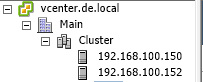
- Two ESXi hosts 192.168.100.150 and 192.168.100.152 that are in cluster:
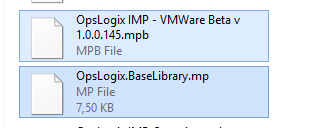
First you need to import two management packs:
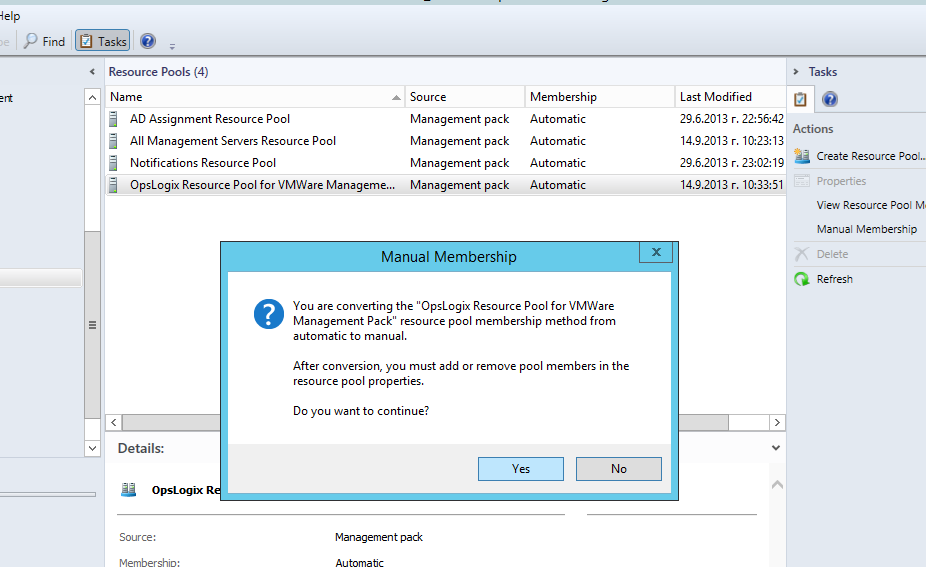
After successful import you need to configure the resource pool that the MP will use. On importing OpsLogix VMware MP creates its own a resource pool:

You need to make the pool manual and add the SCOM management servers that will be used for monitoring your VMware environment.
In my case I have only one SCOM management server but in real world environment you will have more than one and you can distribute your resources more equally:
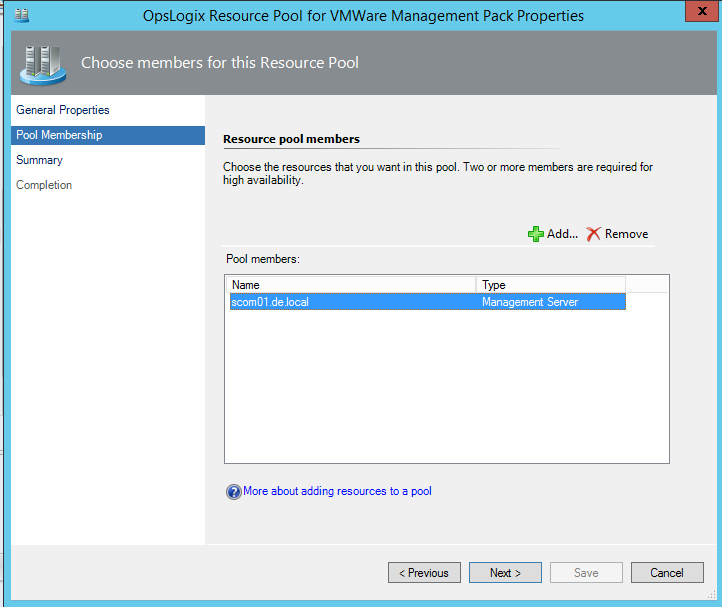
It is good that the MP is taking advantage of Resource Pools to distribute the load.
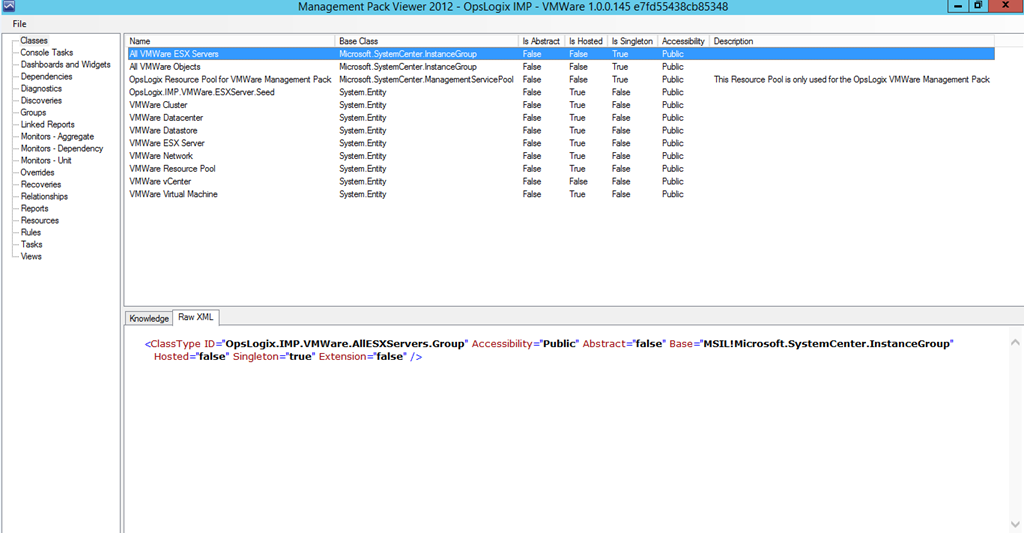
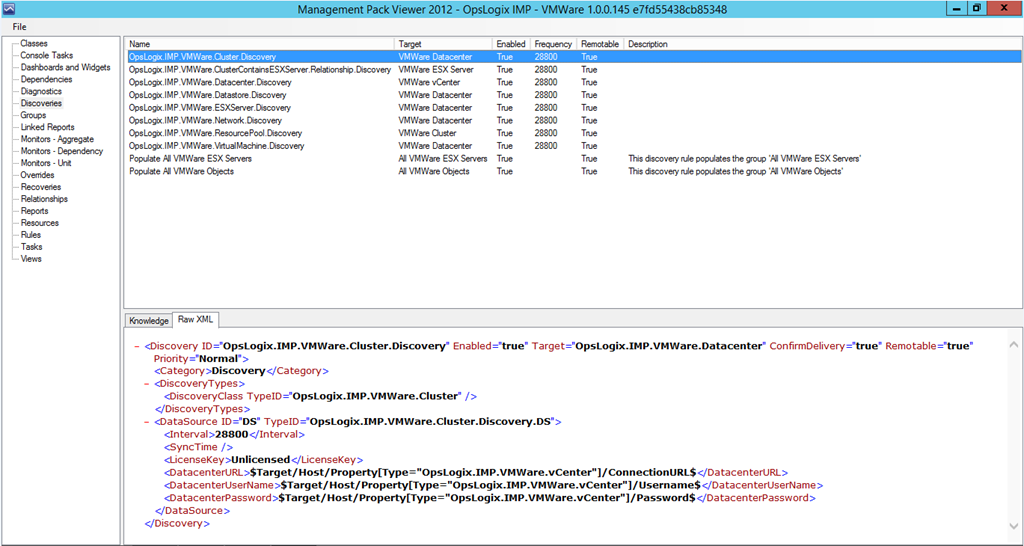
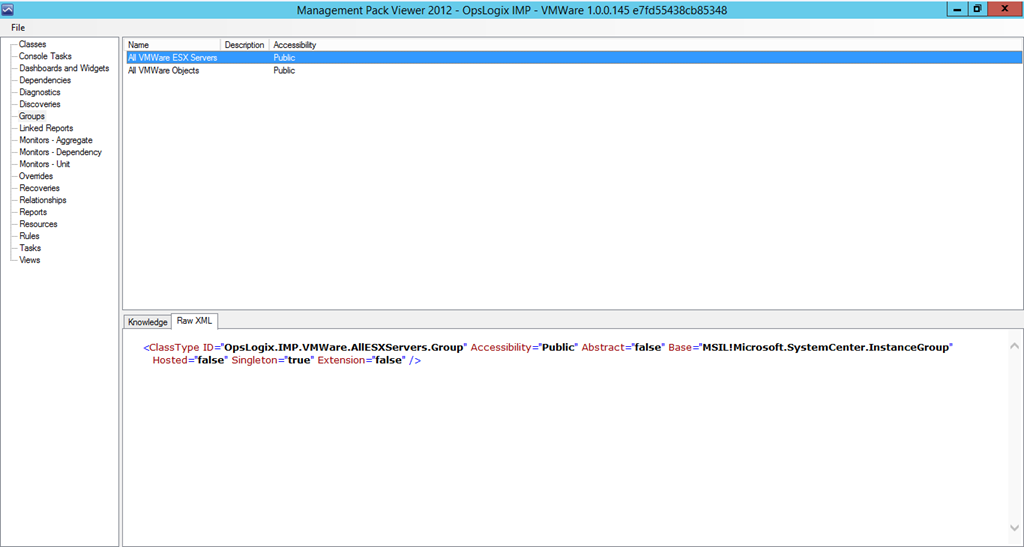
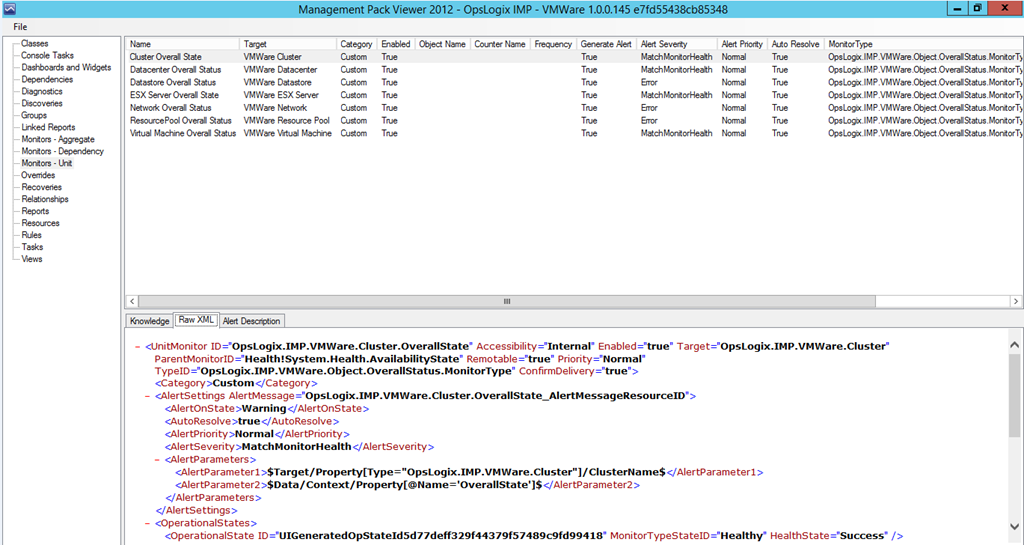
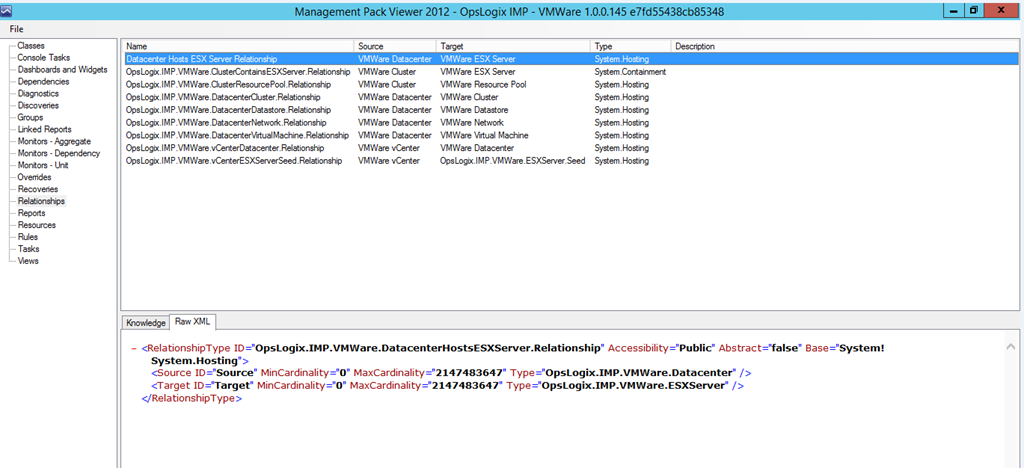
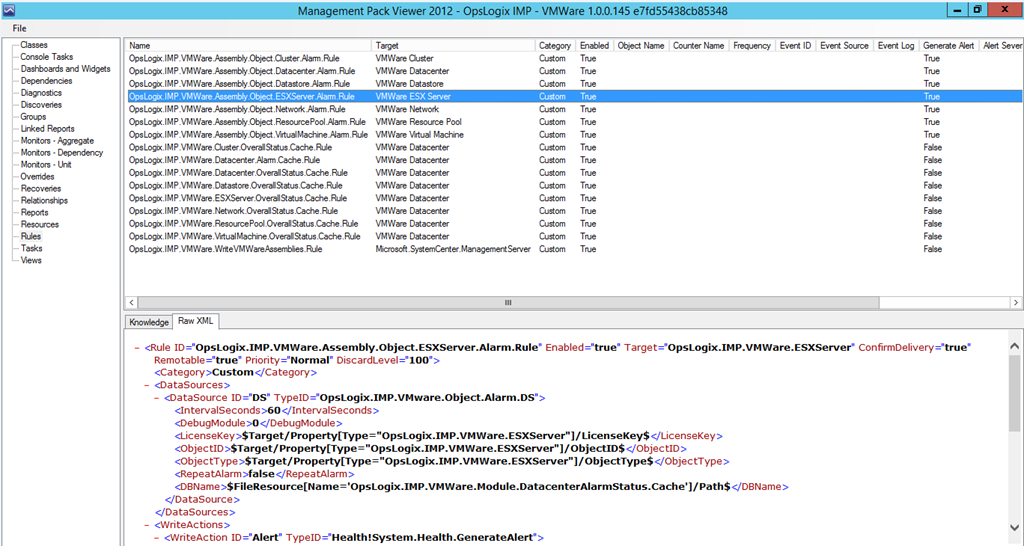
Before starting monitoring of the VMware environment let’s see with MPViewer what classes, discoveries, groups, relationships, monitors and rules are offered:
Classes
Discoveries
Groups
Monitors
Relationships:
Rules:
We will go in detail how the MP works but let’s first configure it to monitor the VMware environment.
You you will need to go to Monitoring pane -> OpsLogix –> VMWare –> VMWare IMP Configuration Dashbaord:
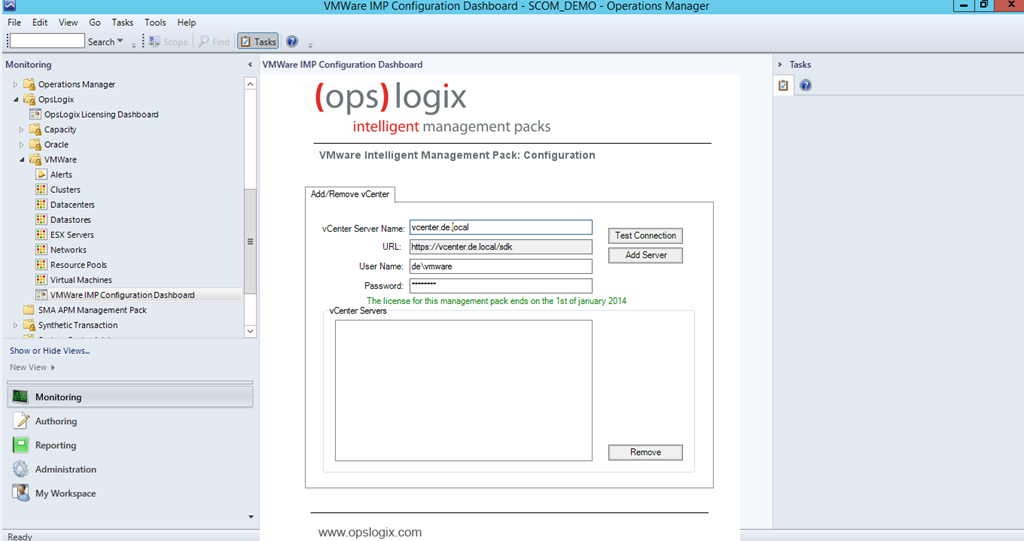
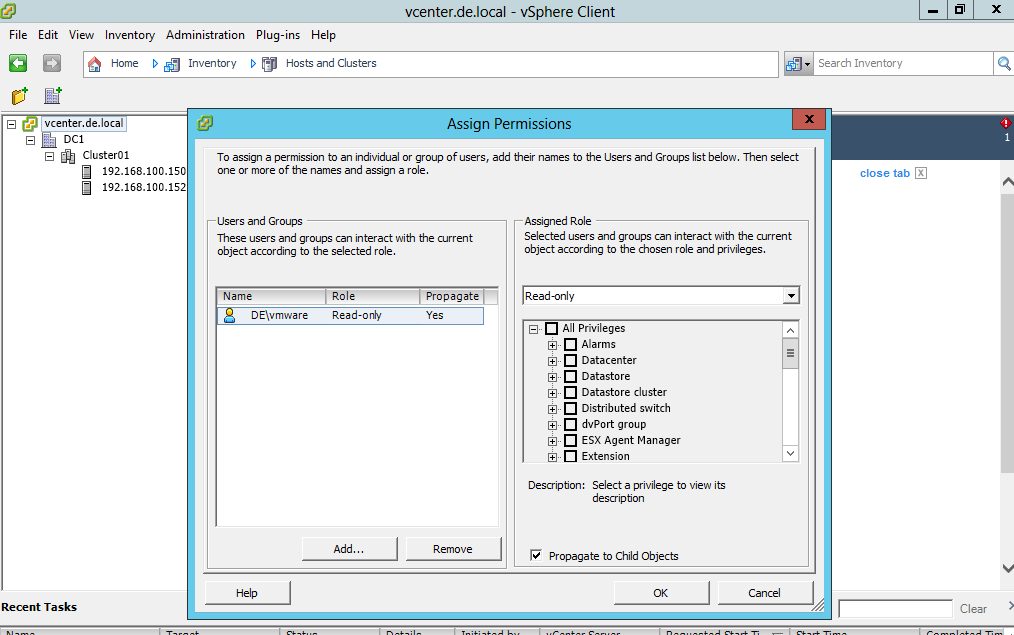
There you need to enter the name of your vCenter server and credentials. You do not need to have SCOM agent installed on that server to activate monitoring. The credentials provided can be domain account or local account on your vCenter server you just need to grant that account read-only permissions to the root of your vCenter server:
There is a button that will allow to test your connection before adding it:
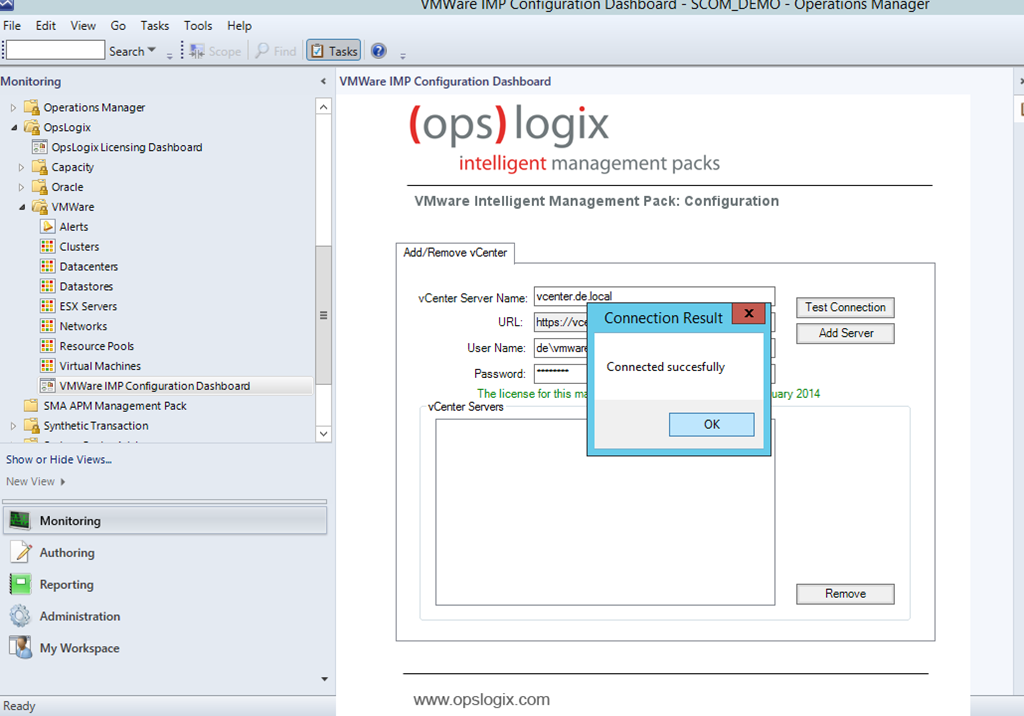
If connection is successful you a re good to go:
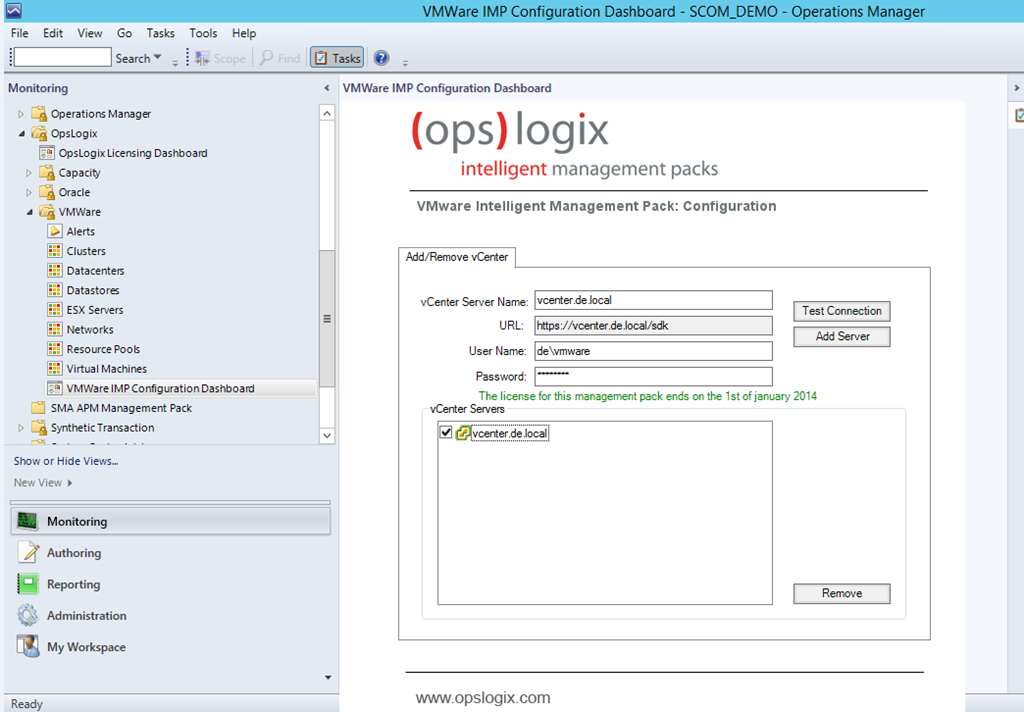
So how the MP works?
The MP connects to the vCenter web service. By connecting to it it will find all objects (datacenters,ESX servers, clusters, datastores, vmnetworks and etc.) in your vmware environment:
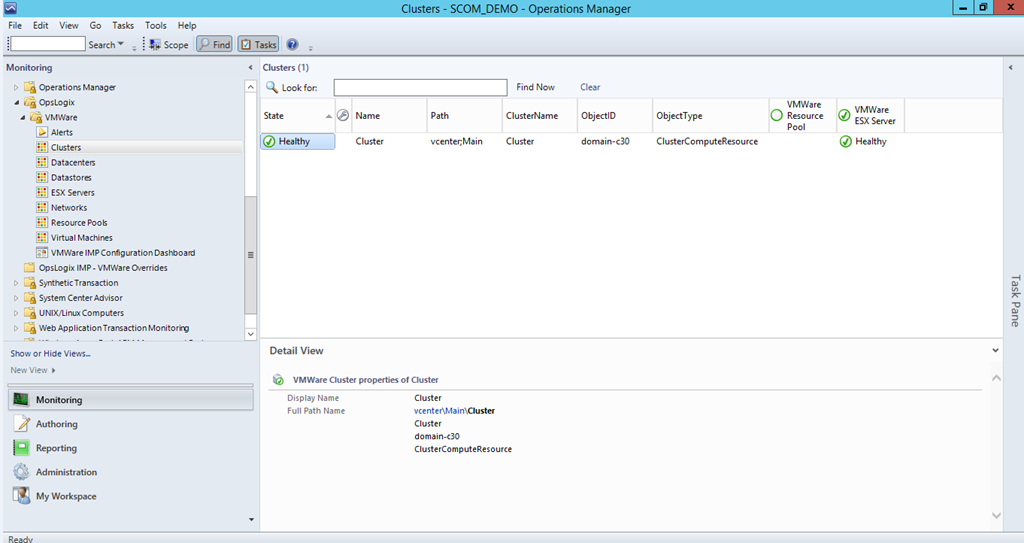
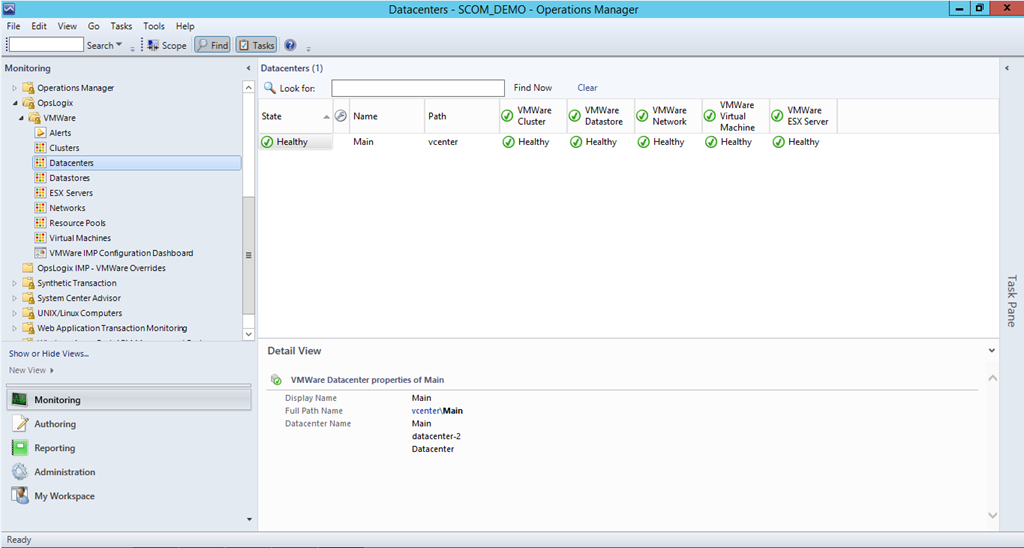
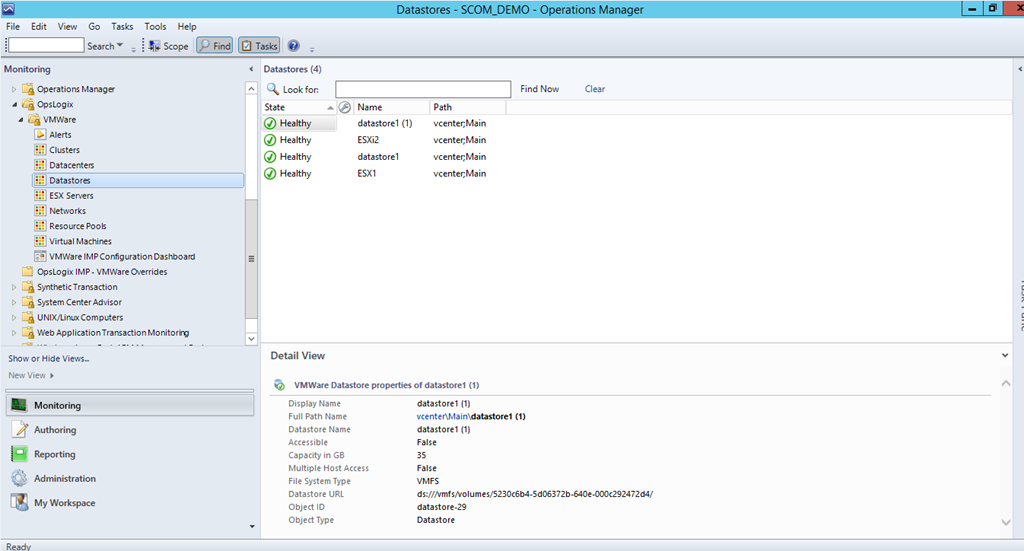
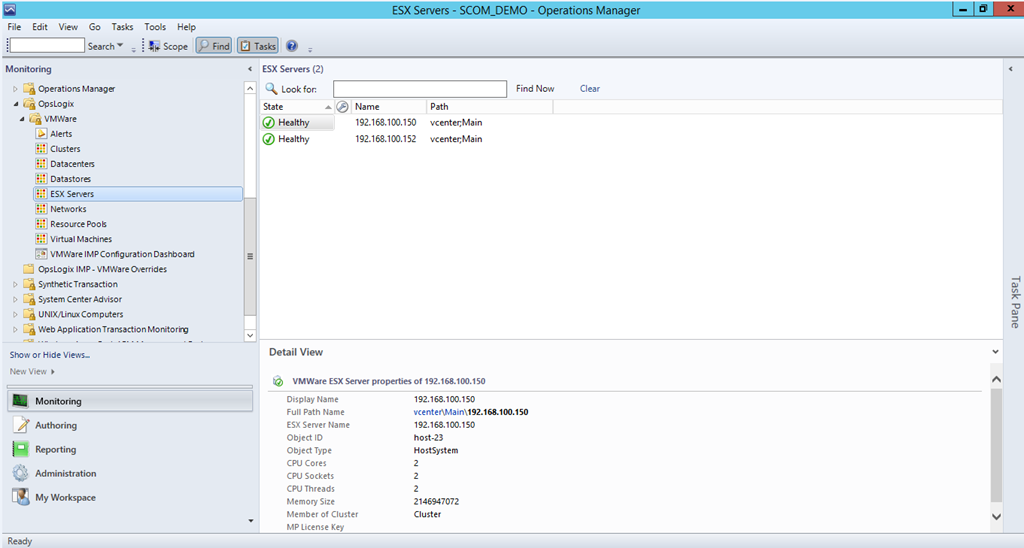
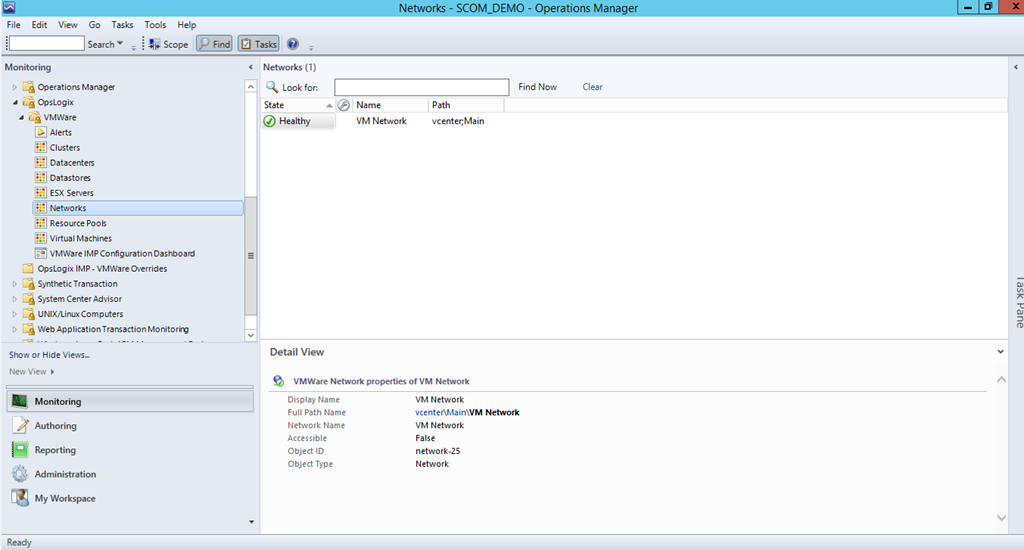
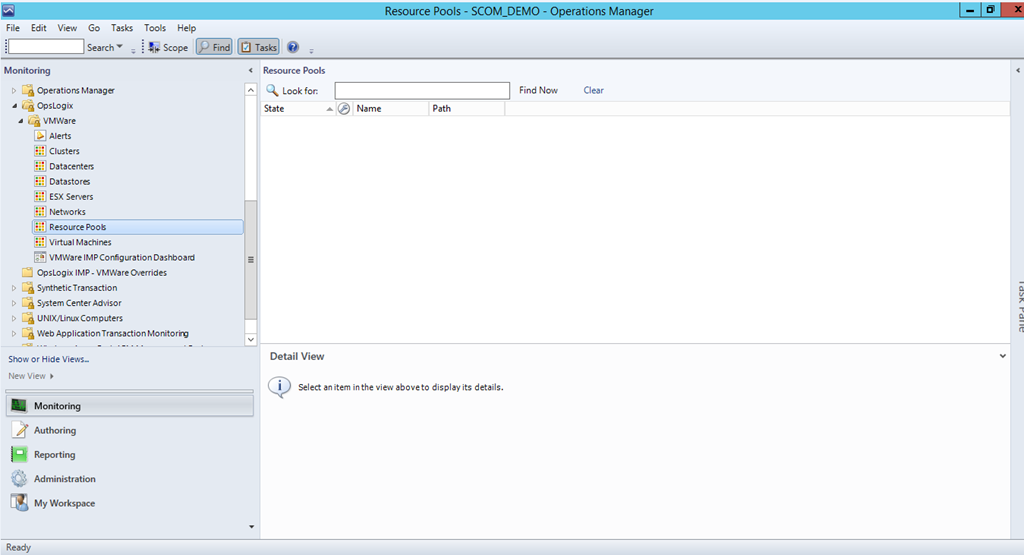
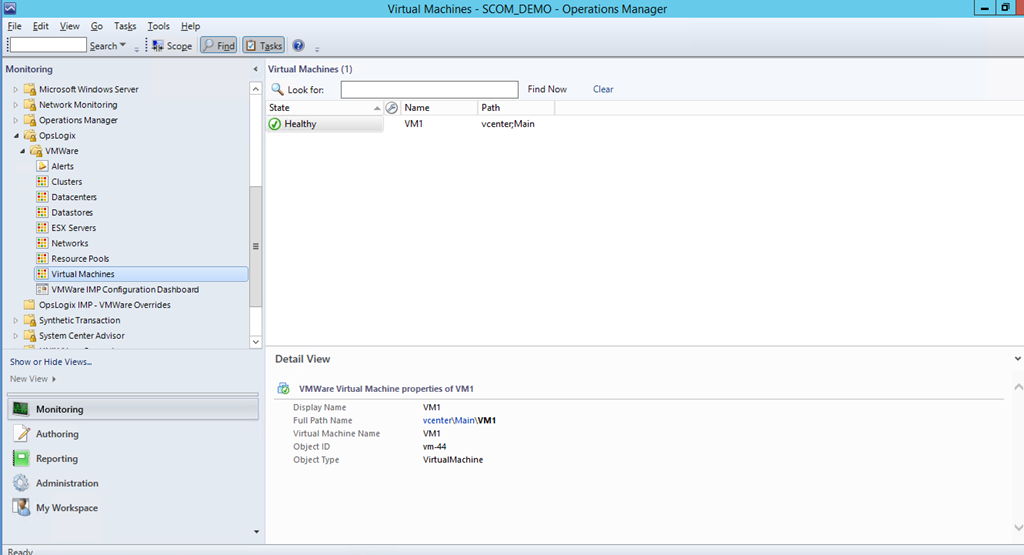
For generating alerts the MP uses the built-in functionality in vCenter to create alarms. If you create an alarm in vCenter and that alarm is triggered it will show in SCOM also.
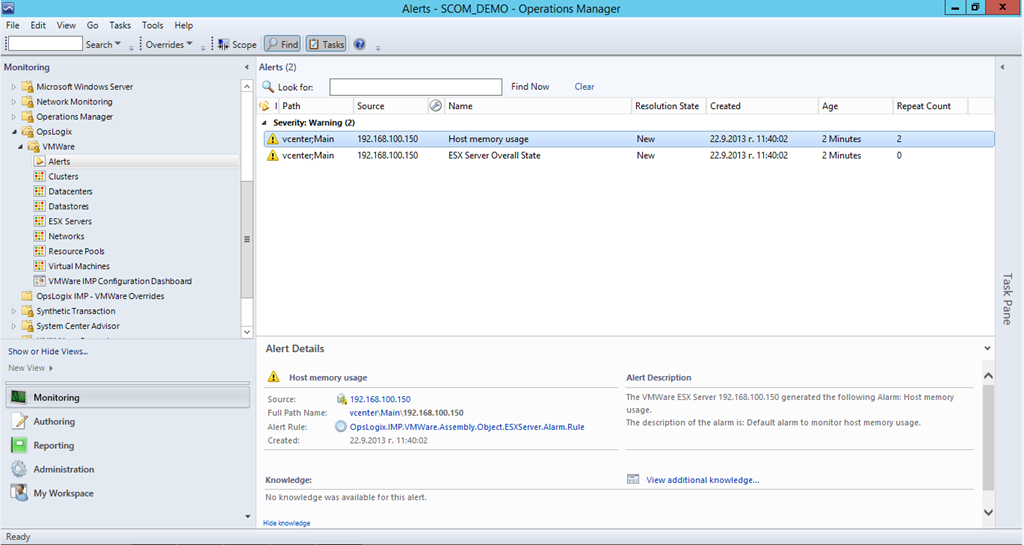
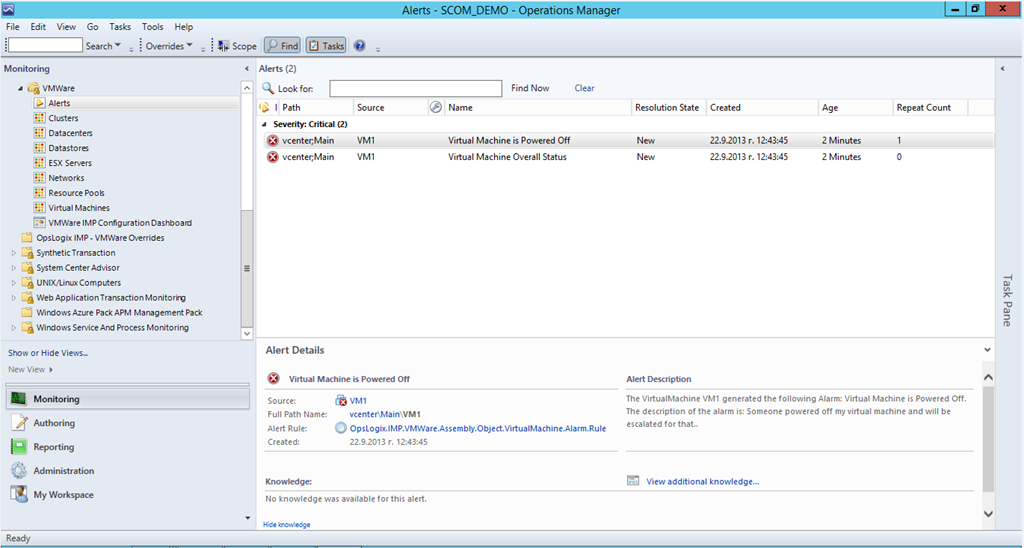
If you close an alert in SCOM that was not resolved in vCenter that alert will appear again in SCOM. Unfortunately if you close alarm in vCenter it will not be closed in SCOM. May be in some future version of the MP we will see option to enable synchronization from both side depending on your preference.
Besides the alerts the MP also tracks state of the different object. Depending on the alarms that are generated or not generated for particular object OpsLogix VMWare MP will calculate different states (healthy, warning or critical) on small intervals.
So the MP is very customizable and customizations can be made straight from vCenter which I think is the preferable way for vmware administrators and will save money from your budget if you had to teach them to do that in SCOM.
These are the capabilities of the MP from first sight but let’s see how it can provide more value by mixing it with more SCOM magic.
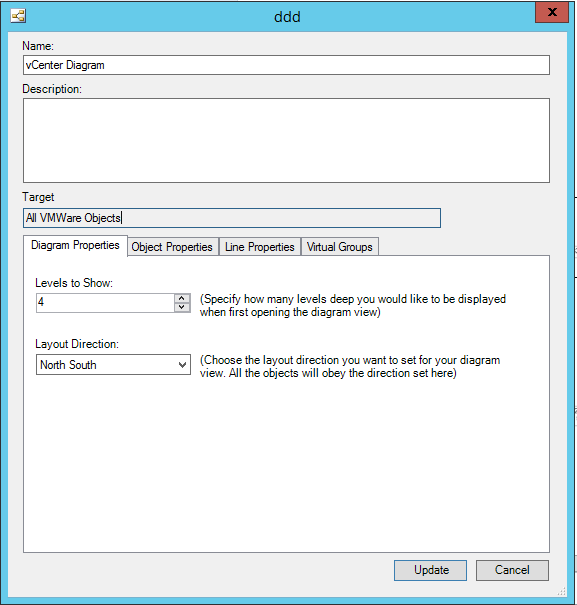
What about Diagram of your VMWare environment? Something what VMM MP has.
Sure that can be done you just need to create new diagram view:
And Viola:
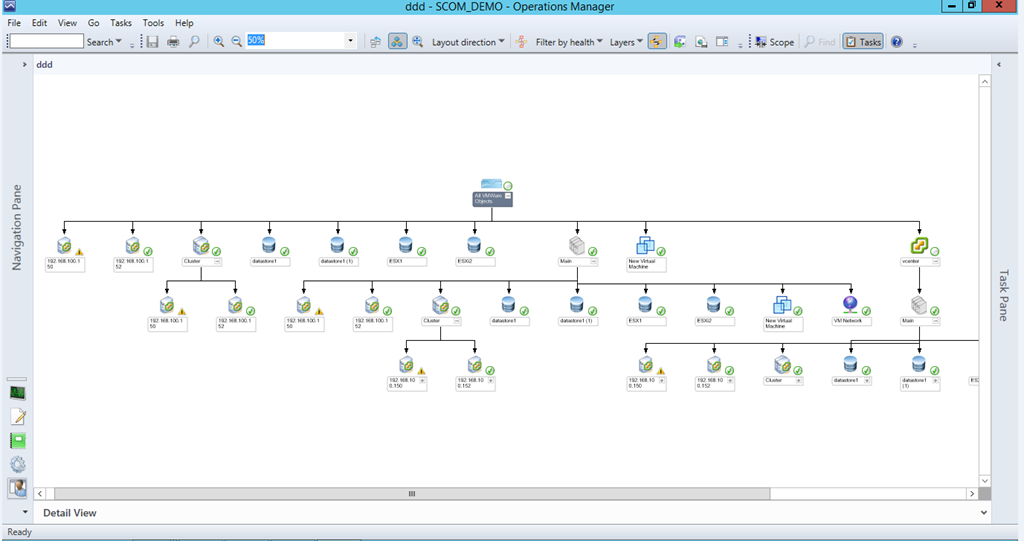
What about VMWare Dashboard? I want to track the state of my VMWare environment in a dashboard.
A few simple steps and you are ready:
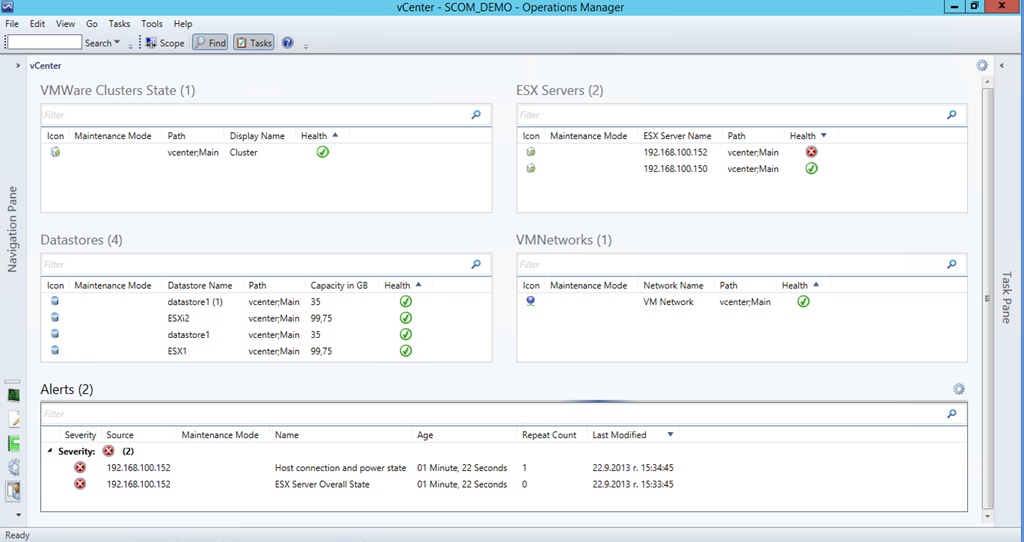
OK we’ve showed what are the capabilities of the MP now let’s show what the current beta version cannot offer otherwise it wouldn’t be a fair review. Performance alerts can be triggered trough configuring alarms in vCenter but the MP itself does not gather performance data to put it in SCOM databases. Probably because of this no report is available also. For such capabilities you have to look for solution at vCenter side.
Summary
OpsLogix VMWare MP looks promising at its first steps and it is definitely worth trying it if you consider monitoring your VMWare environment with SCOM. OpsLogix have proven that they are good at making MPs. The MP does not have price yet as it is in beta but it is advertised by OpsLogix as MP that make sense in price and performance. If you want to try it you can find more information here.
Updated MP: SQL Server
The SQL Server MP has reached version 6.4.0.0 introducing the following changes:
- New Dashboard for SQL Server 2012 DB
- New Monitors and Rules – only for SQL 2008 and SQL 2012
- SPN monitor improved
- Support for special symbols in DB names.
- Improved AlwaysOn seed discovery
- Run As configuration changes to support Low privilege for SQL Server 2012 Cluster
- Improved performance of AlwaysOn discovery
- Custom User Policy Discovery and Monitoring performance optimization
- Hided AG health object from Diagram view
- Minor changes
o Collect DB Active Connections count
o Collect DB Active Requests count
o Collect DB Active Sessions count
o Collect DB Active Transactions count
o Collect DB Engine Thread count
o Thread Count monitor
o Transaction Log Free Space (%) monitor
o Transaction Log Free Space (%) collection
o Collect DB Engine CPU Utilization (%)
o CPU Utilization (%) monitor for DB engine
o Buffer Cache Hit Ratio monitor
o Collect DB Engine Page Life Expectancy (s)
o Page Life Expectancy monitor
o Collect DB Disk Read Latency (ms)
o Collect DB Disk Write Latency (ms)
o Disk Read Latency monitor
o Disk Write Latency monitor
o Collect DB Transactions per second count
o Collect DB Engine Average Wait Time (ms)
o Average Wait Time monitor
o Collect DB Engine Stolen Server Memory (MB)
o Stolen Server Memory monitor
o Collect DB Allocated Free Space (MB)
o Collect DB Used Space (MB)
o Collect DB Disk Free Space (MB)
o SQL Re-Compilation monitor
The information is taken directly from the guide. It seems changes in the MP are a lot especially the SQL dashboard that was waited since it was shown at MMS 2013 earlier this year. Grab the latest version from here and start implementing it first on your test and development environments.
New MP: Microsoft Host Integration Server 2013 Management Pack
It seems the latest version of Microsoft Host Integration Server now has MP. The MP is supported on SCOM 2007 R2 and 2012. Before downloading it from here and importing it I suggest to read the guide as there are some instructions on configuring it.
SCOM APM for Orchestrator, SPF, SMA and WAP
Orchestrator, Service Provider Foundation, Service Management Automation and Windows Azure Pack are all web applications or web services or both. They are all monitored by IIS 8 Management Pack in Operations Manager but that MP can only provide monitoring to certain levels to solve these limitations in SCOM (SP1 and R2 for IIS8) we have Application Performance Monitoring (APM). This blog post does not aim to show you some advanced features in APM but rather to show you how to enable some advanced monitoring for those services. As SMA and WAP are available only in R2 I will use the R2 wave. Let’s start with enabling APM for every service:
Service Provider Foundation
Open SCOM console. Go to Authoring pane. Start Add Monitoring Wizard.
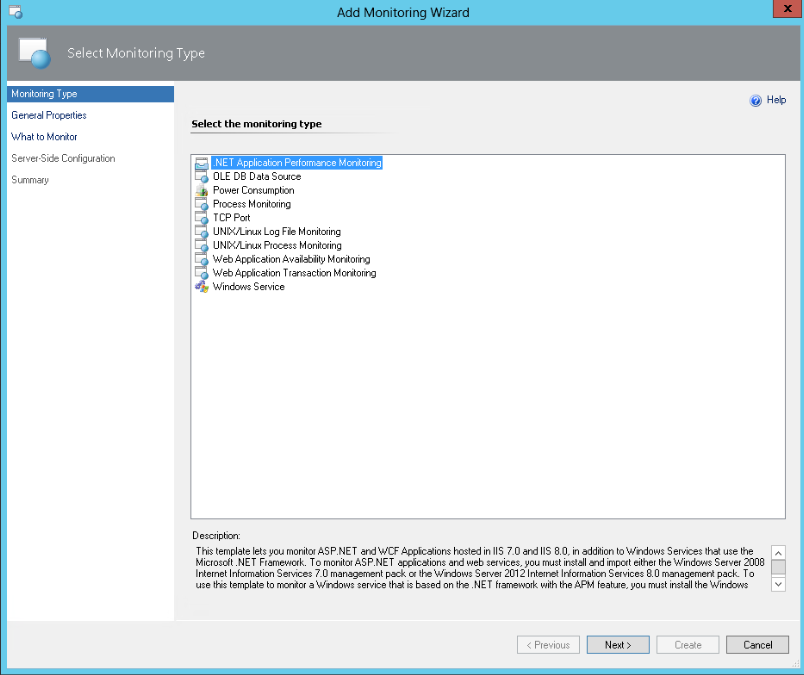
Select .NET Application Performance Monitoring
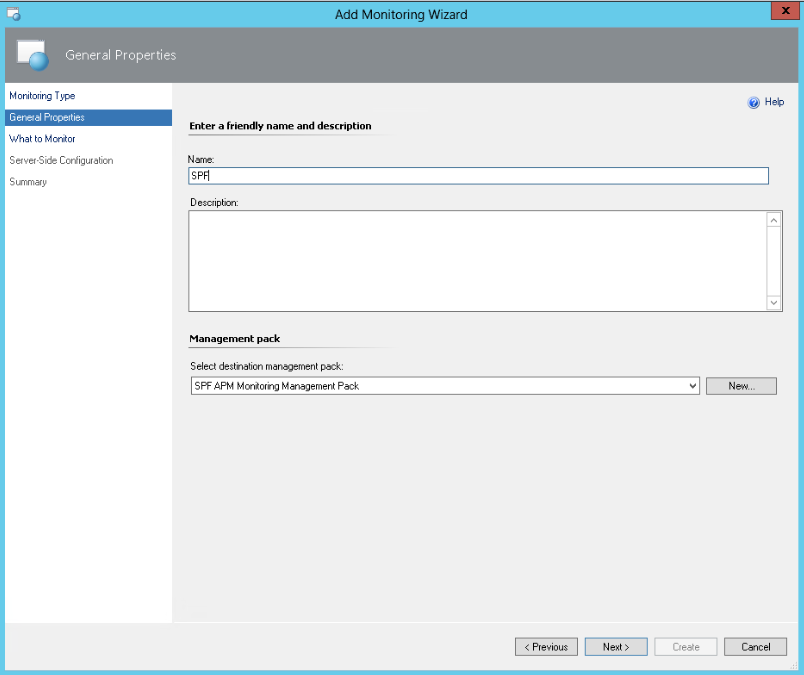
Give a friendly name to the application and create new management pack where the settings for this application will be saved.
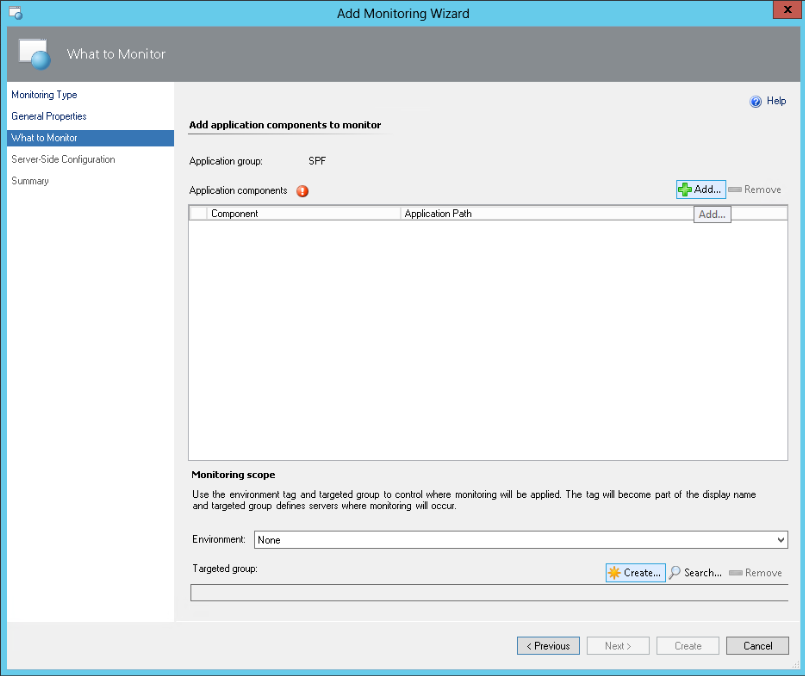
Select Add.
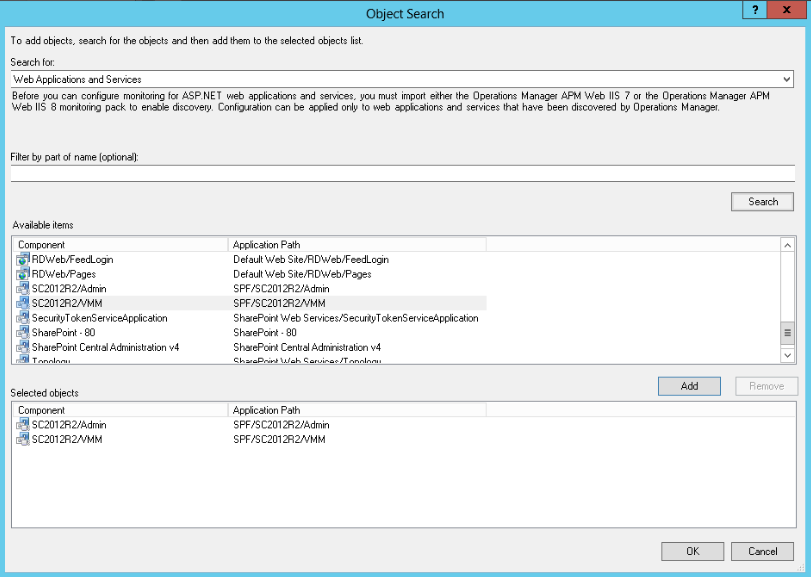
Click on Search and add the two web service in SPF – VMM and Admin. Click OK.
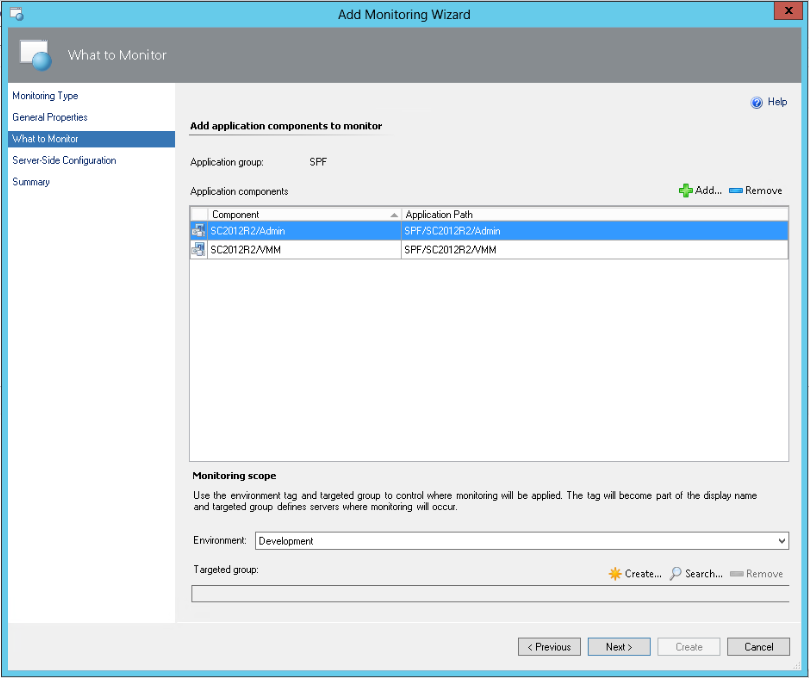
It is always a good practice to put Environment.
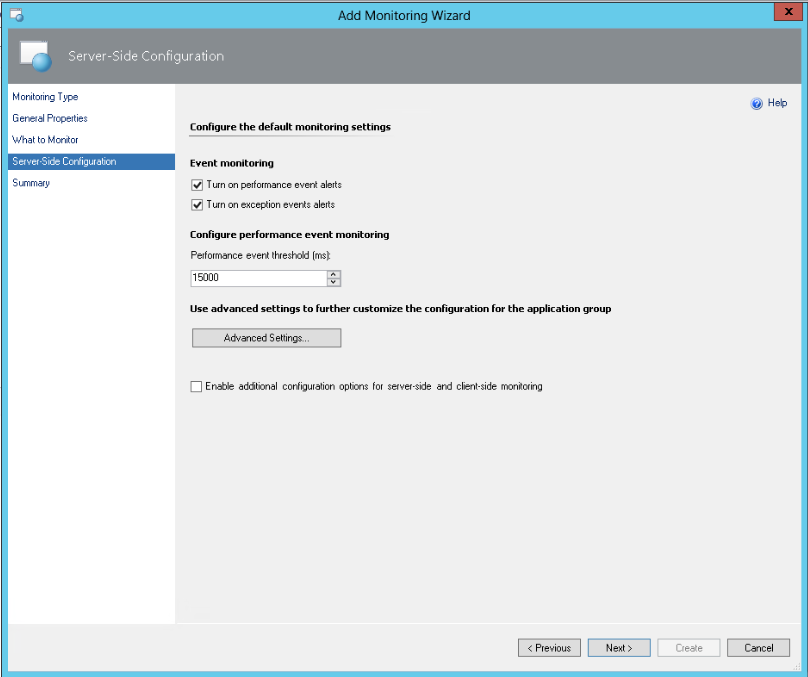
Accept the default settings. The idea is to fine tune these settings depending on the performance of the application in your environment. If you have more than one environment (development, test, production and etc.) these settings can be different because some environments will have less resources than other and the application can perform slowly because of that. SPF is only web service and because of that does not have portal so client-side monitoring is not relevant. On summary page click Create and wait until the APM for SPF is created.
And the result is:
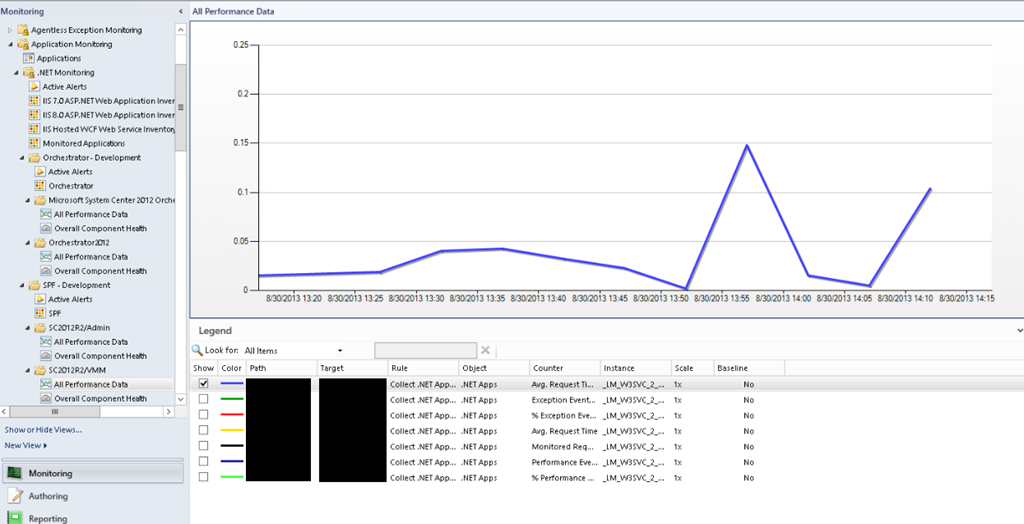
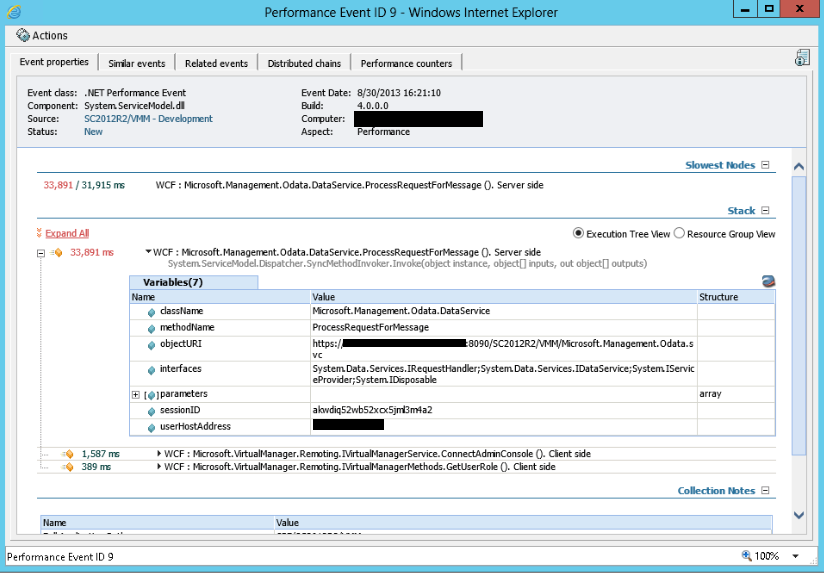
From now on when you have data for a long term period you can fine-tune the APM settings. You can even set exceptions for some methods.
Orchestrator Web Service and Console
Orchestrator has Web Service and Console (Web Application).
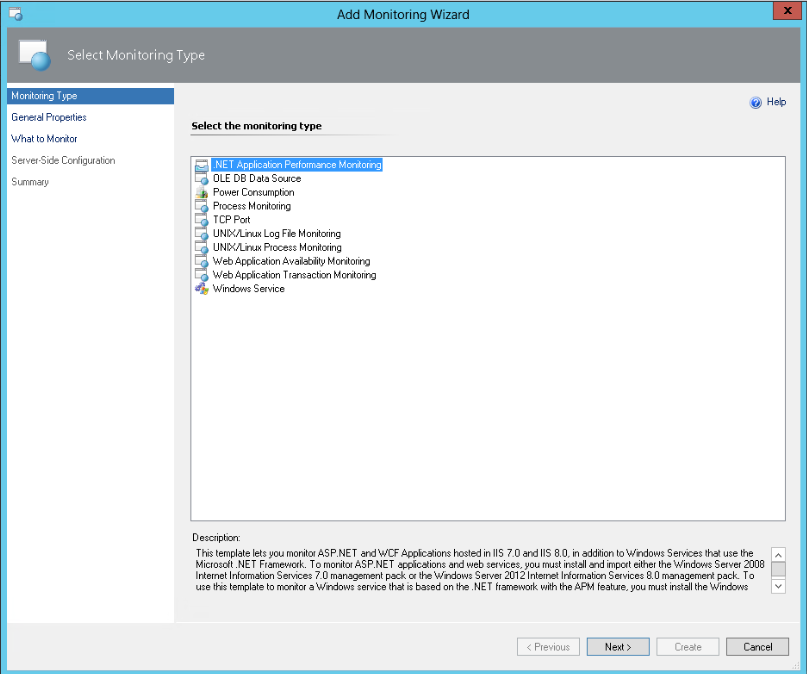
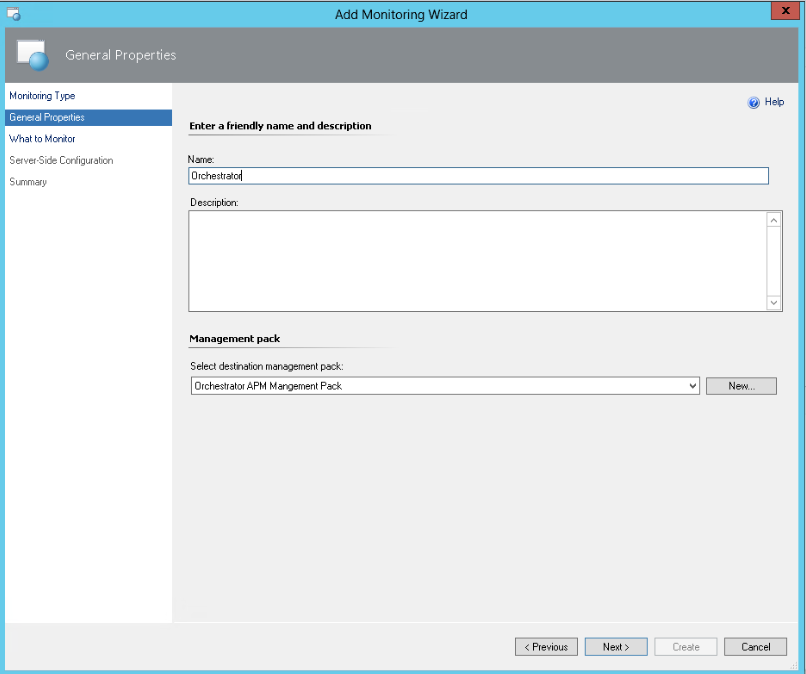
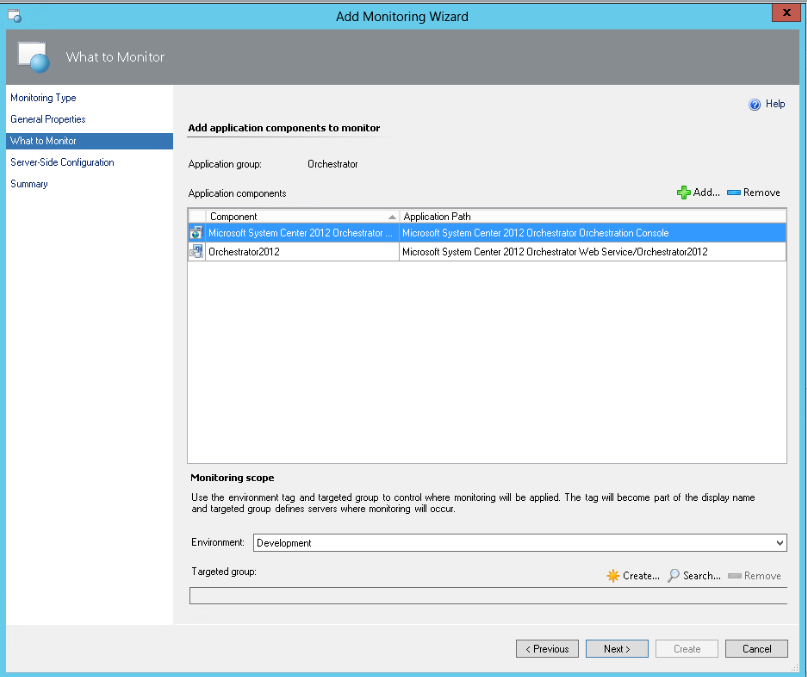
One Web service and Web application (portal) added,
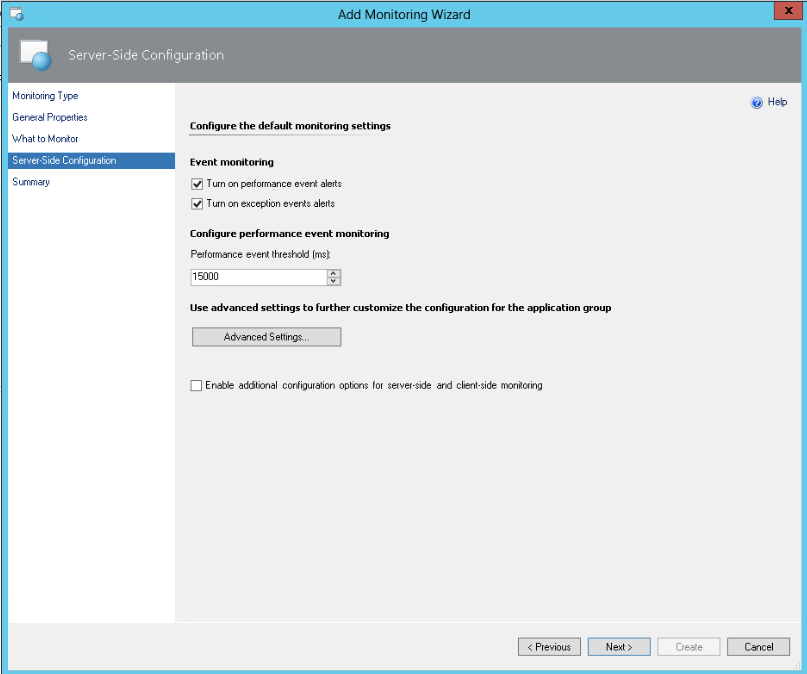
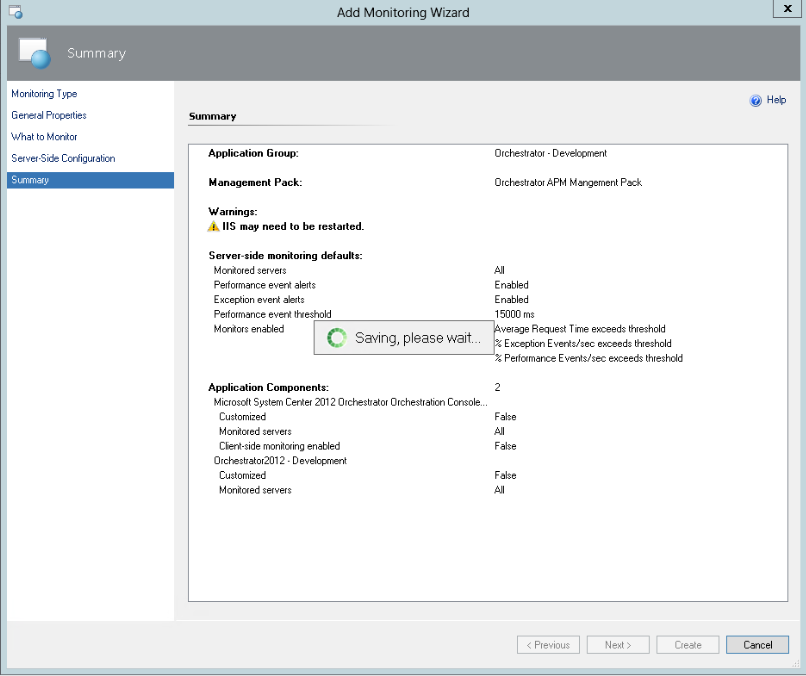
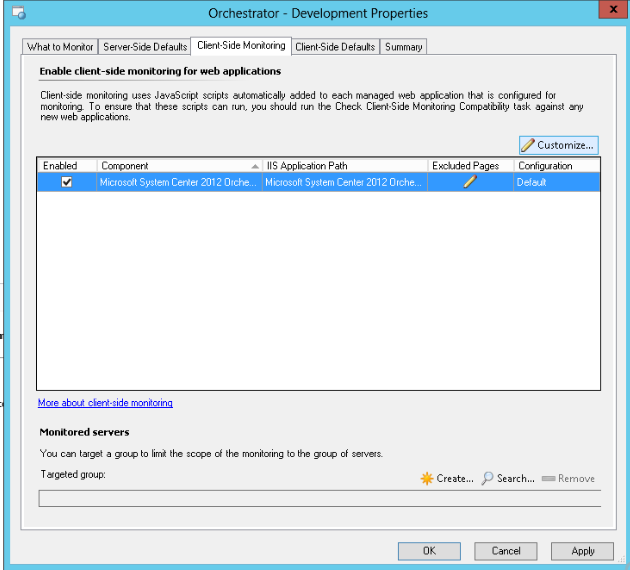
Orchestrator has web application but do not enable client-side monitoring for now.
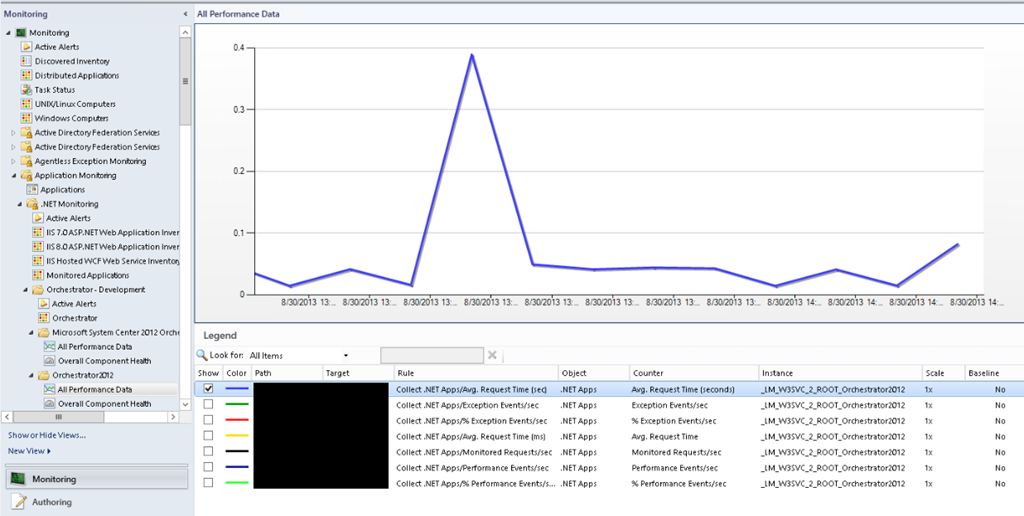
To enable client-side monitoring you need first have to check if the web application could be enabled for this client side monitoring. This is done trough a task Check Client-Side Monitoring Compatibility which is available in Monitoring Pane –> Application Monitoring –> .NET Monitoring –> IIS 8.0 ASP.NET Web Application Inventory View. Select the web application you would like to test and execute the task from the Task pane.
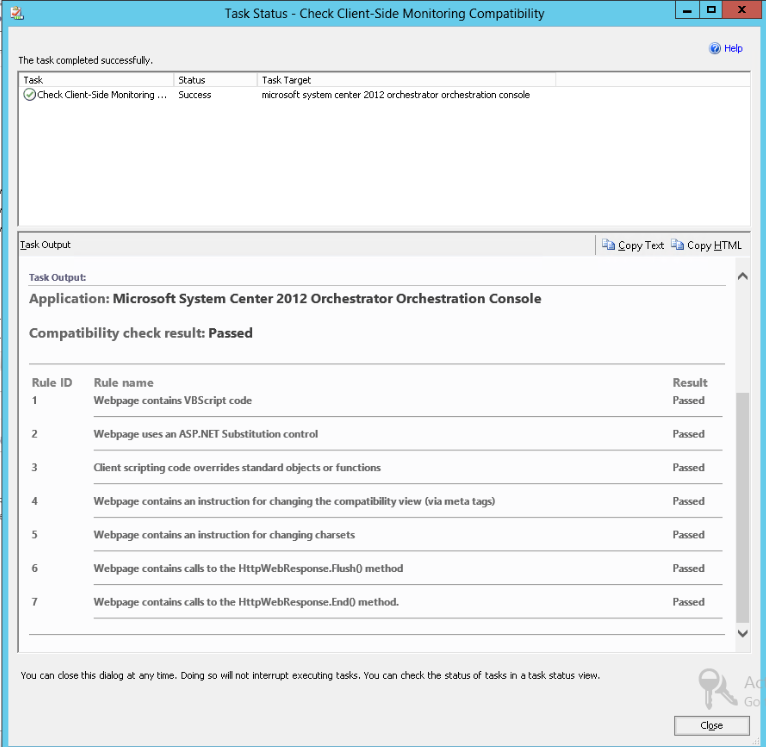
I’ve enabled the client-side monitoring for the Orchestrator console but even I didn’t received any error in SCOM or on the Orchestrator portal no performance counters were shown from client-side:
Windows Azure Pack
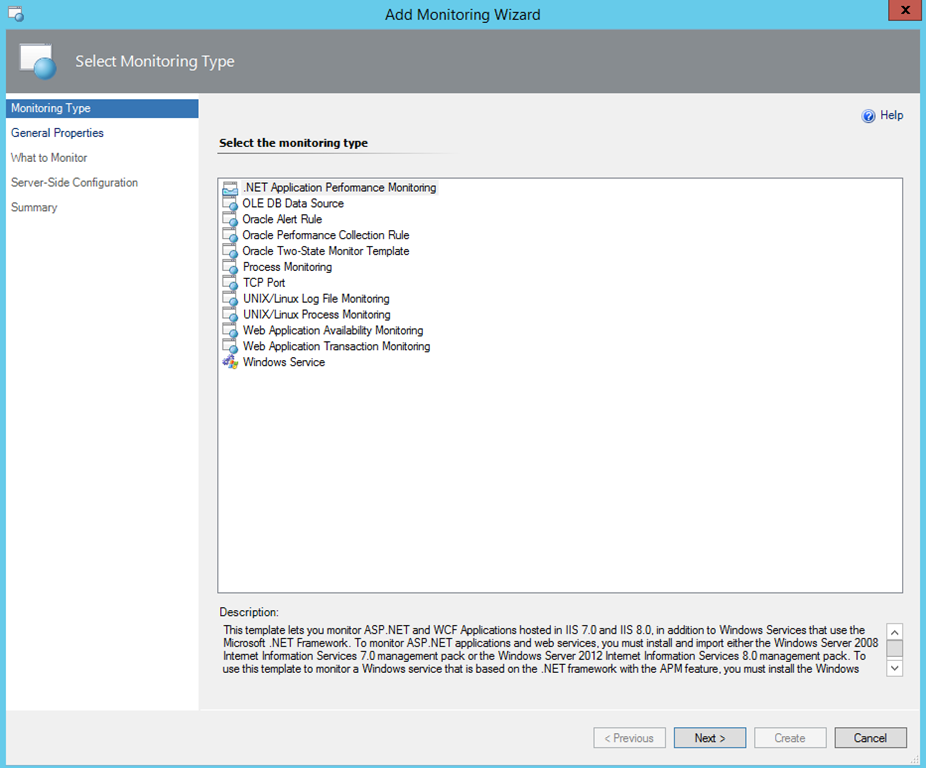
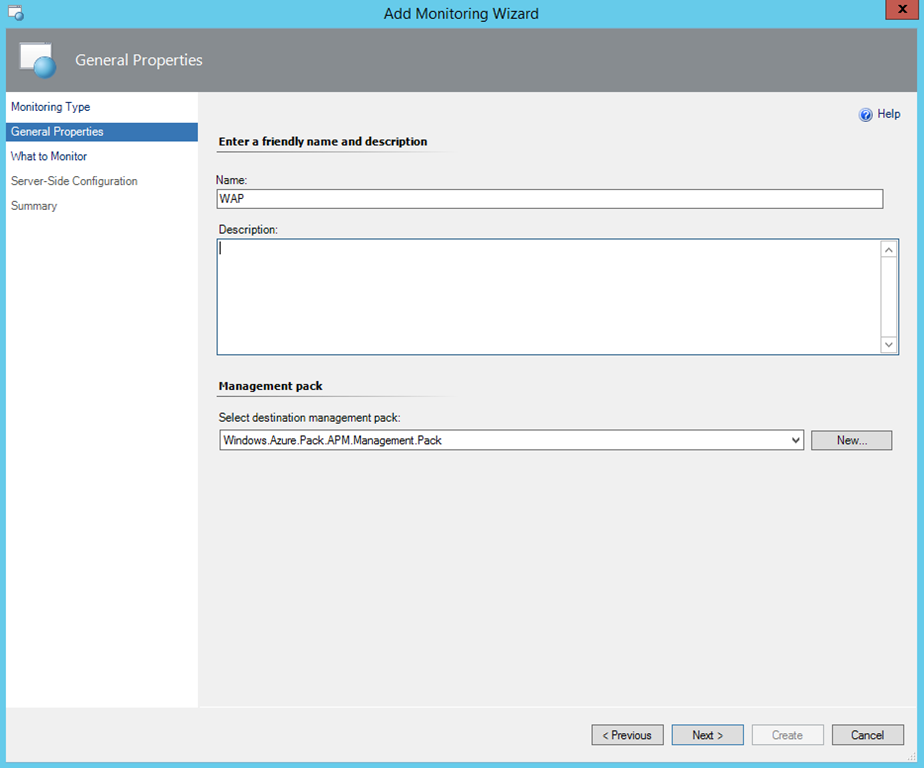
You need to add all found Web Applications for Windows Azure Pack:
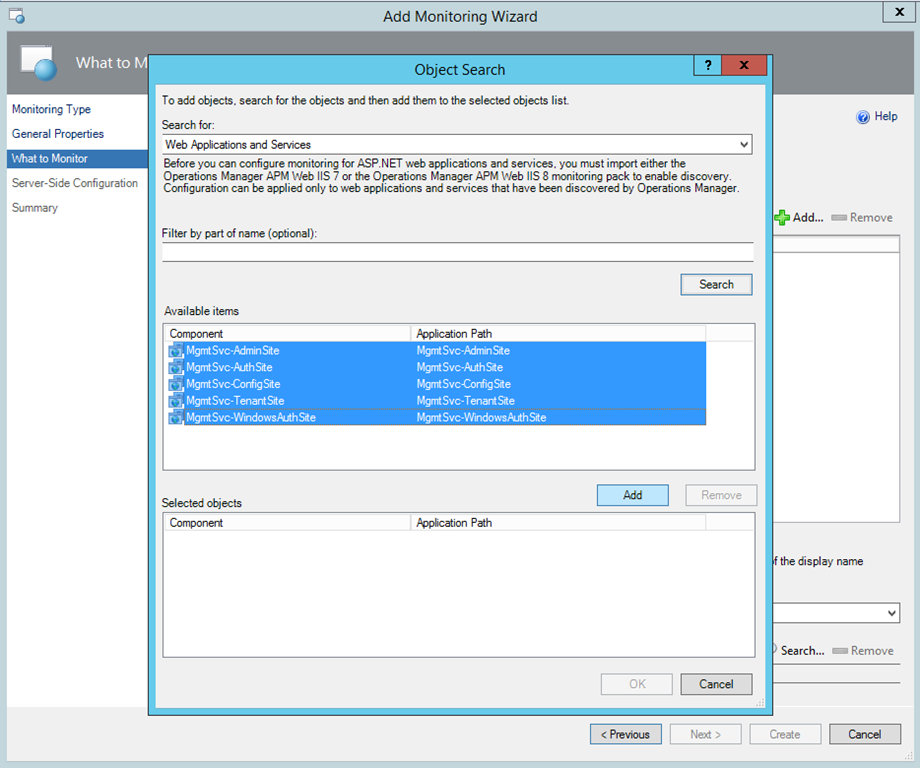
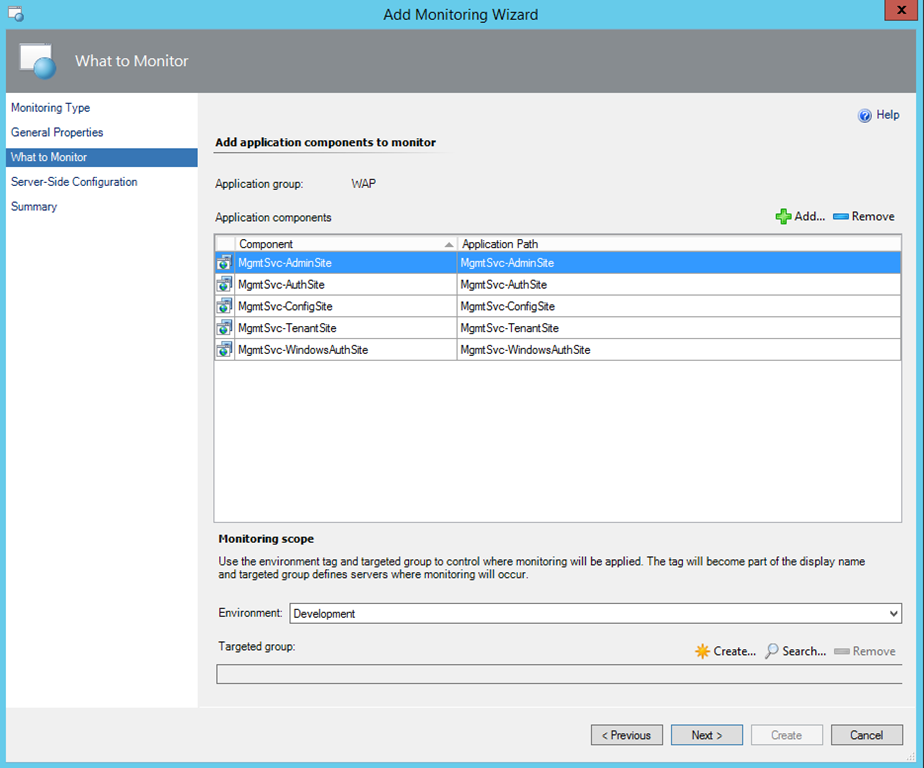
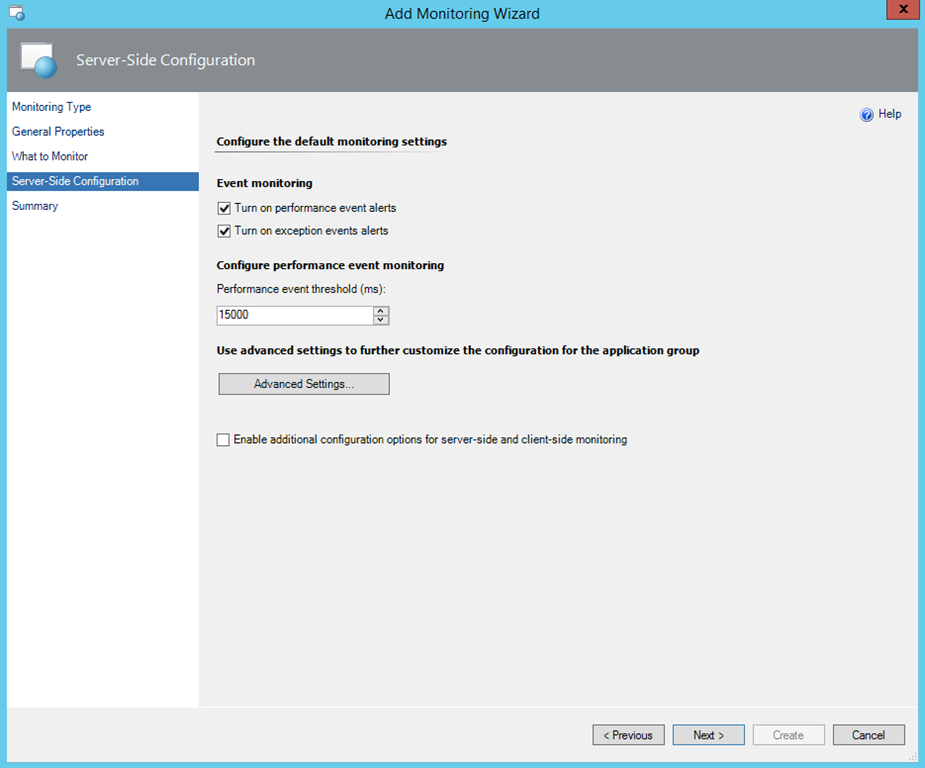
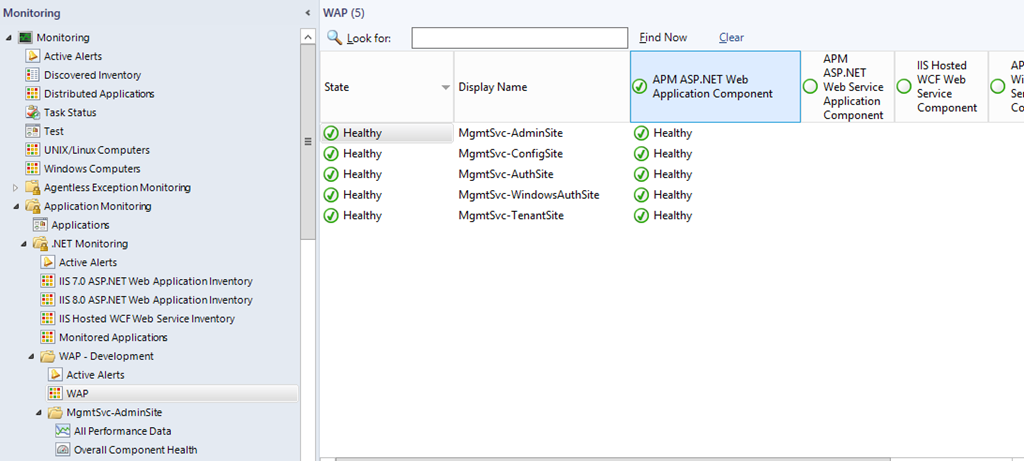
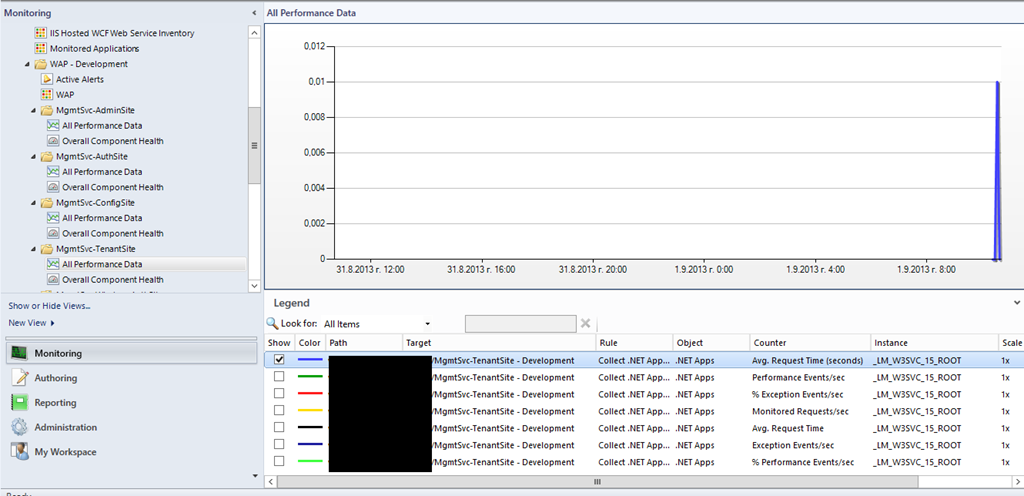
I am not using WAP intensively in this environment so I do not have so much data:
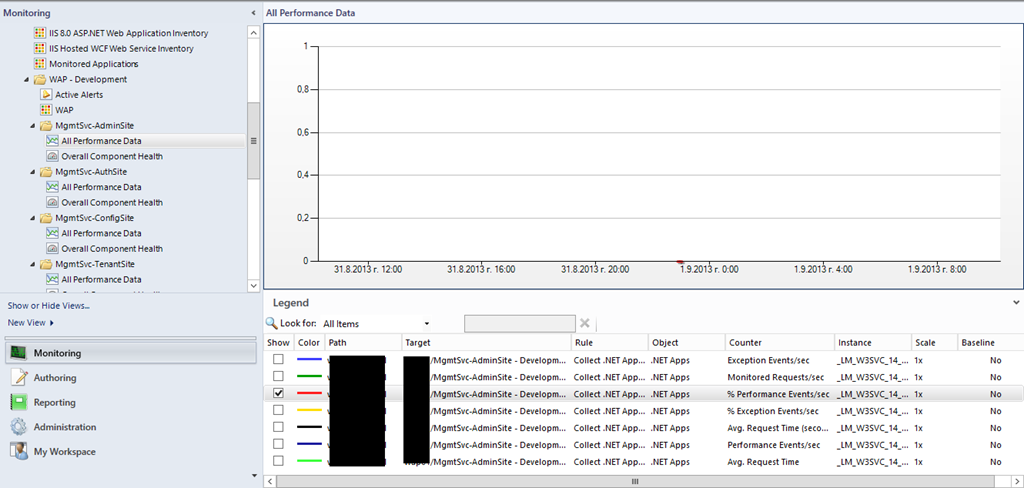
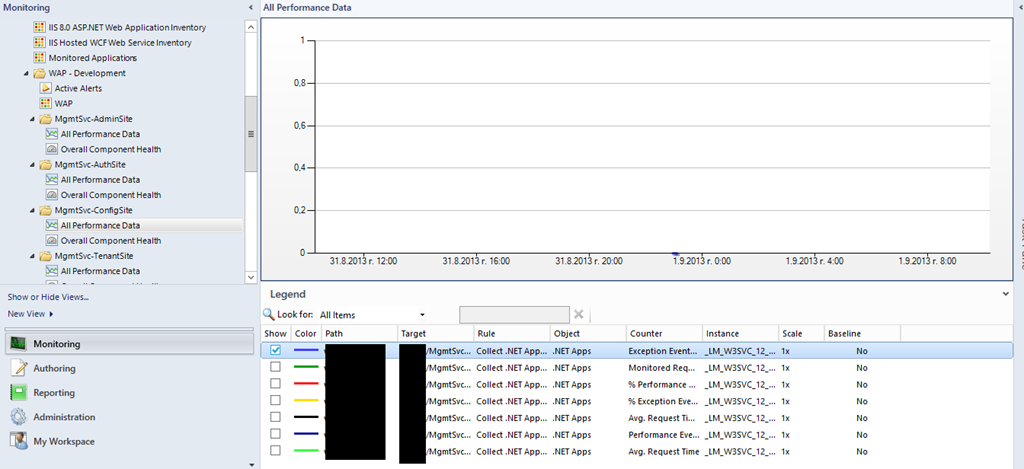
Because I do not have even database created for WAP you can see the performance exception created for that:
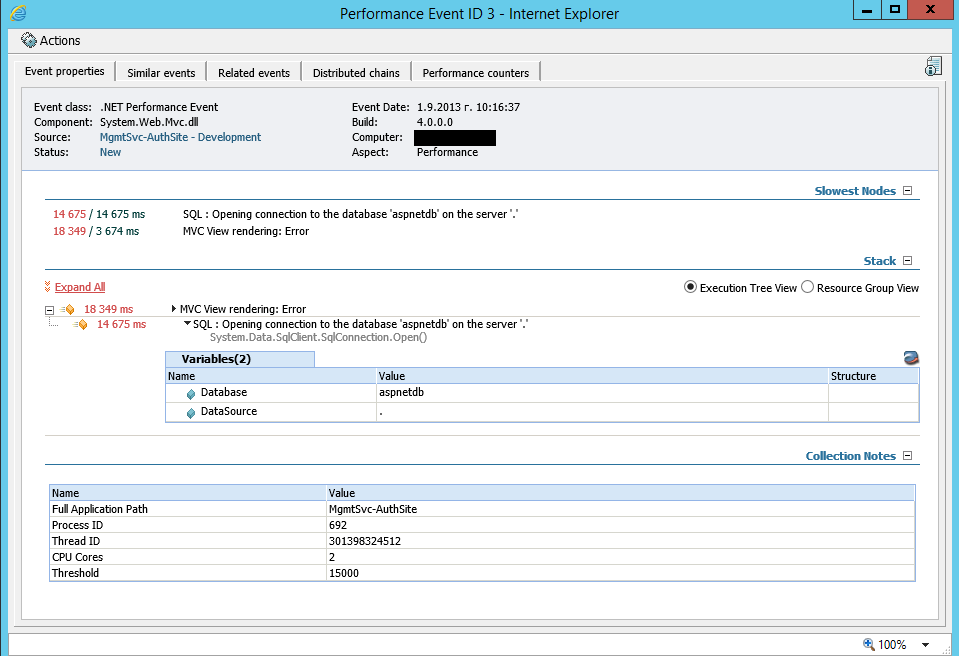
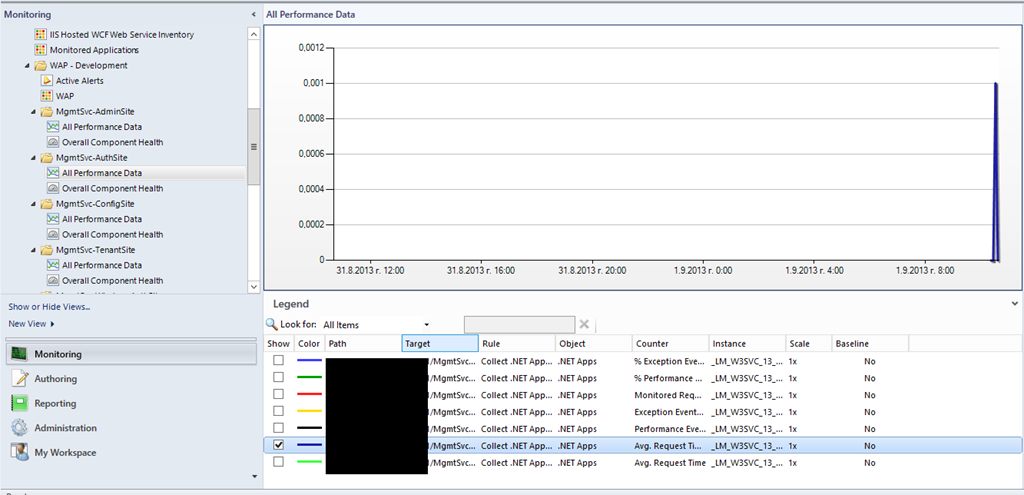
APM can very useful to public user portal like Tenant Site in WAP:
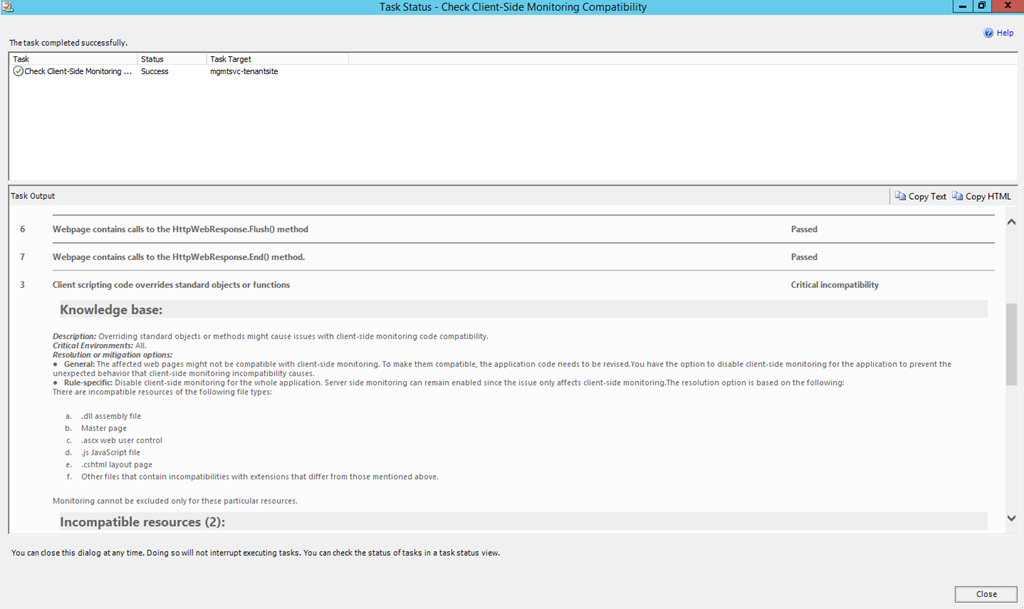
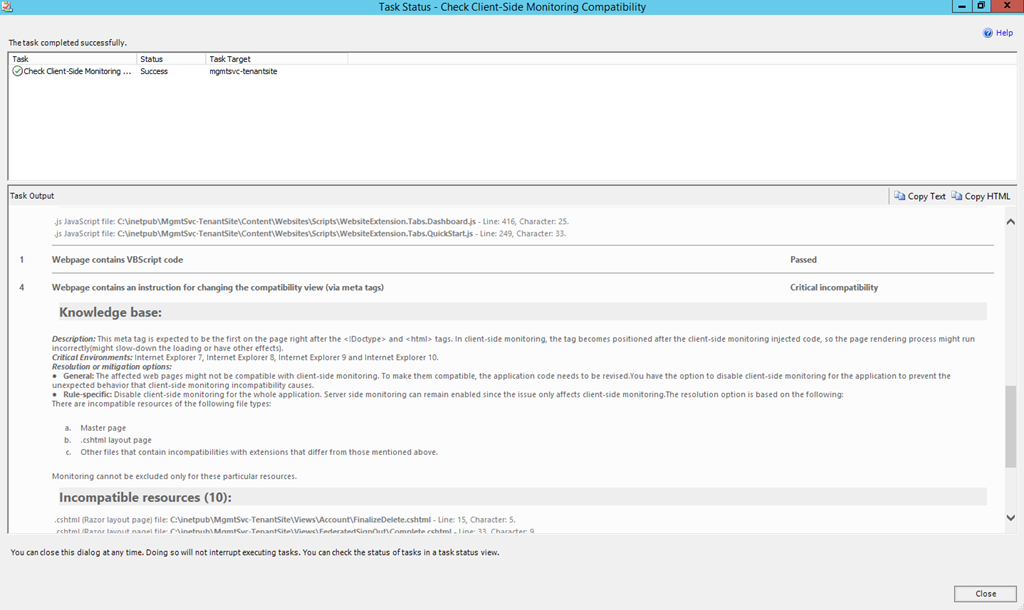
Because of that I’ve tried to check if client-side monitoring can be enabled but unfortunately the check returned negative results:
Service Management Automation
Service Management Automation is part of Orchestrator setup but can be connected to WAP.
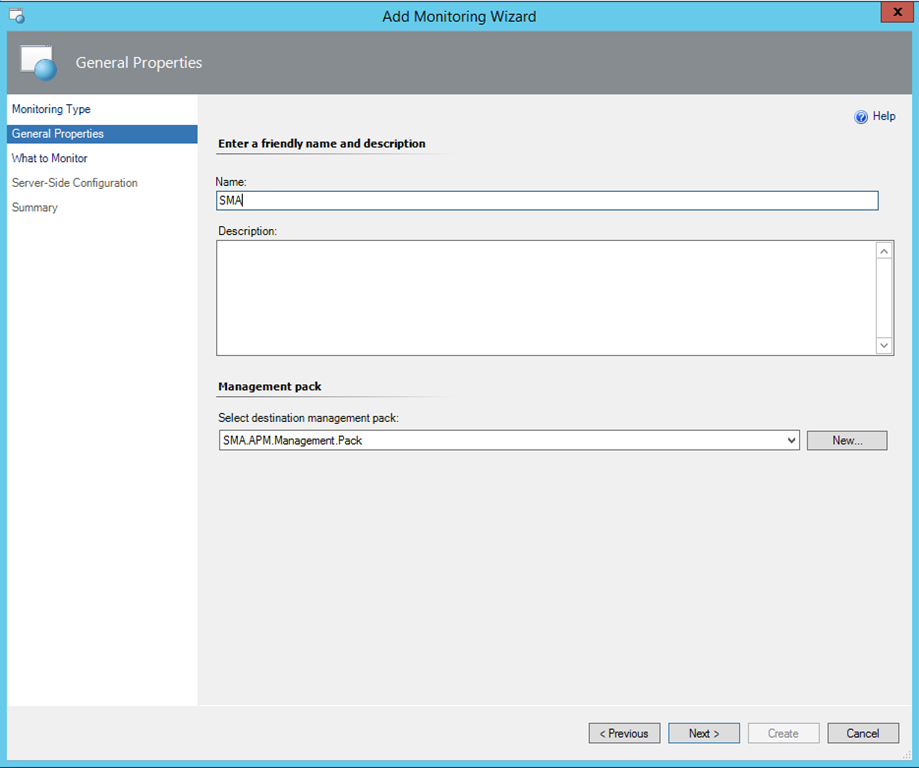
Only one web service is available so no client-side monitoring will be available:
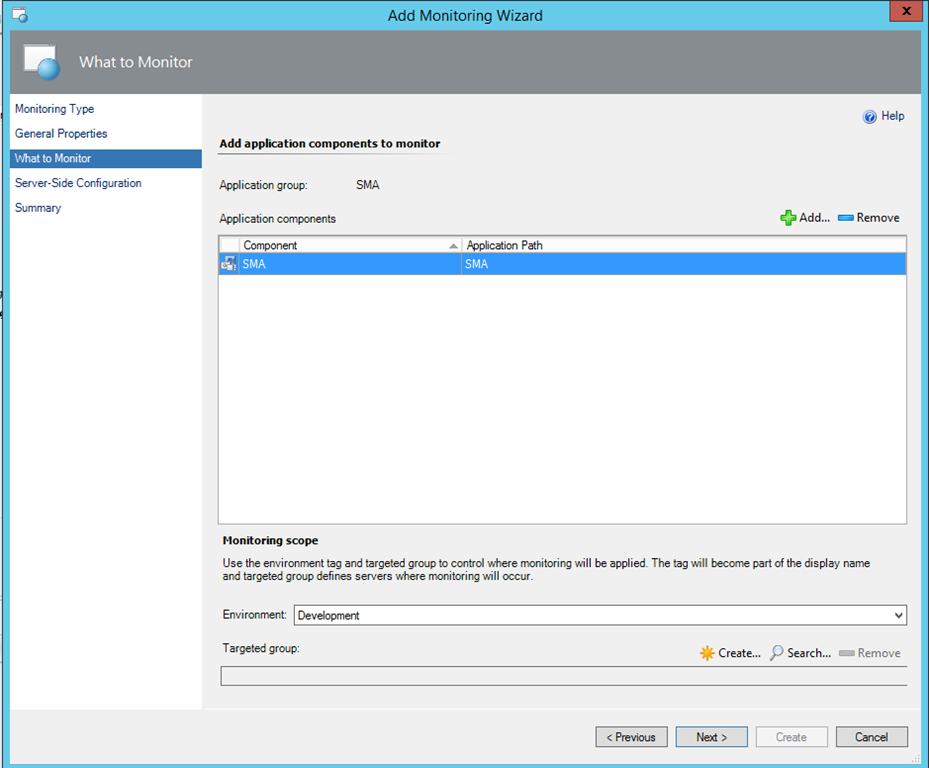
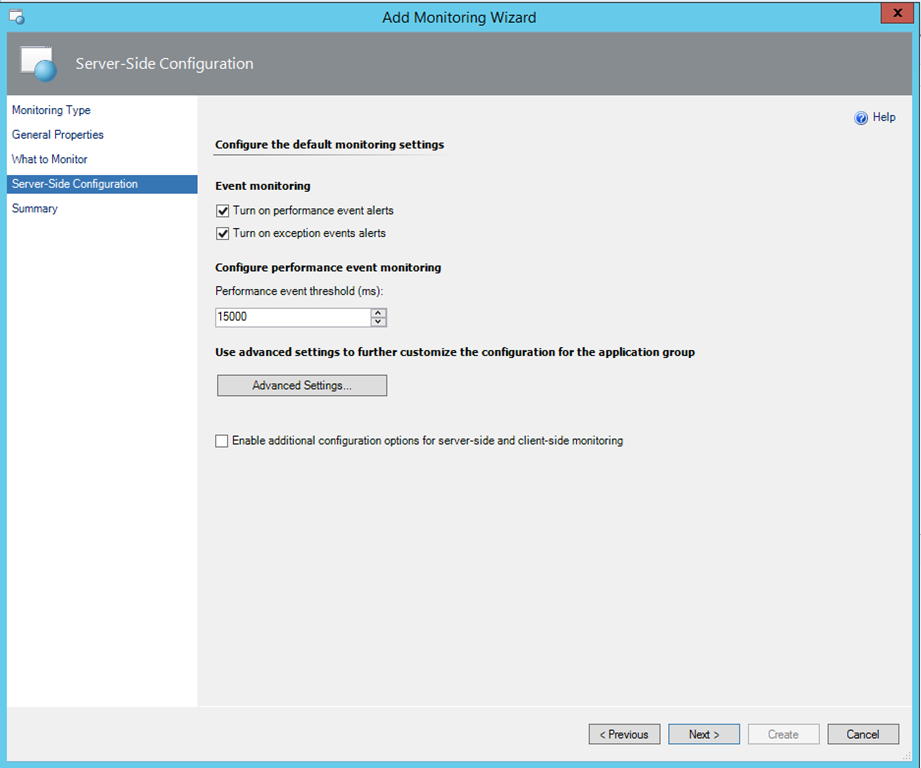
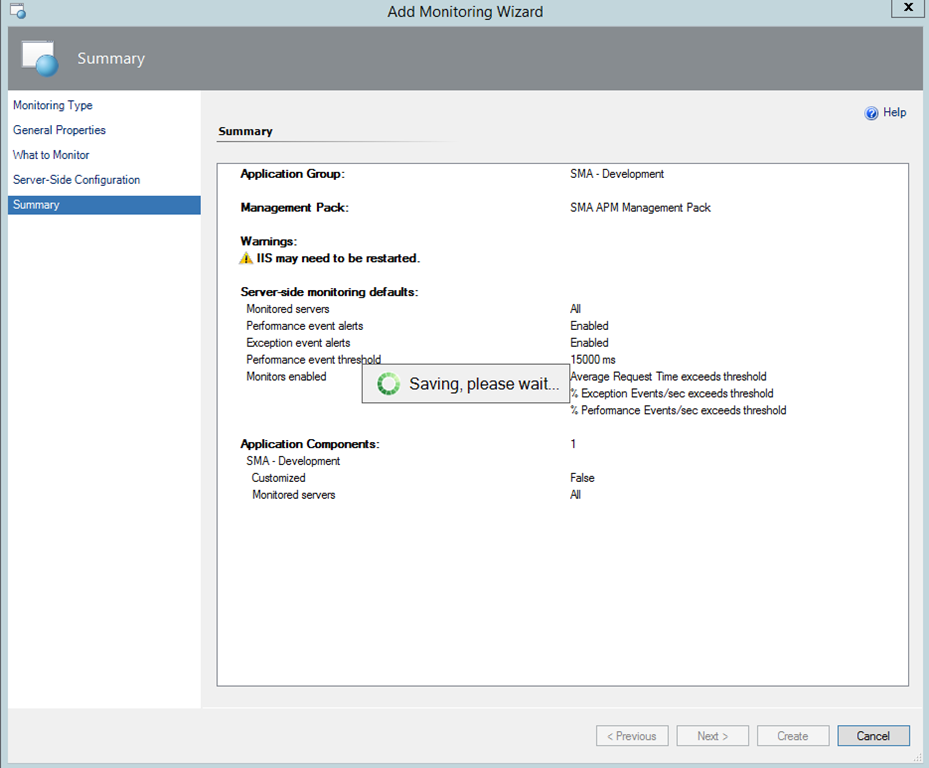
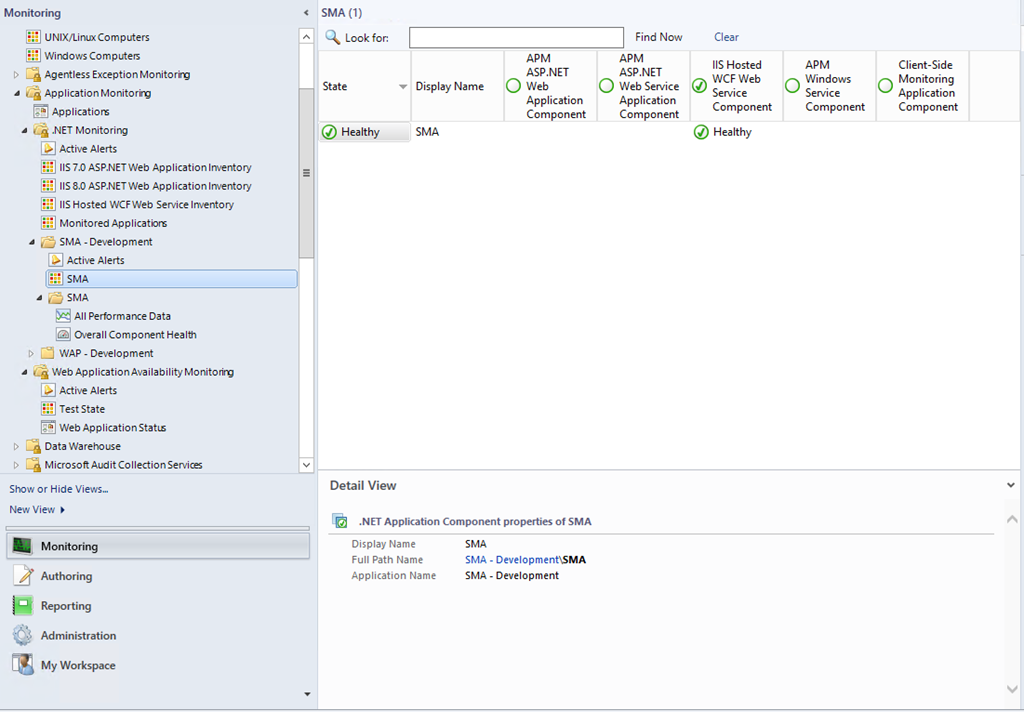
As a summary I hope this will help you in providing advanced monitoring for these Web Services and Application as they are of the Microsoft Cloud OS and critical for Cloud Providers. What I would like to see in the future instructions or possibility from Microsoft on how to enable client-side monitoring for at least the Tenant Site.
 Cloud Administrator in Azure World