
If you are still on Windows Server 2012 Hyper-V and not migrated to R2 do not worry Microsoft hasn’t forgot you. The Windows Server 2012 Hyper-V MP received small update to fix some bugs. You can download the new version here.
Error 23317 in VMM 2012 R2 When You Try to Apply Changes on VM That is Using Shared VHDX Disk
When you try to apply some change on a virtual machine with Shared VHDX disk in Virtual Machine Manager 2012 R2 you may receive the following error:
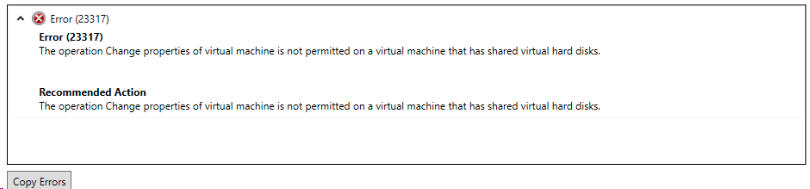
Error (23317)
The operation Change properties of virtual machines is not permitted on a virtual machine that has shared virtual hard disks.
Recommended Action
The operation Change properties of the virtual machine is not permitted on a virtual machine that has shared virtual hard disks.
Even that I was not changing anything related to the shared disks the task would fail. There is an easy fix for this and as many times it is called PowerShell. If you do not know PowerShell do not worry here are easy steps:
1. Open the Properties of the Virtual machine you want to change.
2. Make the change but do not apply.
3. In the left corner of the properties dialog box you will see View Script button. Press it.
4. A script will come up.
5. You need to take the part that is only related to your change. For example if I want to change only the classification of a network adapter I would have something like this:
$VirtualNetworkAdapter = Get-SCVirtualNetworkAdapter -Name “server1” -ID “6c733a79-4ef5-4df4-9b39-690b8ab0be46”
$VMNetwork = Get-SCVMNetwork -Name “VMetwork_Test” -ID “675245a2-c660-46d7-aee0-b8ece987e49b”
$VMSubnet = Get-SCVMSubnet -Name “VMSubnet_Test” | where {$_.VMNetwork.ID -eq “623294a2-c660-46d7-aee0-b8ece987e49b”}
$PortClassification = Get-SCPortClassification | where {$_.Name -eq “Classification1”}
Set-SCVirtualNetworkAdapter -VirtualNetworkAdapter $VirtualNetworkAdapter -VMNetwork $VMNetwork -VMSubnet $VMSubnet -VLanEnabled $true -VLanID 77 -VirtualNetwork “vSwitch” -MACAddressType Dynamic -IPv4AddressType Static -IPv6AddressType Dynamic -PortClassification $PortClassification
Basically you take that part of the generated script that is only for your change. Remove any –VMMServer property reference and any –JobGroup Property reference.
6. Open VMM PowerShell. Paste the script and you are done. Your change is applied to VM with shared virtual disks.
Steps to Migrate Virtual Machines with Shared VDHX from One Cluster to Another
Imagine the following situation: You have two Windows Server 2012 R2 Hyper-V clusters – Cluster1 and Cluster2. Every cluster has two or more nodes. On Cluster1 you have two virtual machines VM1 and VM2. The virtual machines are in guest cluster and are using one or more Shared VHDX files. As you probably know virtual machines with shared vhdx files cannot be migrated with shared nothing live migration. Than how to move VM1 and VM2 from Cluster1 to Cluster 2? Here is a solution for you:
- Logon to VM2. Start Failover Cluster Console. Pause VM2 as node in the cluster and drain all roles.
- Shut down VM2.
- Logon to VM1. Shut down VM1.
- Remove cluster resources for VM1 and VM2 from Cluster1.
- Open Hyper-V console on the node of Cluster 1 where VM1 and VM2 are.
- From the VM settings of VM2 remove all shared VHDX disks. Apply.
- From the VM settings of VM1 remove the checkbox for shared VHDX on all drives where is checked. Apply
- From Hyper-V console move VM1 to one of the nodes of Cluster2.
- From Hyper-V console move VM2 to one of the nodes of Cluster2.
- Now VM1 and VM2 are on Cluster2.
- Open the Hyper-V console on the node of Cluster2 where VM2 is.
- Open VM settings for VM2. Attach all shared vhdx files as disks that you’ve removed in step 6 in the same order as before. Check the checkbox for shared VHDX on all of them. Apply
- Open VM settings for VM 1. Check the checkbox for shared VHDX for all disk that you’ve removed in step 7. Apply.
- Add VM1 and VM2 as cluster resources in Cluster2.
- Start VM1. Check if VM1 is healthy and all resources/roles are up in the Failover Cluster Console.
- Start VM2. Resume VM2 as node of the guest cluster. Migrate all roles and resources to make sure everything is ok.
These are all the steps you need. I hope they will help you.
Update Rollup 4 for System Center 2012 Service Pack 1
UR 4 for System Center 2012 SP1 is out. There are a lot of fixes for SCVMM, SCOM and SCSM so check it out here.
What Does it Takes to be System Center Specialist These Days
Back in the days the System Center family consisted only of MOM and SMS and a lot has changed in the last years and more changes to come as we are reaching the GA date of the R2 wave. Also I am not saying it was easier back in the days to be System Center Specialist, in fact I think it was harder as the information about the products was more scarce. Anyway the idea of this blog post is to recite what knowledge and skills are needed for our activities as System Center Specialist. Keep in mind that these knowledge and skills cover all System Center components and even Windows Azure Pack but it is not mandatory to have them all and the level of knowledge can differ. So here we go:
- Networking – Networking knowledge is helpful in all products but especially in components as SCVMM and SCOM. SCOM now has network monitoring, it is not the advanced network monitoring solution but some knowledge is needed to implement it and maintain it. SCVMM is now deep into networking and I won’t go into details. And here I am even not touching subtopics like SNMP, Network Virtualization, VLANs, PVLANs, IP address management and etc.
- Storage – As with networking basic storage knowledge is needed for all components. You need to know on what storage you will run the components, how many IOPS are needed in order to run them and etc. Also in SCVMM 2012 R2 you now have more features that are related with storage like crating SOFS with Storage spaces, managing virtual fiber channel support, managing of zones and etc. Subtopic knowledge can include ISCSI, Storage Spaces, SMB, Fiber Channel and etc.
- Cross-Platform – Believe it or not but Microsoft is embracing Cross-Platform and this is visible in System Center. SCCM can now manage client devices with iOS or Android, on the server side SCOM is adopting the OMI standard which allows monitoring Unix/Linux servers and even more, SCVMM supports and can deploy Unix/Linux operating systems and I bet more will come. Orchestrator can also be used in managing Cross-Platform systems.
- SQL – No System Center component works without an SQL Server. Any knowledge you can gain on SQL is very beneficial for you as specialist. In SCVMM you can even deploy SQL servers with templates.
- Applications – It is all about the app. SCOM can monitor various applications by Microsoft or third party. Most distinctive examples are monitoring of .NET and J2EE applications. With Orchestrator often task is to develop runbooks that interact with other applications and even other management software which is of course also application.
- Scripting – Scripting is the beginning of automating and orchestrating your datacenter. All System Center components have PowerShell cmdlets, Orchestrator can execute PowerShell scripts and the new component Service Management Automation is basically more mature engine to execute PowerShell scripts.
- Development - Some advanced functionalities can be achieved only when some development is involved. With SCOM, SCSM and Orchestrator development of custom solutions is often involved. As specialist you may not be the person who will develop the solution but you can be involved for some part. We can also look that every new System Center component now gets a web service and knowing standard like OData can be very helpful.
- ITIL (MOF) – You may not like the processes but they help us preventing of setting the Datacenter on fire
 . All System Center components take part in ITIL but SCSM is tightly integrated with the framework and having knowledge of the framework can only help you with SCSM.
 - Security – Security is a job for all employees in a company. Security not only exists in System Center components but can also be applied by some of them. SCCM allows you to manage Endpoint Protection, you can also apply policies with Desired Configuration Management and of course apply patches which can also be done trough SCVMM for some servers.
Let me know what you think? Am I right or am I wrong? Did I’ve missed something? Write them all in the comment section.
 Cloud Administrator in Azure World