Let me start first that there is no some universal rule that will tell you how to organize your Service Offerings and Request Offerings on your SCSM Self Service Portal. You will ask why? The answer is simple: every organization is different and the users in it are also different. But let me not discourage you because in this blog post I will point out some options that you can use in order to provide the best Self Service Portal experience for your users.
The first and most important prerequisite in order to be able to organize your Service and Request Offerings is to know your organization and the business requirements for your organization very well. Information like what are the most common requests, what are the most important applications, what are the most incidents that occur, how your organization is structured (departments, divisions and etc.), which are the support teams and etc.
Second prerequisite is to know how Service Offering Categories, Service Offerings and Request Offerings depend on each other. Basically you group Service Offerings in Categories and Request Offerings in Service Offerings. In the end you can have the following tree structure:
Category A
Service Offering A1
Request Offering A1.1
Request Offering A1.2
Service Offering A2
Request Offering A2.1
Request Offering A2.2
Request Offering A2.3
Category B
Service Offering B1
Request Offering B1.1
Request Offering B1.2
Request Offering B1.3
Request Offering B1.4
Service Offering B2
Request Offering B2.1
Request Offering B2.2
Service Offering B3
Request Offering B3.1
Category C
Service Offering C1
Request Offering C1.1
Request Offering C1.2
Request Offering C1.3
Service Offering C2
Request Offering C2.1
Request Offering C2.2
Request Offering C2.3
Request Offering C2.4
Service Offering C3
Request Offering C3.1
Request Offering C3.2
Another important thing to know is that you can divide your users in different groups and for example particular users can see on the portal only Service Offerings A1,A2,C1,C2 and C3 while other group can see only Service Offerings B1, B2 and B3. You can even have a third group of users who see Service Offerings A1,A2,B1,B2 and B3. More information you can find here.
Now that we have these prerequisites in place let’s see what options we have:
Option 1
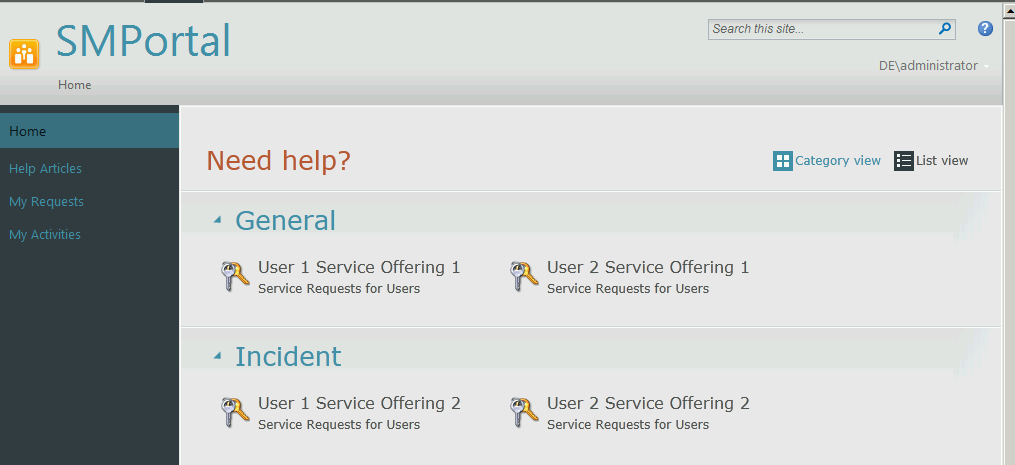
You may have noticed but when you open the home page of SSP you are redirected to a view that shows Service Offerings in Category View:
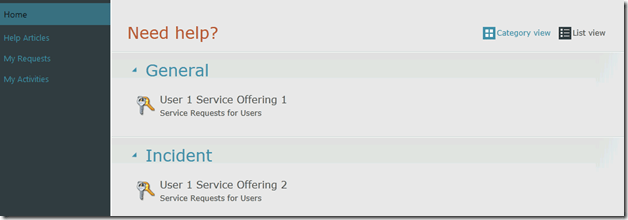
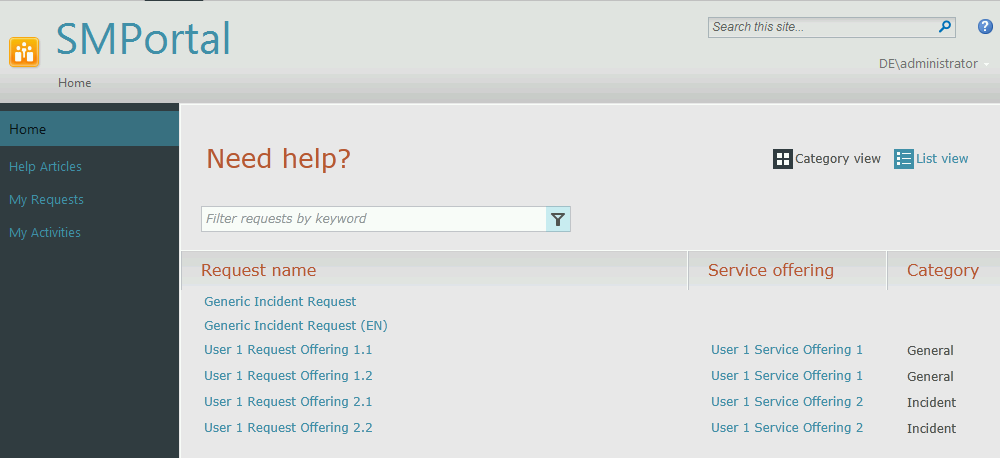
But you have also List View. This view will list all Request Offerings visible to that user. It is visible which Request Offering to which Service Offering and Category belongs and the best part is that you have field you can use to filter the results by keywords:
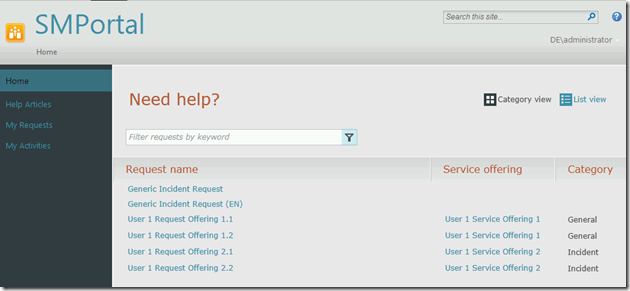
With the List View you can easily find the Request Offering you are looking for without opening every Service Offering.
Option 2
Second option is to divide your Self Service Portal users to different groups. For example you may have end users which should only see requests that are only suitable for them like requesting restore of a file on desktop machine, increasing mailbox size, reporting incident, request new keyboard and etc. Other group can be with users who are more advanced like raising priority 1 or 2 incidents, requesting new file share and etc. Third user group can consists of application owners. They can request for example new server, opening specific firewall port or changing monitoring. Fourth group can consists of project managers. They can request new services for a new project. Again the groups you can identify by studying your organization and how it operates. Implementing this option you provide role based security and avoid different group of users seeing unnecessary information (request). Keep in mind you can even secure not only Service Offerings but even Request Offerings.
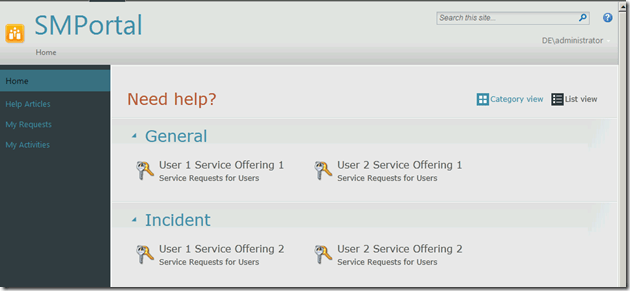
In this example you can see that the Administrator can see all Service Requests:
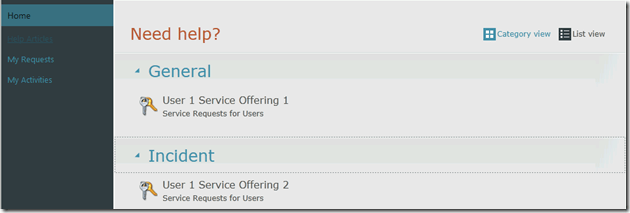
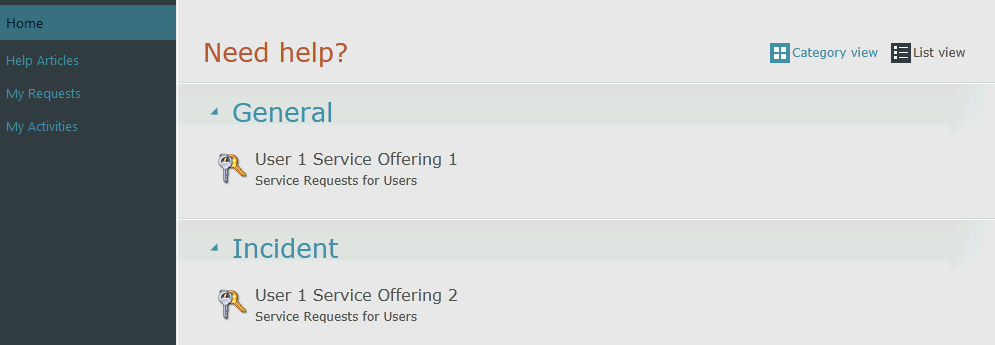
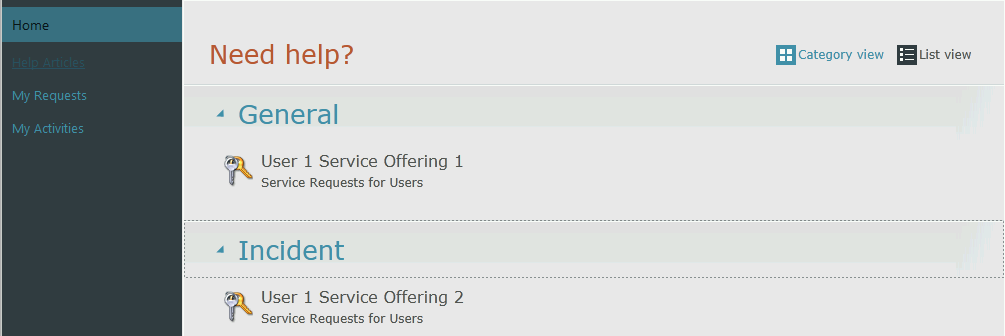
User1 only sees requests for his group:
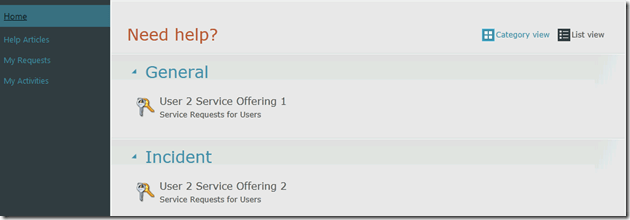
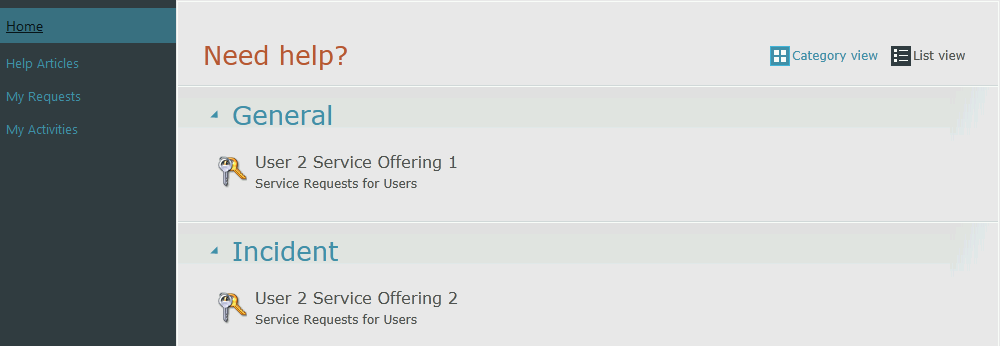
User2 only sees requests for his group:
Option 3
Do not try to make every single user request into Request Offering. If you have a request that is requested only two times in the year it doesn’t worth to make separate Request Offering. Making Request Offering for every tiny little request will fill up your portal and in the end your users will not be able to find the request they look for. Such requests that are not requested so often you can create one general Request offering for them. You can create one general Request Offering for all your Service Offerings or separate for each one of them. A general rule is to create Request Offerings only for the most used requested requests and also for those requests that can be automated. This option is also a reminder that SSP does not replace Service/Help Desk. Personal contact is something that should not be neglected.
Option 4
Create Help Articles. If you have articles attached to Service Offerings and Request Offerings with which users can fix their problems without contacting IT. It is great experience for users when they can fix issues with clear instructions. This saves time and increase efficiency because describing an problem is hard for end users and it takes time. On the other hand IT often cannot understand the issue and the request/incident is return to the end user with more questions.
These are the options I’ve managed to figure out so far. If new options appear on the horizon I will try to add them to this post. If any of you have some other options that can propose write me comments and I will try to add them also.

 Cloud Administrator in Azure World