
Issues with Service Manager DW are very common and hard to troubleshoot because you do not want to break the DW where you keep all your data. There is a knowledge base article from Microsoft released a day ago to help you with the issue described in it. You can find it here.
Category: System Center Service Manager
Microsoft Virtual Academy: System Center 2012 SP1 Extensibility
Five more videos from MVA about advanced functions in System Center 2012 SP1. These videos cover Operations Manager and Service Manager components:
- Microsoft Virtual Academy: System Center 2012 SP1 Extensibility – Operations Manager: Management Packs – Part 1
- Microsoft Virtual Academy: System Center 2012 SP1 Extensibility – Operations Manager: Management Packs – Part 2
- Microsoft Virtual Academy: System Center 2012 SP1 Extensibility – Operations Manager: Management Packs – Part 3
- Microsoft Virtual Academy: System Center 2012 SP1 Extensibility: Operations Manager: Dashboards – Part 1
- Microsoft Virtual Academy: System Center 2012 SP1 Extensibility: Operations Manager: Dashboards – Part 2
- Microsoft Virtual Academy: System Center 2012 SP1 Extensibility – Service Manager: Service Catalogs – Part 1
- Microsoft Virtual Academy: System Center 2012 SP1 Extensibility – Service Manager: Service Catalogs – Part 2 DEMO
MP Stuck in Pending Association in MPSyncJob in Service Manager 2012 SP1
Lately it is troubleshooting period for me. My latest issue was with Service Manager and DW. After unexpected restart of the Service Manager Management Server, Service Manager Data Warehouse server and the SQL server that was holding the databases MPSyncJob couldn’t run fully and one particular MP was stuck in Pending Association. Microsoft.SystemCenter.Datawarehouse.OLAP.Base was associated successfully in another 3 batch ID’s but the last batch ID was always on Pending Association.
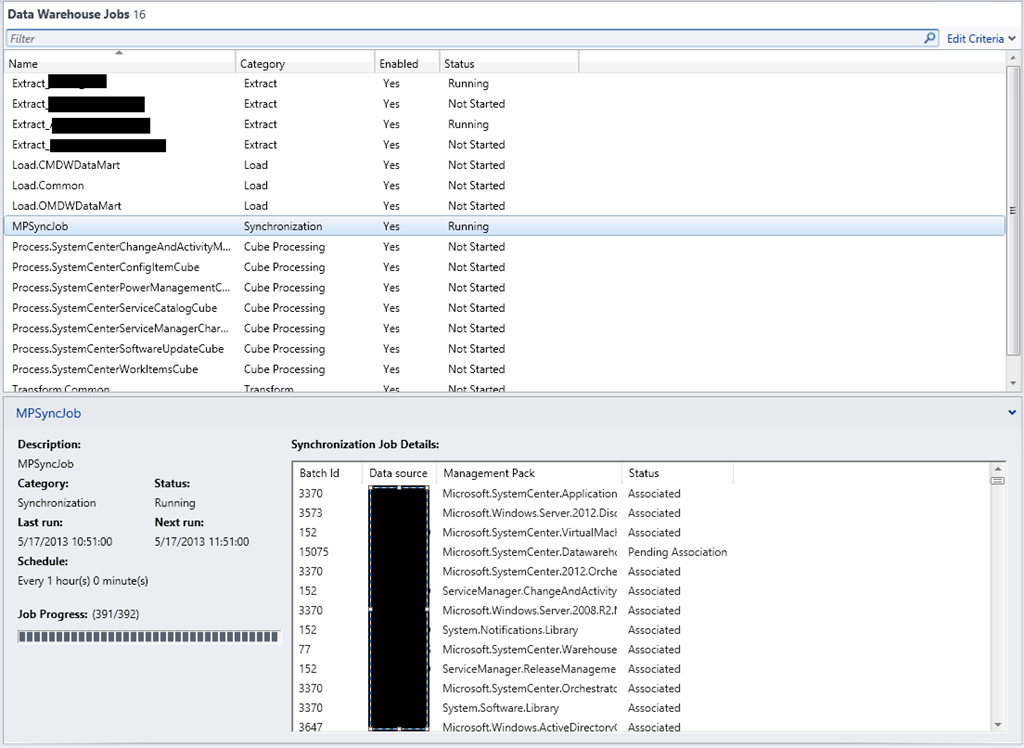
In the Operations Manager event log on the Data Warehouse server you will also see error 33527 appearing constantly.

So how do I solved this issue? There is a solution unfortunately it has some downsides. You can follow these steps:
1. Unregister the Service Manager DW from the Service Manager console.
2. Wait at least one day. I’ve waited two days.
4. Logon to the Analysis Services instance for the Service Manager and delete any existing cubes.
5. Register the Service Manager DW again.
6. Wait one day to see if all DW jobs are finishing successful. Check if Reporting pane is appearing in the console and it is working normally.
7. Check the Operations Manager event log for errors on the DW server.
After these steps everything should be ok with DW jobs. Keep in mind that in your case this solution might not work.
Software I’ve used:
- Windows Server 2012
- SCSM 2012 SP1 UR2
- SQL 2012 SP1
Importing and Configuring System Center 2012 Service Manager MP
The System Center 2012 Service Manager MP has some pitfalls during importing and configuration that you may stumble upon. So I will describe the steps needed to be made in case the MP guide is not clear enough.
1. First you need to install the MP so you can get the following MPs extracted:
- Microsoft.SystemCenter.ServiceManager.Discovery
- Microsoft.SystemCenter.ServiceManager.Library
- Microsoft.SystemCenter.ServiceManager.Monitoring
2. After you have these 3 MPs extracted you have to import only Microsoft.SystemCenter.ServiceManager.Library
3. After the MP above is imported successfully you have to create Run As account. You can use the default action account or a separate account for tighter security. Just make sure that the account you will use has the needed permissions. You can find description of the needed permissions here on page 17. I basically make the account local administrator on Service Manager Management Servers, Service Manager DW and give db_datareader permissions to the Service Manager database and to the staging and configuration database.
4. So you create that Run As account as Windows type. Secure the account to the Service Manager Management Servers, Service Manager DW server, Service Manager database server and Service Manager DW databases servers.
5. Next you need to add the account to the Service Manager Database Account profile. Distribute it to all objects.
6. Next step is to import Microsoft.SystemCenter.ServiceManager.Discovery MP.
7. After it is imported successfully discovery of Service Manager will start. And here is the tricky part you have to wait until full discovery is performed before importing Microsoft.SystemCenter.ServiceManager.Monitoring MP. Basically you have to wait at least 24 hours to make sure discovery of Service Manager has passed fully. Trough OpsMgr console you can check if full discovery has passed.
8. Open OpsMgr console and go to Discovered Inventory view. Target it to System Center DataWarehouse 2012 Server. You should see your Service Manager DW server and if all properties are filled with values that means your Service Manager DW server is fully discovered.

9. Next Target to SCSM 2012 Management Server. You should see all your Service Manager management servers. If all properties have values for all your Service Manager Management servers that means they are fully discovered. In my case I have only one Management Server:

10. To fully verify if Service Manager was discovered you can go to Distributed Applications and open the diagram for Service Manager:

11. All Service Manager servers and database should be visible with their properties in Detail View.
12. The last step is to import Microsoft.SystemCenter.ServiceManager.Monitoring MP so the monitoring of Service Manager can start.
The software I’ve used:
- Windows Server 2012
- SCSM 2012 SP1 UR2
- SCOM 2012 SP1 UR2
- System Center 2012 Service Manager 7.5.1561.0 MP
Note: System Center 2012 Service Manager 7.5.1561.0 MP does not state that System Center 2012 Service Manager SP1 is supported but so far I haven’t discovered something that is not working properly.
An error occurred while executing a custom action:_PatchMP during Installation of UR2 on Service Manager DW Management Server
——————————————————————————————————————————————
Update
It seems you can only apply UR2 only if you’ve registered the DW to a Service Manager Management server and all DW jobs have passed successfully a couple of times.
——————————————————————————————————————————————-
These days I was installing System Center 2012 Service Manager SP1 and of course with every new SC installation you want to apply the latest Update Rollup too. I was in a hurry so I wanted to apply UR2 for Service Manager as soon as possible. I’ve installed the the Service Manager Management Server and the Data Warehouse Management server. Registered the DW Management server in the Management Server. I’ve waited some of DW jobs to finish but in order the jobs to finish successfully they have to run a couple of times because at the first job of MPSync only a small part of MPs are synchronized. On the second start more MPs are loaded (reporting MPs and etc.) and synced. So I’ve applied UR2 on the management server before MPSync job kicked off for second time and UR2 was applied successful to the management server. But when I’ve applied UR2 to the DW management server I’ve received an error:
An error occurred while executing a custom action:_PatchMP
The solution to this error in my case was to wait DW jobs to finish successful a couple of times. This error can occur for other reasons also.
Lessons learned: Patience is A Virtue with System Center 2012 Service Manager.
P.S. I do not like to install and configure System Center in a hurry. I like to plan and configure SC carefully and verifying if everything is working normally after every step but sometimes sacrifices have to be made  .
.
 Cloud Administrator in Azure World