
After long holiday break I am back. On this post I want to introduce you to an issue I’ve spotted and to which of course I’ve found an easy solution. With System Center 2012 R2 Virtual Machine Manager and Windows Server 2012 R2 we have the role of Windows Server Gateway (Multi-Tenant RRAS role) which is part of the Network Virtualization architecture (a dear to my heart topic). Continue reading “Windows Server Gateway Performance Data (KBytes Sent and KBytes Received) is Not Shown in Virtual Machine Performance View in Virtual Machine Manager Management Pack”
Category: Managament Packs
Quick Look at Multi-Tenant RRAS Management Pack
If you are using Network Virtualization from Microsoft you probably also using Multi-Tenant Gateways. In such scenario the gateways become critical part of your infrastructure and would be best if you can monitor them. Continue reading “Quick Look at Multi-Tenant RRAS Management Pack”
Updated MP: SQL Server
The SQL MP which had new version just last month now is updated again. The previous release had some bugs which were addressed and fixed quickly:
- Fixed CPU Utilization Monitor
- Fixed SQL Server seed discovery for WoW64 environments
- Alert severity of Average Wait Time Monitor was changed to Warning, added consecutive sampling to reduce noise, threshold was changed to 250
- Alert severity of SQL Re-Compilation monitor was changed to Warning, threshold was changed to 25. The monitor was disabled by default.
- Minor fixes
Great job by the team behind the MP for fixing those bugs quickly. The new version you can find here.
Updated MPs: SharePoint Server 2013 and SharePoint Foundation 2013
First Look at OpsLogix’s VMware Management Pack (beta)–Part II
After taking a first look at OpsLogix’s VMware Management Pack I’ve released I’ve missed something that I usually test with such core MPs like this one. That test is to bring the discovered objects from SCOM to SCSM as Configuration Items. It is not something hard to do and I’ve described the process before here but nevertheless I think it will good to see it visually in this blog post.
First you need to import OpsLogix IMP –Base Library MP and OpsLogix IMP – VMWare MP in Service Manager.

But before actually importing these two you need to import also their dependencies:
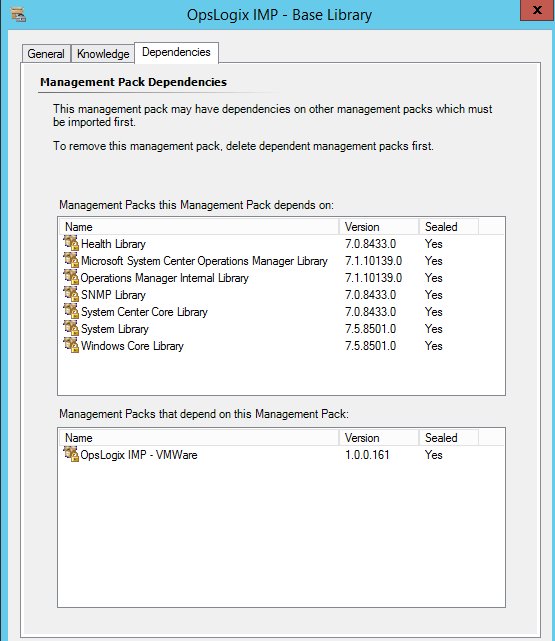
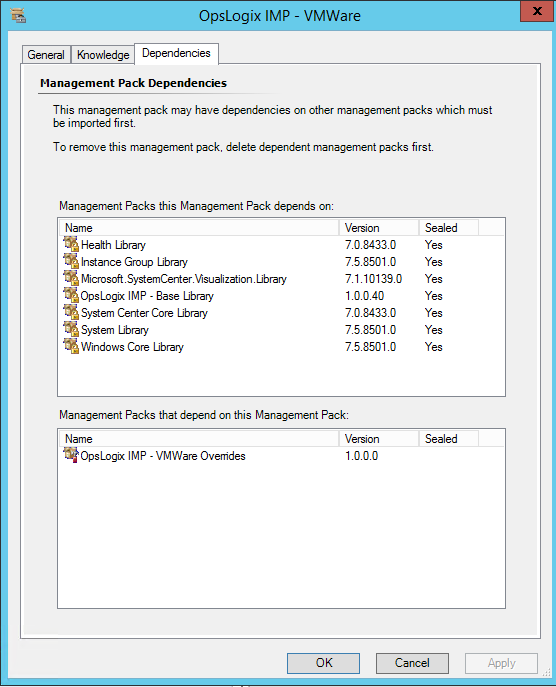
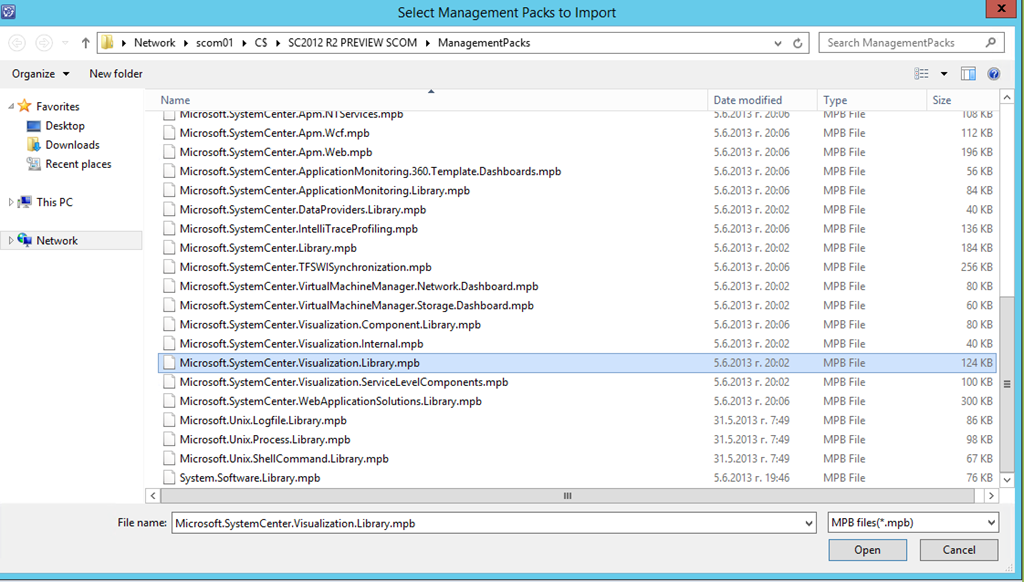
In my case I’ve needed to import Operations Manager Internal Library, System Center Visualization Library and System Center Image Library. All management packs can be found in the SCOM installation in the Management Packs folder. Keep in mind that for the System Center Visualization Library the MPB file have to be imported:
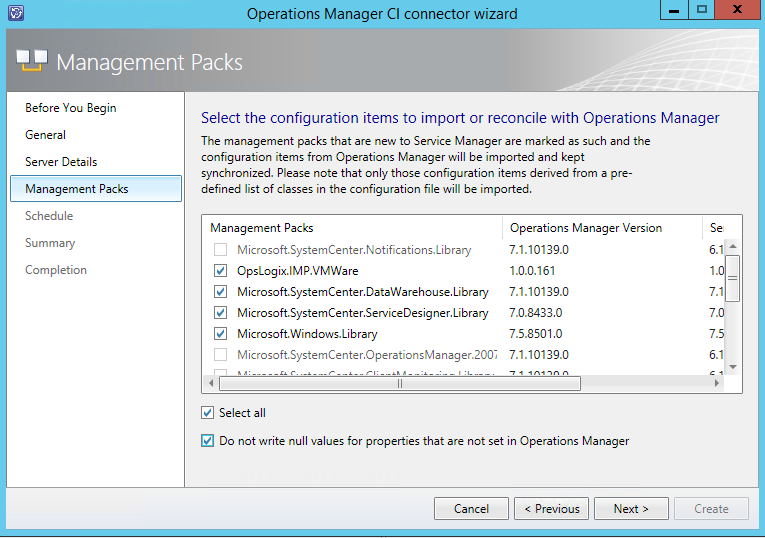
After successful import you need to configure your Operations Manager CI connector in SCOM to sync the VMWare MP:
Next we need to put some classes in the SCSM allow list in order to sync the instances for that classes. The classes we will find in SCOM Discovered Inventory View:
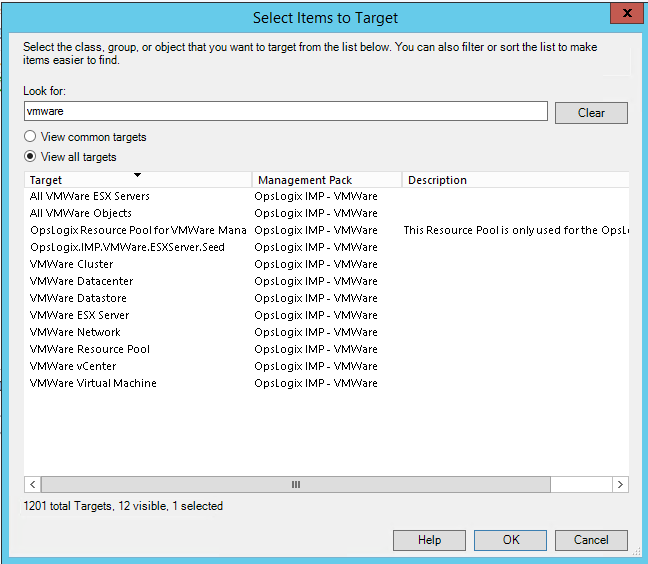
Now that we know the display names of the classes we can easily find their internal names with PowerShell.
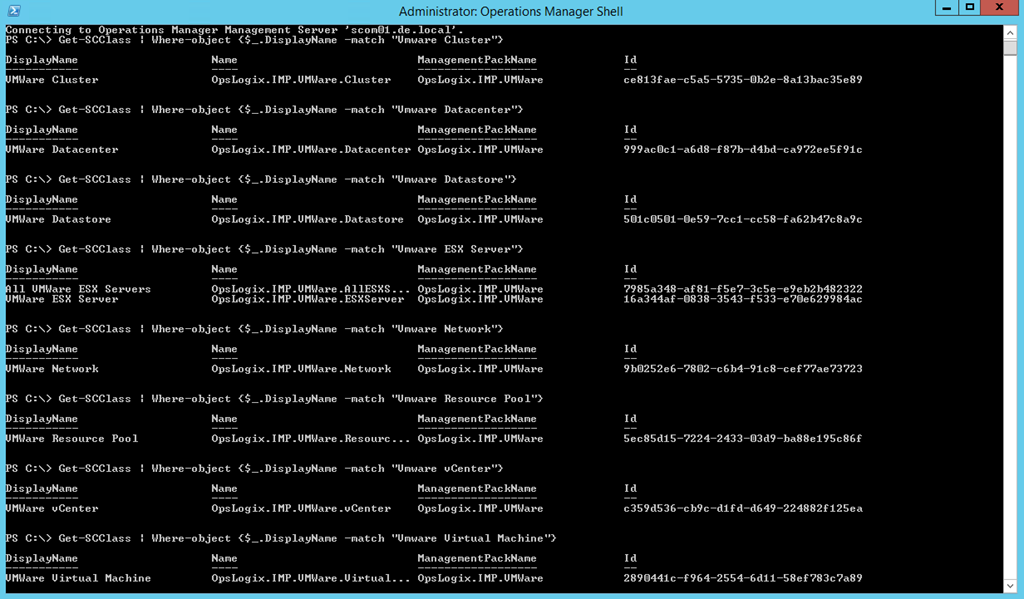
You need to start Operations Manager cmdlet and execute the following commands:
- Get-SCClass | Where-object {$_.DisplayName -match "Vmware Cluster"}
- Get-SCClass | Where-object {$_.DisplayName -match "Vmware Datacenter"}
- Get-SCClass | Where-object {$_.DisplayName -match "Vmware Datastore"}
- Get-SCClass | Where-object {$_.DisplayName -match "Vmware ESX Server"}
- Get-SCClass | Where-object {$_.DisplayName -match "Vmware Network"}
- Get-SCClass | Where-object {$_.DisplayName -match "Vmware Resource Pool"}
- Get-SCClass | Where-object {$_.DisplayName -match "Vmware vCenter"}
- Get-SCClass | Where-object {$_.DisplayName -match "Vmware Virtual Machine"}
Basically we need the following classes:
- OpsLogix.IMP.VMWare.Cluster
- OpsLogix.IMP.VMWare.Datacenter
- OpsLogix.IMP.VMWare.Datastore
- OpsLogix.IMP.VMWare.ESXServer
- OpsLogix.IMP.VMWare.Network
- OpsLogix.IMP.VMWare.ResourcePool
- OpsLogix.IMP.VMWare.vCenter
- OpsLogix.IMP.VMWare.VirtualMachine
Now that we have the internal names of the classes we can easily put them in SCSM allow list again with PowerShell:
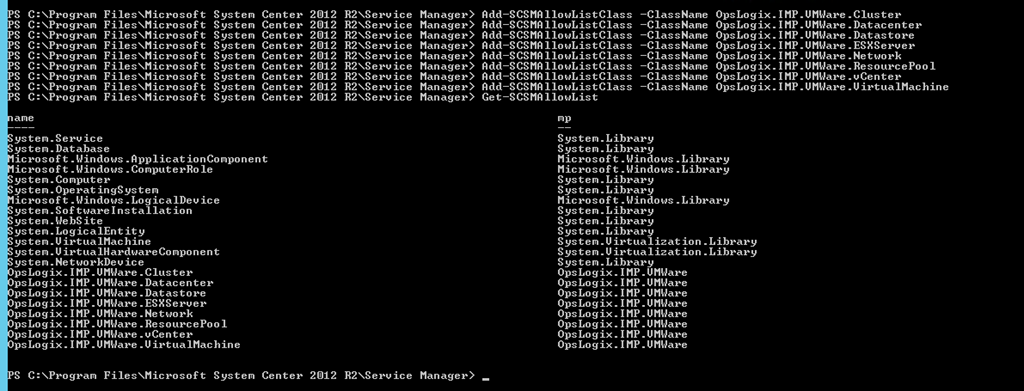
I am using the built-in SCSM PowerShell cmdlets and executing these commands:
- Add-SCSMAllowListClass -ClassName OpsLogix.IMP.VMWare.Cluster
- Add-SCSMAllowListClass -ClassName OpsLogix.IMP.VMWare.Datacenter
- Add-SCSMAllowListClass -ClassName OpsLogix.IMP.VMWare.Datastore
- Add-SCSMAllowListClass -ClassName OpsLogix.IMP.VMWare.ESXServer
- Add-SCSMAllowListClass -ClassName OpsLogix.IMP.VMWare.Network
- Add-SCSMAllowListClass -ClassName OpsLogix.IMP.VMWare.ResourcePool
- Add-SCSMAllowListClass -ClassName OpsLogix.IMP.VMWare.vCenter
- Add-SCSMAllowListClass -ClassName OpsLogix.IMP.VMWare.VirtualMachine
To verify that the classes are added to the allowed sync list you can use: Get-SCSMAllowList
Next you need to force sync on your Operations Manager CI connector. After the connector syncs successful you can create several views to check if the instances of these classes are synced:
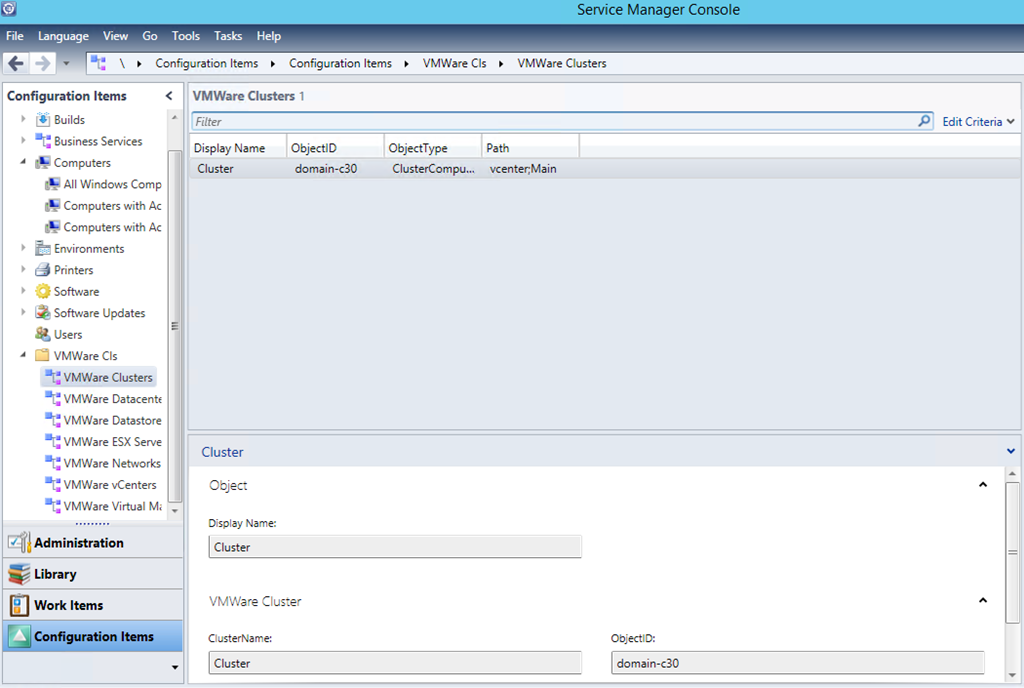
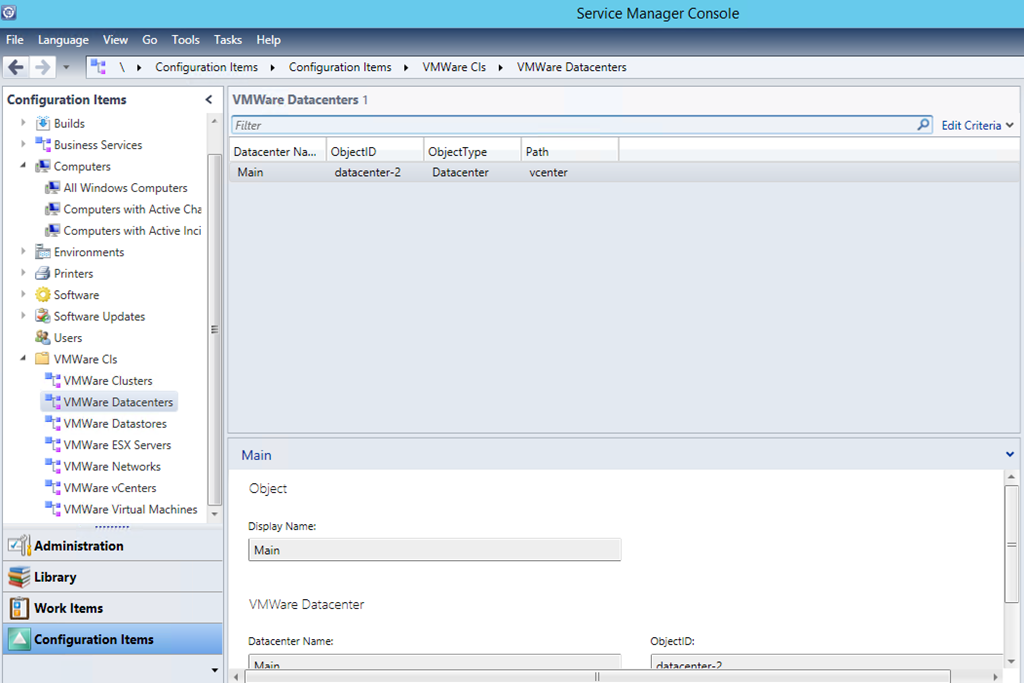
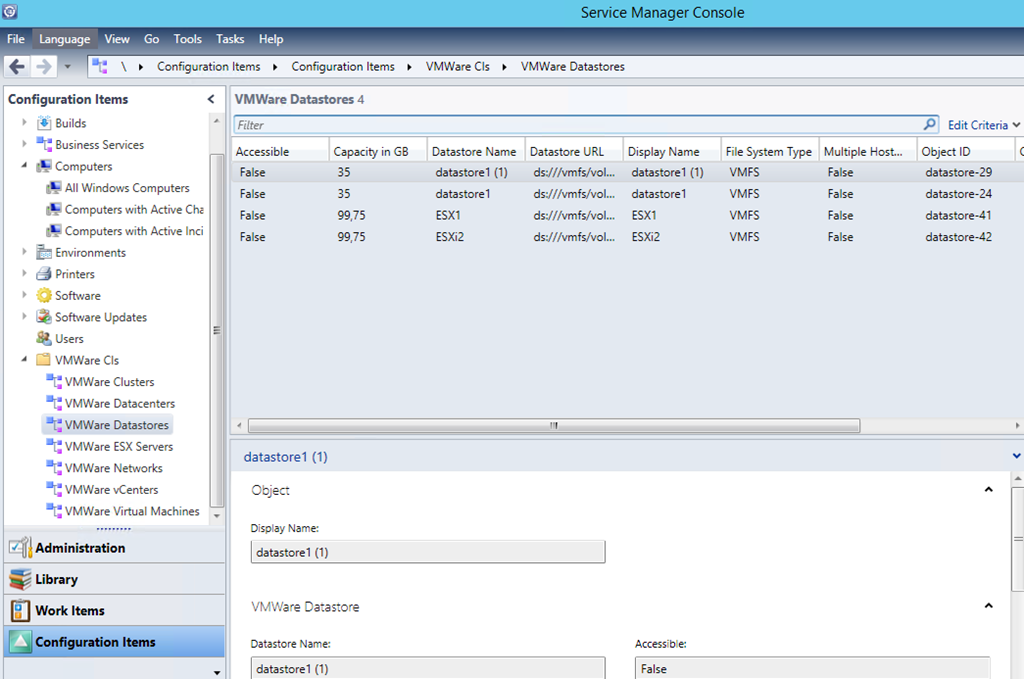
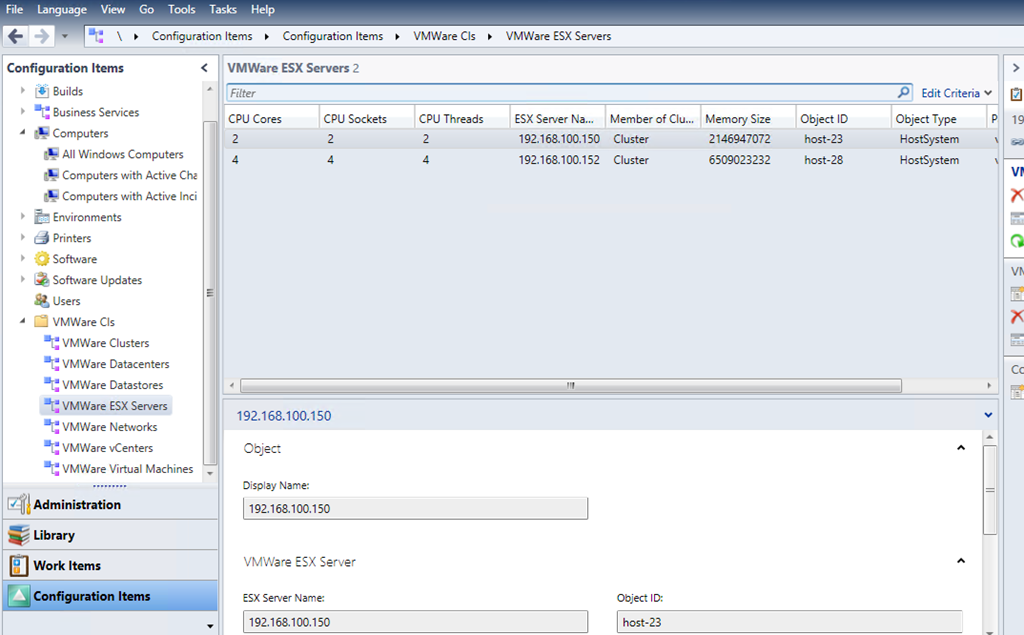
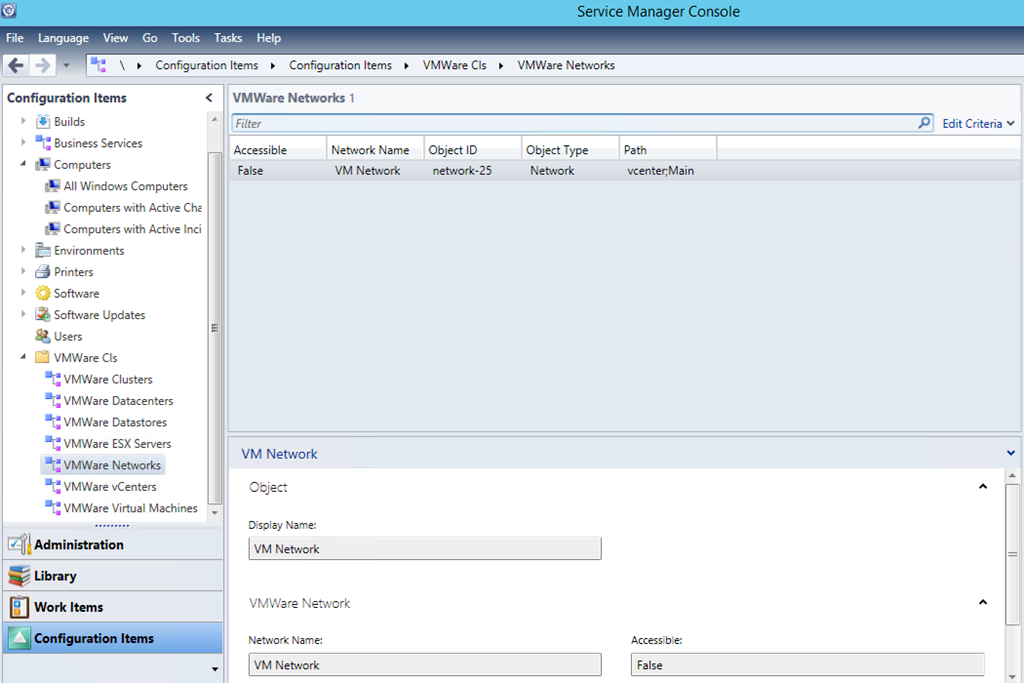
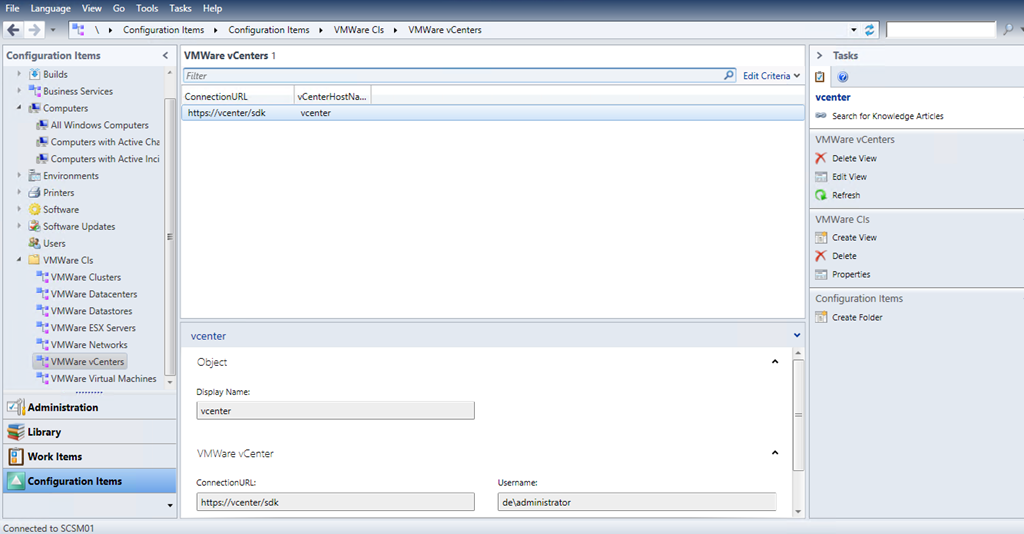
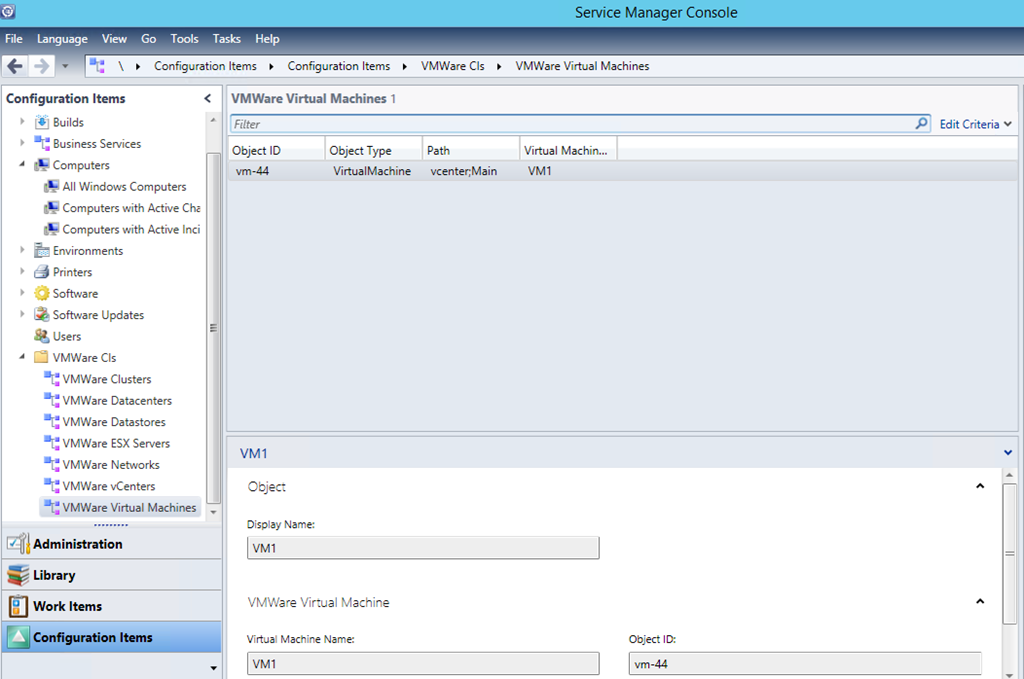
The beta of the MP does not discover a lot of properties for the objects but I am hoping this will be changed in the final version or some of the next ones as proper and rich CMDB is important.
 Cloud Administrator in Azure World