Configuring HP BladeSystem Management Pack for SCOM

Most of the large organizations today do not buy individual servers (exceptions are present of course) instead they buy Enclosures. In one such enclosure you can put up to 16 server and/or storage blades. HP as one of the biggest hardware vendors offers two such solutions – HP BladeSystem c3000 and HP BladeSystem c7000. If you bought such solution you receive for free HP BladeSystem Management Pack from HP for SCOM to monitor HP Enclosures. To start monitoring you HP Enclosures of course you have to first install and configure that MP on your SCOM environment. HP is providing installation and configuration guide for the management pack but I will walk you trough the steps you need to perform if you stumble on some difficulties. These steps are applicable for SCOM 2007 and 2012 versions:

1. First you need to download HP BladeSystem MP. You can find it here. The MP is part of Insight Control for Microsoft System Center solution.

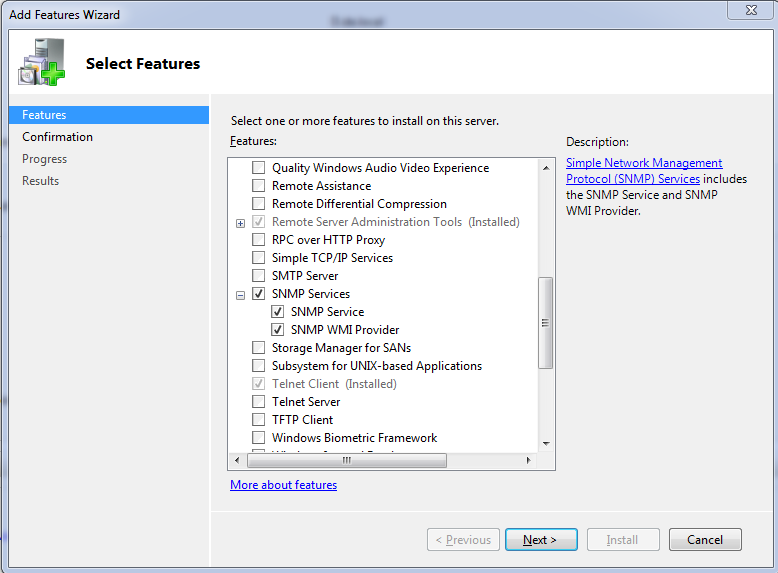
2. After the MP is downloaded it is best to install SNMP Services feature on your RMS server (RMS Emulator). As in 2012 you have RMS emulator and you can move that role to other Management Server it is good idea to install SNMP Services on another Management server if you want to failover in case your RMS Emulator server goes down. SNMP Services installation does not require restart.
image

3. The HP BladeSystem MP when it is downloaded is archived in a zip file in which you can find several files – 64-bit installation file, 32-bit installation file, License agreement file, Release notes file, User guide and Troubleshoot guide. When you unzip it copy the 64-bit installation file (these days there are not many 32-bit SCOM servers Smile ) to your RMS server.

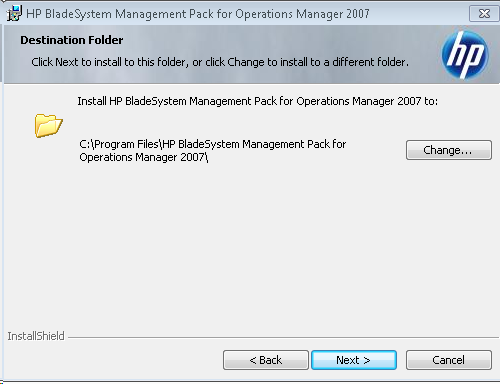
4. Start the 64-bit installation. Keep in mind that this management pack have certain requirements – HP ProLiant Server Management Pack imported (I will describe installation and configuration of that MP in another article), Windows PowerShell 1.0, .NET 2.0 Framework, SNMP Trap Service (We installed it in step 2) and of course at least SCOM 2007. Finish the installation with the default settings. It is pretty simple installation. If you have SCOM 2012 you perform the installation on the your failover Management Server also.
image

5. After the installation is finished you will see two new service and one application installed:


image

image

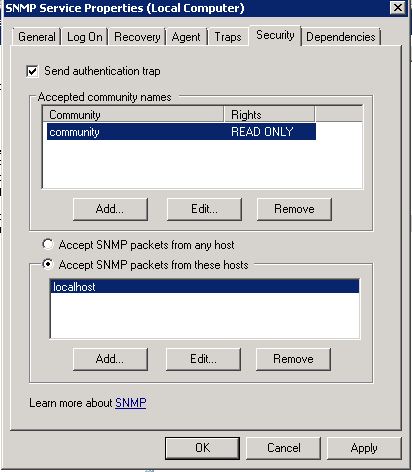
6. Next step is to configure SNMP. Open Services console. Find SNMP service and double-click on it. A dialog box will appear on which you have to click on Security tab:
image

7. You have to check Send authentication trap option. Add community name that you will use for communication between the RMS server and the enclosures. You can use READ ONLY rights.

8. Select Accept SNMP packets from these hosts and add all your IP’s of your Onboard Administrators (Primary and Secondary). Onboard Administrator is the control interface from Enclosures. Click OK when you are done. Now the RMS server is configured to receive SNMP packets from the Enclosures you will monitor. If you are using SCOM 2012 you can make the same settings on your Management Server that you will use for failover of your RMS Emulator role.

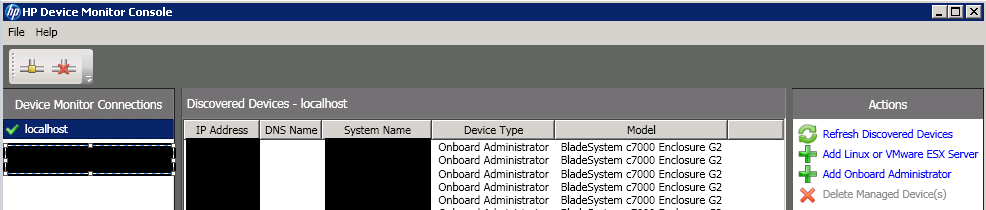
9. Next step is to add your HP Enclosures to HP Device Monitor Console. You can find that console in Start Menu -> All Programs -> HP SCOM Management Packs.

10. When you start it you need to make a connection to localhost, FQDN (of your RMS server)or NetBIOS name (of your RMS Server). The console actually connects to that HP Monitor Device Service that is installed on the RMS.

11. After you are connect to that service trough the console on the right of the console you will find Actions menu from where you can select Add Onboard Administrator option.
image

12. Click on Add Onboard Administrator.

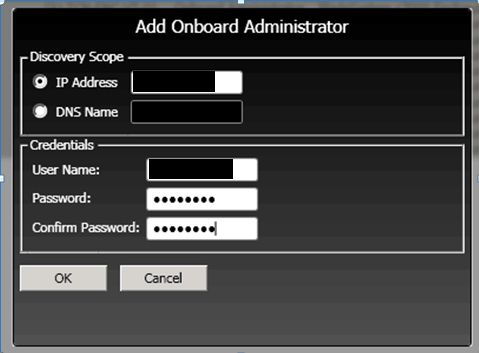
13. A new dialog box will appear where you have to add IP address or FQDN of your Onboard Administrator. You also have to provide your administrator username and password to your Onboard Administrator interface.
image

14. Add all your Onboard Administrators to the console using steps 12 and 13. Adding OAs in the console will discover all components of your Enclosures and will draw SCOM diagrams for them. If you have SCOM 2012 you can connect the HP Device Monitor Console to your failover Management Server and add the same OAs there.

15. The final configuration step is to configure OAs to send SNMP traps to the RMS server. This can be achieved by opening OA web interface. When you open the interface you have to expand Enclosure Information than expand Enclosure Settings and finally click on SNMP Settings. Check Enable SNMP option, fill the other fields and click Apply. For Read and Write community name use the one entered you’ve used in step 7.

image

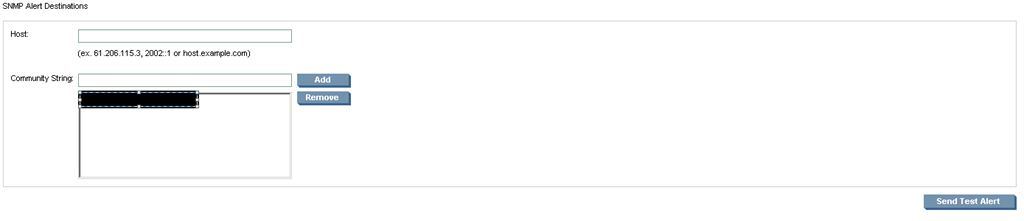
16. Now that SNMP is enabled we have to configure OA to send traps to specific IP address. Right beneath Enable SNMP settings there is SNMP Alert Destination setting. For host you have to enter the IP address for your RMS server and for community name enter the one you’ve used in step 7. Click Add. There is Send Test Alert button which will send trap to your RMS server and will appear as warning alert in SCOM console. This is very handful option to verify that your configuration was successful.
image

17. Repeat steps 15 and 16 for all your OAs.

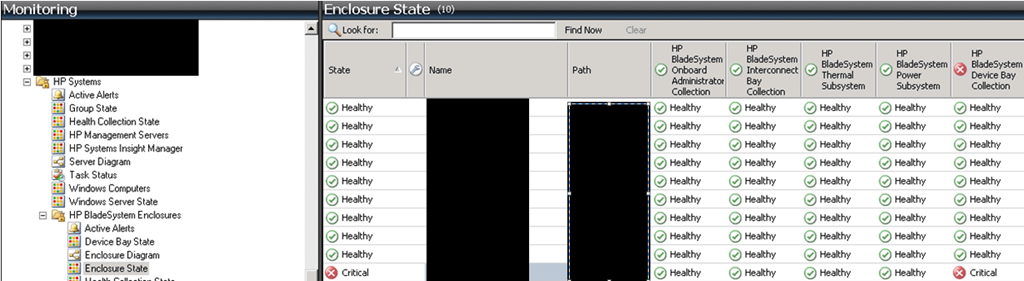
When you complete your configuration you can use Send Test Alert option to see if all enclosures are configured correctly and are receiving alerts. You also should be able to use all your enclosures by opening the SCOM console, navigating to Monitoring pane –> HP Systems –> HP BladeSystem Enclosures –> Enclosure State:
image

Note: HP BladeSystem Management Pack should be imported during the installation. If for some reason this is not done you can import the MPs manually by finding them on the RMS server in the installation folder of the MP. This also refers to HP ProLiant Server Management  Pack.

If you have SCOM 2012 and your RMS Emulator server fails you can follow two steps to recover your monitoring for HP BladeSystem Enclosures:

1. Transfer RMS Emulator role to your failover Management Server

2. Change the IP address of your failover Management Server to the IP address of your failed RMS Emulator server because SNMP traps are send to specific IP address. If you do not want to change the IP address on your Management server you have to reconfigure all OAs to sent SNMP traps to your new RMS Emulator.

Note: HP BladeSystem Management Pack does not require to be installed on RMS server (RMS Emulator). It can be installed on any SCOM Management Server or Server that have agent installed but is common practice such monitoring solutions to be installed on RMS. Also the documentation of the management pack doesn’t mention that the MP relays on the RMS (RMS Emulator) server to function properly.

PerformanceMonitor Sample Widget for System Center 2012 Operations Manager

This widget for SCOM 2012 developed by Microsoft employee Brian Wren can be very helpful in various cases. For example when you troubleshoot performance issues you can compare two or more computers in four different performance metrics.

Learn more about the widget, see screenshots and download it from Microsoft Gallery repository.

IBM Hardware Management Pack v3.2 for Microsoft System Center Operations Manager

This just release new version of IBM Hardware MP adds support to monitor IBM System x Servers and Blades and BladeCenter Chassis with System Center Operations Manager 2012. Key features of this MP are:

  • Support Microsoft System Center Operations Manager 2012
  • Extensive monitoring of the health of hardware components for IBM System x servers and BladeCenter x86/x64 blades running Windows
  • Rich monitoring of the health of BladeCenter chassis and BladeCenter modules via the SNMP protocol
  • Comprehensive monitoring of the health of software stacks for managing IBM hardware
  • Easy determination of overall system health by the aggregation of hardware health monitors

The following additional features are part of the IBM Upward Integration for Microsoft System Center. Activation licenses can be purchased by contacting your IBM representative or an IBM Business Partner.

  • Power Monitoring of UEFI/IMM System X Servers and Blades running Windows 2008 & R2. Offers the ability to monitor overall system power usage, and generates alerts when power consumption rises above predefined consumption thresholds
  • BladeCenter and Blade hardware health correlation and event propagation providing BladeCenter specific hardware health condition monitoring under the Windows health explorer view.
  • Remote power on and off of Blades Servers via the Operations Manager console.
  • Hardware Management Software Configuration Advisor for IBM Systems detects the presence of IBM Hardware MP software dependencies in order to make appropriate configuration recommendations.
  • Set custom power consumption thresholds for Power Monitoring alerts via Operations Manager Agent task
  • Enable Power Capping and set the maximum power consumption wattage via Operation Manage Agent task

Download links:

Update Rollup 2 for System Center 2012

This is a big update for System Center 2012 product family. This update rollup includes fixes for all System center components with the exception for Configuration Manager. Here are the fixes provided in this update:

App Controller (KB2721175)

Issue 1
When you view a service on System Center 2012 App Controller as a self-service user, you receive the following warning message:

Retrieved data is incomplete

For more information about this issue, click the following article number to view the article in the Microsoft Knowledge Base: 2709415 Viewing a service on System Center 2012 App Controller as a self-service user may fail with a "Retrieved data is incomplete" warning

Issue 2
When you view a service diagram on System Center 2012 App Controller, you receive the following error message:

Category: Critical
Description: App Controller has encountered an error and needs to restart. App Controller will restart when you click Close.
Details: The given node belongs to different graph and therefore it cannot be added to the collection.

Issue 3

When you try to change a service on Windows Azure, the change is not saved, and you receive the following error message:

The specified configuration settings for Settings are invalid. Verify that the service configuration file is a valid XML file, and that role instance counts are specified as positive integers. (StatusCode: BadRequest)
The remote server returned an error: (400) Bad Request. (Status Code: System.Net.Exception)


Data Protection Manager (KB2706783)

Issue 1
After you upgrade from System Center Data Protection Manager 2010, Microsoft SharePoint backups fail if the SharePoint database has a nondefault collation.
Issue 2
A backup of encrypted files fails silently when the self-signed certificate Group Policy Object is disabled.
Issue 3
In the About Microsoft Data Protection Manager dialog box, the Version label is displayed. However, the version number is not displayed.
Issue 4
On the Action menu, the Help command is displayed two times. This issue occurs because you can now access Help for DPM by using the DPM Help command. The Help item on the Action menu refers to Microsoft Management Console (MMC) help.
Issue 5
In the DPM console view menu, the Expand All and Collapse All menu commands are displayed multiple times.
Issue 6
The Windows PowerShell cmdlet to query licenses that are being used is added.
Issue 7
A DPM backup may fail for a SharePoint farm with a mirrored content database whose mirrored server name starts with the principal server name. For example, this issue may occur when the principal server name is "MachineName," the mirrored server name is "MachineName1," and the content database resides on a nondefault instance of Microsoft SQL Server.
This issue may occur when a consolidated backup failure warning is raised for all the mirrored databases that satisfy the previous conditions.
When this failure occurs, you may receive the following error message:

Prepare for backup operation for SQL Server database CONTENT_DB_NAME (mirrored between – SQL PRINCIPAL and SQL MIRROR ) on SQL-PRINCIPAL.FQDN has been stopped because this operation depended on another backup operation which failed or was cancelled. (ID 30200)

Issue 8
Expiry dates for valid datasets that are already written to tape are changed when the retention range is changed during a protection group modification.
For example, a protection group is configured for long-term tape recovery points with custom long-term recovery goals. Recovery Goal 1 has a smaller retention range than other recovery goals. In this configuration, if a protection group is changed to remove Recovery Goal 1 and to keep other recovery goals, the datasets that were created by using Recovery Goal 1 have their retention range changed to the retention range of the other recovery goals.
To work around this problem, create the IsDatasetExpiryDateChangeInModifyPgAllowed DWORD under the following subkey, and then set its value to 0:

HKEY_LOCAL_MACHINE\Software\Microsoft\Microsoft Data Protection Manager\Configuration\MediaManager

Issue 9
Tapes are marked as reusable on the next day after the date of expiry as DPM runs a reclamation job only at midnight. If you want the tape to be reusable on the same date as it is expired, create the ExpireDatasetOnDayStart 32- bit DWORD, and set its value to 1 under the following registry key:

HKEY_LOCAL_MACHINE\Software\Microsoft\Microsoft Data Protection Manager\Configuration\MediaManager

Issue 10
DPM does not enable browsing of a protected folder on a protected server that has an invalid created date and time.
Issue 11
A tape backup of millions of files fails, and you receive the following error message:

ID 998
Details: The parameter is incorrect (0x80070057).


Operations Manager (KB2731874)

Issue 1
The Windows PowerShell module runspace configuration cache grows indefinitely. This causes memory usage to increase.
Issue 2
The Set-SCOMLicense cmdlet fails if the management group evaluation expiration time-out has expired.

Operations Manager – UNIX and Linux Monitoring (Management Pack Update)

Issue 1
The System Center Operations Manager agent may crash on Oracle Solaris root zones that are configured to use a range of dedicated CPUs.
Issue 2
The UNIX/Linux agent process provider may not enumerate running processes if a process has arguments that include non-ASCII characters. This prevents process/daemon monitoring.
Issue 3
The .rpm specification file for the agent for Red Hat Enterprise Linux does not specify the distribution.

Orchestrator (KB2702112 – Runbook Designer (x86), Runbook Server (x86))

Issue 1
A System Center Orchestrator Runbook that uses the "Run Program" activity to execute an application on a system that is running Windows Server 2008, Windows Vista, or an earlier version of Windows may return a failed status for the "Run Program" activity together with the following content in the Error Summary Text published data:

Could not start Orchestrator Run Program Service service on computer_name – The service did not respond to the start or control request in a timely manner. (code 1053)

On the remote computer on which the service is trying to start, the following event is captured in the Application log:

Log Name: Application
Source: Application Error
Event ID: 1000
Level: Error
Description:
Faulting application OrchestratorRunProgramService.exe, version 0.0.0.0, time stamp 0x4f44a324, faulting module KERNEL32.dll!SetProcessPreferredUILanguages, version 6.0.6002.18005, time stamp 0x49e03824, exception code 0xc0000139, fault offset 0x0006f04e,
process id 0x76c, application start time 0x01cd134f73ced65a.


Service Manager (KB2719827)

Issue 1
The URL links to incidents or activities in the Notification Templates are incorrect. For more information about this issue, go to the following Microsoft TechNet website:

Including Links to Incidents or Activities in Notification Templates (SCSM 2012)

Issue 2
The time stamp for incidents that are created by using the SMTP connector are incorrect.
Issue 3
If you change the SharePoint site language in the Service Manager portal, an incorrect language may be displayed.
Issue 4
Service Manager does not generate an incident for alerts that are created by Operations Manager rules.


Virtual Machine Manager (KB2724538 – Console, KB2724539 – VMM Server, KB2725034 – Self-Service Portal)

Issue 1
After a VMM update is installed, a physical-to-virtual (P2V) conversion may fail with error 413 because the version that is listed in the AgentVersion registry value is incorrect.
Issue 2
A virtual machine has a status of "Unsupported VM Configuration" if the virtual machine was configured to use an ISO and if the Share image file instead of copying it option is selected. For more information about this issue, click the following article number to view the article in the Microsoft Knowledge Base:

2690619 Virtual machine configured to use an ISO has a status of Unsupported VM Configuration in System Center 2012 Virtual Machine Manager

Issue 3
Power optimization powers off the host computer instead of shutting it down.
Issue 4
When you view checkpoints for a VMware virtual machine, the VMM Console may crash. Additionally, you receive the following error message:

Value of ‘0’ is not valid for ‘Value’. ‘Value’ should be between ‘Minimum’ and ‘Maximum’.

Issue 5
Virtual machine placement may provide the same host rating even though available memory between the hosts is different.
Issue 6
You cannot log on to App Controller because VMM does not support domains that have a one-way trust.
Issue 7
Text is truncated on PRO tip warnings.
Issue 8
Images (or logos) within PRO tips are not displayed when integrating with System Center 2012 Operations Manager.
Issue 9
The VMM Console can take several minutes to load in environments that have several hundred hosts.
Issue 10
Virtual machine placement can require up to 30 seconds per host.
Issue 11
VMM Console performance decreases in large environments.
Issue 12
VMM does not recognize third-party disk resource types that are used in a Hyper-V failover cluster.
Refresh host cluster jobs may fail, and you receive the following error message:

Warning (13926)
Host cluster cluster.contoso.com was not fully refreshed because not all of the nodes could be contacted. Highly available storage and virtual network information reported for this cluster might be inaccurate.

Virtual machines that have a status of "Unsupported Cluster Configuration" may fail, and you receive the following error message:

Error (13924)
The highly available virtual machine (VMname) is not supported by VMM because the virtual machine uses non-clustered storage.


The update for the different components can be downloaded from these links:

Full description on the update and instructions for installation can be found in the knowledge base article.

Web View Widget Management Pack for System Center 2012 Operations Manager available for free from code4ward

Code4ward provides for free a management pack for SCOM 2012 which allows you to configure a URL to a web page, which will be loaded and displayed in the dashboard widget. Works in Operations Console and Web Console (with limited functionality). You can find more about this management pack and download it from this link.