MP Stuck in Pending Association in MPSyncJob in Service Manager 2012 SP1

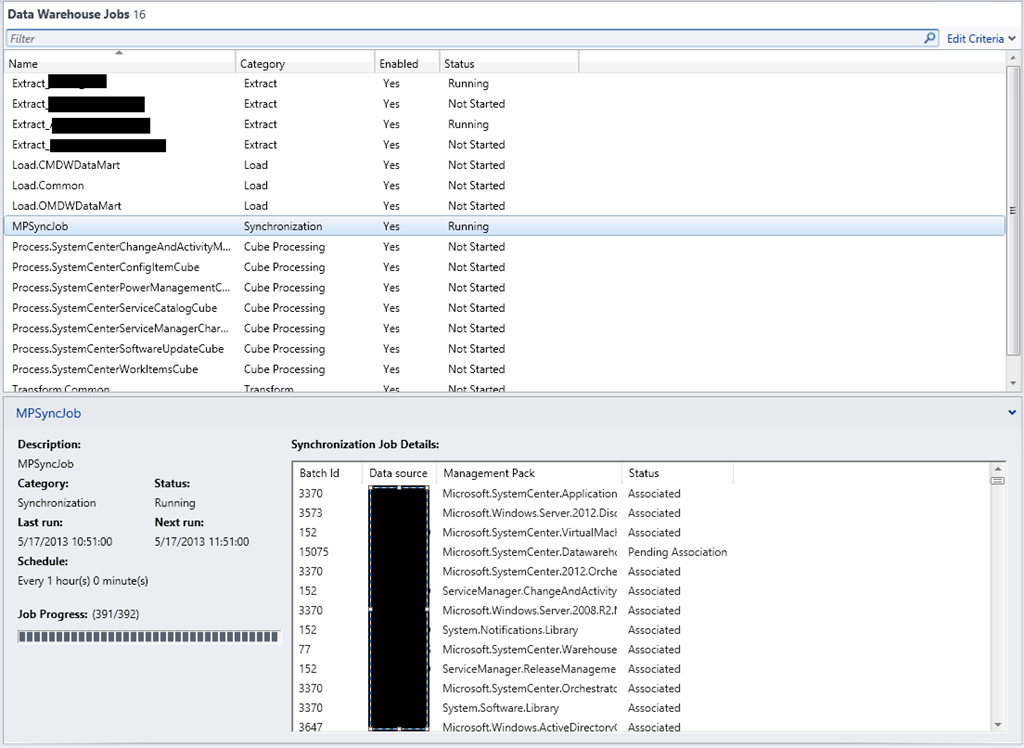
Lately it is troubleshooting period for me. My latest issue was with Service Manager and DW. After unexpected restart of the Service Manager Management Server, Service Manager Data Warehouse server and the SQL server that was holding the databases MPSyncJob couldn’t run fully and one particular MP was stuck in Pending Association. Microsoft.SystemCenter.Datawarehouse.OLAP.Base was associated successfully in another 3 batch ID’s but the last batch ID was always on Pending Association.

image

In the Operations Manager event log on the Data Warehouse server you will also see error 33527 appearing constantly.

image

So how do I solved this issue? There is a solution unfortunately it has some downsides. You can follow these steps:

1. Unregister the Service Manager DW from the Service Manager console.

2. Wait at least one day. I’ve waited two days.

4. Logon to the Analysis Services instance for the Service Manager and delete any existing cubes.

5. Register the Service Manager DW again.

6. Wait one day to see if all DW jobs are finishing successful. Check if Reporting pane is appearing in the console and it is working normally.

7. Check the Operations Manager event log for errors on the DW server.

After these steps everything should be ok with DW jobs. Keep in mind that in your case this solution might not work.

Software I’ve used:

  • Windows Server 2012
  • SCSM 2012 SP1 UR2
  • SQL 2012 SP1

SQL Databases Properties are not Discovered by SQL Server Management Pack

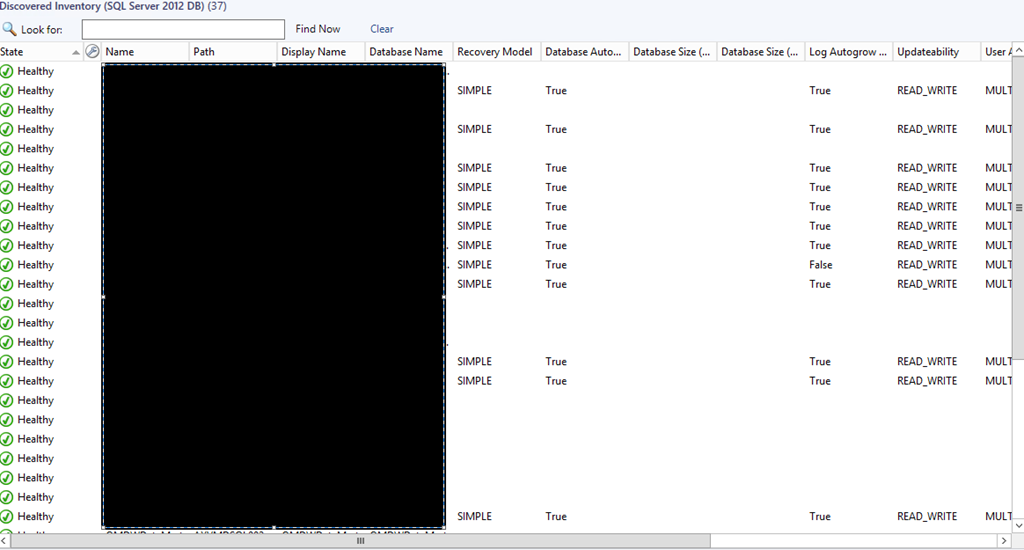
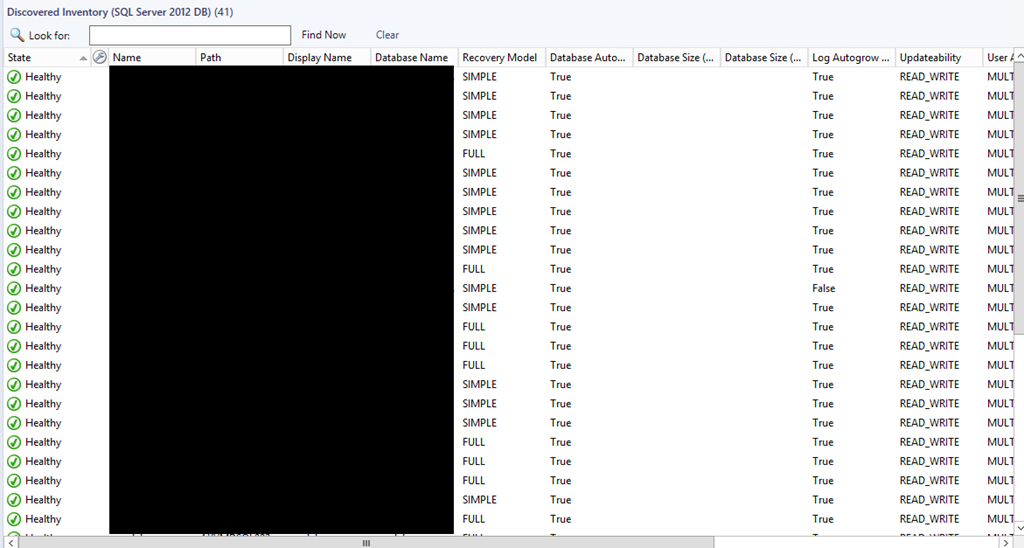
I had this issue recently in two separate environments where properties for some SQL databases were not discovered by SQL Server Management Pack as you can see below:
image

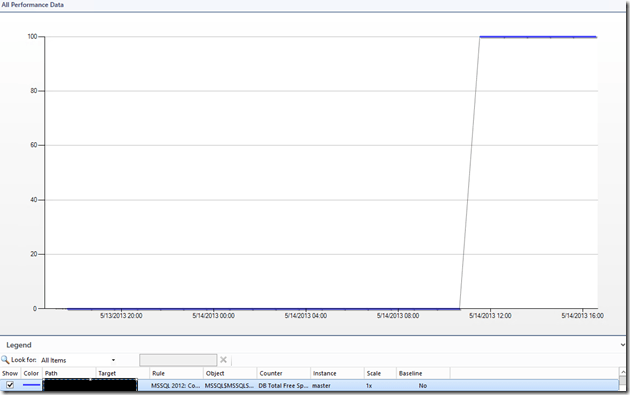
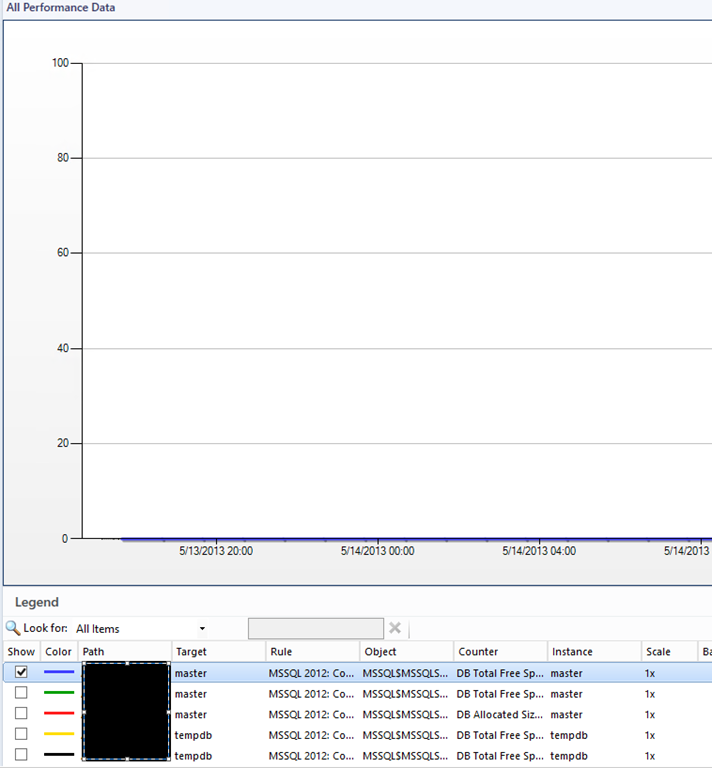
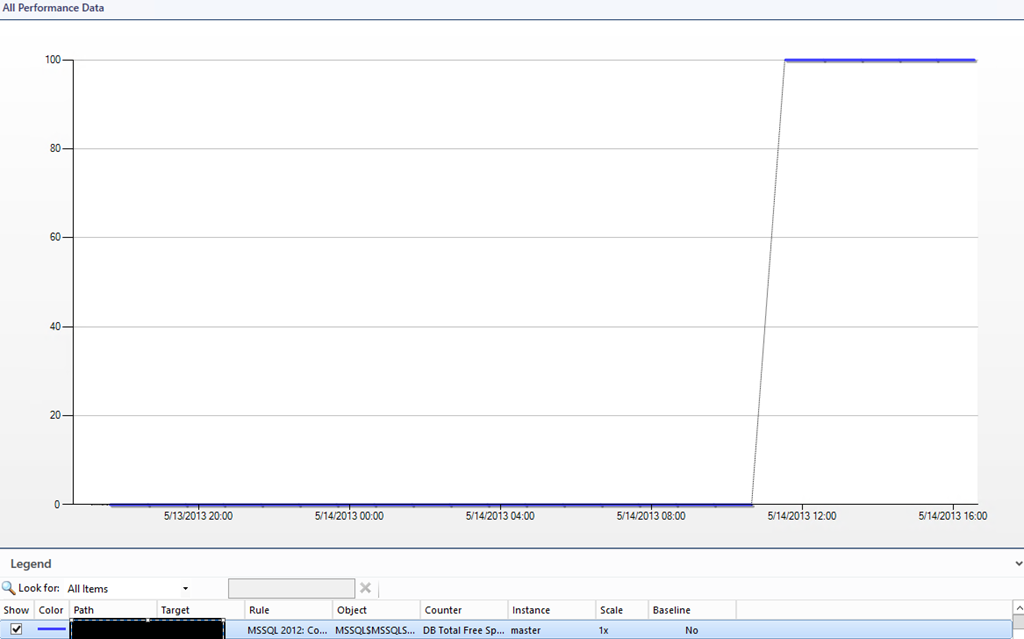
Also collecting performance data for free space of the databases was returning zero (0):
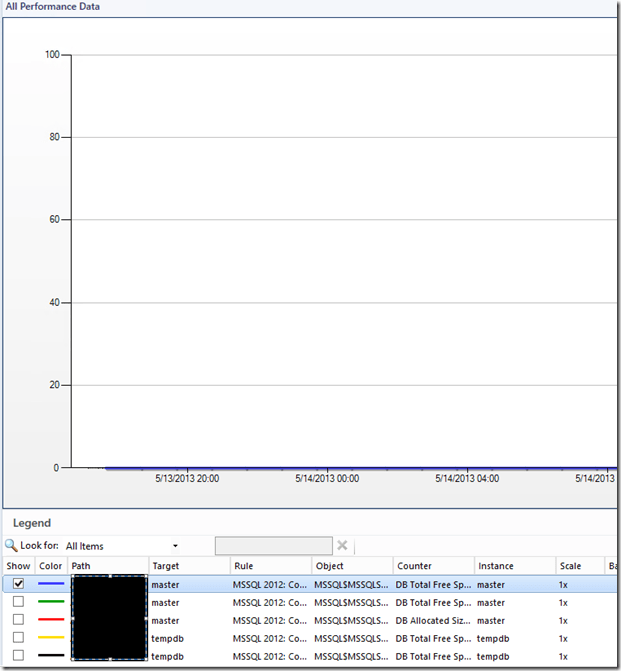
image

Meanwhile in the Operations Manager log on the SQL servers I was only seeing this error:
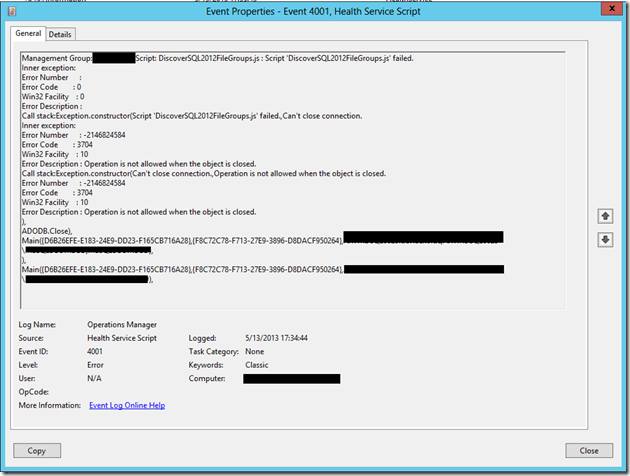
image

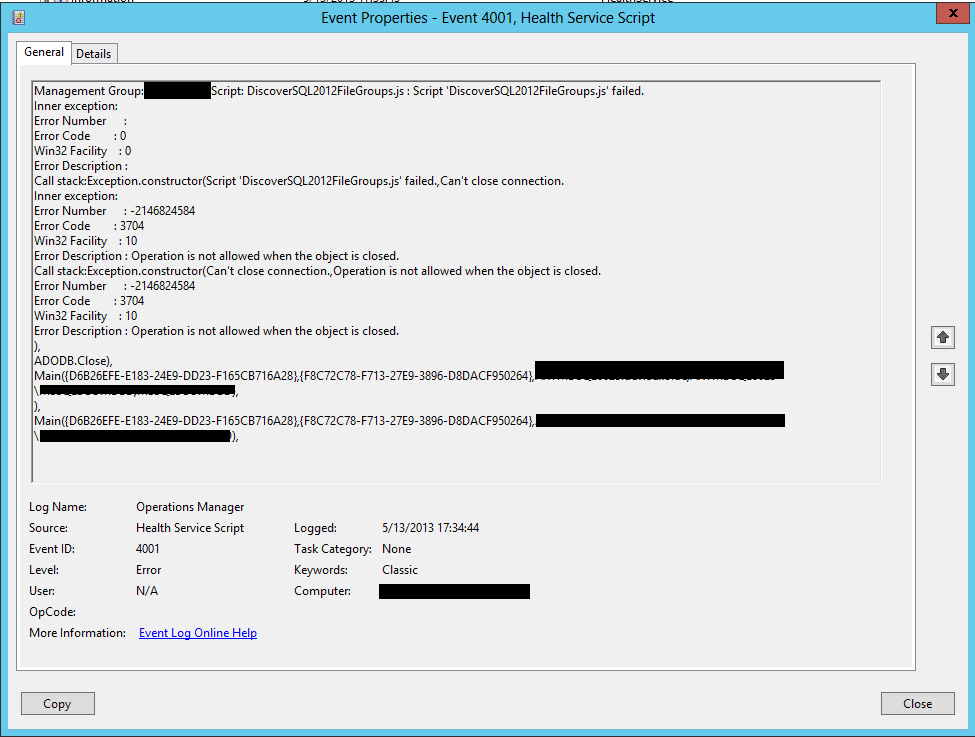
Management Group: <MGMTGROUPNAME>.Script: DiscoverSQL2012FileGroups.js : Script ‘DiscoverSQL2012FileGroups.js’ failed.
Inner exception:
Error Number      :
Error Code        : 0
Win32 Facility    : 0
Error Description :
Call stack:Exception.constructor(Script ‘DiscoverSQL2012FileGroups.js’ failed.,Can’t close connection.
Inner exception:
Error Number      : -2146824584
Error Code        : 3704
Win32 Facility    : 10
Error Description : Operation is not allowed when the object is closed.
Call stack:Exception.constructor(Can’t close connection.,Operation is not allowed when the object is closed.
Error Number      : -2146824584
Error Code        : 3704
Win32 Facility    : 10
Error Description : Operation is not allowed when the object is closed.
), ADODB.Close),
Main({D6B26EFE-E183-24E9-DD23-F165CB716A28},{ADFFD930-BDE9-66A1-20F3-CB6FBA80CBC9},<SERVER FQDN>,<SERVER NETBIOS NAME>,MSSQLSERVER),
),
Main({D6B26EFE-E183-24E9-DD23-F165CB716A28},{ADFFD930-BDE9-66A1-20F3-CB6FBA80CBC9},<SERVER FQDN>,<SERVER NETBIOS NAME>,MSSQLSERVER),

So this was my issue but I couldn’t find where exactly was the problem. Some of the properties were discovered and there was even databases that all properties were discovered but performance data for free space was not working on all databases. This lead me think it was some kind of permissions issue but I’ve made the SCOM Action Account “SA” on all SQL servers.

How I fixed it:

1. I’ve created Run As account in SCOM.

2. Named it SQL with type Windows.

3. For credentials I’ve entered the SCOM Action Account.

4. Secured the account only to the SQL servers in my environment.

5. Added this account to these three profiles: SQL Server Default Action Account, SQL Server Discovery Account and SQL Server Monitoring Account.

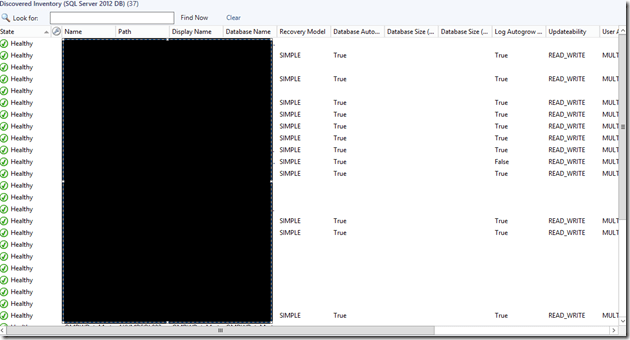
After these steps all was working as it should be:
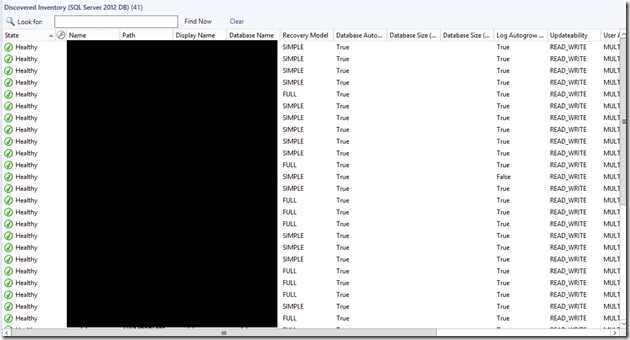
image

image

So it seems you really need to create Run As account and add it to the SQL Profiles even though the SQL Server Management Pack guide says otherwise:

By default, all discoveries, monitors, and tasks defined in the SQL Server management packs default to using the accounts defined in the “Default Action Account” Run As profile. If the default action account for a given system does not have the necessary permissions to discover or monitor the instance of SQL Server, then those systems can be bound to more specific credentials in the SQL Server Run As profiles, which do have access.


Keep in mind that I haven’t changed any permissions to my SCOM Action Account. This account had all SQL permissions all the time.

My Configuration was:

  • Windows Server 2012 with latest updates;
  • SCOM 2012 SP1 UR2
  • SQL Server Management Pack 6.3.173.1
  • SQL Server 2012 SP1 CU3

New MP: System Center Management Pack for Microsoft SQL Server 2012 Parallel Data Warehouse Appliance

There is a new MP on the horizon. Here is a feature summary from the download page:

  • Discovers SQL Server PDW Appliances, including the hardware manufacturer.
  • Monitors both hardware and software components of SQL Server PDW Appliance. This includes:
    • The ability to roll up the overall health information across hardware and software components.
    • The ability to detect and monitor nodes that belong to different SQL Server PDW failover clusters.
    • Custom diagram view to visually represent the PDW appliance hierarchy comprising of hardware and software components. This includes these three views:
      • Appliance view – high level health information of the overall appliance health and their individual nodes
      • Appliance nodes – view to represent the health of each of the nodes and their roles.
      • Alerts view –view for the IT operator to look at proactive monitoring alerts and take appropriate actions.
  • Custom e-mail template to provide more detailed information regarding the alerts.
  • Tasks to integrate with the various PDW admin console views.
  • Run-as profile to securely connect to PDW appliance for discovery and monitoring.

Remember to read the documentation which together with the MP can be found here.

Configuring SQL Analysis Services for Virtual Machine Manager 2012 SP1 with Static Port Resulted in an Error

Reporting in System Center 2012 Virtual Machine Manager is achieved trough the integration with OpsMgr 2012. In order to run some of the VMM reports that have forecasting you have to configure the VMM to SCOM integration to use SQL Analysis Services instance. This instance should be the same instance with Reporting Services for SCOM. So I’ve installed SQL Analysis Services on the same instance with Reporting Services for SCOM. It is not the default instance on the server so I’ve configured SQL Analysis Services to use a specific static port instead of using a dynamic one (I like using static ports for SQL servers Smile ). I’ve opened the VMM console. Went to settings, than System Center settings and I’ve opened the properties of Operations Manager Server. Click on the SQL Server Analysis Services tab and entered the SQL server name, the SQL instance, the port that I had set and the credentials to connect. To my surprise I’ve received and error to my surprise I’ve received an error message:
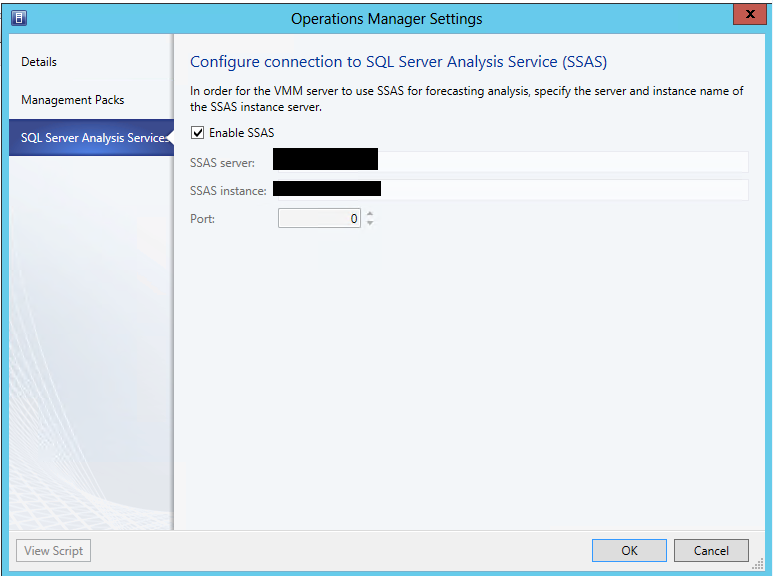
The SQL Server Analysis Server %ComputerName; is not reachable.

I’ve opened CMD and checked if there is a connection to the SQL server and the port via Telnet. Connection was OK. Than I’ve replaced the port with 0 and connection was successful. SQL Analysis Services were configured successfully. To me this is a bug and I will try to log it.

image

Hyper-V and SQL 2012 – better together

Microsoft gave the task to Enterprise Strategy Group (ESG) to make Workload Performance Analysis of using Microsoft Windows Server 2012 with Hyper-V and SQL Server 2012. Findings of this report you can find in this article.